

How often do you need to schedule a virtual appointment, create a meeting link, or send meeting details to your customers? At the setup stage and then for every new booking? Most likely. But virtual appointment booking is a place where you can automate a lot of these repetitive actions and make your everyday scheduling easier.
No doubt, automated appointment scheduling can be one of the most useful improvements for businesses that work with online meetings. It may not sound as impressive as AI or advanced automations are positioned now, but we’re sure it can have a much bigger effect on your everyday work. Because these are the tasks you repeat many times a day.
Overall, automation is very useful for small teams and critical for bigger businesses handling many virtual appointments.
To illustrate the true value of automated virtual appointment booking, we’ll walk you through how BookingPress and Zoom can work together to automate the entire process.
TL;DR: Automate virtual appointment booking on WordPress sites by connecting BookingPress with Zoom Integration. This lets customers book available time slots, while BookingPress automatically creates the Zoom meeting and keeps the appointment and meeting details connected.
What Is Virtual Appointment Booking?

Virtual appointment booking is a way to let customers schedule appointments that take place online without visiting your physical location. And the process is quite simple. Your customer selects the service, and completes the booking directly from your website.
Some of the examples of automated virtual appointments are:
- A consultant offering online consultations.
- A tutor scheduling virtual classes.
- A coach letting clients book one on one sessions.
Overall, the booking process is still the same as a regular appointment. The only difference is now meetings happen via a virtual meeting platform such as Zoom.
The best part? You can easily connect your booking system with your virtual meeting platform, manage staff members and make meeting details quick to access when this process is automated.
Why Automate Virtual Appointment Scheduling?

If you handle virtual appointments regularly, there are many small tasks you need to repeat. Checking availability, creating meeting link, sending details, and keeping track of appointments can all take time,
No doubt, automated appointment scheduling can help lower this repetitive work. It can also make the booking process more organized for both your team and your customers.
Thus here are some of the ways automation can help:
Lower Manual Scheduling Work
When customers can choose an available time themselves, you don’t need to spend time going back and forth to find the right time slot.
The booking system can handle the appointment scheduling based on the availability you have already set up. This means you can spend less time managing individual bookings and more time on your actual work.
Create Virtual Meeting Links Automatically
Creating a different virtual meeting for every appointment can become another task on your list before you even see it coming.
Thus by using a booking system connected to a virtual meeting platform, you can bring the meeting setup into the appointment workflow. This makes it easier to manage online sessions with no need to create every meeting separately.
Avoid Scheduling Conflicts
Scheduling conflicts can become a bigger problem when you manage appointments manually.
That’s exactly why a WordPress appointment booking system shows customers the real time availability based on your scheduled working hours, buffer time and staff schedule.
This helps avoid customers from selecting the time slots when a staff member is already booked or unavailable.
Keep Customers And Staff On The Same Page
As we all know, booking a virtual appointment involves more than just choosing a time. Both the customer and staff member need to know when the appointment is happening and how to join it.
All you have to do is keep appointment and meeting details connected. This way you can make it easier for staff to find their meetings and for customers to access their scheduled virtual appointments.
Make Last-Minute Changes Easier
Plans can change for both customers and staff. Whatever the reason, it doesn’t matter as long as we give customers an option of easy rescheduling.
When your virtual appointments are managed via a central booking system like BookingPress, you can work with your appointment schedule directly. No need to separate records in different places.
All in all, this can make everyday virtual appointment scheduling much easier if you have many more than 50 bookings to manage in a month.
How To Automate Virtual Appointment Booking With BookingPress
So, how can you actually automate your virtual appointment booking? With WordPress booking plugins like BookingPress, indeed. This online booking system for WordPress lets you connect your booking site with Zoom, and bring the appointment and meeting process together.
You only need to set up the integration once. After that your customers can book services and BookingPress takes care of the virtual meeting details based on your set rules.
Now here’s how to set up automated virtual appointments.
1. Install And Set Up BookingPress
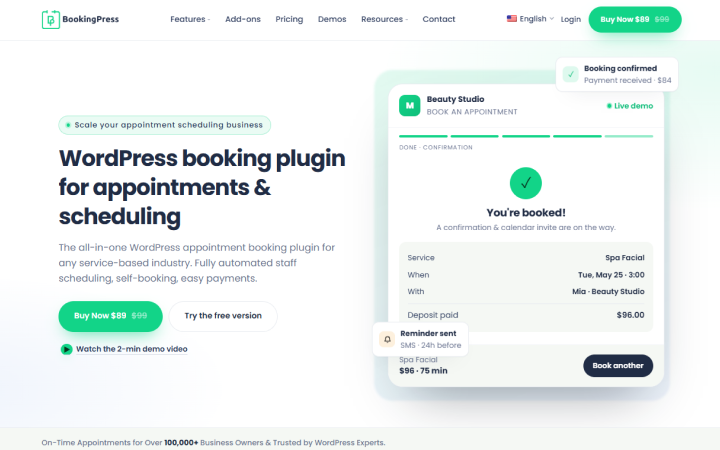
First of all, you must install and activate the BookingPress on your WordPress site.
After BookingPress is ready, set up your basic booking settings such as services, staff members, working hours, and availability. If you don’t wanna do it manually, just let the BookingPress setup wizard take care of everything, letting you turn your simple WordPress site into a complete online booking system in just 10 minutes.
Most likely, you already have your service and staff members details ready if you are using BookingPress for appointment scheduling. If not, you can set them before setting up the Zoom integration.
Simply activate the Zoom Integration in BookingPress and click on “Configure”.
2. Connect Your Zoom Account
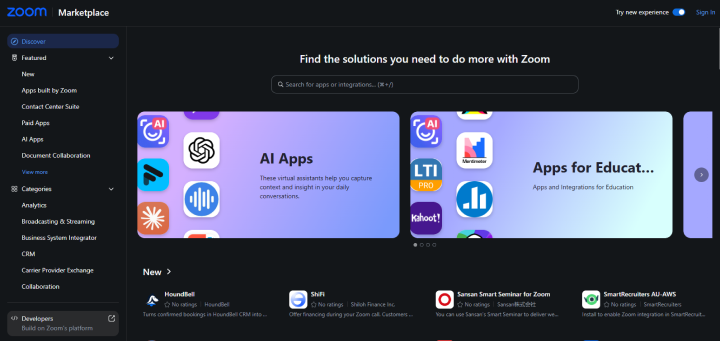
Connecting your Zoom account with the BookingPress appointment scheduling system is quite simple if only you just follow the steps below.
- Go to BookingPress → Settings → Integrations → Zoom.
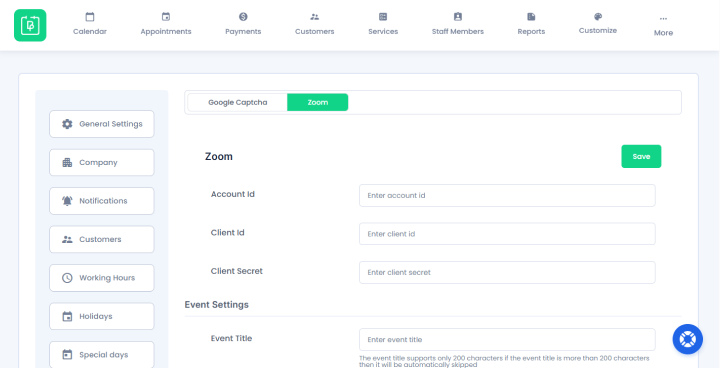
- Enter your Account ID, Client ID, and Client Secret.
Don’t know where to get these? You can get the credentials from the Zoom App Marketplace by creating a Server-to-Server OAuth app.
This way BookingPress is finally connected with Zoom so your customers can book your virtual services.
3. Configure The Required Zoom Permissions
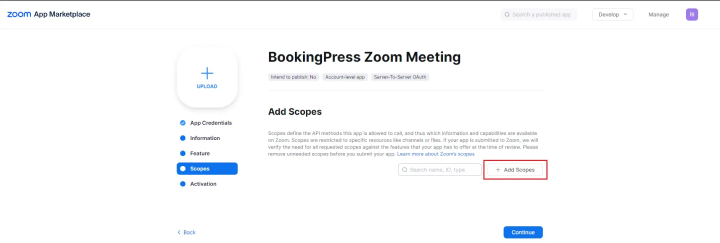
Connecting your Zoom account is not enough. You also need to give the Zoom app the required permissions to create and manage meetings.
Thus add the required scopes for:
- Viewing user meetings
- Creating meetings for a user
- Updating and deleting meetings
- Creating invite links
- Viewing user information
After adding these permissions, activate the Zoom app. This step may look a little technical, but you only need to set it up during the starting setup. After this, you’ll never have to even glance this way.
Once it is done, you can continue with your BookingPress settings.
4. Assign a Zoom User To Your Staff Member
You need to tell BookingPress booking system which Zoom user should be used for your staff member. Thus to do that, simply follow the steps:
- Go to BookingPress → Staff Members.
- Edit the staff member who will handle virtual appointments.
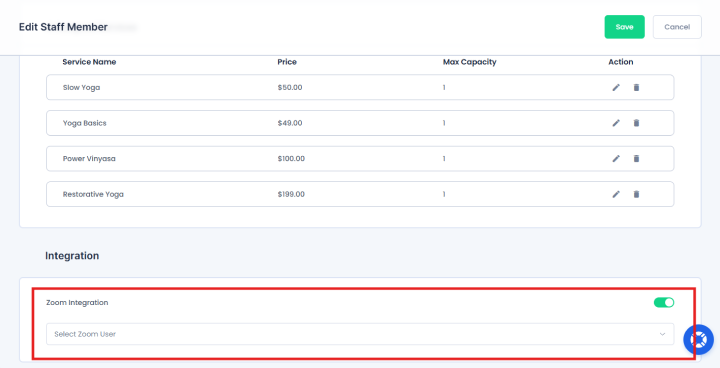
- Enable Zoom Integration and assign the relevant Zoom User.
That’s all. Now if you have multiple staff members handling online appointments, this step is a must. Because each staff member should have their own Zoom account connected to the appointments they attend.
5. Enable Zoom For Your Virtual Service
Not every service needs an option for Zoom call. That’s exactly why BookingPress gives you the flexibility to decide which services customers can book online.
Simply head over to the BookingPress → Services, edit your virtual service, and open Advanced Options → Integrations.
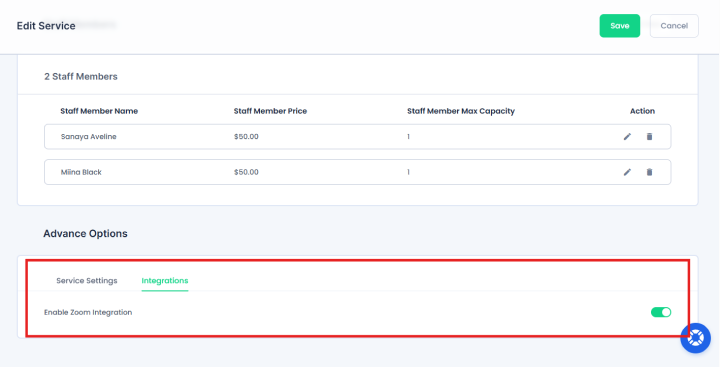
Here, enable Zoom Integration for that service. And…that’s all.
Now whenever a customer books this service, BookingPress knows that it is a Zoom-based appointment.
6. Customize The Virtual Appointment Details
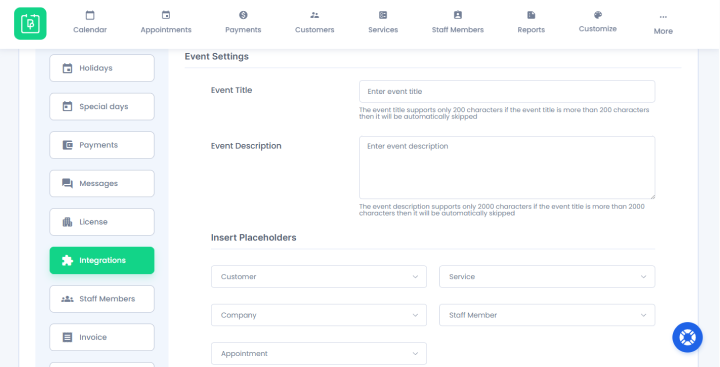
Do you want to add customer details, service information or appointment details to the Zoom meeting? Well, BookingPress Event Settings lets you customize event title and event description using the available placeholders such as:
- Customer name and email.
- Service name and duration.
- Staff member name and email.
- Appointment date and time.
- Appointment status.
- Company name and contact details.
This keeps the meeting details organized, and also saves you the hassle of adding the same details for every appointment again-and-again for every single customer.
7. Let Customers Book Their Virtual Appointment
Finally…everything is ready.
Now your customers can visit your appointment booking page powered by BookingPress, pick the virtual service, choose an available time slot and complete their appointment booking.
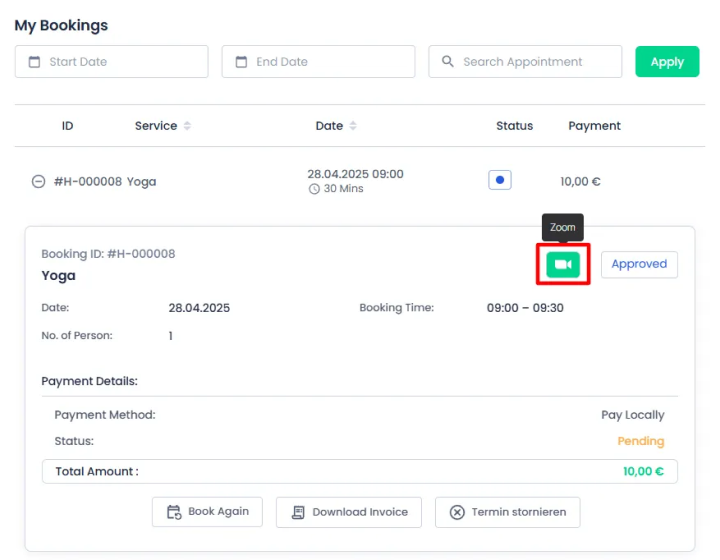
After the appointment is approved only, BookingPress creates the Zoom meeting and shows the Zoom icon in the BookingPress Appointments page. Just click on the icon to launch the meeting.
The Zoom meeting will also appear in the BookingPress Calendar for the admin and staff dashboards. And on the customer side, it’s just as simple. After their appointment is approved, they’ll find a “Join Zoom Meeting” button right next to the appointment details in their customer panel.
This way you can easily keep the complete virtual appointment workflow connected with BookingPress. No hassle of creating a Zoom meeting. No headache of sending the link separately and no more managing the appointment in different places manually.
What Types Of Businesses Can Use Virtual Appointment Booking?

Virtual appointment booking can work for almost any business that regularly meets customers online. Best of all, you don’t need a complicated setup either. If your customers simply pick a time, meet with a staff member, and join via a virtual meeting platform, automation can make the whole process smooth.
Thus here are some common examples:
Consultants and Advisors
Consultants can let clients book online consultationsT based on their available hours. No need to exchange emails just to find a suitable time.
Tutors and Teachers
Tutors can create different services for classes or lessons and let students choose available slots. The meeting details can then stay connected to the appointment.
Coaches and Mentors
Coaches offering one on one sessions can use virtual scheduling to manage client bookings, staff availability, and meeting details in one place.
Healthcare Providers
Healthcare professionals such as Psychiatrists, Dermatologists, General Practitioners, Psychologists and any other doctor offering remote consultations can use online booking to let patients select available appointment slots without calling the clinic.
Lawyers and Accountants
If clients can’t manage to travel to meet their lawyer over any small matter, they can simply book an appointment right from their websites. No need to call. No need to wait on-hold.
Sales Teams
Product demos and discovery calls are another good use case. Customers can pick an available time while the sales team gets a scheduled meeting without the usual back-and-forth.
Agencies and Remote Teams
When multiple team members handle virtual appointments, a centralized booking system makes it easier to manage staff schedules and keep everyone on the same page.
| Business | Common Virtual Appointment | Main Benefit |
| Consultants. | Online consultations. | Less manual scheduling. |
| Tutors. | Virtual lessons. | Easier class scheduling. |
| Coaches. | One-on-one sessions. | Organized client bookings. |
| Healthcare providers. | Online consultations. | Easier appointment management. |
| Lawyers and Accountants. | Client consultations. | Direct client scheduling. |
| Sales teams. | Demos and discovery calls. | Fewer scheduling emails. |
| Agencies. | Client meetings. | Centralized team scheduling. |
Overall, if your service business regularly schedules online meetings, virtual appointment booking can take care of much of the repetitive work around them.
In Conclusion: Automate Virtual Appointment Booking With BookingPress
In a nutshell, you can automate virtual appointment bookings on your WordPress site by installing the BookingPress plugin and connecting it with video tools like Zoom.
Here, BookingPress acts as a digital calendar helper that automates the online appointment scheduling process for websites so, you don’t have to do anything manually. The booking form shows the real time availability, allowing visitors to pick their preferred staff member, service, location and time slot, to stop double booking around the clock.
Overall, booking virtual appointments is never tricky with BookingPress. You can make bookings quick and simple. Plus, it saves time and keeps everything in one place.
So ready to make virtual appointment booking automated? Try BookingPress today!
Related Articles:
 14-day money-back guarantee