

In our day and age, when you use multiple software to perform different business tasks, whether on your own website or on external platforms, client details often end up scattered across these platforms. In this case, using a CRM as a central point for all your client details is probably the best solution available today.
But how easy is it to connect a CRM to your WordPress site that sells appointments with a booking plugin like BookingPress? Does it require any development services? Is it expensive? Does it take a lot of time?
Let’s clarify these things in our tutorial and explain the nuances of the WordPress CRM integration for the service business with clear practical steps and hands-on guides.
TL;DR: Connecting your WordPress booking system with CRM software helps you centralize customer data, automate follow-ups, and manage client relationships more efficiently. With BookingPress, you can integrate your existing CRM using WP Fusion, connect directly to FluentCRM, use email marketing tools like Mailchimp, or build custom workflows with Zapier, Make.com, or n8n. Choose the method that fits your existing tools, data synchronization needs, and budget.
What Is a CRM, And Why Connect One To BookingPress?
CRM stands for customer relationship management. It’s a system helpful with storing, organizing, and managing information about your customers and prospects.
In reality, there may be different types of software that we call CRMs – some of them are full-scale CRM platforms and others may be positioned as email marketing and customer segmentation solutions. But with both you get automated workflows and reporting.
So, if you are in the service business and use BookingPress for appointment scheduling, do you necessarily need a CRM? If you need advanced features or manage several businesses, you’ll most likely say ‘yes’. Both a CRM as a customer relationship management system and your appointment scheduling plugin deal with customer details, but a CRM complements BookingPress.
For example, BookingPress fully handles client appointments online, and a CRM that you use helps you maintain or even improve relationships with customers before and after these appointments.
So a CRM is normally attached to a type of business workflow that you have and customer relationship types that you normally deal with.
Service providers may need a CRM in many cases:
- Store names, email addresses, phone numbers, and other contact details under one roof.
- Segment customers according to the services they book or other important parameters.
- Send relevant messages before an appointment, after a completed service, etc. to engage people.
- Personalize communication.
- Connect booking data with other tools.
- Send newsletters, announcements, special offers, etc.
Four Ways To Connect BookingPress To a CRM
There are several ways to connect BookingPress to external CRMs.
Simplified, your choice depends on whether you already use a CRM or you don’t have one yet. Also, it’s important whether you need advanced automation or simply want to send newsletters, and how much you want to spend on the integration.
Let’s explain these methods and guide you through them.
1. Use WP Fusion As a Bridge Between BookingPress And Your CRM
WP Fusion is a WordPress plugin that connects your website to supported CRMs and marketing automation platforms.
Basically, when you install it, you’ll see a list of supported CRMs and can instantly connect the needed one through the recommended methods (often via an API code copied from your CRM account).
After that, you can enable it in BookingPress without any developers creating an automation manually.
Obviously, BookingPress can’t build a direct connection with every CRM possible, but it can use WP Fusion’s integration to synchronize supported booking data with the CRM you already use.
WP Fusion supports more than 60 CRM and marketing automation platforms, and most likely yours too, so that you can connect it to your booking plugin. View a full list of WP Fusion integration directory to see if your particular CRM is in the list.
What you need:
- BookingPress Premium.
- The WP Fusion plugin (there is a free Lite version, but its capabilities are limited).
- An account with a CRM supported by WP Fusion.
- A paid WP Fusion license if you need the full custom-field mapping and synchronization capabilities described in this guide.
How to make it work on your site?
- Install WP Fusion on your WordPress website and follow its setup instructions to connect it to your chosen CRM.
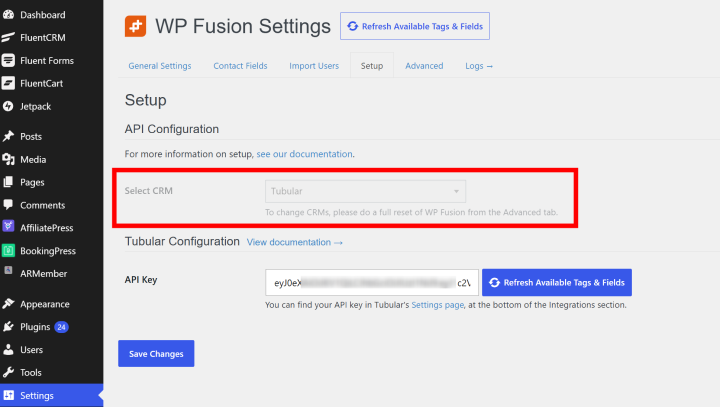
We recommend using a premium version to work with BookingPress because appointment information (service name, appointment status, and booking date) is exposed as integration fields that you may want to map to custom fields in your CRM.
- Go to your BookingPress → Settings → Opt-Ins.
- Find the WP Fusion section and enable the integration → Save your settings.
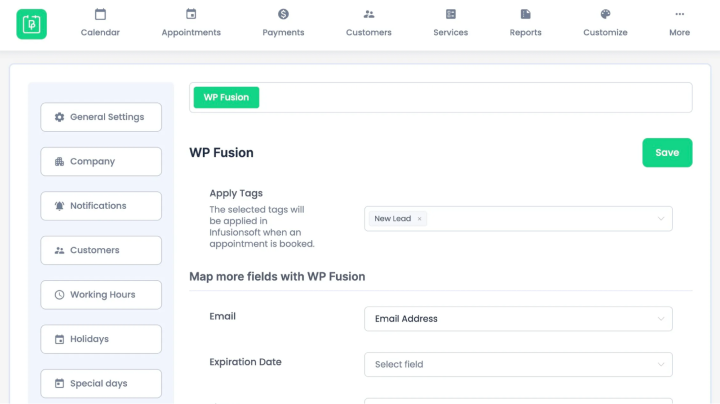
This will basically create or update CRM contacts when bookings are made. If you want to apply different tags or lists for selected services, edit the relevant service in BookingPress and look for the WP Fusion integration settings.
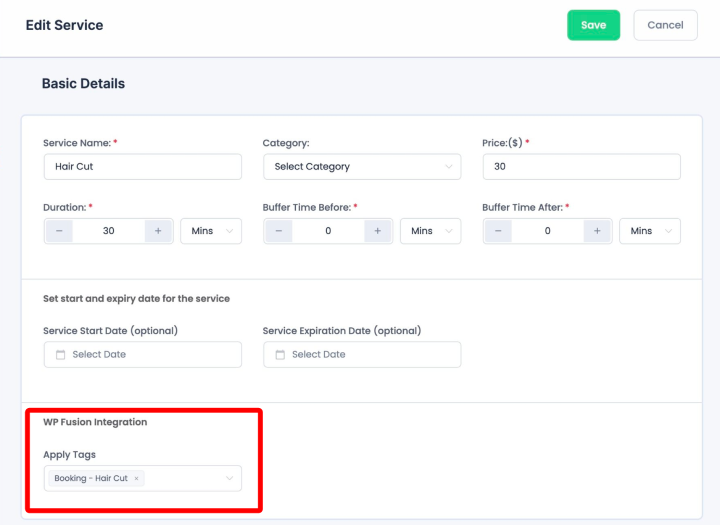
Select the appropriate tags or lists supported by your CRM. If you set up service tags without turning on global integration, contacts are only created for customers who book those specific services, instead of all bookings.
- Map BookingPress fields to your CRM
Go to WP Fusion’s Contact Fields tab:
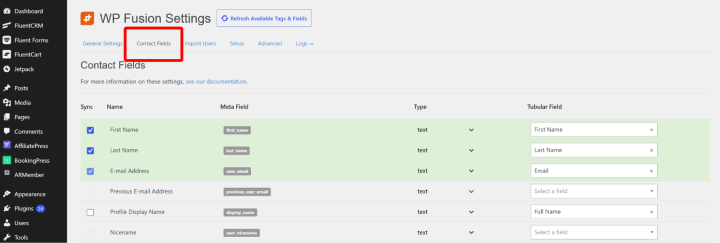
From there, map the available BookingPress fields to the corresponding fields in your CRM:
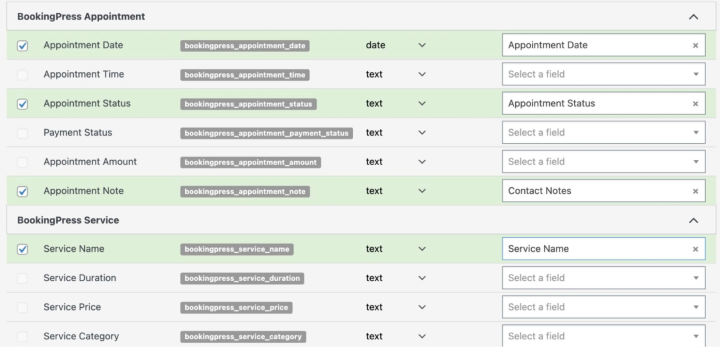
It’s important to understand that mapping a field makes it available for synchronization with your CRM; it does not automatically create every corresponding custom field in every CRM.
If you don’t see BookingPress fields, you might be using a free limited version of WP Fusion.
Fields supported:
- Appointment date and time
- Appointment status
- Payment status
- Appointment amount
- Appointment note
- Service name
- Service duration
- Service price
- Service category
The exact field names and available field types depend on your CRM. You may need to create custom fields in the CRM first. For instance, you may want to map the BookingPress service name to a custom CRM field “Last Booked Service”, and the appointment date and time to the needed appointment field.
- Create a test booking using your booking form and check the contact in your CRM.
Finally, this is one of the most flexible and fastest methods to get your booking software connected to a CRM. It’s a free built-in integration within BookingPress with the only limitation that you need to pay for WP Fusion that provides this seamless bridge.
2. Connect Directly To FluentCRM
FluentCRM is a CRM and email marketing solution made solely for WordPress. It cannot function as a standalone cloud platform or be installed on non-WordPress sites.
So it’s not a ‘middleman’ type of integration like WP Fusion but free direct integration with the CRM itself.
It stores customer and subscriber information on your WordPress installation and provides contact management, lists, tags, email campaigns, and automation features for your business processes. Two obvious pros – it’s cheaper and fewer logins/accounts are required because it’s fully localized on your WP site.
BookingPress ships with a specialist FluentCRM add-on, which creates a direct connection between the two WordPress plugins.
What you need:
- BookingPress.
- The FluentCRM plugin.
- FluentCRM lists added.
FluentCRM’s core plugin can be used without a separate hosted CRM subscription, although optional FluentCRM Pro features may require a paid license.
Let’s connect BookingPress with FluentCRM with this guide:
- Install and activate the FluentCRM plugin.
- Install and activate the BookingPress add-on for FluentCRM Integration.
- Open FluentCRM and create a list of contacts to assign to BookingPress.
A list can be ‘BookingPress customers’ or similar (use FluentCRM tags and automation rules for stricter categorization).
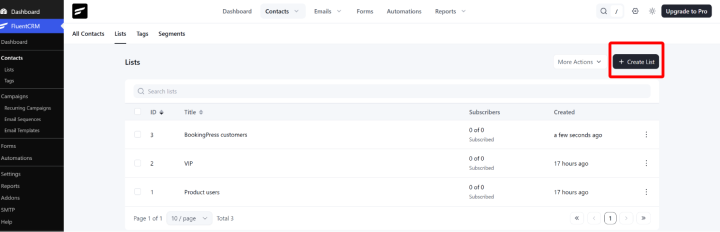
Create your lists and any custom fields before mapping them in BookingPress for easier correct destinations.
- Go to BookingPress → Settings → Opt-Ins and select the FluentCRM integration.
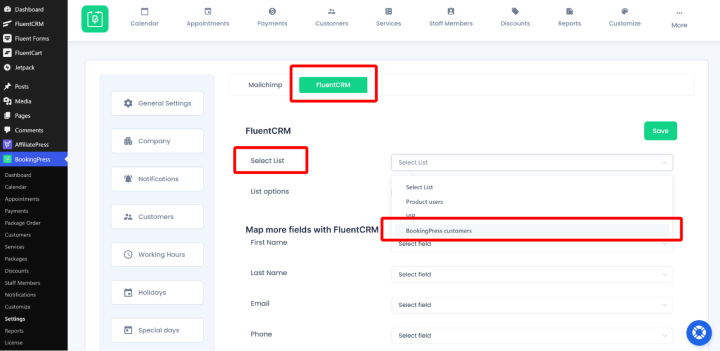
- Select the FluentCRM list to receive the contacts.
- Map the available BookingPress fields to the corresponding FluentCRM fields.
- Decide whether double opt-in should be enabled.
Don’t forget to save the changes.
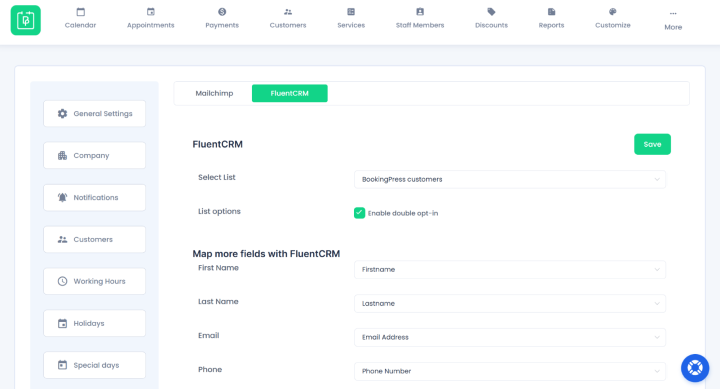
As for Double opt-in, it’s an email subscription verification process (the confirmation link should be clicked by a customer to become a marketing subscriber).
If you enable double opt-in in BookingPress’s FluentCRM integration, make sure you understand how the add-on handles contacts who have not yet been confirmed. In FluentCRM, contacts awaiting confirmation can remain in a pending state.
FluentCRM warns that overlapping opt-in systems can lead to duplicate confirmation emails in supported form integrations.
For the BookingPress add-on, you may simply test the customer experience.
- Make a test booking, then open FluentCRM and check the contact.
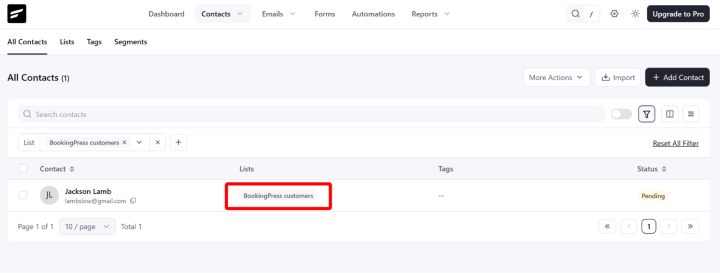
Note that adding customers by hand via BookingPress won’t work – you need to either create an appointment manually or create a test booking from the front-end part of your website.
3. Use Email Marketing Integrations
As we’ve mentioned, occasionally people call email automation services CRMs. So, in case you simply want to automate newsletters or promotions, connecting an email marketing service can be enough.
BookingPress has many read-to-serve add-ons for such services:
- Mailchimp.
- AWeber (email marketing and subscriber management).
- Omnisend (email and broader marketing automation).
Once again, these are not CRMs, but they can help with marketing and related customer profiles, contacts, automated communication, and more.
You’ll need just BookingPress with the relevant add-on and an account with the email marketing service (a paid subscription to that service may be a need).
4. Connect To a CRM Through An Automation Platform
Another way to use a ‘bridge’ plugin with your CRM is by using BookingPress integrations for Zapier, Make.com, and n8n.
These services are automation ‘middlemen’ between applications. They cause the actions we want in other systems (like BookingPress in our case).
Most likely, you will build a workflow that sends new customer information from BookingPress to a CRM. This can work for adding a contact to a particular list or sending a message to your staff when an appointment is created or cancelled.
Should you use this method? Check whether your CRM is supported by these automation platforms – and whether there is no direct integration already offered by BookingPress itself.
We won’t describe it in detail but the general process is to configure a webhook in the automation service, select the data BookingPress should send, and define what should happen when the webhook receives that data.
What you need:
- BookingPress.
- An account with Zapier, Make.com, or n8n.
- CRM account.
- A configured workflow (how your booking form triggers specific events in a CRM).
There can be free and paid tiers, with limits depending on the number of tasks, executions, or workflows.
Tips For Choosing a CRM Connection Method
Most likely, you’ll end up with a way that already supports your chosen CRM! However, whichever integration you choose, check out a few details:
1. Confirm which fields can synchronize
Connecting BookingPress won’t automatically transfer every field in the booking form to your CRM. There can be limitations in the transferred information that you want to be aware of.
Custom fields, appointment status, service information, payment status, and more. All play a role.
2. Understand the difference between contact creation and marketing consent
A customer who books an appointment may not want to consent to receive promotional emails. Use the relevant consent controls, double opt-in settings, and subscription statuses to distinguish appointment communications from marketing campaigns. Double opt-in is used for verification but it’s not a substitute for having a legal consent.
3. Check subscription costs
You may need a paid WP Fusion license for advanced field mapping or more advanced paid features from your CRM.
4. Protect customer data and test the workflow
Transfer and sync the fields you really need and then test a new booking, an existing customer, a booking update, a cancellation, and any opt-in process you intend to use.
Concluding: How To Connect a WordPress Booking System With CRM Software
If you have a CRM account with any provider, of course, you’ll need to start from there and choose the connection method that supports your choice.
However, if you are starting from scratch, consider our tips for connecting the BookingPress WordPress booking system with CRM:
- WP Fusion is a fit in 99% because it most likely supports your chosen CRM.
- Choose FluentCRM if you want to manage contacts, mailing lists, and email automation directly inside WordPress. It can also save you some time if you don’t know which CRM to start with. The BookingPress add-on makes the connection quick and free.
- Mailchimp, AWeber, or Omnisend are perfect if your goal is email marketing related to appointment scheduling contacts and not its majesty the comprehensive CRM functionality.
- Automation ‘bridges’ like Zapier, Make.com, or n8n also provide flexible workflows that connect BookingPress to multiple applications, chosen CRMs among them.
So, here are three main questions you should ask yourself: Which platform do you already use? What booking data do you need to transfer? And what is the total cost of the required plugins and services? And then move on from there.
Related articles:
 14-day money-back guarantee