Google Calendar allows you to create and manage multiple calendars within one environment. This is super helpful when, for example, your team needs a shared work calendar but definitely doesn’t need visibility into your Pilates class or vet appointment.
More calendars is better privacy, so you can create separate calendars for:
- Work or team collaboration.
- Personal life.
- Projects, rentals, or clients.
Then share only the calendar that makes sense.
However, all calendars are private unless you explicitly allow them to be public.
To make calendars or events public, you need to follow specific steps. In this article, we’re looking into various handy ways to share your Google Calendar with others.
When Do People Normally Share a Google Calendar?
Is your case unique or common? Is it safe to share a Google Calendar? A few scenarios when you might need to share a Google Calendar. Most of the time, people share their Google Calendar manually for a very specific reason.
Work and Team Collaboration
- Colleagues share calendars so others can see when they’re free for meetings.
- Plan 1:1s, reviews, or workload with managers.
- Team members share calendars during launches or campaigns.
- Shared calendars for on-call rotations, support shifts, or duty schedules.
Client Services and Appointments
- Freelancers and consultants share availability with clients so they can book calls.
- In healthcare and wellness, therapists, personal trainers, and nutritionists share calendars to manage sessions.
Personal and Family Life
- Partners share calendars to track work schedules, trips, and personal plans.
- Families share calendars for school events or kids’ activities.
- Siblings or caregivers share calendars to coordinate care for elderly parents.
Education and Training
- Teachers share calendars with students for office hours or exam dates.
- Study groups use shared calendars to coordinate sessions and deadlines.
Events and Community Groups
- Event planning like weddings, conferences, or meetups.
- Organizers share calendars to keep vendors and participants aligned.
Sometimes a Google Calendar can be shared with external software for automation or other types of integrations.
Calendars are normally shared with software to create booking links, sync availability, or trigger reminders.
Even modern automated AI assistants might require shared calendars for scheduling and prioritization. In this case, you need to search for a specific tutorial from a vendor on how to share your Google Calendar with that software.
Easy Ways to Share Your Google Calendar with Others
Below, we’re suggesting a few scenarios of how you can make your Google Calendar visible to others based on your goals and tools.
1. Share the Entire Calendar with Chosen Email Addresses
Looking into one of the scenarios, when you open the entire specific calendar to a group or specific people? Follow these steps for sharing a calendar from your computer/web browser.
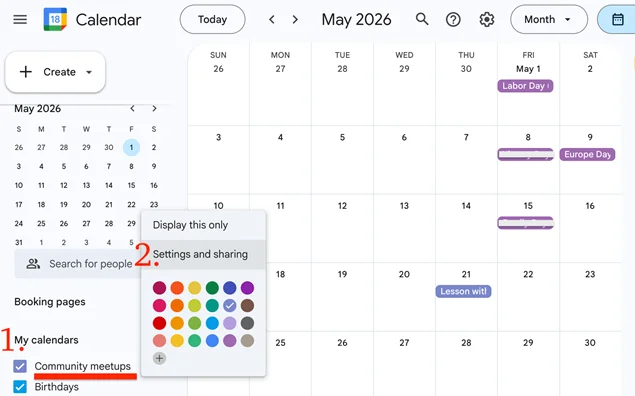
- In Google Calendar, choose a calendar that should be shared (on the left side of Calendar > My calendars).
- To the right of the calendar, click on the three dots icon > (⋮) > Settings and sharing.
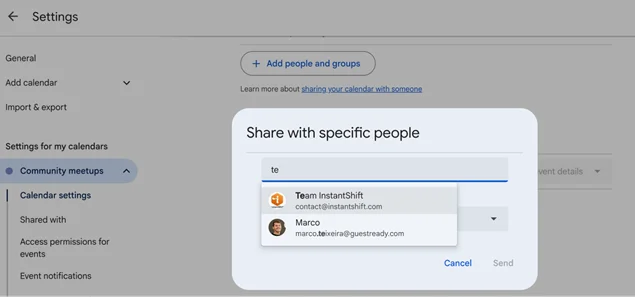
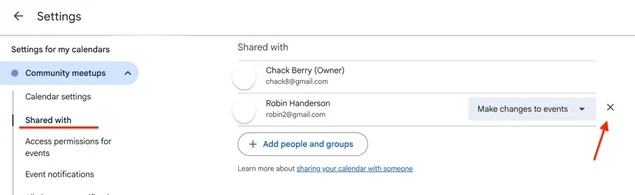
- Choose who to share your calendar with by clicking “Shared with” on the left.

- Under “Shared with,” click “Add people and groups.” and start typing the email address of the person or Google group > add them.
- In the Permissions tab, decide the access level to this calendar for people whose addresses you chose.
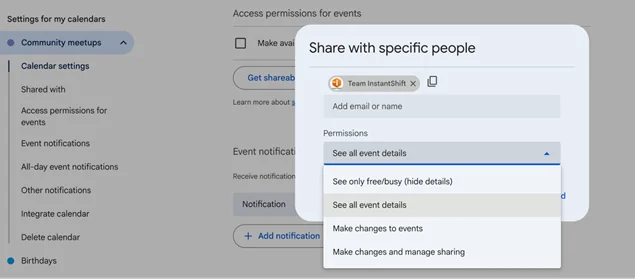
- See only free/busy (hide details): shows your availability without event details.
- See all event details: event details, like event names, times, places, and descriptions, are visible. Moreover, you can mark an event as private and the details stay hidden. Turn off “See guest list’ and no one sees who’s invited.
- Make changes to events: they can edit events and see who else the calendar is shared with
- Make changes and manage sharing: grants full control of events on your calendar. They can add new events, change or delete events, and change who the calendar is shared with.
- Once your settings are ready, click ‘Send’. Anyone you share it with gets an email and has to click the link to add your calendar.
2. Share a Calendar with Anyone using a Link
For this, you need to perform two main steps:
- Make your calendar public: go to the ‘Settings and sharing’ menu like described above and find ‘Access permissions for events’ from the left > Click ‘Make available to public’ > select the access level.
- Copy a link to this calendar and share it further: click ‘Get sharable link’.
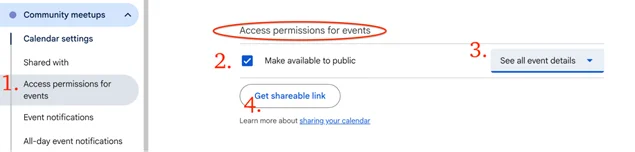
Public calendars are fully open:
- Anyone can view it.
- Search engines may index it.
- You should assume it’s visible beyond your control.
Moreover, if you want to share your calendar only with your organization (employer, school, etc.), select this organization in the same menu.
In this case, only people in your organization can find and subscribe to your calendar.

3. Share an Event from Your Google Calendar
You can invite people to see an event from your Google Calendar.
If you’re looking for people to view event details and RSVP, without knowing their specific email addresses for direct invitation, use direct links. Open an event from your calendar and click the “Invite via link” button.
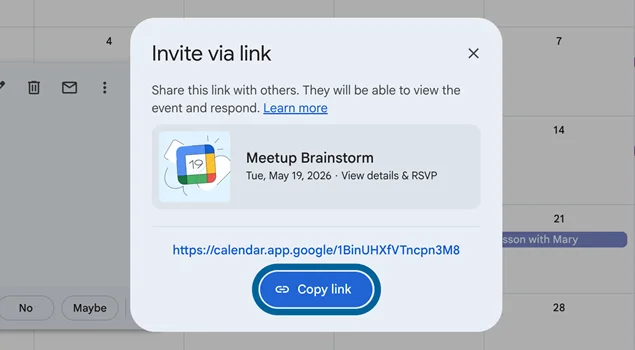
Then, simply copy the link – people who view the link will be able to view and respond.
How To Get A Public Event Link You Can Share?
To share a single event, you need to get a public link for that event.
- On your computer, open the calendar and find the event you want to share.
- At the top right, click on the three dots icon > Publish event.
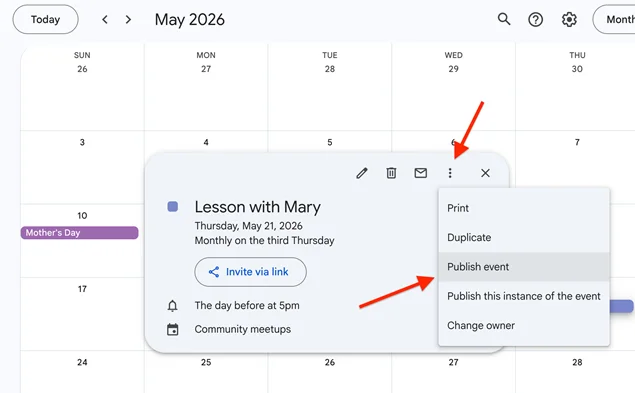
- Copy the link to share with others.
Following an event link, people can see details about the event, like the time, date, and description. A link that doesn’t require people to sign in or subscribe.
4. Share (Embed) a Calendar on Your Site
If you are looking to make a calendar public on the site, share it using the Integrate Calendar menu in Settings.
- Go to your Google Calendar and find ‘Settings’.
- Choose a calendar from the left.
- Click “Integrate calendar”. You will see different calendar formats that you can use.
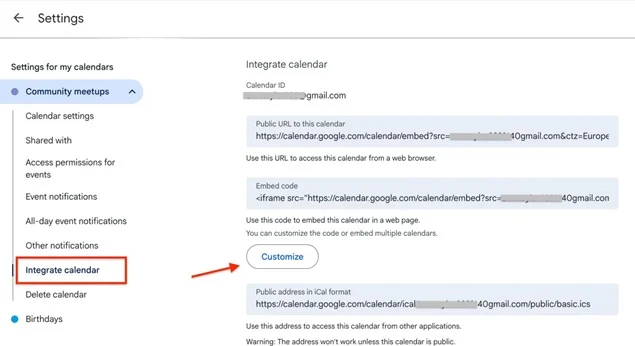
- Under “Embed code,” click “Customize” and choose your preferences > click Copy to clipboard.

- Go to your site and paste the code.
By default, only people you choose can see your calendar. Making it public lets anyone view it and save events to their calendars.
To share a calendar that can be accessed in iOS, use the “Public address in iCal format.” The iCal address only works if the calendar is public.
Privacy Controlled Sharing Scenarios & How to Stop Sharing
You can’t share someone else’s calendar without their permission. Ask them to give you the “Make changes and manage sharing” permission before you can share it further.
People often share calendars without full details, such as:
- “Free/Busy only.”
- “Busy but no event name.”
- Limited date ranges.
This makes sharing acceptable even for privacy-conscious users.
When you need to turn off sharing settings for the calendar, turn off public or company access in “Access permissions for events”, or remove individual people under “Shared with”.
Why Connect Your Google Calendar to Your Booking Plugin?
As we’ve already mentioned, a Google Calendar can be shared with external software, not just manually with friends or colleagues.
BookingPress, the leading WordPress booking plugin for appointments, easily connects to Google Calendar. To be more precise, it allows your staff to connect their availability managed via BookingPress with their personal Google Calendar accounts.
So, when your WordPress site receives a booking, the plugin automatically adds a respective event to an employee’s Google Calendar, and they are instantly updated.
This is a nice way to set up a real-time plugin + Google calendar sync and forget about double bookings.
Over to You: Share Your Google Calendar with Confidence
Google Calendar is a great solution to build your own schedule and share calendars, schedules, workflows, events with others. You can share a calendar with other people or groups, make a calendar public, publish a calendar on your site, or even send calendar events data to external software and tools using integration links and code snippets.
With plugins like BookingPress, you may allow your staff to connect their own Google Calendars and always get up-to-date notifications on new bookings, view future appointments in personal calendars, and significantly reduce scheduling errors.
You May Also Like:
- 8 Best Google Calendar Alternatives
- How To Sync Bookings with Apple Calendar Using BookingPress
- How to Know It’s Time to Switch to a Better Booking System
FAQs
What’s an easy way to share a Google Calendar?
In Google Calendar, choose a specific calendar, open a calendar’s Settings and sharing, add people under Shared with, choose their permission level, and click Send. They’ll get an email and add the calendar by clicking the link.
How can I share the Google Calendar on my iPhone?
Calendar sharing isn’t available in the iPhone or iPad app. Use a web browser and go to calendar.google.com to share a specific calendar.
What can people do in my public calendar?
Anyone with full access to your calendar can:
- Respond to invites.
- Create and edit events.
- Get email notifications about changes.
- Share the calendar with others.
- Can’t delete the calendar.
- Events inherit the calendar’s visibility, unless you change them.
- Gmail events marked “Only me” stay private.
 14-day money-back guarantee