

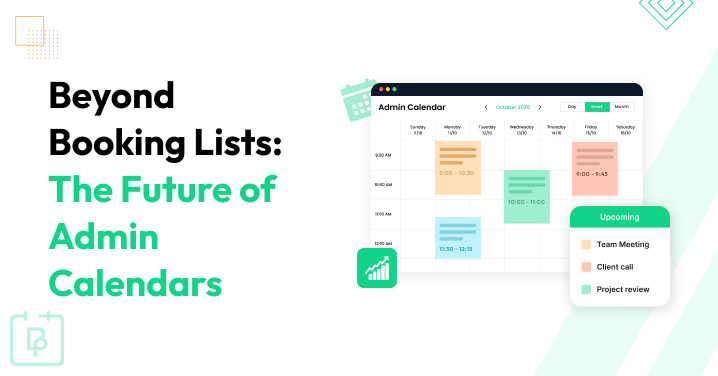
How often do you need to configure services, staff, payments, or WhatsApp messages? At the setup stage and then only occasionally? Most likely. But the calendar is a place where you run your day as a business manager or website admin.
No doubt, a functional admin calendar is one of the most important operational features in booking software for an appointment business. It may not sound as impressive in marketing (as AI or automations are always positioned now) but we’re sure it can have a much bigger effect on your everyday work. Because this is what you glance at many times a day.
Overall, the calendar is very important for small teams and critical for bigger busy studios or salons.
To illustrate the true value of the admin calendars, we’ll walk you through the BookingPress calendars, which deliver a perfect view for your entire schedule.
TL;DR: An admin calendar gives service businesses a clear view of appointments, staff workloads, gaps and scheduling conflicts. With day, week, and month views, BookingPress helps you manage bookings faster and make smarter scheduling decisions.
BookingPress Admin Calendars – What Can They Do?
The admin calendar view is the name of the redesigned bookings calendar on the backend of your WordPress site (powered by BookingPress). How does it change your workflow? What can you manage and analyze?
We’re explaining how the calendars help beyond the booking lists.
View What Is Happening Today, This Week, Or This Month
With BookingPress, you’ve always had a normal bookings list on the backend, which is in the Appointments menu. From there, you can sort your appointments by status, date, name, service, etc. or simply access your workload.
With the admin calendar view introduced, however, you have many more capabilities to view and manage your schedule.
A timetable/day view, for example. It is super useful for salons, clinics, spas, tutors, etc. You can visually understand the day’s workload, free periods, overlaps, staff schedules, and appointment duration.
BookingPress takes it even further by adapting the view to the actual working hours (meaning, non-working hours are simply removed to clean up your day). You won’t need to scroll a lot when you work just a few hours a day, for instance.
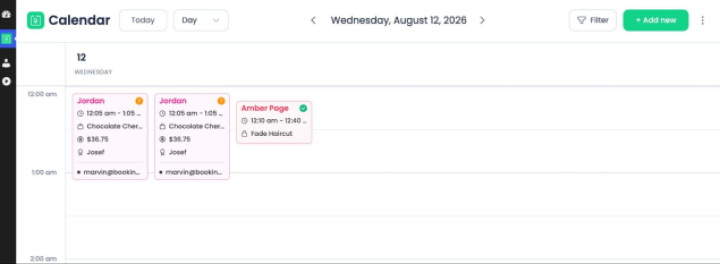
But other calendar views give you a bigger picture.
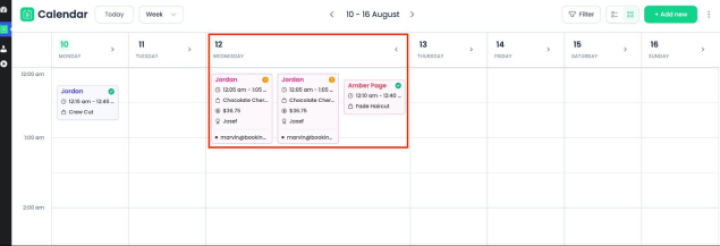
For example, there is also a week view in the new admin calendar. It is excellent for planning and seeing your workload. You may notice that Monday is overloaded while Wednesday has many openings, for example – and act upon it – try to fill in the gaps or add waiting lists to the booking process.
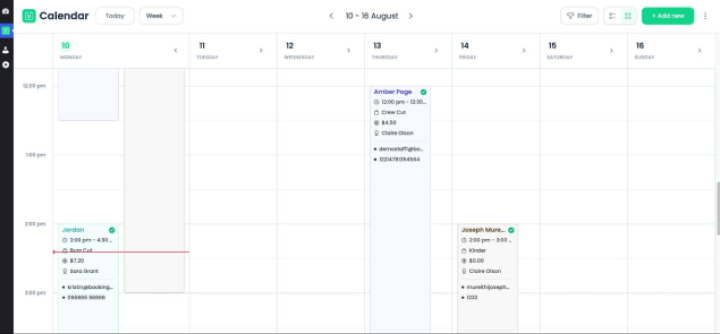
Month view is a management-level overview, which is not for understanding individual time slots but very useful for spotting busy/quiet days, checking future bookings, and having a better idea of the entire workload.
So, BookingPress gives you several views and lets the same calendar serve both minute-to-minute operations and broad planning, too.
Understand What Is Booked And With Which Employee
Where are the gaps in the schedule? Is someone double-booked or overloaded? The calendar view lets you easily spot any errors, anomalies, or other things.
Every appointment can be found by the staff. When you preview appointment cards, you can also see staff details, understanding who exactly is employed during the day, whether this can influence their productivity, and if you need to make any changes.
If you’ve got a few bookings per day, you can easily expand the view to see all.
Add Or Reschedule Bookings
The calendar is not just for preview.
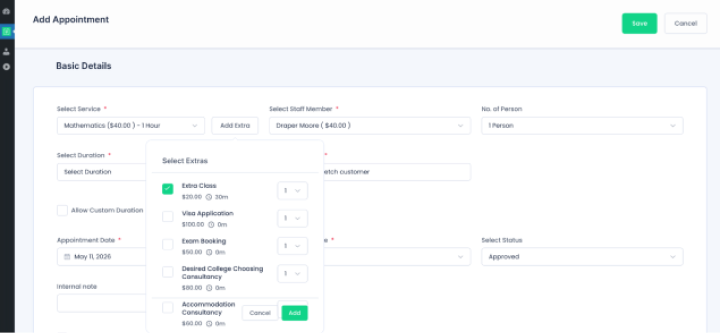
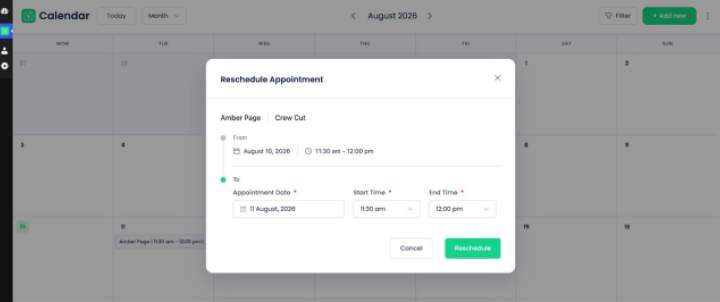
You can change booking statuses, add or reschedule bookings directly from the admin calendar view.
To reschedule, use the drag-and-drop intuitive action (available in BookingPress Pro), when you can move appointments to a different date.
Quickly Find Only Appointments That Require Attention
Using the admin calendar filters, you can see pending and approved appointments – so, basically, you see only that work that is still on your plate within the chosen period.
If an appointment is canceled or completed, even when you change the status directly from the calendar, it instantly disappears from the calendar.
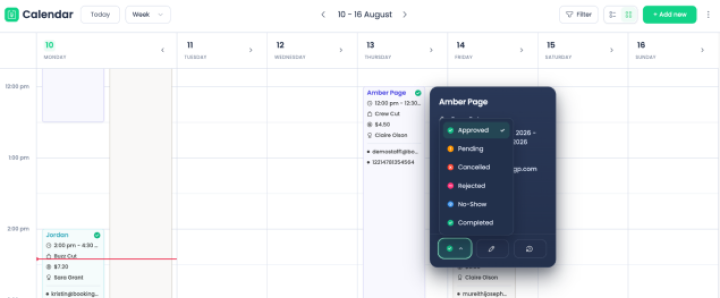
Thus, the calendar is focused on appointments that still require attention. No clutter from bookings that are no longer active! Thanks to filters, you can even view all pending appointments for one service, employee, or location.
Don’t worry, it’s only in this view; all your bookings and appointment history statuses are preserved in the Appointments menu.
What Does This Particular Booking Contain? Check Out Calendar Cards
Appointment details directly in the calendar are valuable data because you can preview booking details really quickly. It saves you a ton of clicking around.
In such appointment cards, a booking inside the calendar contains all the needed booking details.
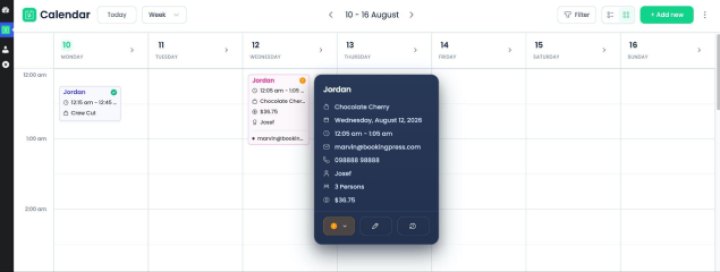
In the cards, you can see a service booked, customer details, assigned staff members, locations, appointment duration, email and phone information, and custom data collected through the extra fields.
In a week or day view, your appointments are also color-coded with the respective statuses.
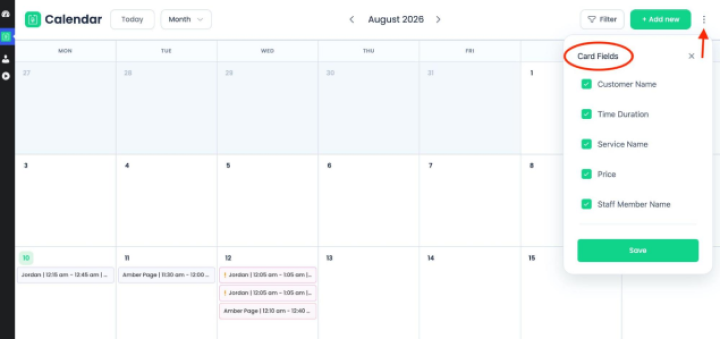
If you want to customize which information is displayed in the cards, click on the three dots in the calendar and save your preferences.
Analysis Of Bookings At Operational Level
Since you can make changes without leaving the calendar, you can work on your gaps, analyze the types of appointments, and probably even replan your shifts. A visual pattern recognition is what a calendar can provide you with as nothing else.
So, a backend calendar is not just for checking who is next on the schedule. You can use it to see patterns that are difficult to notice in a plain appointment list. For example, here is how it can help and what you can spot:
Irregular staff workload
See who among your employees has significant gaps compared to the others. What if you can reassign bookings? Or change working hours? That may help you with adjusting appointments distribution.
Too many gaps between appointments
When you see gaps visually in the calendar, that can suggest tighter availability rules, different service intervals, or better buffer settings. It’s all easy to combine and set up with BookingPress.
Repeated periods of congestion
If you see that some of the day periods are fully booked, while others are completely empty, that might signal that you need a better shift, better pricing for your services, or better availability rules, which can help you result in more appointments after all.
Poor use of working hours
If you see staff booked for one early appointment, followed by three empty hours before another, it’s a clear sign you should adjust their shift or change your availability rules.
Buffers that are too large
Do you see excessive gaps? They may be unnecessarily reducing bookable capacity.
Service-duration problems
If a particular service repeatedly pushes later bookings too close together, its configured duration may need reconsideration.
With the admin calendar, in addition to better day navigation and bookings overview, you may even discover that your business has plenty of theoretical availability but very little useful availability (because the remaining gaps are too short for the services customers usually book).
Concluding: How Admin Calendars Are Helping You With Scheduling
Small tweaks or full replanning of the schedule – the backend admin calendar can help you with either.
You can work with your appointment faster, use a day/timetable view to help detect gaps, overlaps, back-to-back bookings, and workload distribution. A week view is better for spotting recurring scheduling issues that influence the productivity of your team. A month view is really helpful for bigger operational decisions: see your demand patterns, unusually busy/quiet dates, and how your capacity is benefiting you every day.
With the calendar, you can much quicker understand if you need to move a few appointments, review availability, change staff shifts, modify buffers or service durations. You may even want to rethink the schedule more fundamentally!
Related articles:



 14-day money-back guarantee