

If your business relies on bookings and availability (e.g., bus or hotel bookings, appointment scheduling, or coaching consultations), you know how crucial the pre-booking stage is for gathering the right information. It makes it all a lot easier for everyone – from passengers providing valid passport or visa details for a bus trip, to hotels handling special guest requests, to coaches understanding a client’s needs in advance.
In practice, this is achieved with a booking form software or plugin that helps you add so-called ‘custom’ form fields. In this article, we’re taking a closer look at what form fields exist and how to make sure they work for your business.
TL;DR. Custom fields in booking forms let businesses collect extra information beyond defaults. BookingPress enables flexible field types like uploads, checkboxes, dates, and signatures, improving personalization, efficiency, and booking workflows across industries easily.
What are Custom Fields in Booking Forms?
It’s easier to understand why some of the fields are called ‘custom’ by comparing them to ‘default’ ones (typically, this opposition exists).
Default fields are the standard fields included in a booking form by default. They collect the essential information required to complete a booking. For example, in the BookingPress plugin, you can use such default fields:
- Full name
- First name
- Last name
- Email Address
- Phone Number
- Note
- Terms and Conditions
- Username
Custom fields, on the contrary, are additional fields you can optionally use to collect business-specific information. For example:
- “Do you have any allergies?” (wellness, beauty)
- “Upload your ID” (rentals, travel)
- “Select preferred trainer” (fitness)
- “Describe your project” (consulting, freelance services)
- “Where did you hear of us?” (for marketing)
Key characteristics of custom checkout fields for booking forms:
- More diverse – various types to cover different needs.
- Fully configurable (type, label, required/optional).
- Easily tailored to your workflow or industry.
- Can include many field types (text, checkbox, file upload, etc.).
- Support personalization, automation, and upselling.
For example, below is a dental clinic booking form with custom fields built with BookingPress. It requests insurance details, file uploads, and asks other questions.
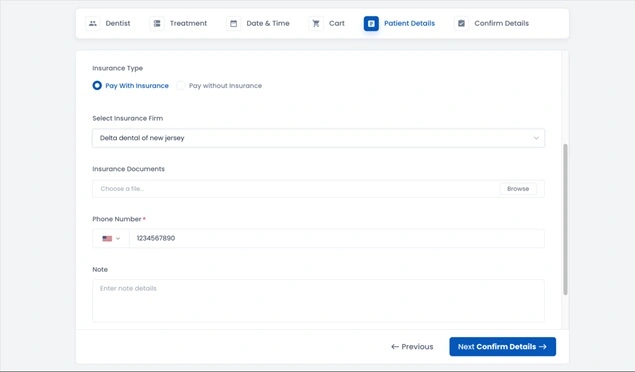
Use the custom checkout fields freely to gather the exact details needed to deliver the service efficiently and enhance the customer experience.
Common Custom Fields Usage Examples (with BookingPress)
To show how custom checkout fields are commonly used, let’s show you examples from the real BookingPress workflow. These fields are easy to add and create the WordPress booking plugin experience you need.
To access custom fields for checkout in BookingPress, go to the plugin Settings > Customize > Custom fields.
Now, let’s take a look at the actual fields.
Text Field and Text Area fields
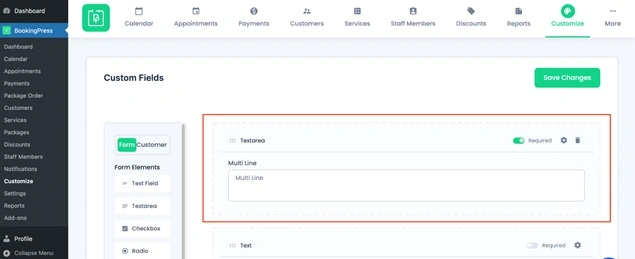
Both custom fields collect written input from your customer, but they serve different purposes:
- Text Field: short, single-line responses
- Text Area: longer, multi-line responses
Use text fields for quick input and text areas when you expect explanations, feedback, or storytelling.
Text Field examples:
- Name of a pet (for grooming services)
- Preferred trainer or stylist
- Referral code or short notes
Text Area examples:
- Detailed health concerns before a wellness session
- Project descriptions for freelance consultations
- Special requests for events or hospitality services.
In BookingPress, for both fields, you can use labels (text above the field), placeholders (text inside the field, which is removed once a client starts typing), as well as specify the minimum and maximum number of words/lines.
File Upload Field
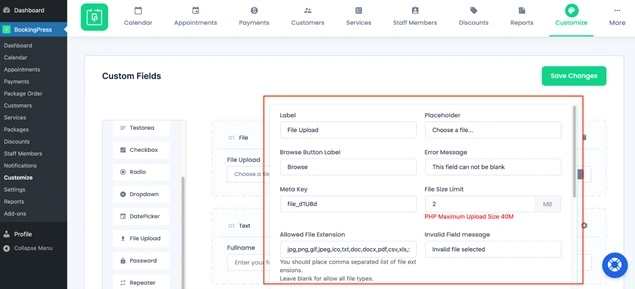
The File Upload field allows customers to attach documents directly to their booking before submitting a form.
When to use:
- Travel agencies collecting passports or visas before consultations
- Request of driver’s licenses
- Event planners requesting inspiration images or mood boards
- Legal firms may ask for contracts or case documents before a consultation
- Interior designers asking for photos of a space in advance.
Normally, in booking forms, you will have more settings as for which types of files clients can upload so that your site or hosting can process and store that data. For example, in BookingPress, you can basically choose any file extensions supported by WordPress, such as .jpg, .png, .gif, .jpeg, .ico, .txt, .doc, .docx, .pdf, .csv and more. You can also allow multiple file uploads, and set a maximum file upload limit.
Password Field
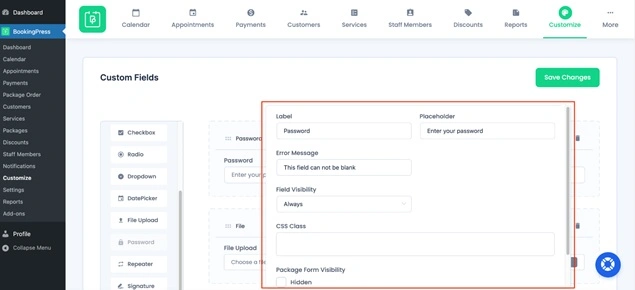
The Password field is used when access to booking or services needs to be restricted. You might need a password to ensure only authorized users can book specific services, for example, people make a booking by a link privately shared before.
When you might use this field:
- Members-only services (e.g., private coaching sessions, VIP events)
- Corporate bookings where employees use a shared access code
- Early access or invite-only appointments (e.g., product launches, beta programs).
Checkbox Field
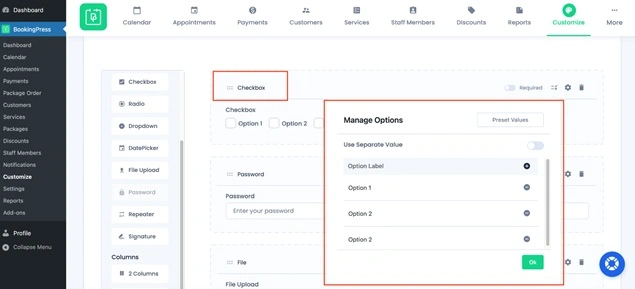
Checkboxes allow users to select multiple options quickly, without typing their preferences or needs.
Effective use cases:
- Indicating preferences (e.g., dietary restrictions, room features)
- Accepting policies or add-ons
- Marketing activities (“Where have you found us?”).
As for examples across industries, this might be used by fitness studios to allow customers to select areas of focus (strength, cardio, flexibility); in hotels, guests can choose amenities (airport pickup, breakfast, spa access); or in medical clinic bookings, customers can mark symptoms from a list.
Radio Button Field
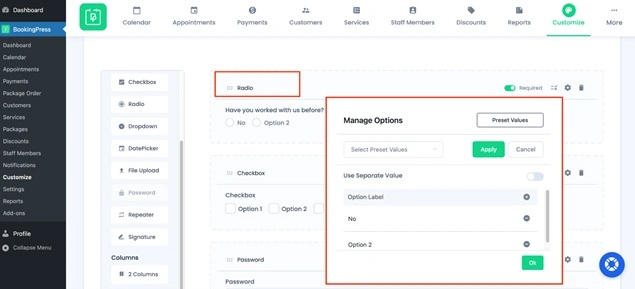
Unlike checkboxes, radio buttons allow users to select only one option from a list. They are normally used when you need to guide a user to a single choice.
Best use cases:
- Choosing appointment type (online vs. in-person)
- Selecting service level (basic, standard, premium)
- Indicating yes/no decisions
Business examples:
- Consultants: “Have you worked with us before?” (Yes/No)
- Salons: choose stylist tier
- Healthcare: select visit type (first-time vs. follow-up).
Drop-down Field
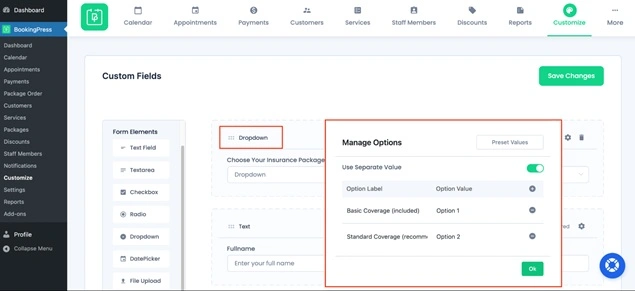
A drop-down field is ideal when you have many options but want to keep the form clean. Use this if you really want fast experiences that save space and prevent overwhelming users with long lists.
Common uses of drop-down fields at checkout:
- Rental services (pickup/drop-off location)
- Choosing an insurance package
- Picking an extra service category
Examples:
- Multi-location businesses (clinics, salons, coworking spaces)
- Tour operators offering different destinations
- Educational services asking for extra choices.
Date Picker Field
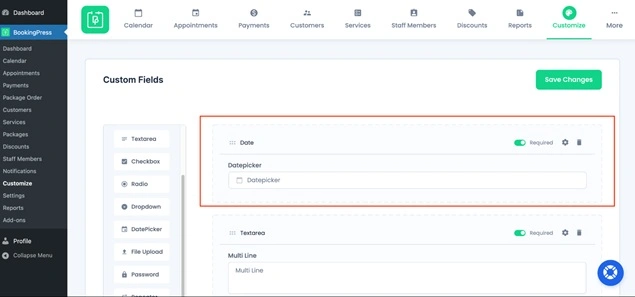
While booking forms typically include a calendar for selecting appointment dates as the first step, an additional Date Picker field at checkout is often needed for other types of information. This field captures important dates unrelated to appointment availability.
Typical use cases of date pickers at checkout:
- Date of birth (healthcare, fitness, legal services)
- Passport or document expiration dates (travel services)
- Event-related dates (wedding date, move-in date, etc.)
Examples:
- Insurance consultations requiring DOB verification
- Visa agencies checking document validity
- Wedding planners collect the event date alongside the consultation booking.
Signature Field
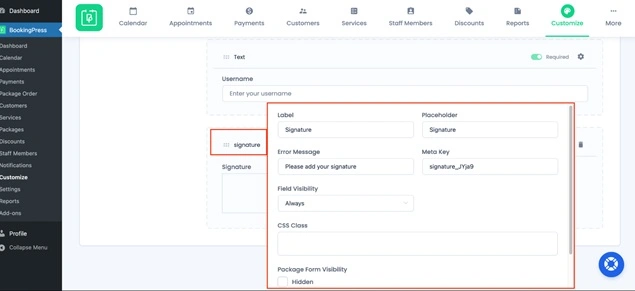
Not all form and booking plugins offer the Signature field. BookingPress does. It allows customers to provide a handwritten signature directly within the booking form, which might be crucial for many businesses. The signature collection allows many businesses to eliminate paperwork and speeds up onboarding.
Business use cases:
- Fitness studios requiring liability waivers
- Medical or wellness services collecting consent forms
- Equipment rentals confirming terms and conditions
- Photography services approving usage rights.
Repeater Field
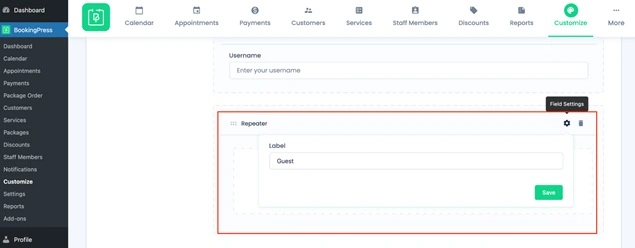
A Repeater field allows you to enable a set of fields to be repeated multiple times within a single booking.
In BookingPress, the field works when the Multiple Quantity add-on is enabled (e.g., number of participants), the repeater field automatically duplicates the required fields for each person. This makes it easy to collect individual details for group bookings.
For example, if a customer selects “3 people,” the form will dynamically expand to collect information for all three participants.
Use cases:
- Group fitness classes collecting details for each attendee
- Tour bookings gathering traveler information
- Workshops or training sessions registering multiple participants under one booking.
It has a great benefit avoiding separate bookings while still capturing individual data.
More Settings Available for Custom Fields
Most custom fields in the BookingPress booking form come with a set of flexible options that help you control how they look, behave, and interact with users (just click on the cog icon next to the field to see them).
These settings allow you to fine-tune the form very specifically. Here are a few key ones:
Move fields with drag and drop
Easily reorder the fields to build the needed workflow. Just use your mouse to drag and drop the fields in the form!
Required or optional fields
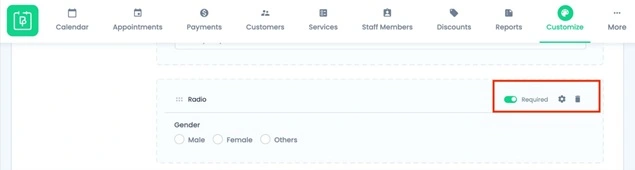
You can decide whether a field must be completed before submission. Required fields ensure you collect essential information, while optional ones keep the form quick and user-friendly.
Custom CSS classes
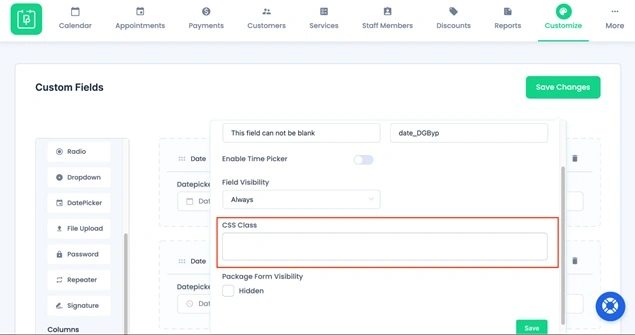
For some of you with tech skills, add your own CSS classes to style fields according to your brand or layout. This is especially useful if you want certain fields to stand out, match your website design, or create a more polished checkout experience.
Conditional display
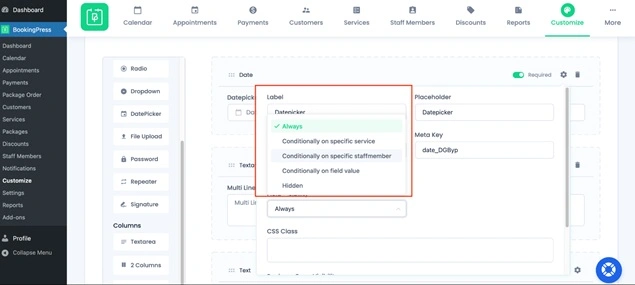
Show or hide fields based on specific conditions. For example, display a “Upload ID” field only for certain services, or show additional questions when a particular staff member is selected.
Custom error messages
Instead of generic validation messages, you can write your own. This helps guide users more clearly, for example, “Please upload a valid document before proceeding” instead of a vague error.
Field-specific settings
Each field type includes its own configuration options. For example:
- File upload – file size or format limits
- Text fields – character limits or placeholders
- Date picker – restrict selectable dates
Enable or hide the fields for packages
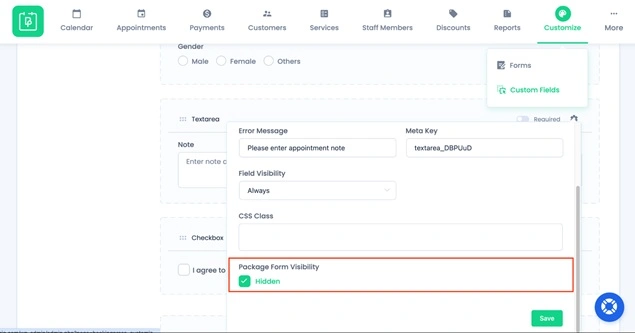
In BookingPress, you can sell individual services or packages. Even here, you have flexibility as to which field to show or hide for checkouts with service packages.
Add columns
With BookingPress, you may also group your fields into columns, giving the right semantic and visual structure to your checkout.
Concluding: Custom Fields in Booking Forms Are a Must for Tailored Data Collection
Rare is the case when a default checkout is enough. In many real-life business scenarios, you can’t achieve a fully satisfying result without at least one extra field at checkout. Custom checkout fields for booking forms allow you to build truly flexible and powerful forms without applying any tech skills, whether the goal is functionality or marketing.
If you found this useful, you might enjoy these as well:

 14-day money-back guarantee