

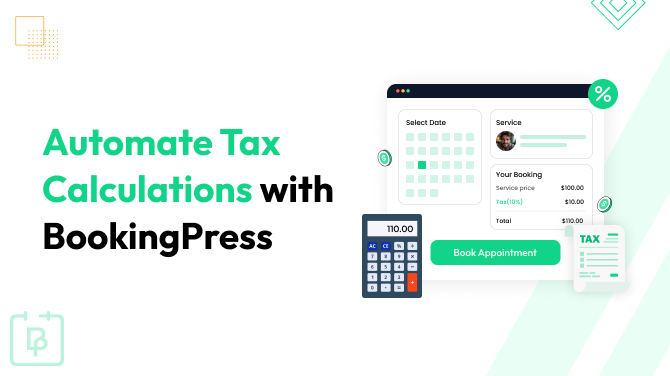
Tax management is one of those super important business operations that should work quietly in the background for every service based company.
Customers simply expect to pay the right amount, and business owners want every invoice and payment to be accurate without spending extra time on manual calculations. As your appointment-based business grows, handling taxes manually sounds less practical and more likely to result in errors.
Automating tax calculations is one of those methods that makes tax management easy and error-free. It’s basically about letting your booking system automatically calculate the tax, and add it to your customer’s total amount with clear justification.
Luckily, the BookingPress Tax Addon automates the complete process – from applying tax percentages to showing accurate totals during checkout, thus every booking is calculated correctly.
Want to set it up? Then read further.
TL;DR: Automate tax calculations in your appointment booking system with the BookingPress Tax Addon; Automatically apply tax rules, support tax inclusive or tax exclusive pricing, country or location based tax rates, and accurate coupon calculations for error free billing.
Manual Tax Calculations Create More Problems Than Most Businesses Realize

If you only process a handful of appointments every week, calculating taxes on your own is not a big deal. But as your appointment calendar fills up, even a simple tax calculation can become another repetitive task that takes time away from serving customers.
The challenge? Different pricing models, promotional discounts, business locations and local tax regulations can all affect the final amount a customer has to pay.
Thus, even a single mistake leads to wrong invoices, accounting discrepancies or customers questioning the total they see at checkout, all indirectly affecting customer’s trust in your company.
Furthermore, manually calculating taxes just makes your business less efficient. Your staff members have to double check totals, update invoices or correct payment mistakes that could have been avoided altogether since day one. This does nothing but add unnecessary administrative work in your day.
So why not manage tax calculations automatically through the booking system?
1. Accurate Tax Calculations Every Time
When the system calculates, it leaves no room for error.Tax rates based on customer location and service.
2. Less Administrative Work
Your staff no longer needs to manually verify tax amounts nor update invoices after every appointment.
3. Clear Pricing for Customers
Shows amount of tax, discount and the final price before actual booking.
4. Better Billing Accuracy
When a customer confirms an appointment, the system can auto generate and send an invoice. This invoice also shows the tax breakdown clearly.
5. Making Accounting Simple
Booking data smoothly flows into your daily financial reports and summaries
What Can The BookingPress Tax Addon Automate?

Adding a tax percentage is only one small part. The real value comes from automating how taxes are calculated, shown and managed throughout the booking journey of customers.
Because no one likes to pay extra apart from service price, you can set it so to match your business strategy, making the additional tax amount appear genuine.
After your tax rules are set, BookingPress applies them automatically to every new appointment. No matter whether you charge a single tax rate or need different rules for different regions, the BookingPress Tax Addon can automate several important tax management tasks such as :
- Automatic tax calculations during appointment booking.
- Percentage based tax calculations.
- Tax inclusive pricing.
- Tax exclusive pricing.
- Country wise tax calculations.
- Location wise tax calculations.
- Automatic tax calculations with coupons and discounts.
- Displaying tax amounts in the booking summary.
- Including tax details in the customer’s final payable amount.
For many appointment based businesses, that’s enough to remove most manual tax calculations. After setting it once and for all, every booking follows the tax rules you’ve set. It gives both you and your customers complete pricing transparency.
How To Automatically Calculate Taxes In BookingPress
You can start with automatic tax calculations by first needing to activate the BookingPress Tax Addon.
- Go to BookingPress → Addons.
- Find the “Tax” Addon.
- Click the Activate button.
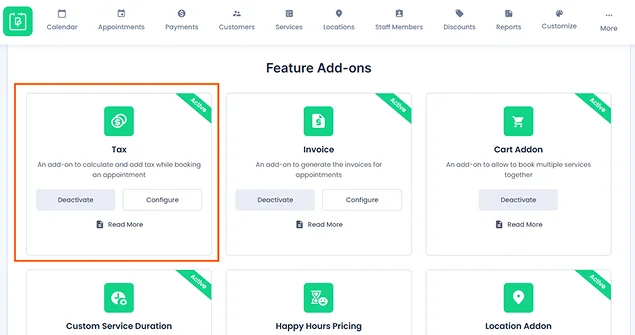
You may need to first of all download the addon from your BookingPress account if you don’t see it on your WordPress dashboard.
The best part? This Tax Addon is included in all premium versions of BookingPress. Meaning, unlike other tools that keep their premium addons in higher tier plans, BookingPress gives you all the essential addons even in the starting standard plans.
Setting Up Tax Calculation Addon
After activation, you can configure how the tax should be calculated for your services.
Open the BookingPress → Payments, and scroll down to Tax Settings.
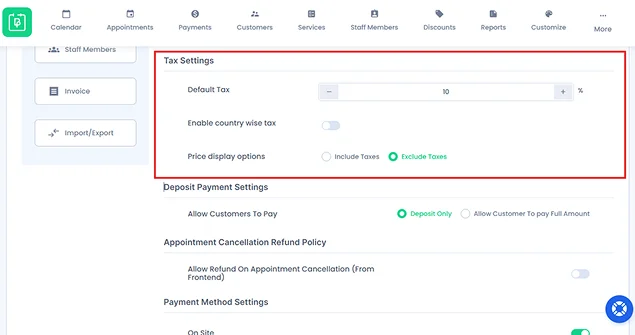
Here you can set the default tax percentage that should be applied to your appointment bookings.
BookingPress will automatically calculate this percentage based on the appointment amount and add it in the final payable total as per your selected tax settings.
After adding the default tax settings, you can configure different tax rules based on how your service business charges taxes.
Configure Tax Rules For Different Business Scenarios
Every appointment-based company follows a different tax model.
Some show tax inclusive prices. Others add taxes separately during checkout. Businesses working internationally across multiple countries or locations may also need different tax rates based on where the appointment takes place.
Keeping all these in mind, the BookingPress Tax Addon gives you the full flexibility to configure these different tax scenarios.
Include Taxes In Your Service Prices
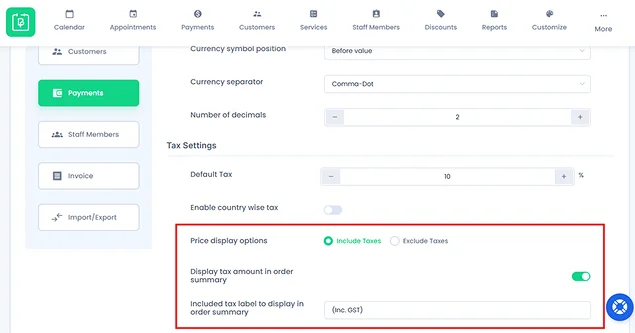
Want to show a single final price throughout the booking process? This option is for you!
If your business shows tax inclusive pricing – meaning your service price already included tax – BookingPress automatically calculates how much of the service price represents tax. This keeps the final amount unchanged for customers, yet it’s good to let customers know.
For example if a service costs $550 and includes 10% tax, customers continue to see and pay $550. BookingPress automatically calculates the tax portion within that total, and shows that $50 is of taxes and only $500 is of service.
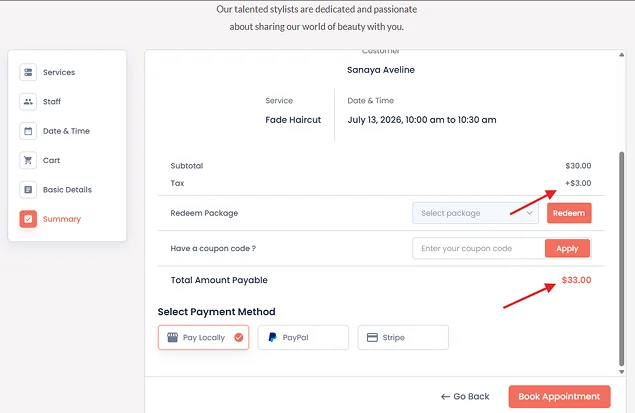
Further into this, if enabled, you can also show the included tax amount and label in the order summary for complete transparency.
Exclude Taxes And Add Them During Checkout
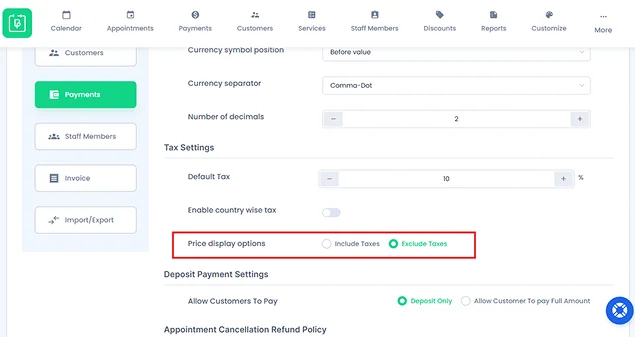
Some businesses also want to go another way – showing service prices before tax and adding the tax amount later during checkout.
With this option enabled, BookingPress calculates the tax based on your configured percentage and adds it to the customer’s payable amount automatically.
For example, if a service costs $700 and your tax rate is 10%, the system calculates $70 in tax which makes the final amount $770.
Showing taxes separately gives customers a clear idea of the subtotal, tax amount and final payment before completing their booking.
Apply Country Wise Tax Rates
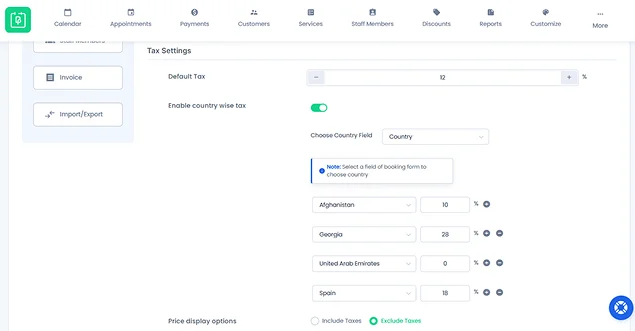
If your business serves customers on an international scale, you can simply use this option to set different tax percentages based on the country selected during booking.
Simply enable Country Wise Tax, pick the booking form field that collects the customer’s country and add tax rates for each available option. Moreover, you can easily add additional countries and tax percentages whenever needed.
Don’t forget that country wise taxes are applied based on the country selected in the booking form, not the customer’s actual location or IP address.
Apply Location Wise Tax Rates
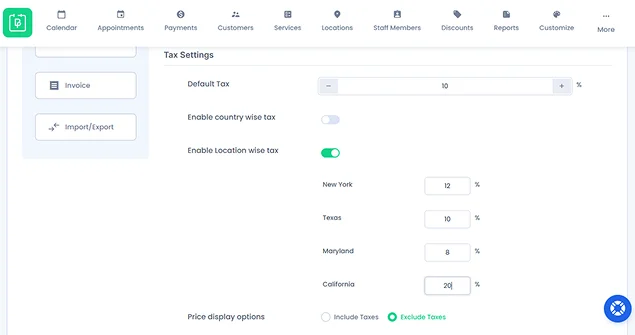
Service businesses, be it salon, spa, clinic, coaching or consultancy firms with multiple branches, or more than one service location can automatically apply different tax percentages based on the appointment location.
For this, you first need to have BookingPress Location Addon. Later, simply activate Location Wise Tax and assign tax rates for each business location.
Thus BookingPress will automatically apply the correct tax when a customer books an appointment at that branch.
Please note that Country Wise Tax and Location Wise Tax cannot be enabled at the same time. You’ll need to choose the option that best matches your business needs.
Coupons And Taxes: BookingPress Calculates Them In The Correct Order
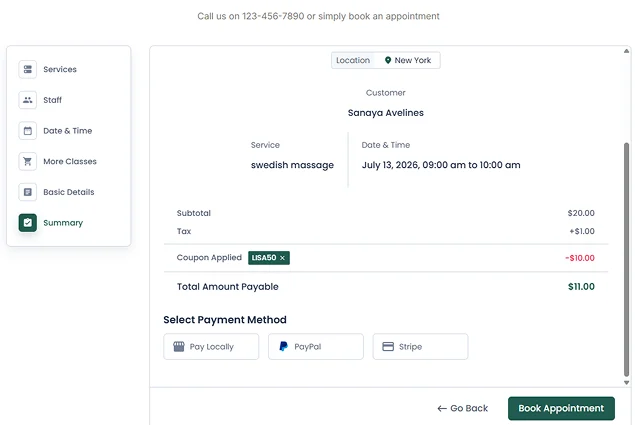
Offering a discount doesn’t mean your tax calculations should become more complicated.
In fact, this is where many businesses accidentally make billing mistakes. Should tax be calculated before applying the coupon? Or should the discount come first? The answer depends on how your pricing model is set.
The BookingPress Tax Addon automatically manages these calculations. The booking system makes sure taxes and discounts are applied in the correct order on their own.
Taxes Excluded From Service Prices
Suppose your service prices don’t include taxes. Then BookingPress first applies the coupon discount and then calculates tax on the discounted amount.
For example if a service costs $100, a customer uses a 10% discount coupon, and your tax rate is 15%:
- Original service price: $100
- Tax (15%): $13.50
- Total: $113.50
Now if the customers uses the coupon code of 10% discount here, then:
- Price of service after 10% discount: $90
- Tax (15%): $13.50
- Final payable amount: $103.50
This makes sure customers get their discount first while paying the correct amount of tax on the discounted price.
Taxes Included In Service Prices
If your service prices already include taxes, BookingPress adjusts the calculation automatically behind the scenes.
It firstly decides the original price before tax, applies the coupon discount, recalculates the applicable tax, and then shows the updated total. This lets your customers to get the correct discount.
For instance, let’s say a service costs $100 (including 15% tax). Now a customer applies a 10% discount coupon on it. Then, BookingPress automatically recalculates both the taxable amount and the final payable total.
Concluding: Stop Calculating Taxes Manually For Every Appointment
The BookingPress Tax Addon automates one of the most error and trial parts of managing an appointment based business.
Simply set your tax rules once and every booking automatically follows them. And the best part is it goes beyond simply adding a tax percentage to your services. It lets you:
- Automate tax calculations for every appointment
- Support both tax inclusive and tax exclusive pricing.
- Apply country wise or location wise tax rules.
- Calculate taxes correctly alongside coupons and discounts.
- Shows accurate totals throughout the booking process
With no manual calculations and greater pricing transparency, managing taxes becomes one less thing to worry about.
Related articles:


 14-day money-back guarantee