

Where the demand for your time is high, so is the risk of losing a time slot, but waiting lists were made to solve this problem.
In this article, we explain how BookingPress can help you recover canceled appointments with little extra effort. It just takes installing a single add-on for opening an appointment waiting list for services you choose. No need to hire staff to call your clients, everything is automated with the booking plugin for WordPress.
TL;DR: BookingPress Waiting List Addon allows businesses to recover revenue from canceled appointments by automatically filling empty time slots with customers who are already waiting. Simply enable waitlists for specific services, set the maximum waiting list size, notify customers automatically when a slot becomes available.
The Real Benefit Of Waiting Lists For Appointment Business
If you operate a business with schedules booked days or weeks in advance (clinic, personal trainer, barbershop), and cancellations are common enough, then a waiting list really helps recover lost revenue, and it’s not just an over-marketed toy.
Benefits you can absolutely get with waiting lists:
- Empty slots from cancellations are more likely to be filled.
- Recovered appointments are your income.
- Better customer satisfaction – especially of those on the appointment waiting list!
- With software like BookingPress, you don’t need staff to call clients, it’s all automatic.
To sum up, if you frequently reach full capacity, waiting lists solve a real operational problem and can directly increase revenue.
Turning On Appointment Waiting Lists For BookingPress
Waiting lists can be enabled for any BookingPress site on any plan through the dedicated add-on, which is called Waiting List.
You can enable it directly from the Add-ons menu on your BookingPress.
If this add-on is not installed on your WordPress site yet, you simply need to log in to your BookingPress account on the web. Then find the My Downloads section (Download Add-ons) > find Waiting List, download it as a zip file, install, and then activate as a simple plugin on your WordPress.
Once done, you can start building and adding waitlists for any service you want!
Let’s see exactly how it all works.
How To Set Up a Waiting List Size Per Service?
With BookingPress, you can customize waiting lists for individual services that you provide.
For this, go to Services > Open the service you want > scroll down to the section that says “Configure waiting list option for the service”.
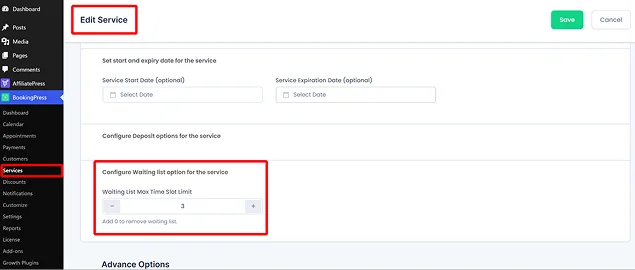
Here, you can set the number that will define a timeslot limit. This is basically a waiting list size. This means you specify how many people can join the waiting list for a single fully booked time slot. Don’t forget to hit ‘Save’ to keep your settings.
As for the WordPress booking form that your clients are facing, once an appointment time slot is full, up to the set number of additional customers can join the appointment waiting list – exactly for this time slot.
If your staff or the customer themselves cancel, someone from those people (those you approve from the appointment waiting list) can be offered the newly available spot.
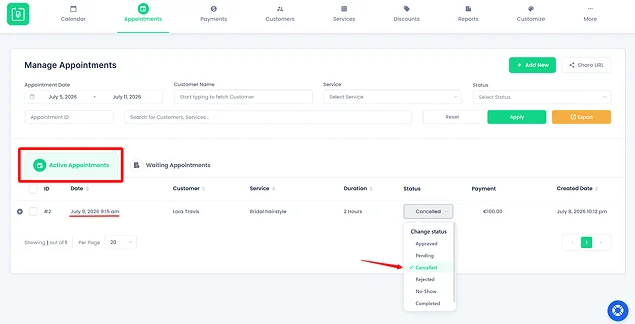
No one else can join it for that time slot once the size you set is reached.
There is no perfect number for a waiting list: 3-5- people per time slot is generally a good default for many beauty salons, for example. Clinics or other very busy businesses with high cancellation rates might need more.
How Do Your Customers Experience Waiting Lists?
On your site, when a customer wants to book a timeslot, they won’t just see available and unavailable ones – but also those marked as having a ‘Waiting list’. This instantly helps them make a decision whether they want to join.
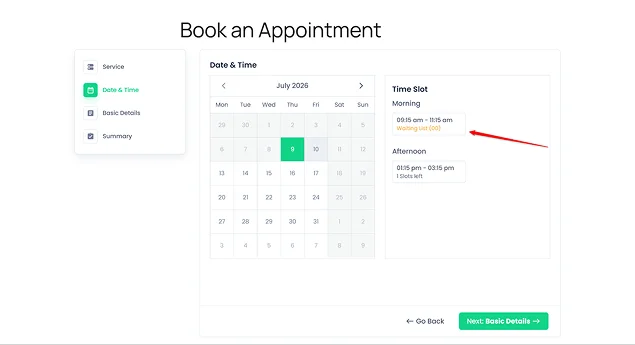
Once they book a timeslot with such a label, their booking confirmation page shows their position in the waiting list, letting them know what to expect.
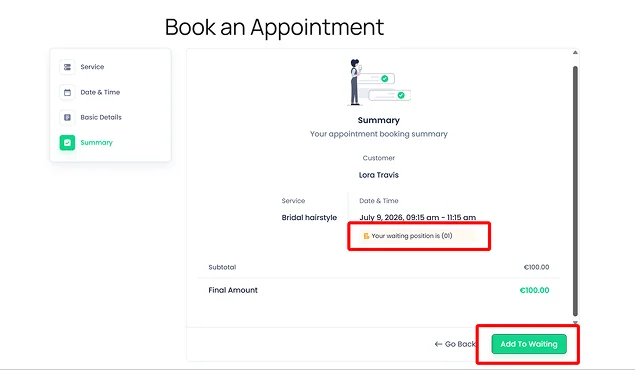
The email notification they receive also shows that their appointment is pending because of the waiting list nature.
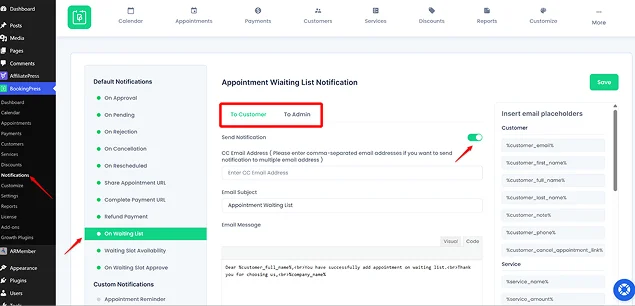
You can also customize the content of all three BookingPress email notifications related to the waiting list: On Waiting List, Waiting Slot Availability, and Waiting Slot Approved. The names speak for themselves. You can find them via the Notifications menu.
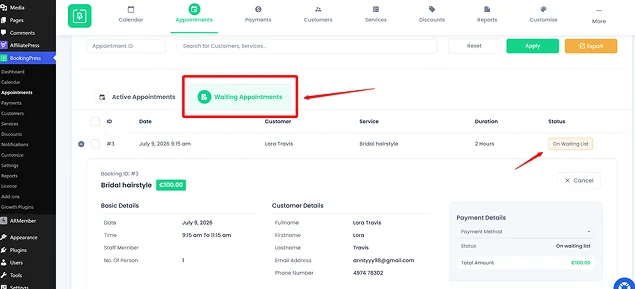
In the admin dashboard, your Appointments list will show the ‘On the waiting list’ status for customers’s bookings that are still waiting. Switch to the Waiting Appointments tab to see all of them. Click on any appointment in the waiting list to see its details.
When the booked and confirmed appointment is canceled, the status of the related waiting appointment automatically switches to ‘Available’.
This lets you approve it by just clicking on the appointment status > and then ‘Approve’.
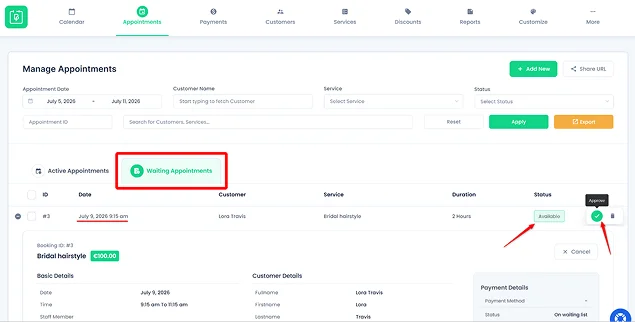
Then the customer receives a message that the timeslot is now available and they can move on and complete the payment to confirm it. The payment link will be placed in the email.
Don’t like the default yellow for the waiting list? Once the Waiting List is enabled through the add-on, you can change its label color via BookingPress > Customize > Forms.
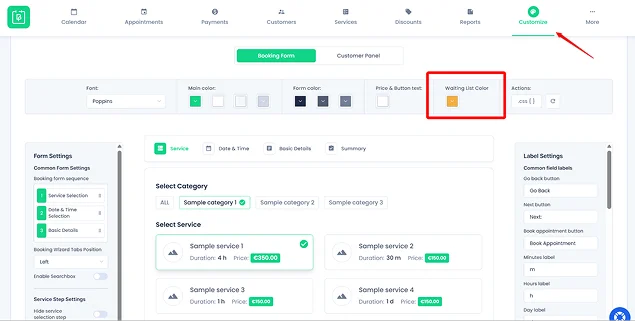
You only need to pick a Waiting List color, and BookingPress will automatically adjust the font and background colors.
Concluding: Turn Missed Bookings Into Revenue With Appointment Waiting List
Such a small feature as a waiting list, which enables your clients to still pre-book a time slot even when it’s not available, can mean a lot for your revenue. These waiting lists can increase your chances of getting fully booked, turning cancelled appointments into new bookings almost instantly.
In BookingPress, you can just use an add-on which helps you enable waiting lists for only specific services and then manage appointments on the back end, where you see visually divided lists of active appointments and waiting lists. Waiting lists also contain client details and bookings that are waiting to be approved if the original appointment is canceled. You can manually approve appointments on the waiting lists, instantly notifying clients with automated emails.
So, turning on this feature takes almost nothing, but the result can be game-changing for your revenue and schedule. So why not try it now?
Related articles:
 14-day money-back guarantee