Did you know that BookingPress is not just a fixed booking form for WordPress? It can have multiple shapes to serve any booking needs, adjusting to the actual business.
A salon? Create a haircut page with the direct “Book this service” button and place the booking form with a haircut already selected. A contact page in a law firm? Add a booking popup to offer prospects to reserve a consultation. These and more options are quite doable with BookingPress.
In this article, we’re covering a few ways to offer your clients multiple booking experiences on your WordPress site. We’ll also explain how to implement them in a few simple steps!
TL;DR: You can let customers book from any page on your website by using the simple BookingPress shortcode [bookingpress_form] for adding a booking form. There are many booking options to add this booking form such as open it by website button, popup and more.
Why Create Multiple Booking Touchpoints?
You know that not all customers arrive at your website from the homepage. There are multiple entry points where you meet your prospects.
Those can be a blog post, a staff member page with a bio, a dedicated service page, etc. Many flexible options for bookings simplify and speed up the booking process for them.
- Turn more website traffic into bookings
The ‘Book a consultation’ CTA on a specific service page can much easier capture someone who has just decided that the service is right for them.
- More booking opportunities
The commercial benefit is not “more buttons.” Having such an experience on your website creates fewer obstacles between reading about a service and completing a booking. A great way to reduce drop-offs!
- Better conversion rates for ads
It is common practice to advertise specific services or pages through social networks or Google Ads. Specific offerings, landing pages, and bundled discounted packages convert better! Make sure that booking options are prominent even on these specific pages.
What Booking Options Do You Have With BookingPress?
Let’s explain what options you have.
Since we’re talking WordPress here, almost every scenario requires adding a specific shortcode to the needed place. Shortcode insertion works the same on any page or post!
Needless to say, all these shortcodes will work only after you’ve set up your plugin’s key details, like staff availability, services and prices, and payment methods on the checkout page. If you’re just starting out, you can quickly do this with the step-by-step booking setup launcher.
Full Booking Form
A full booking experience is when your client starts with selecting a service, staff, time, and date.
BookingPress has a specific full-scale booking wizard for this. This is one of the most obvious options of how you can use it.
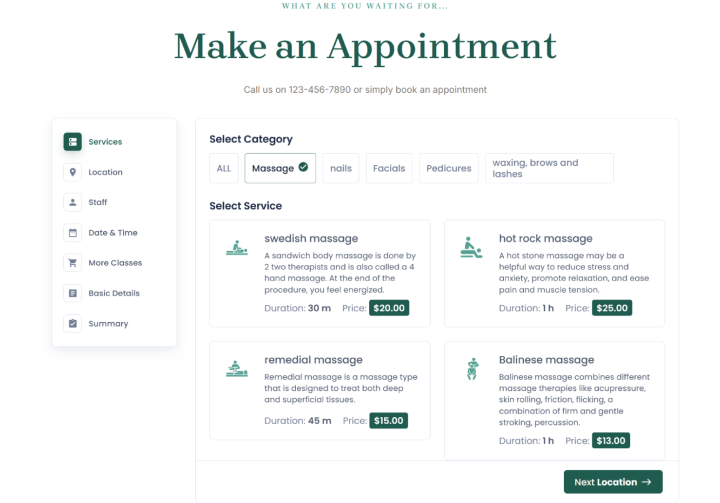
You can add this to any page, post, or widget area.
For this, you simply add the [bookingpress_form] shortcode to the needed place to generate the wizard.
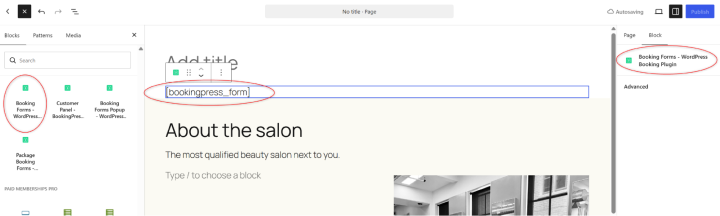
Open The Booking Page From Any Website Button
If you want a normal WordPress “Book Now” button anywhere on the site to send visitors to your existing booking page with the BookingPress shortcodes, you don’t need to embed the booking form everywhere.
Simply do this:
- Create a Booking page and add the BookingPress booking form to it (label it as you want).
- Copy the URL of that page.
- Add a regular WordPress Button block, menu item, footer link, widget button, etc.
- Set its link to the Booking page URL you’ve created during step 1.
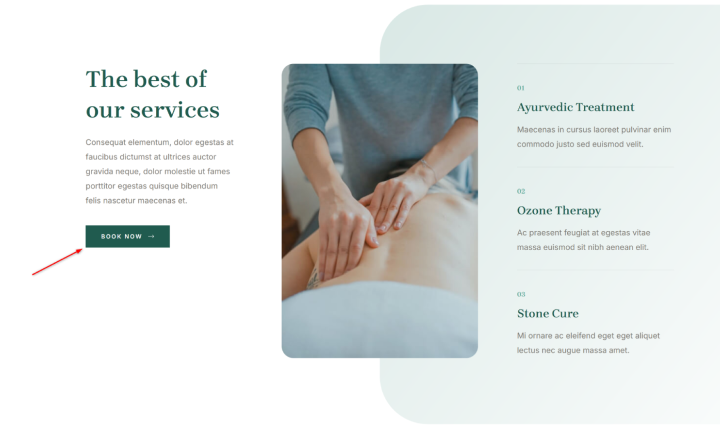
So, you’ll have the Book Now button linked to the page with the BookingPress form.
This way, you can have your button in places like:
- Header/navigation
- Homepage
- Service pages
- Sidebar/widget areas
- Footer
- Popups or banners
- Blog posts.
Booking a Specific Service Or Staff
Many industries, such as beauty salons, spas, clinics, fitness businesses, and similar where clients may already know exactly what service they want or which professional they want to see, can benefit from this booking workflow.
For pre-selected services, use a shortcode such as [bookingpress_form service=1] so a particular service can be booked directly from its own page.
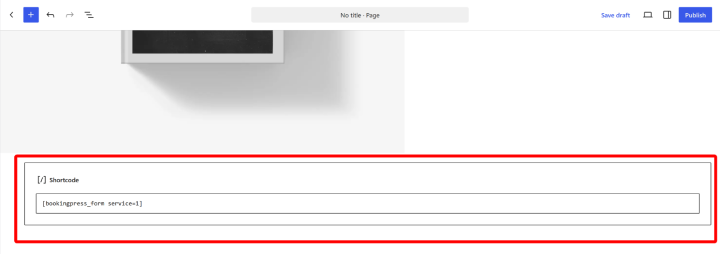
Of course, the sample ID in the example must be replaced with a specific service.
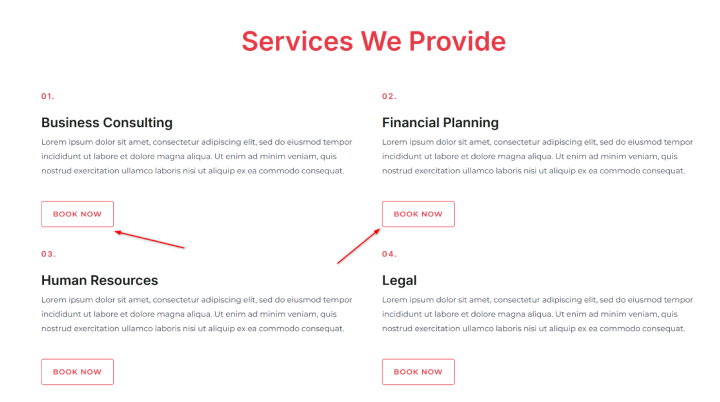
For example, on step №1, a visitor views services and then selects one:
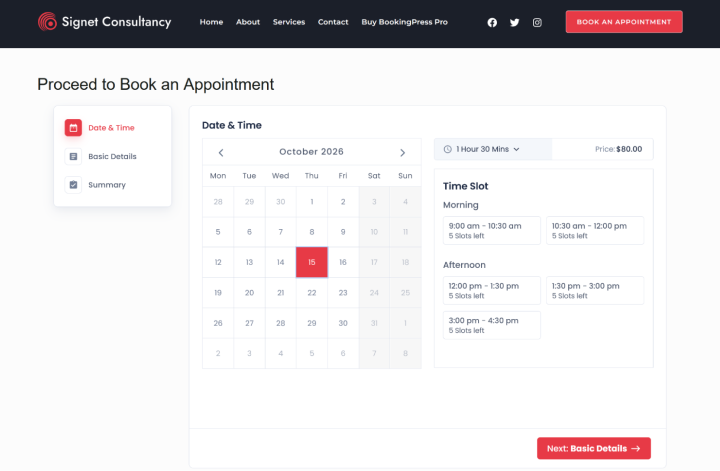
On step 2, the booking form for the chosen service is opened right away:
If you have dedicated staff pages, and if your business places a specific accent on experts, it makes sense to let customers start a booking with a staff member they’ve chosen, skipping other steps.
For staff-preselected bookings, use a shortcode like below, with the ID replaced with the one assigned to your staff.
[bookingpress_form selected_staff=1]
You can create a booking call-to-action for every or chosen services and team members on the same page or even on different pages.
In addition to staff and services, you can pre-select a specific category. This way, you can have website pages with the specific set of services in the spotlight. A shortcode example is [bookingpress_form category=1].
For example, if you are a law firm, you can display only relevant services from the Family Law category, such as divorce consultations, child custody consultations, etc.
If you want to list services or staff with the dedicated CTA on the same page, simply use the capabilities of your theme layouts – like columns or sections.
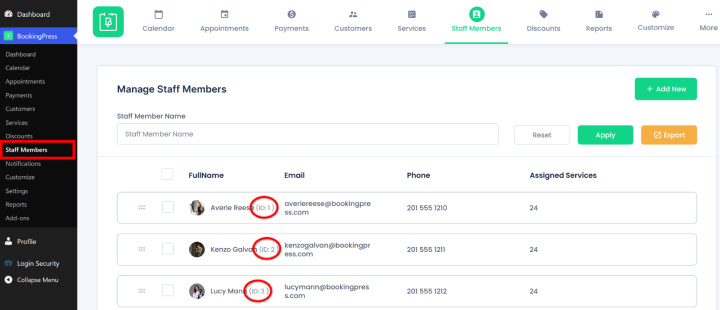
To find a staff, service, or category ID in BookingPress, look for an ID in the list of staff next to the specific person/service/category.
Booking Services In a Bundle
Can you also bundle chosen services and make them bookable as separate units on your website? Sure!
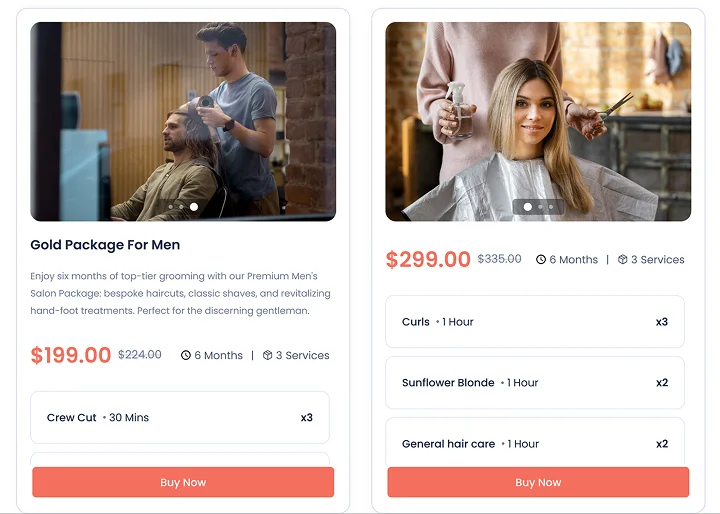
But you need to use an extra BookingPress Service Package add-on for this. It lets you combine existing services into a prepaid package. As for a package price, it can be even with a discount.
For such a booking option, you can set the validity period and limits on how many times the package can be used.
A simple example with a ‘Bridal Beauty Package’:
- Hair styling
- Makeup
- Manicure
- Package price: $180 instead of $220
- Valid for 60 days.
The customer buys the package first, then uses/redeems the included services when booking appointments.
BookingPress can create a dedicated package page, and you can also manually add the package booking form to any WordPress page. Here is a shortcode that you want to use:
- For all packages: [bookingpress_package_form]
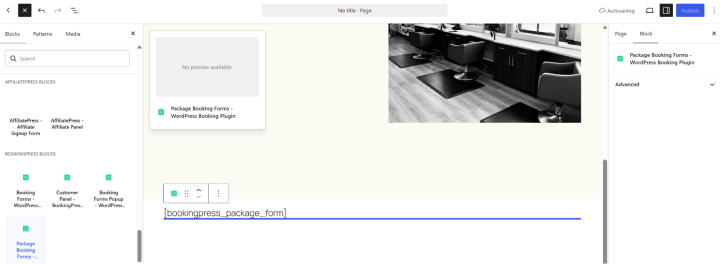
- For one particular package: [bookingpress_package_form package=123]
To find out a package ID, look at the ID next to the package title in the list of packages.
So, you could have the Services page with individual services with “Book now”, packaged offerings, or even an individual package landing page with the description + benefits + price + ‘Buy package’.
Popup Booking
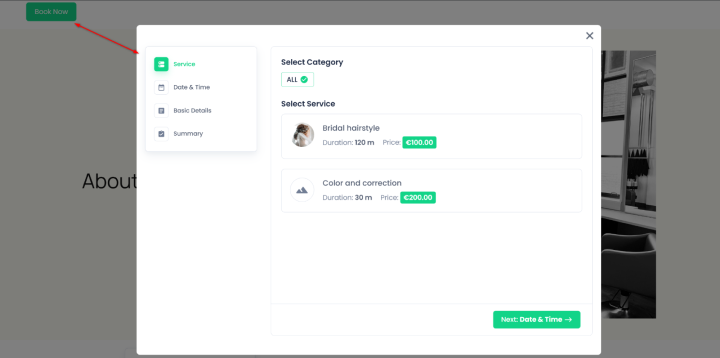
BookingPress also provides a [bookingpress_form_popup] shortcode that can trigger the Book Now button/CTA on any website page.
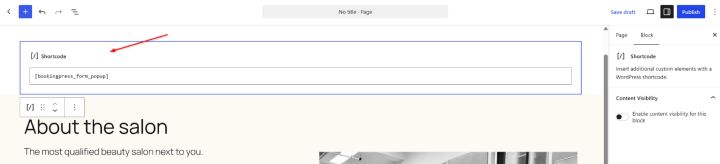
A popup gives your client a sort of distraction-free booking after they clicked on the ‘Book now’ button.
Example
Let’s take a clinic as an example of embedding various booking experiences throughout the website powered by BookingPress:
- Dermatology page ‘Book a consultation’: booking form with Dermatology Consultation already selected.
- Physiotherapy page with the ‘Book an appointment’ list of services: booking form with Physiotherapy category selected.
- Homepage: general “Book an appointment”, plus all available services.
- Contact page prompts the booking popup with the general booking form.
Concluding: How To Let Customers Book From Any Page On Your Website With BookingPress?
Various ways to make a booking on your WordPress website are fully supported by BookingPress. For a chosen booking experience, you simply need to select the needed shortcode and place it on the page.
As for the visual part, you can play with website layouts, columns, navigation menu, or widgets (like footer or header). So that there are multiple places on your site where booking forms and buttons can be prominent. You can:
- Add a full-scale booking experience with the booking form.
- You can pre-select what the client wants to book, whether that’s a service, staff member, or category.
- Link any ‘book now’ button to a booking page.
- Sell services in bundles with the book now buttons.
- Open the booking page in a pop-up window on any needed website page.
The right booking experience – the better you serve your customers!
Related articles:

 14-day money-back guarantee