Noticed the changes in the BookingPress calendar design? With the plugin BookingPress version 5.5, we completely redesigned the backend Calendar experience to make appointment management more visual and more intuitive for everyone using it. See your schedule at a glance, add bookings, reschedule with drag-and-drop, and more.
Appointments, staff schedules, customer bookings, and availability – all now easier and faster to work with. Following that major release, with BookingPress 5.6, we’ve also added even more scheduling visibility improvements and alignment with our unique multi-staff and multi-service features.
But how do you truly benefit from the new BookingPress calendar in the back office? Will this really improve your work if you are a salon, clinic, or fitness studio? Absolutely – and we are here to explain exactly how.
Tl;DR: BookingPress 5.5 introduced a redesigned calendar that makes appointment scheduling more visual and easier to manage from one screen. And with BookingPress 5.6, new visibility improvements for pending, multi-staff, and multi-service bookings will make you manage your schedule faster with less confusion.
Meet More Centralized Appointment Management
Just like you access your events in Google or Apple Calendar, the redesigned Calendar page also gives you a nice overview of your bookings in one screen.
So, before, you most likely needed to open individual appointments or switch between multiple screens for specific actions; you can now visually manage your entire schedule directly from the calendar interface.
What info can you see at a glance in the redesigned calendar?
- Pending and approved appointments
- Staff assignments
- Service details
- Appointment durations
- Customer information
- Location-specific bookings
- Today’s upcoming appointments (really nice one!).
Thanks to automatic color-coding of services, you can quickly identify appointment types without reading through every card manually.
Needless to say, appointment-based businesses that need to handle multiple services every day, will find this truly helpful.
So, we hope such visual organization reduces any confusion or mental overload when the schedule is really full.
Choose The Right Calendar View For Your Workflow
All of you manage schedules differently. That’s why the new BookingPress Calendar ships with different viewing modes for different operational needs – and you can easily experiment with all of them.
Month View (Gives You A Big Picture Of The Month Overview)
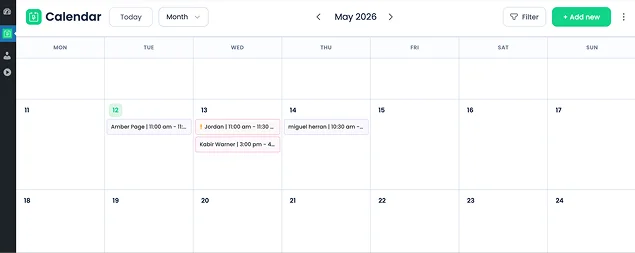
The Month view helps you quickly understand your overall booking activity and appointment distribution.
Use it when you need to:
- Plan upcoming workloads,
- See high-demand periods,
- Monitor booking availability,
- Reviewing pending approvals.
Moreover, as we’ve mentioned, since BookingPress 5.6, pending appointments are now clearly highlighted directly inside the Month View, so you can quickly see bookings that still require action.
For instance, a salon owner preparing for a busy holiday weekend can instantly identify:
- fully booked days,
- pending appointment requests,
- and under booked time periods that may need promotions or staff adjustments.
The point is – you don’t necessarily need to dig into individual bookings when your goal is different.
Week View (Your Ongoing Weekly Schedule)
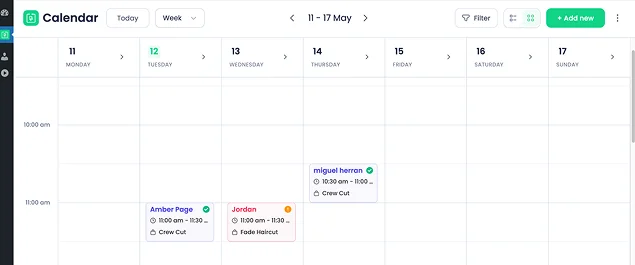
We think the week view in the new BookingPress calendar is perfect for daily operations, when you can zoom in on your current tasks. It’s a very organized and readable layout you will most likely use the most.
BookingPress includes two different Week View layouts depending on how you prefer managing schedules – find the respective icons next to the Filter icon.
1. Timeline View
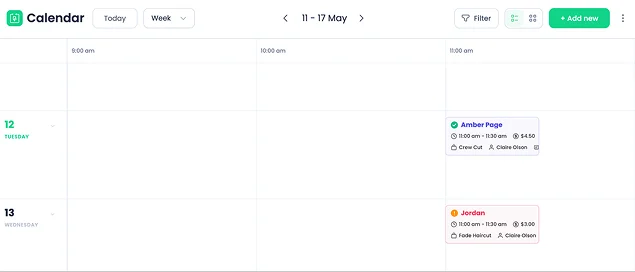
As you see, appointments appear along a horizontal timeline, so that you can identify overlapping bookings, understand appointment flow, and manage staff availability visually. So, if you deal with continuous appointment scheduling throughout the day, access this view.
2. Grid View
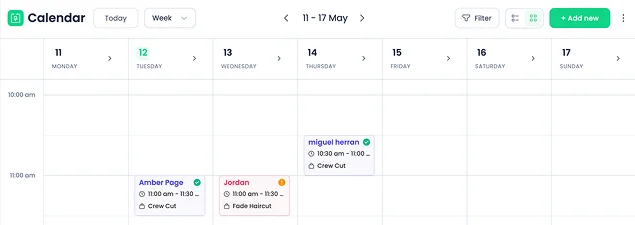
The grid view displays appointments in structured time slots, with a cleaner availability-focused layout. If you have a front desk staff, manage a clinic or agency, this is a nice solution to coordinate multiple team members simultaneously.
We’ve designed it to fight one problem – simplify the crowded scheduling interfaces where appointments stack on top of each other. So, this side-by-side solution is great for better readability.
Try some scrolling in this view to better manage multiple bookings and find what you need:
- horizontal scrolling inside Week View columns.
- vertical scrolling within Timeline rows.
- expandable calendar sections for better visibility control.
Day View (Focus On The Day)
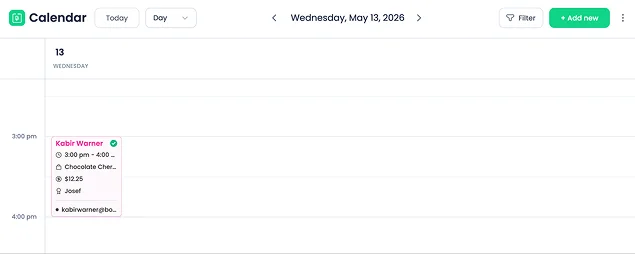
When you need to manage a packed day quickly with the Day View, we’ve decided to remove unnecessary empty hours. This way, BookingPress only shows your configured working hours.
For example, if your business operates from 9:00 AM to 6:00 PM, only those hours appear in the calendar. We hope this will help you access today’s appointments faster, minimize scrolling, and make fewer errors.
Also pay attention that day-based and multi-day services are displayed separately at the top of the calendar for improved visibility.
Switch between views for better mobility!
Find Appointments Faster With Advanced Filters
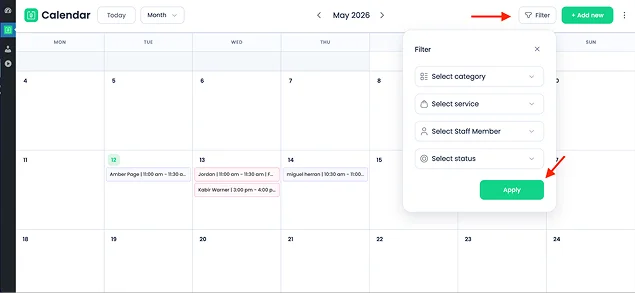
Filters are great to reduce manual searches – and you can use them in the new calendar in BookingPress. So, use filters to find exactly what they need to see, including:
- Service
- Staff Member
- Location
- Appointment Status
Combine multiple filters simultaneously and you’ll get more precise scheduling control.
For example, if you need to review all pending bookings for a single staff member, combine the Staff filter with the Pending Status filter. Managing multiple business branches? Use the Location filter to display bookings only for a specific branch or office. Same way, you can also analyze bookings for a particular service with the Service filter, isolating appointments instantly for easier planning and workload management.
Access Appointment Cards In The Calendar
What are appointment cards in the calendar? It’s a specific layout for every appointment, when a booking inside the calendar appears as an interactive appointment card containing essential booking details.
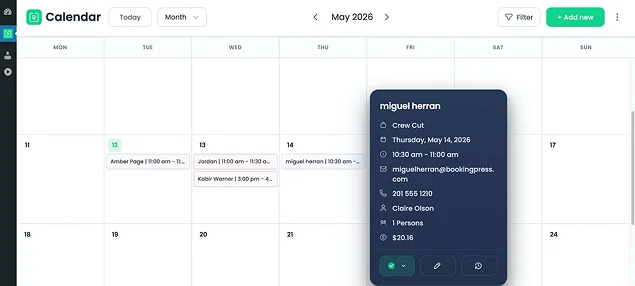
It all depends on how you manage bookings and which details you collect. Based on that, depending on your setup, cards can display:
- service names,
- customer details,
- assigned staff members,
- locations,
- appointment duration,
- email and phone information,
- and custom field data.
We’ve also made these cards customizable to better fit your workflow. Click on the three dots in the calendar > choose your preferences > save.
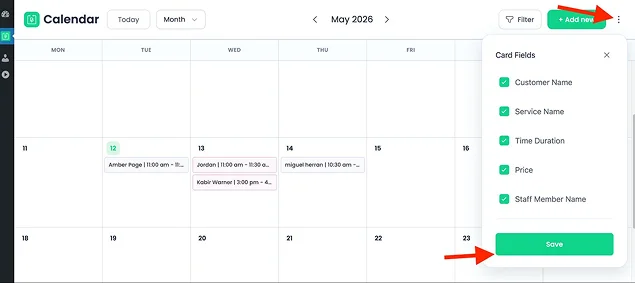
Using the built-in Card Fields settings, you can:
- Choose which information appears on cards.
- Reorder fields with drag-and-drop controls.
- Prioritize the details most relevant to your business.
So, all the most essential booking information is immediately at hand in your calendar. But since everyone has different things on top of their list, a salon may prioritize service type, stylist, and customer phone number; a fitness studio may focus on trainer assignment, session duration, and class type. You are free to choose what is good for your actual workflow.
Manage Appointments Directly From The Calendar
One of the biggest improvements in the redesigned BookingPress Calendar is the ability to handle appointment changes directly from the scheduling interface itself.
We hope this will reduce admin time for whatever workload. So, what are you empowered to do?
You can quickly access appointment details. And clicking on an appointment instantly reveals:
- customer information,
- booked service,
- assigned staff member,
- date and time,
- and appointment status.
Moreover, you or your staff can quickly change appointment statuses directly from the calendar interface.
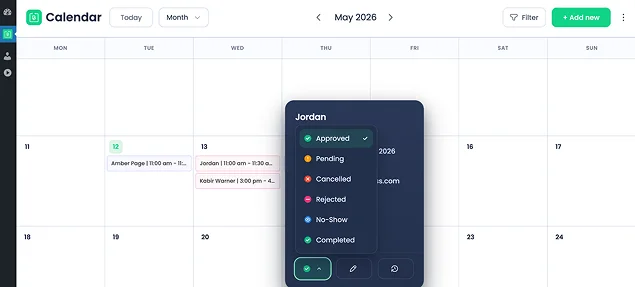
For example, they can mark appointments as Completed, update them to Pending, or cancel bookings in just a few clicks. High appointment turnover throughout the day is no longer a problem.
Needless to say, you can add and reschedule bookings:
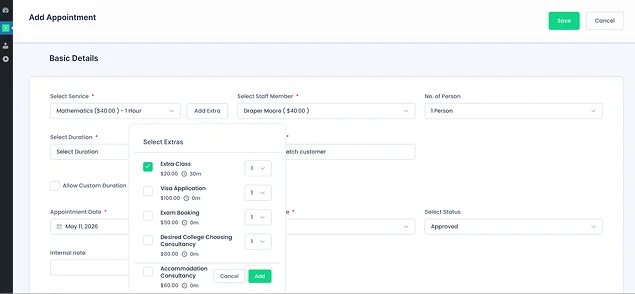
Drag-And-Drop Rescheduling In The Calendar
Rescheduling appointments is now as simple as in calendar apps. With drag-and-drop (available in the Pro version), you can move appointments visually to a different date or time directly inside the calendar.
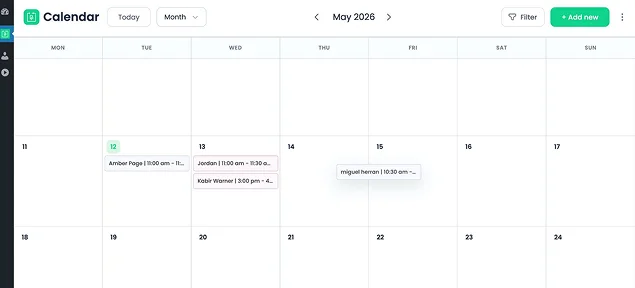
Once you’ve chosen the right time, the Reschedule pop-up will prompt you with the next steps.
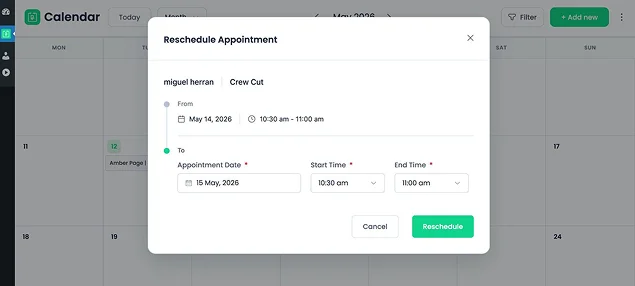
So, when a client calls asking to move their Thursday appointment to Friday morning, you can now simply drag the appointment to the new slot within seconds! No need to manually change time and go to separate booking lists. Just use the BookingPress calendar as you would do with other calendar apps.
Resize Appointment Duration Visually (Pro Feature)
This is another layer of intuitive and visual appointment scheduling in BookingPress – you can visually extend or shorten appointment durations directly from the calendar.
For this, simply resize the appointment block to adjust the session length. You should be in the respective calendar view – for example, it’s possible to drag the corner of the hourly appointment when you see the timeline.
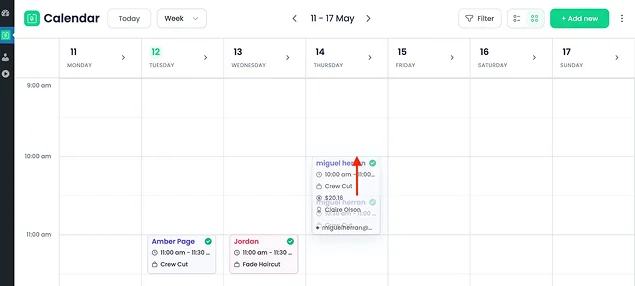
Which business types can benefit from this? Anyone needed to often change the length of the appointment:
- consultations,
- coaching sessions,
- therapy appointments,
- personal training,
- and service-based businesses with flexible booking durations.
A handy wizard will then pop up to help you reschedule.
New Visibility Improvements In BookingPress 5.6
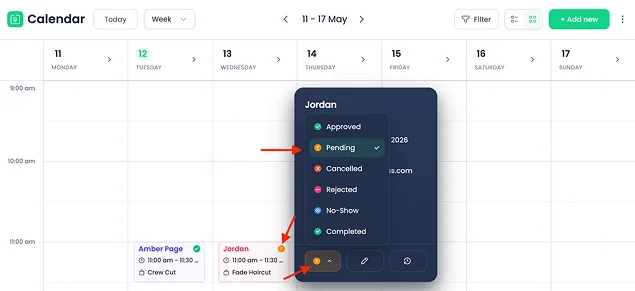
BookingPress 5.6 comes with a few extra visual indicators to speed up the work with the calendar, including:
Pending Appointment Indicators – Pending bookings are now easier to identify directly from the Month View without opening individual appointments.
Multi-Staff – BookingPress allows you to assign multiple staff members to an appointment, so these indicators are also clearly marked in the calendar.
Multi-Service – Bookings containing multiple services are now easier to recognize instantly inside the calendar interface.
We hope these improvements will work for more complex needs and workflows.
Concluding: Better Scheduling And Managing Experience In The Visual BookingPress Calendar
The BookingPress Calendar was redesigned with a simple goal – more visual and intuitive calendar management and scheduling for your daily workflow.
The newer calendar provides filters, booking management options, visual appointment rescheduling or duration update, handy booking cards, and multiple visual indicators for your workflow. You can also scan through multiple employees, multiple services, or high daily booking volumes.
Overall, we hope you enjoy the new calendar experiences!
Related articles:
 14-day money-back guarantee