How to Automate Meeting Follow-Up Emails With BookingPress


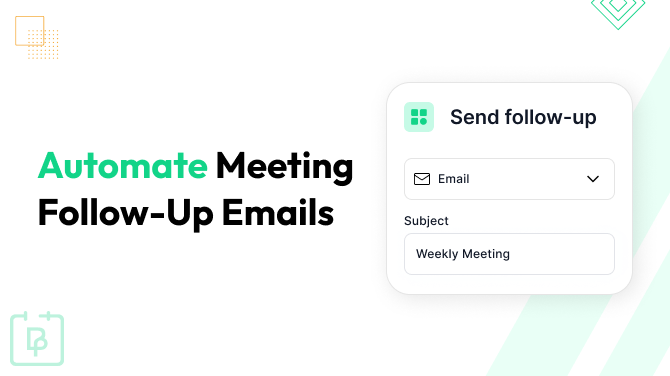
BookingPress allows easy online bookings on WordPress. Meetings are impossible without notifications before and after the appointment. They make the entire workflow and business more productive for your staff and clients.
In this article, let’s focus on a specific type of email, which is said to drive better engagement and marketing benefits: appointment follow-ups.
Why Send Meeting Follow-ups?
For service-based businesses, coaches, consultants, massage therapists, and tutors, follow-ups are part of the professional and productive schedule.
Automated follow-up emails help significantly with:
- Reduce lost opportunities
Clients sometimes forget appointments or never return after their first session. A timely follow-up can remind them about next steps or valuable offers.
Example: “Thanks for meeting with us yesterday: we’d love to hear your feedback and help you schedule your next session.”
- Build trust and professionalism
Automated meeting follow-ups show clients you care about outcomes.
Example: “We hope your session went well! If you have questions or feedback, just reply to this message.”
- Drive repeat bookings and reviews
Follow-ups are perfect for encouraging additional services or requesting reviews, which boost credibility for future clients.
Example: “Loved your experience? Share a quick review: it helps others find us too!”
What Types of Automated Emails Are Supported by BookingPress?
BookingPress supports a wide range of automated email notifications tied to key booking events happening on your WordPress site.
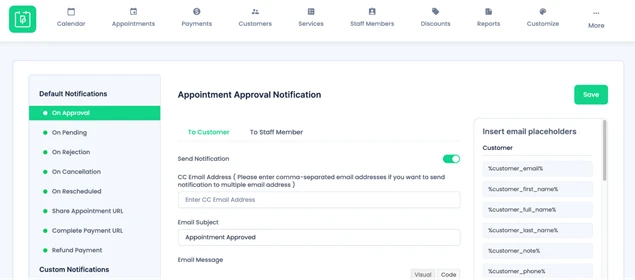
These can be sent to clients and/or staff members depending on how you configure notifications.
Default BookingPress emails:
- Appointment Approved (when a customer’s appointment is confirmed).
- Pending, Rejected, or Canceled (emails for changes in appointment status).
- Reschedule Notices (alerting customers when their meeting time changes).
- Payment and Refund Links (automatically share a link to complete payment or notify about refunds).
- Share Appointment URL (useful when you want to send booking links via email).
These built-in templates keep your clients updated at every step of the booking lifecycle and can be easily altered at any moment.
Custom and scheduled emails:
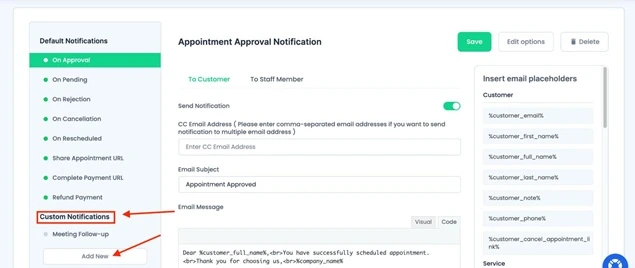
BookingPress tries to be agile to fit as many needs as possible. For these requirements, you can create custom notifications, including follow-ups scheduled to go out after a meeting has ended.
When you add a custom notification in BookingPress, you can:
- Choose a trigger (e.g., after the appointment is completed).
- Or set a scheduled time interval after the appointment, for example, 6 hours or 1 day later.
- Use the built-in BookingPress email editor to write your message and dynamic placeholders (like customer name or appointment date) that the booking plugin fills in automatically.
To make your follow-ups personal and relevant, use placeholders include variables like,
- %customer_full_name%
- %appointment_date_time%
- %service_name%.
How to Automate Meeting Follow-Up Emails With BookingPress
Let’s create your automated BookingPress email that will be sent according to your schedule after an appointment.
1. Creating and customizing a follow-up email
To set up follow-up emails inside BookingPress:
- Go to BookingPress > Notifications in your WordPress dashboard.
- You’ll see the list of built-in notifications and an option for Custom Notifications (including Appointment Reminder and Follow-Up).
- Click Add New to create a new follow-up message.
- Name your notification (e.g., “Post-Meeting Follow-Up”).
- Set the notification type: Choose “Scheduled Notification” to send emails at a fixed time after the appointment ends.
- Choose which services this applies to (all services or just specific ones).
- Set the schedule (e.g., 6 hours after the appointment).
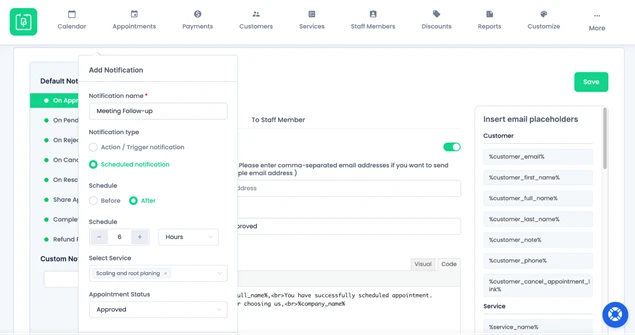
- Save the notification.
- Enter subject and email body content (you can insert placeholders for client name, booking details, etc.).
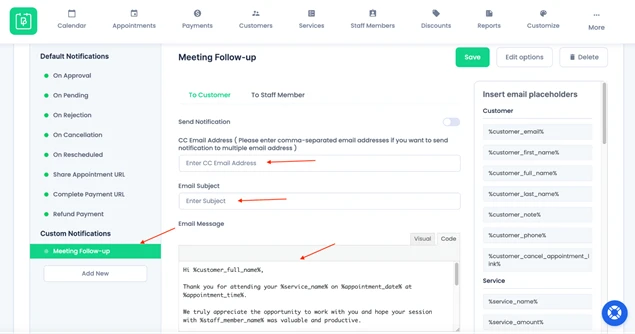
Once your email is ready, save the changes, and BookingPress will send it automatically when the conditions are met. Just add the email once, and you don’t have to draft and send follow-ups manually (it all happens behind the scenes).
2. Important email configuration settings (for all types of emails)
To ensure your emails actually reach your clients:
- In BookingPress > Settings > Notifications, choose how emails are sent (for better delivery, set up SMTP or Google/Gmail services instead of relying on default WordPress mail functions).
- Enter your sender name and email (so emails come from a recognizable address).
- Enable notifications for customers and, if needed, staff.
If follow-ups aren’t sending, double-check SMTP settings and use test email tools to verify connectivity.
Not Just Emails – Send Automated Meeting Follow-up SMS & In-App Messages
So, you already know how to set up automated email reminders, which are often enough.
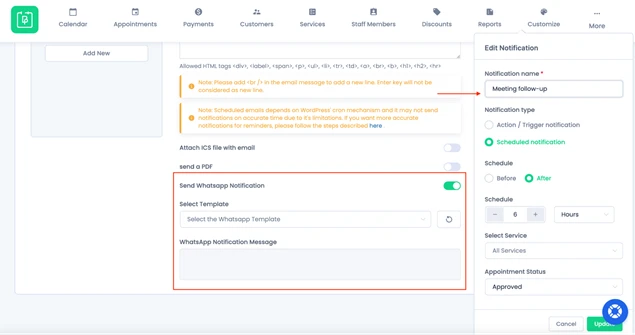
However, many clients respond faster to messaging channels they check multiple times per day. BookingPress also supports automated SMS, WhatsApp, and Telegram notifications, which you can enable in one click along with emails, so follow-ups can happen in many ways. You will have an add-on for each chosen notification.
SMS notifications:
- Install and activate the SMS Notification add-on.
- Configure your SMS gateway (BookingPress supports 36 SMS providers!).
- Write SMS templates using dynamic placeholders (works similarly to emails).
SMS follow-ups are excellent for quick post-appointment check-ins or reminders to book again.
WhatsApp messages:
- Enable the WhatsApp notification add-on.
- Configure Twilio or WhatsApp Business gateway credentials.
- BookingPress will let you enable WhatsApp messages alongside standard notifications.
WhatsApp messages often have extremely high read rates (perfect for follow-ups and confirmations).
Telegram notifications:
Use the Telegram Notification add-on and set up via BookingPress > Settings > Notifications > Telegram. You’ll need API credentials and usernames for customers and/or staff.
Simply customize Telegram templates using the same placeholders available for email, and your Telegram follow-ups are automated.
These channels let you go beyond email and reach clients via modern messaging platforms.
Concluding: Easily Automate Meeting Follow-Up Emails With BookingPress
With the BookingPress WordPress appointment booking plugin, you can fully automate your communication workflows, including follow-up emails and even SMS, WhatsApp, and Telegram messages.
BookingPress allows you to easily inform and engage clients after a meeting or service. A simple follow-up email or message is a powerful way to boost satisfaction, collect feedback, and increase repeat bookings.
You May Also Like:



Brian is a WordPress expert with a decade of developing experience & technical-writing. He enjoys blogging, movies & hiking.

Get BookingPress Premium
60+ Premium Addons
20+ Payment Gateways
Plan starts at just $89
Get Premium Now