Scheduling needs are different in every business. So are the payment gateways.
In BookingPress, you can easily have the payment processor that you need, even if you don’t see it yet in the list of payment add-ons. This is because one of the extensions, WooCommerce, contains access to hundreds of gateways that can be placed on your website and connected to your BookingPress payments.
Literally, you can have any local payment processor that works for you, enabled for your client service booking workflow directly on your WordPress website.
In this article, we want to cover the exact steps for connecting WooCommerce. It may become your best friend for increasing conversions and serving modern people.
TL;DR: WooCommerce lets you connect BookingPress with hundreds of extra payment gateways that aren’t available as BookingPress payment add-ons. You can enable WooCommerce, create a virtual product, assign it to selected BookingPress services, and let customers complete their appointment payment through WooCommerce checkout.
What Is WooCommerce And When Does Your Site Need It?
First, the BookingPress plugin allows you to take payments for bookings using 22+ popular payment processors.
Those include many regional solutions as well as international, such as Skrill, Stripe, and Square. However, your appointments may require a very specific gateway that is not included with BookingPress add-ons. In this case, WooCommerce is a true saver.
It works for selling physical goods and digital, too. In this case, bookings are your ‘products’. So, you may only sell time and take payments for it with WooCommerce. You don’t need to have a store alongside your service business (but having it is fine too).
WooCommerce is one of the best plugins for online commerce and taking payments via hundreds of alternative methods. For example, if you are in Finland and want to take payments via Paytrail, you may seamlessly do that with Woo and its dedicated Paytrail add-on (it’s free, but it all depends on the add-on you choose).
Before enabling WooCommerce on your WordPress site, you can sort the gateways by country to see if the one you need is there.
To sum up this part, you may need WooCommerce if the range of payment add-ons BookingPress offers is not enough to cover your needs.
Even more so, you’ll get a chance to:
- Connect BookingPress services with WooCommerce products.
- Manage appointment payments via WooCommerce orders.
- Provide customers with secure checkout.
For this reason, we created a dedicated integration to allow BookingPress to work seamlessly with WooCommerce. You don’t need to connect anything external. You will simply need to enable the add-on from the list of integrations. We’ll now explain how to do it step by step.
Step-by-step Guide On Enabling & Using WooCommerce With BookingPress
Before you proceed, make sure that the WooCommerce plugin is installed and activated.
1. Download The Woocommerce Add-On From Your BookingPress Account
If you haven’t installed the add-on for WooCommerce at any moment before, you need to log into your BookingPress account, find the add-on via Access Passes > View your downloads.
2. Install The Addon On Your WordPress
The next step is simple – install the plugin (your WooCommerce addon) on the website where BookingPress is running and where you want to take payments. Activate it immediately.
3. Enable Woocommerce In The Bookingpress Settings
Go to “BookingPress > Settings > Payments > Find WooCommerce (it appears when activated) > Toggle on.
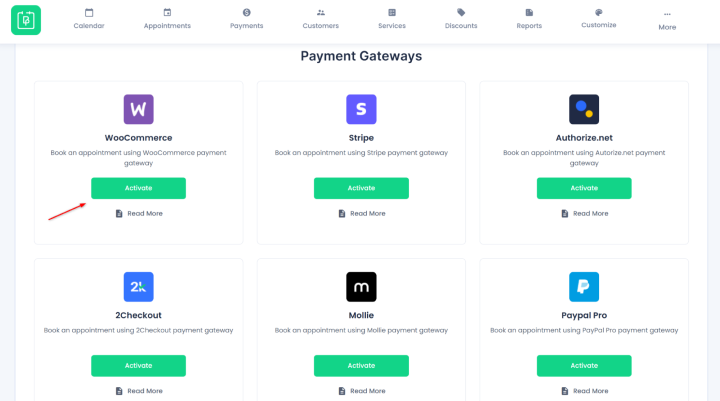
4. Turn On WooCommerce For BookingPress
Go to BookingPress > Settings > Payments and enable WooCommerce.
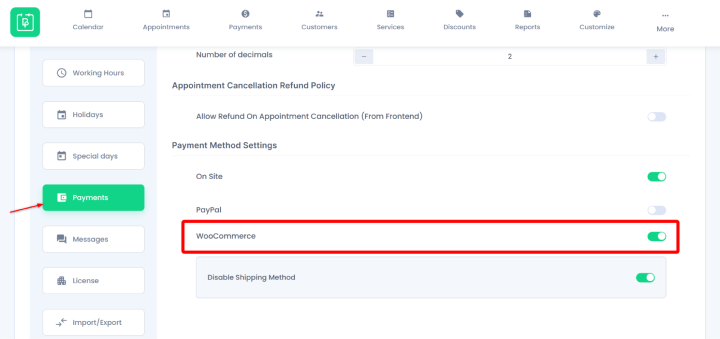
5. Create a Woocommerce Product To Associate With Your Services
Go to WooCommerce > Products > Add new product > name it as you wish (e.g. Service Booking) > select ‘Virtual product’ > Publish it.
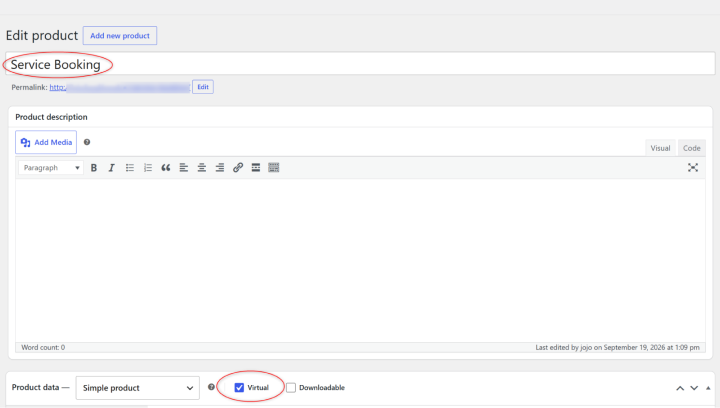
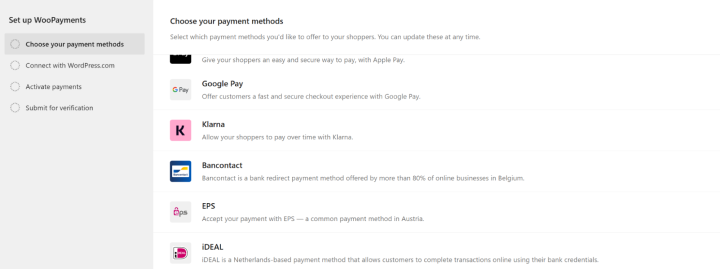
Also, make sure that you have enabled all the required payment processors in WooCommerce via WooCommerce > Settings > Payments.
6. Enable Woocommerce For Specific Services
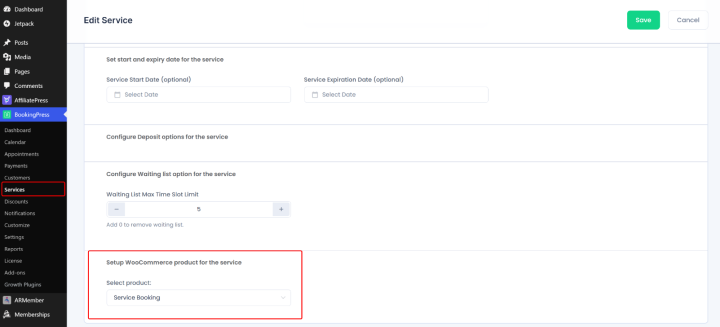
Now, decide which services exactly can be paid through the WooCommerce plugin, find them in BookingPress > click Edit (or Add if it’s new) and assign Woo to them. Note that when you use WooCommerce, all other BookingPress payment gateways, even if enabled in the settings, won’t work for services with Woo enabled. Basically, one method replaces another.
7. Test Your Checkout
When a customer books a timeslot and lands on the payment page, they can choose WooCommerce, which will provide them with the payment options you enabled via Woo.
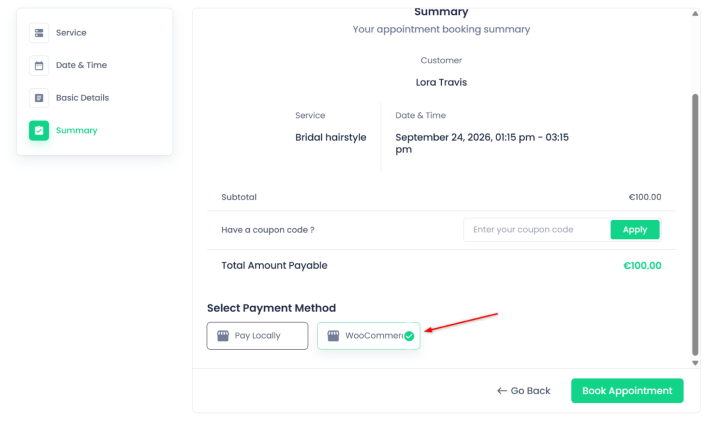
If everything is set up correctly, you will redirect your clients to a Woo-hosted page, where they will see a typical cart with payment options and client details.
Final Word: How To Connect WooCommerce With BookingPress For Appointment Payments
Online payments get your business real money. BookingPress doesn’t limit you to any of them. First, you can have dozens of gateways via the built-in add-ons that don’t require any extra integrations.
However, if you need one for even more gateways, WooCommerce is here, just like its dedicated integration add-on from BookingPress. The add-on is available for any BookingPress plan.
To sum up the workflow, you’ll get:
- BookingPress service plus selected WooCommerce product for payments.
- WooCommerce checkout replaces BookingPress appointment booking.
The actual service, availability, duration, staff, etc. are sourced from BookingPress. WooCommerce in this case is a payment/checkout layer. BookingPress says that after the customer places the WooCommerce order, the appointment gets booked.
Try it for free on every BookingPress plan!
Related articles:
 14-day money-back guarantee