Cancelling a Google Calendar meeting is easy, either from your computer or mobile phone. It literally takes a few clicks, but there are a few factors that influence the way you can delete events:
- Whether you or your organization created it.
- Whether it’s a one-time or recurring event.
- Whether you manage events or appointments.
Don’t worry about notifications – Google Calendar also sends them automatically to all guests when an event is canceled. Let’s now guide you through the steps.
Cancelling a Google Calendar meeting created by you
That’s the easiest task.
When you delete or cancel a Google Calendar meeting. The event will be removed from your calendar, and everyone else’s invited.
- Open your Google Calendar.
- Find the event you want to remove and click it.
- Click “Delete event”.
- If it’s a one-time event, it will be deleted immediately.
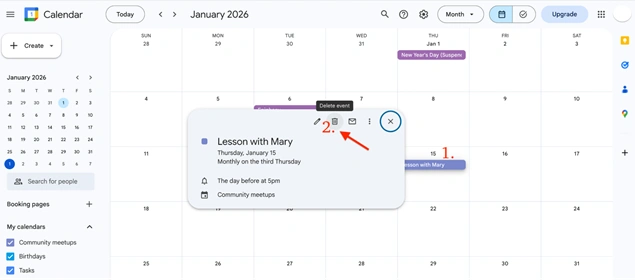
For a faster way, right-click the event > Click Delete icon.
How to do the same on the phone: Go to the calendar app, find a meeting to be deleted > click the three dots icon > Delete.
Cancel a Google Calendar meeting you were invited to
Follow these steps:
- Go to Google Calendar.
- Open the event added to your calendar by someone else that you want to remove.
- Click Remove or Remove from this calendar.
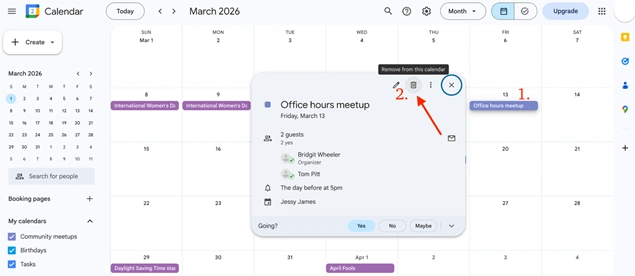
When you remove an event, the organizer is notified that you declined.
How to do the same on the phone: When you want to cancel a Google Calendar meeting on your phone, go to the calendar app, find and click on an event you want to delete > click the three dots icon > Delete.
Also Read: 4 Easy Ways to Share Google Calendar With Others
Cancel a recurring meeting in Google Calendar
Recurring meetings can be deleted in just the same way from your Google Calendar.
If you delete an event that repeats, you find more options below. These options are only available for events you created, not for events created by others.
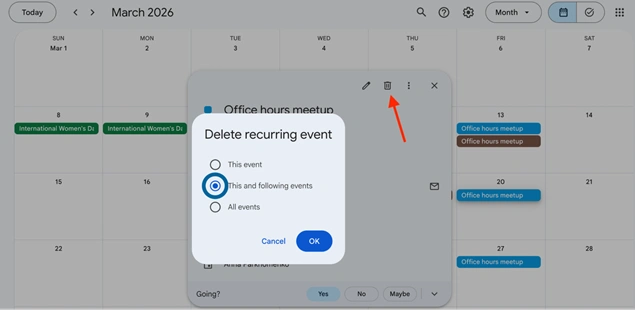
Here are the options you have:
- This event: Delete this event only and keep future events (this same type).
- This and following events: Deletes this event and future events.
- All events: Remove all meetings in this series.
Restore deleted meetings
When you delete an event or mark it as spam, it’s kept in the calendar’s trash for 30 days.
If you’ve deleted a Google Calendar meeting accidentally, you can easily restore an event, but this doesn’t work on mobile or tablet devices. You should log in to your calendar from your computer.
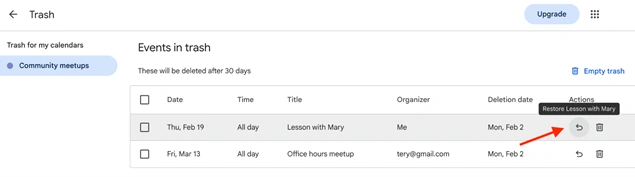
- Open Google Calendar and go to Settings (cog icon) > Trash to view deleted events.
- Click Restore next to an event to recover it, or use Restore selected to recover multiple events at once.
Cancel appointments in Google Calendar
If you use Google Calendar for appointment scheduling, it’s also easy to cancel a meeting or appointment from there.
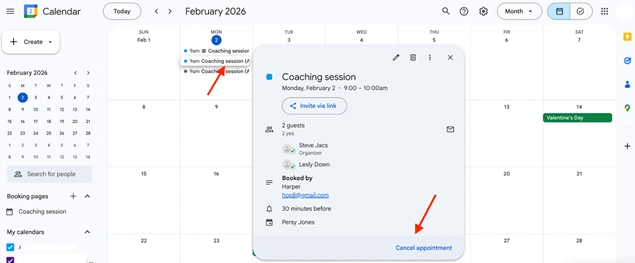
Canceling an appointment removes it from your calendar, notifies the person who booked it by email, and makes the time available again on your booking page.
- Open the appointment in Google Calendar and select Cancel appointment.
- Confirm on the booking page.
- For third-party appointments, use the cancellation link in the confirmation email or decline the calendar invite. Anyone with the confirmation email can cancel the appointment.
Manage meetings on your own website with BookingPress
If your personal brand or business deals with professional meeting scheduling, you can transfer all the meetings, appointments, and bookings to your personal WordPress site, powered by BookingPress, including:
- Client self-scheduling of the most suitable meeting time.
- Easy research and meeting cancellation with automated notifications.
- Group and one-to-one meetings.
- Online payments for any meetings.
- Powerful tools for staff, including shifts, schedules, online tipping, and also connecting their calendar to Google Calendar.
Don’t hesitate to get started if you want to easily get paid for your meetings and build a personal brand online!
Conclusion
As you see, canceling meetings in Google Calendar is quick and flexible, as long as you understand who created the event and how it’s set up.
One-time meeting, recurring events, or appointments booked through Google Calendar – it only takes a few clicks to cancel them and get notified without manual email sending.
You May Also Like:
- How to Import an ICS File into Google Calendar in Minutes
- How to Write Meeting Reschedule Email (Templates + Tips)
- 10 Google Calendar Tips to Supercharge Your Productivity
- Google Calendar Vs Apple Calendar: Which One to Use?
Frequently Asked Questions
Is it safe to cancel meetings in Google Calendar?
Yes, it’s completely safe to cancel meetings in Google Calendar. When you delete a meeting you created, Google automatically notifies all invited guests by email. If you remove a meeting created by someone else, the organizer is informed that you declined the event.
There’s also a safety net: deleted meetings are stored in the Trash for 30 days, so you can restore them if you cancel something by mistake (from a desktop browser).
Can I delete Google Meet meetings created by others?
You can’t fully delete meetings created by others, but you can remove them from your own calendar.
When you remove an event you were invited to:
- It disappears from your calendar.
- The organizer is notified that you declined the meeting.
- Other attendees are not affected.
Only the event organizer has permission to permanently delete the meeting for everyone.
Can I cancel a Google Calendar meeting from my phone?
Yes, you can cancel or remove meetings directly from the Google Calendar mobile app. From your phone:
- Open the Google Calendar app.
- Tap the meeting you want to cancel or remove.
- Tap the three dots.
- Select Delete or Remove from this calendar (depending on whether you created the event).
For meetings you created, this cancels the event for all guests. For meetings created by others, it simply removes the event from your calendar and notifies the organizer.


 14-day money-back guarantee