

Productivity and collaboration are super important for such human-oriented businesses as appointment-based companies. Role-based access control is one of those methods to make collaboration transparent and straightforward. It’s basically about giving the right permissions to the right people for the software you use.
So, in this article, we want to explain what permissions you can customize for staff logins and how exactly you can do that.
TL;DR: BookingPress makes collaboration with your team members way more easier. Its role-based access control lets you access an easy role editor from where you allow who in your company is allowed to do what.
When Do You Need To Utilize Role-Based Access Control?
It’s a very easy question for anyone running a backend for their service/appointment scheduling business.
The shifts, staff, customers, prices, availability, and everything else are managed through the digital interface – and many people in the team (not customers) might need to log in and out multiple times a day. But everyone does their own tasks.
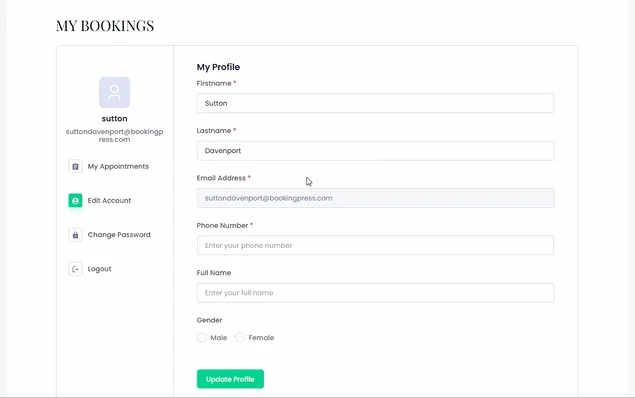
Front desk staff handle daily bookings, check-ins, and payments. Managers and owners usually need to see the whole picture, including schedules, pricing, and overall business reports. Your service providers usually just need to see their own calendars and clients without full access to the backend dashboard (plus, probably send booking links to customers).
With BookingPress, you can give this specific permission to your staff based on what they do; this way, you’ll keep everything under control and won’t also overwhelm staff with backend menus they don’t need.
Roles & Capabilities Add-On In BookingPress Helps You Customize Access For Staff
When you activate the Roles & Capabilities add-on, you will see a new dedicated menu with the same name under your BookingPress.
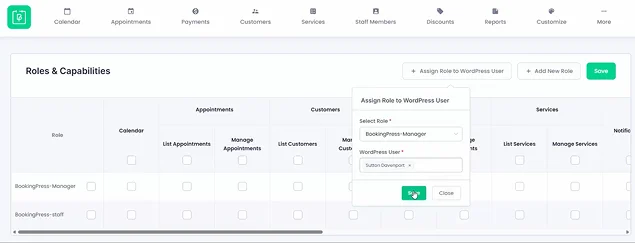
From there, you can access an easy role editor, which is basically where you allow who in your company is allowed to do what:
- You can add your own custom roles and customize their access levels using the table with listed capabilities.
- Each role can be assigned to a specific WordPress user (normally your employees are added as users through WordPress with their individual email addresses). You may assign different people to the same role, e.g., when you have many staff members doing a similar thing. Use the dedicated Assign role button for this.
Permissions
With permissions, which is as easy as ticking boxes, you actually define what actions your staff can take in their personal log-on area of BookingPress.
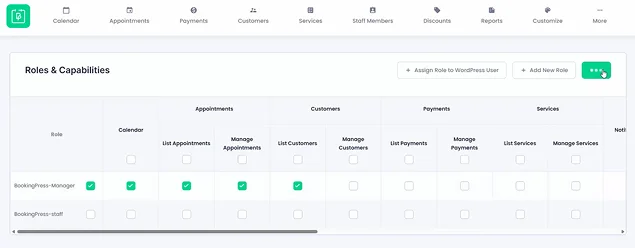
With role-based permissions, you can do the following.
Calendar
The Calendar access should be open for an employee who needs to view your bookings in a calendar format.
Typically, you may open it for receptionists checking daily appointments (e.g. clinic administrators monitoring bookings) or managers who coordinate staff schedules.
If a staff member never needs to see the appointment calendar, simply leave this permission disabled.
Appointments
Appointment permissions have the ‘List’ and ‘Manage’ options. This works well for employees who need to view bookings.
Let’s specifically list the rules for the ‘list’ rule:
- View upcoming and past appointments.
- Check customer booking details.
- Monitor schedules without making changes.
‘Manage Appointments’, as its name suggests, gives your team a higher level of access:
- Create new appointments.
- Reschedule existing bookings.
- Update appointment details.
- Cancel appointments.
For example, a front desk receptionist at a dental clinic or spa will usually need full appointment management, while a service provider may only need to view their schedule.
Customers
Customer permissions also have separate viewing and management capabilities.
Use the ‘List Customers’ rule to do such actions:
- View customer profiles.
- View contact information.
- See booking history.
‘Manage Customers’, again, is greater control, which allows your team to:
- Add new customers.
- Edit customer information.
- Delete customer records.
So, in reality, administrators may regularly update customer details, but service providers like trainers and instructors may only need to view client information.
Payments
Financial records are one of the most important parts, and you surely want to give access to the right people. For example, reception staff can simply verify whether an appointment has been paid.
Use ‘List Payments’ to give access to:
- View completed and pending payments.
- Check payment status for appointments.
With ‘Manage Payments’, they can also:
- Update payment records.
- Modify payment details when customers submit new.
Services
Your services and paid offers are critical for the business, so you need only the right people to have access to them.
As an owner, you might need to adjust treatment prices, but your staff can only perform the booked services without editing them.
You can use ‘List Services’ when staff can only view available services and pricing, and ‘Manage Services’ to:
- Add new services.
- Update pricing.
- Edit durations and descriptions.
- Remove services.
Notifications
Need someone to handle your automated emails or at least to make changes to the default ones? Then turn this permission on.
It opens up the Notifications page to your staff, and they can review and configure booking confirmations and customer updates. Such customer-facing messages are usually a setting for owners or managers.
Settings
Customize the settings permissions to define exactly which settings each role can manage. Those permissions are just like in the plugin:
- Notification settings (manage automated emails and messages).
- Work hours settings to set up staff working schedules.
- Holiday settings (when your business is closed and bookings are unavailable).
- Special days settings (custom availability for specific dates).
- Manage settings (major BookingPress configuration).
These are actually the core settings you define at the beginning when creating a booking workflow, so give this permission to only yourself or staff who have the manager rights.
This is important to reduce the risk of accidental changes and protect sensitive business information – and everyone gets a lean and clean dashboard of their own!
Concluding On Role-Based Access Control With BookingPress
With role-based access control, you can have a powerful collaborative workflow for your service business, giving co-workers a lot of autonomy.
For this, BookingPress doesn’t limit you to just one login dashboard with access to all the business tools.
Thanks to the WordPress capabilities for multiple user management and the dedicated extension to BookingPress for the business role management, you can actually customize permissions for your staff based on what daily actions they do.
By default, the BookingPress Roles and Capabilities extension has one role: BookingPress Manager. It’s for your team members who need backend access to BookingPress but don’t require any full access for daily tasks.
The BookingPress Manager role is fully configurable, which means you can give or limit access to your calendar, appointments, customers, payments, services, notifications, or specific settings – and assign the needed WordPress user to it.
Moreover, with BookingPress, you may create as many custom roles as your business and staff needs, no limits here (receptionist, support agent, operations manager, you name it). After creating a role, you simply choose which BookingPress features that role can access by enabling or disabling individual permissions.
Collaboration is that easy with role-based access control and BookingPress!
Related articles:
 14-day money-back guarantee