

A customer books a 30-minute consultation on your WordPress website. The booking is done. But the work is not over yet. You still have to open Microsoft Teams, create a meeting, add the right details, copy the join link, and make sure your customer gets it.
One meeting now isn’t a problem. But when you’re creating Teams meetings for dozens of appointments every week, those extra steps quickly become another task.
This is where automating Microsoft Teams meetings can save you from another repetitive task. BookingPress allows you to connect Microsoft Teams with your WordPress booking system and create meetings automatically for the services where online meetings take place. You can connect your staff members with their Microsoft accounts, pick the calendar where appointments should be added and enable Microsoft Teams for specific services.
After everything is set up, a customer can book an online appointment through your WordPress website, and BookingPress can handle the Microsoft Teams meeting as part of that booking workflow. On top of that, you can add the Teams join link in appointment details and notifications with just a simple placeholder.
So, how do you set it all up? Let’s walk through it.
TL;DR: BookingPress can automatically create Microsoft Teams meetings for online appointments booked easily. Simply activate Microsoft Teams integration, connect your staff members’ Microsoft accounts, select their calendars and enable Teams for the services that need online meetings. This way BookingPress can create the meeting and share the Teams join link via appointment details and notifications.
What Does The Microsoft Teams Integration From BookingPress Deliver?
The Microsoft Teams WordPress integration add-on turns your simple WordPress appointment booking site into a virtual meeting platform, leaving no room for manual work, as this add-on syncs your appointment system directly with Microsoft 365.
To know more, here’s a detailed look at what this Microsoft Teams Integration add-on delivers for your BookingPress-powered business:
Automatically Create Microsoft Teams Meetings
Whenever a customer books an online booking, the system creates a unique Microsoft Teams meeting right away. You don’t have to generate video links by hand or copy-paste URLS into calendar invites. The WordPress Microsoft Teams add-on from BookingPress automates Microsoft Teams meetings, ensuring zero friction for your work.
Connect Staff Members With Their Microsoft Accounts
Staff management with BookingPress is always clean and decentralized. Each of your employees gets to link their personal Microsoft 365 accounts directly via their BookingPress profile settings.
After connecting, they can easily select their preferred calendar from a dropdown list. All upcoming virtual sessions sync directly to the correct personal calendar to avoid double-booking and keep team members organized.
Enable Microsoft Teams For Specific Services
Thanks to BookingPress Microsoft Teams Integration, you can decide which services need an online video call to keep in-person visits local while automating virtual coaching, consultations, or therapy.
Moreover, different staff members can offer different online services based on their schedules.
Sharing The Join Link
The BookingPress system adds the meeting link into the customer confirmation emails and reminders using the %teams_join_url% tag. Thus, customers can find their join link easily right inside their appointment details page.
What makes it even better is that clients face no sign-in barrier. They can simply click the link and join the meeting through their browser or the Teams app.
When Does Microsoft Teams Integration Work Best?
The Microsoft Teams WordPress integration add-on works best when you want to take your services online. It hits the sweet spot if your business already runs on the Microsoft 365 ecosystem.
In simple words, it’s best for businesses relying on face-to-face digital interactions. You don’t have to worry about creating or pasting meeting links for every booking. The BookingPress Microsoft Teams Integrations automate the complete logistics that go behind the scenes so you can focus on what matters the most – clients.
Here are some best use cases of the Microsoft Teams WordPress integrations add-on by BookingPress:
- Online Consultations: Best-fit for telehealth appointments, design discovery calls, or virtual project discussions
- Coaching Classes: Yoga classes, dance classes, or business coaches running 1-on-1 or group sessions
- Tutoring: Automate Microsoft Teams meetings for your academic classes, corporate training, or skills development
- Remote Professional Services: Makes virtual meetings easy for your lawyers, accountants, and financial advisors
Overall, Microsoft Teams works smoothly for any service where staff and customers are comfortable meeting online.
How To Enable Microsoft Teams For Your Online Bookings?
Setting up Microsoft Teams with BookingPress only needs a few configurations here and there, on both Microsoft and BookingPress. After you complete them, your staff members can connect their Microsoft accounts, pick their calendars and use Teams for the services that need online meetings.
Before you get started with the steps below, just make sure you have Microsoft Teams Integration installed and activated. If not, simply go to BookingPress Add-ons, scroll till you find the add-on, and hit the Activate.
Let’s now go through each step.
1. Create a Microsoft Application And Get Your Client ID
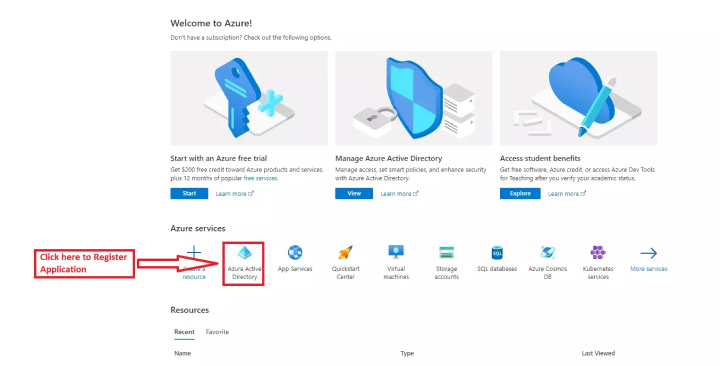
First of all, you have to create an application in Microsoft Azure to let your BookingPress system connect with your Microsoft account, and access the required Microsoft services.
Simply head over to the Microsoft application registration page and register a new application.
Enter a Name for your application and click Register. And, after the application is registered, open the Application Overview page. Here, you will find the Application (Client) ID.
Just copy this ID, as you will need it later.
2. Create a Client Secret
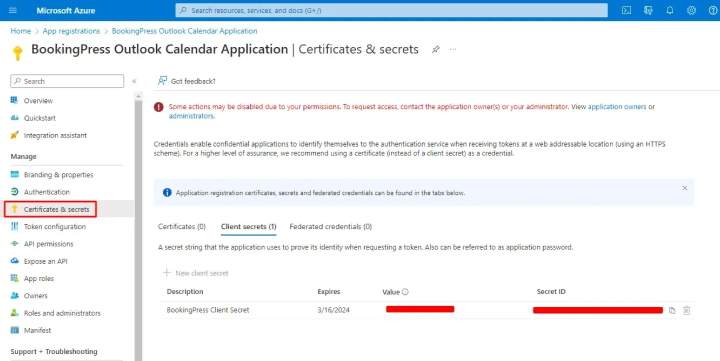
After this, you gotta create a client secret for the application.
From your Microsoft application dashboard, go to Certificates & secrets and create a new client secret. Now just copy the Secret Value and keep it somewhere safe.
Worth mentioning Microsoft shows the secret value only once so make sure you copy it before leaving the page.
3. Add The Redirect URL
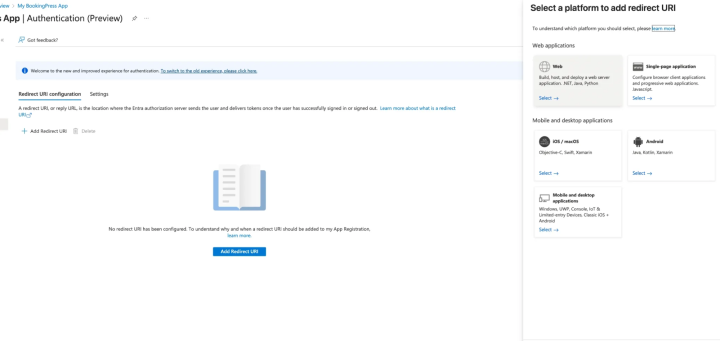
Microsoft redirect the authentication request back to your BookingPress setup after a staff member signs in with their Microsoft account.
So, just add the redirect URI provided by BookingPress in the application’s authentication settings.
4. Grant The Required API Permissions
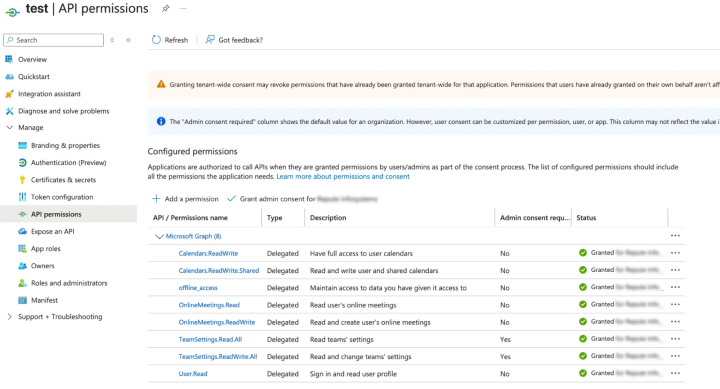
BookingPress needs permission to connect with Microsoft services and create meetings and calendar events.
Thus go to API permissions in your Microsoft application, and add the required permissions such as:
- User.Read
- OnlineMeetings.ReadWrite
- offline_access
- Calendars.ReadWrite
- Calendars.ReadWrite.Shared
- TeamSettings.Read.All
- TeamSettings.ReadWrite.All
If admin approval is required, make sure these permissions are granted before trying to connect a staff member’s Microsoft account.
5. Check Microsoft Teams Meeting Policies
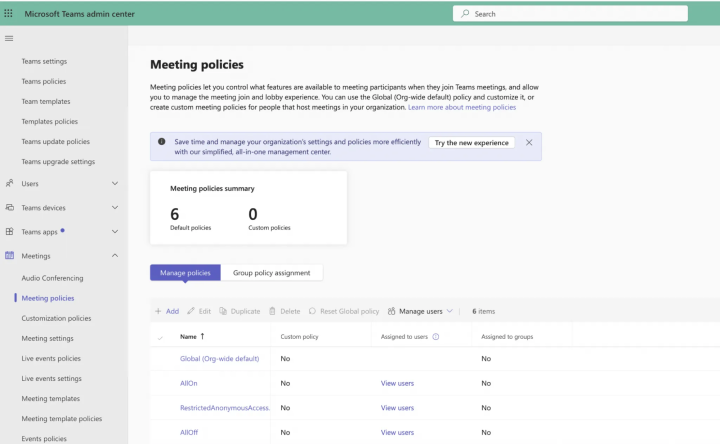
By the way, there is one more Microsoft setting you should verify before connecting everything with BookingPress.
Go to the Microsoft Teams admin center and open Meetings → Meeting policies, and open the meeting policy assigned to the staff member to make sure all private meeting scheduling is allowed.
Plus, if you have time, also make sure to check the other meeting options such as Allow Meet Now and Allow channel meeting scheduling.
If these policies are disabled, you may run into an error such as “Organizer is not allowed to create a private meeting” when BookingPress tries to create the Teams meeting.
6. Connect Microsoft Teams With BookingPress
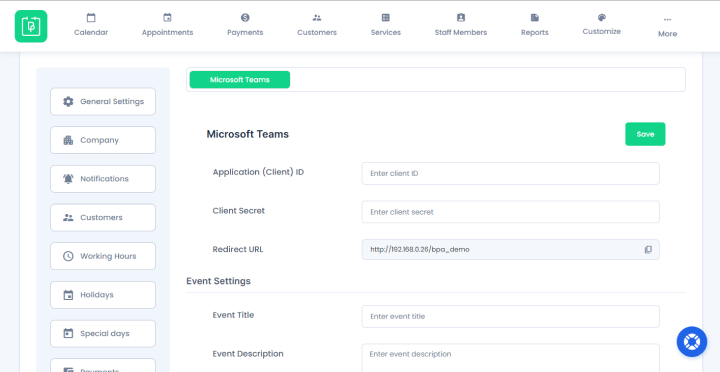
Finally now’s time to connect Microsoft Teams with BookingPress which is quite simple compared to what we’ve walked through till now.
Let’s bring Microsoft Teams and BookingPress together.
- First, activate the Microsoft Teams Add-on from BookingPress → Addons.
- Next go to BookingPress → Settings → Integrations → Microsoft Teams.
- Simply paste the Client ID and Client Secret you copied from your Microsoft application .
- Save the settings.
That’s all.
7. Connect The Staff Member And Select a Calendar
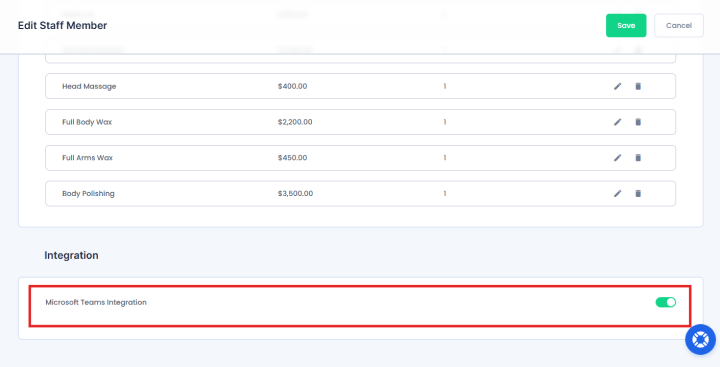
The next step is to connect the Microsoft account of the staff member who will be handling online appointments.
Thus, for that, simply go to BookingPress → Staff Members, and open the staff member’s profile. Now scroll till the Integration section and toggle on the Microsoft Teams Integration, then click Sign In With Microsoft Teams.
After the staff member signs in, you will see the available calendars in the Select Calendar dropdown. Make sure to pick the right calendar because all your BookingPress appointments are going to be added to it.
8. Enable Microsoft Teams For The Service
At last, finally all that’s left is to tell BookingPress which services should use Microsoft Teams.
Head over to BookingPress → Services, edit an existing service, and scroll till the Advanced Options section where you’ll find the option to Enable Microsoft Teams Integration under Integrations tab.
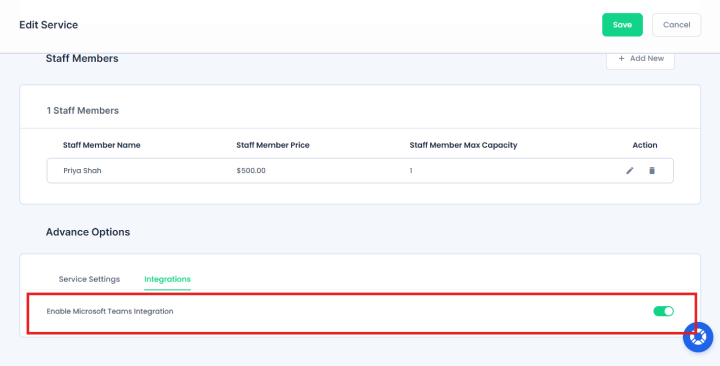
The best part of this BookingPress Microsoft Teams integration is it doesn’t automatically assume all your services are online. It lets you enable the Microsoft Teams Integration for each and every service to generate a Teams meeting.
Let’s say you offer both in-person consultation and an online consultation. In these scenarios, you can keep Microsoft Teams enabled only for the online service.
And that’s it. Your BookingPress booking workflow is now connected with Microsoft Teams.
When a customer books a service with Microsoft Teams enabled, BookingPress can create the Teams meeting and add it to the calendar connected with the staff member with no hoops, no hassle.
Best of all, you can even customize the meeting details and add the Teams join link in your appointment details and notifications.
How Does The Automatic Microsoft Teams Meeting Work?
After you have connected Microsoft Teams with BookingPress and enabled it for a service, the process becomes actually simple to follow.
A customer picks a service that has Microsoft Teams enabled, chooses an available date and time and completes the booking via your WordPress site. Right after an appointment is confirmed, BookingPress creates the appointment and its Microsoft Teams meeting.
The meeting is created using the Microsoft account connected to the staff member. Also, the appointment is added to the calendar selected by that staff member during the integration setup.
The best part? You can customize the meeting details with BookingPress placeholders. Details such as customer’s name, service name, appointment date and time, staff member details and other appointment information to the event for better personalization.
Most importantly, BookingPress can generate the Teams join link automatically. You can use the %teams_join_url% placeholder to place this link wherever you need it in the appointment details or notifications.
Concluding: Automating Microsoft Teams Meetings With BookingPress
Creating a Microsoft Teams meeting for every online appointment may not look like a big deal when you only have a fistful of bookings. But as your appointments grow, these small tasks start taking way more time than you took in account.
BookingPress, one of the most complete WordPress booking plugins, solves this problem by letting you connect your Microsoft Teams with your WordPress booking system, and automate this part of your workflow.
In simple words, you can:
- Connect your staff members with their Microsoft accounts.
- Select the calendar where their appointments should be added.
- Enable Microsoft Teams only for the services that need online meetings.
- Automatically create Teams meetings when customers book those services.
- Add customer, service, staff and appointment details to meeting events.
- Share the Teams join link via appointment details and notifications.
Thus, if your business already uses Microsoft 365 for online meetings, connecting it with BookingPress can remove one more manual step from your appointment workflow.
Related articles:
 14-day money-back guarantee