Looking to sync bookings from WordPress with your Google Calendar, Apple Calendar, or Outlook?
In this tutorial, we provide separate step-by-step instructions for different calendar applications that you can sync WordPress bookings with. In particular, these are quick setup guides for Google Calendar, Apple Calendar (iCal), and Outlook calendars with the BookingPress WordPress booking plugin.
TL;DR: Sync BookingPress with Google, Outlook, and Apple Calendar to automate bookings. Use API integrations for real-time updates or iCal syncing for Apple to manage availability and avoid scheduling conflicts easily.
Sync WordPress Bookings with Google Calendar
What is this and how does it work? When someone books on your site, BookingPress sends event data to Google Calendar. Then, the event appears in the staff member’s calendar, including:
- Customer name
- Service
- Time
- Optionally Google Meet link if you use virtual appointments.
How to sync bookings that appear on your WordPress site through BookingPress with your Google Calendar?
WordPress is communicating with Google Calendar through a structured API connection that you can set up with no code via OAuth credentials.
When you create credentials in Google Cloud Console and connect them in BookingPress:
- Your WordPress site (via the plugin) identifies itself to Google.
- Each staff member logs in via “Sign in with Google”
- Google grants permission (OAuth tokens).
After authorization, all communication happens via the Google Calendar API, not via ICS feeds.
In this case, BookingPress can create events when a booking is made, update events when a booking changes, delete/cancel events when appointments are canceled, and read busy times to block availability.
Moreover, since the integration is tied to Google’s ecosystem, it can automatically generate Google Meet links and attach them to events. This turns calendar events into actual meeting sessions you can send to clients and admins.
Let’s set up the integration.
Step 1. Enable the Google Calendar integration add-on
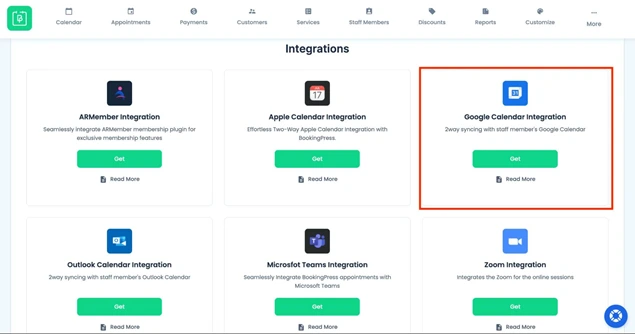
- Go to BookingPress → Add-ons
- Find Google Calendar Integration
- Click Get (or Activate if already installed)
- Download the add-on from your BookingPress account if needed and install it via Plugins → Add New
- Make sure the Staff are added.
Step 2. Create Google API Credentials
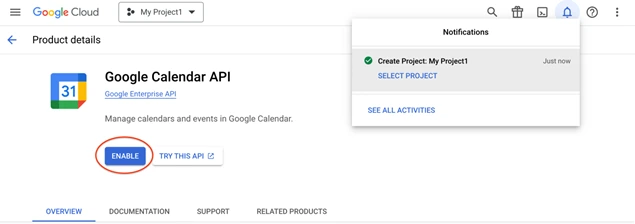
- Open Google Cloud Console
- Click “Create a new project”
- Click Enable APIs & Services
- Go to Create Credentials → OAuth Client ID
- Choose Web Application
- Add the Redirect URL from BookingPress settings
- Copy your Client ID and Client Secret.
Step 3. Connect Google Calendar to BookingPress
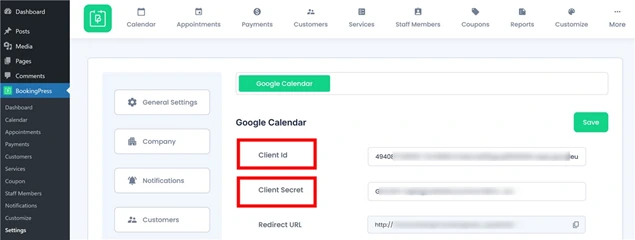
- Go to BookingPress → Settings → Integrations → Google Calendar
- Paste your Client ID and Client Secret
- Save changes.
Step 4. Connect Staff Calendars
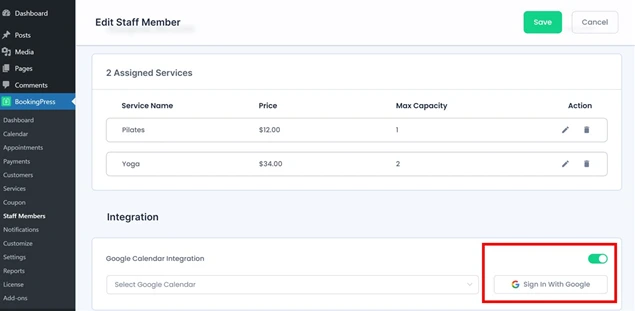
- Go to Staff Members → Edit Staff Member → Integration
- Click Sign in with Google
- Authorize access
- Select the calendar to sync with Google Calendar.
Once everything is correctly set up, new bookings are automatically added to staff calendars. Changes in BookingPress update in Google Calendar and events in Google Calendar block time slots to protect your calendar from overbooking.
Sync WordPress Bookings with Outlook
Outlook connection with your bookings calendar is also performed via API. Under the hood, this connects to Microsoft Outlook via the Microsoft Graph API (Microsoft’s equivalent of Google Calendar API).
Eventually, after the setup, BookingPress is able to:
- Create calendar events
- Update or delete them
- Read busy time (availability).
Just like with Google, this integration performs a few important actions:
1. Event storage (mirror of bookings), which means all appointments from your WordPress appear in Outlook calendar.
2. Availability checker (existing Outlook events block time slots in BookingPress).
3. External calendar for staff (Staff manage their schedule in Outlook as usual).
You will get full sync: BookingPress-to-Outlook and limited Outlook-to-BookingPress sync (busy times only).
This integration is also real-time and secure thanks to OAuth.
Step 1. Create App Credentials in Azure
- Go to Microsoft Azure and log in
- Click Manage Microsoft Entra ID
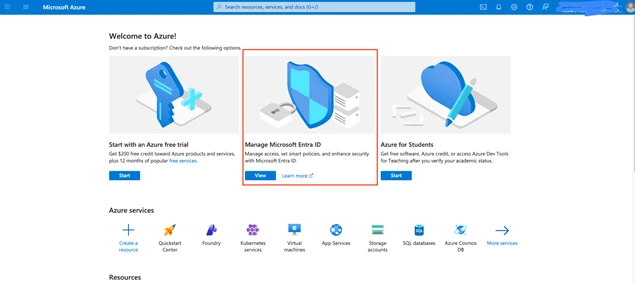
- Click Add Application registration
- Click New registration
- Enter App name and Redirect URL (from BookingPress settings)
- After creating the app, copy Application (Client) ID
- Go to Certificates & Secrets → New Client Secret
- Copy the Client Secret value.
Step 2. Enable the integration add-on
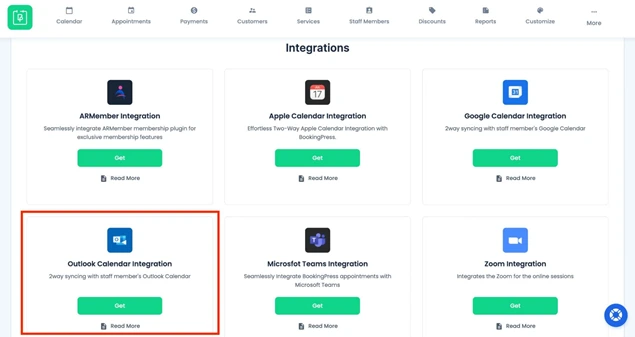
- Go to BookingPress → Add-ons
- Activate Outlook Calendar Integration (or get it from your account first).
Step 3. Add Credentials to BookingPress
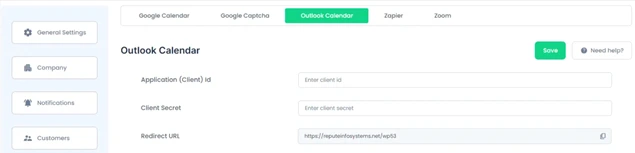
- Go to BookingPress → Settings → Integrations → Outlook Calendar
- Paste your Client ID and Client Secret
- Save changes.
Step 4. Connect Staff Calendars
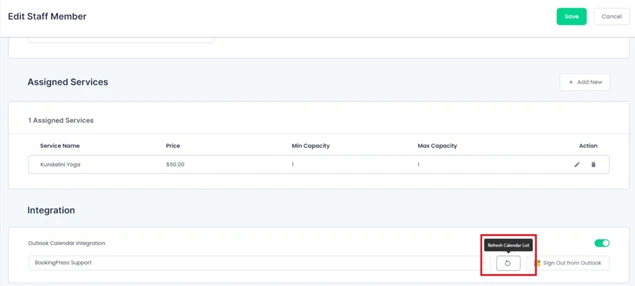
- Go to Staff Members → Edit Staff Member → Integration
- Enable Outlook integration
- Click Sign in with Outlook
- Select the calendar to sync with Microsoft Outlook.
You may optionally customize event details and use placeholders to define event title, description, and location. Now, your staff can see all the bookings in their calendars as well.
Apple Calendar Integration with BookingPress
The Apple Calendar integration is not API-based. It’s based on CalDAV / iCal-style syncing.
It’s not using developer credentials (Client ID, OAuth) as with Google or Outlook; this integration uses 1) Apple ID + App-specific password, 2) Background syncing (via CRON jobs).
Thanks to this integration, BookingPress can log into your calendar account (via CalDAV) and periodically sync booking data.
BookingPress connects directly to that staff / person’s calendar account, so it should be set as a per-staff connection as well after the main connection is established.
This also relies on WordPress CRON settings, enabling BookingPress checks for updates every X minutes. There are no push notifications, webhooks, or instant updates.
Here is a quick setup to sync bookings with iCal by Apple Calendar:
Step 1. Install the BookingPress add-on for Apple integration
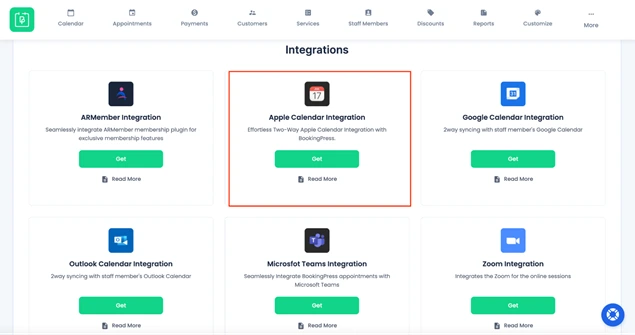
- Log in to your BookingPress account
- Go to Access Passes → View Your Downloads
- Download the Apple Calendar Integration add-on
- Upload and activate it in WordPress via Plugins → Add New
- Enable the add-on in BookingPress → Add-ons.
Step 2. Obtain Apple Credentials
- Get your Apple ID (just the account you already use for Apple services like Calendar – it’s usually your email address).
- Create your app password (you don’t use your normal Apple password, but generate a special password for BookingPress).
Follow these steps to create it:
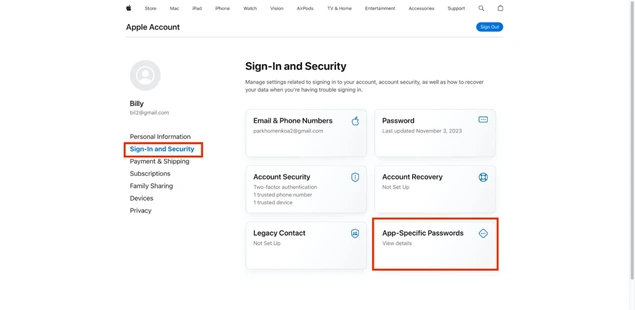
- Sign in to your Apple Account on account.apple.com.
- In the Sign-In and Security section, select App-Specific Passwords.
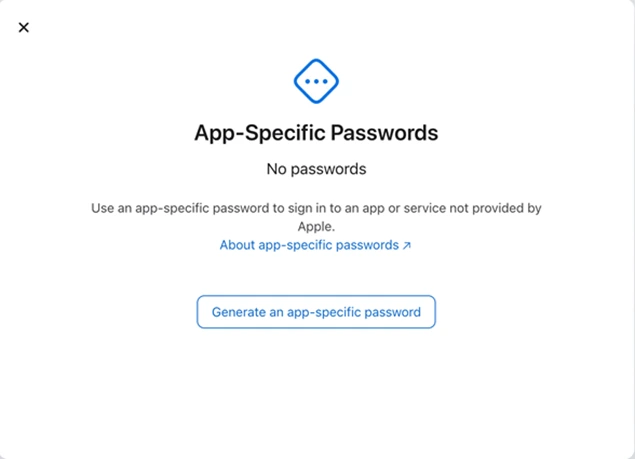
- Select Generate an app-specific password and follow the prompts.
- Enter or paste the app-specific password into the password field of the app when signing in to your Apple Account.
Step 3. Add Apple Calendar Credentials
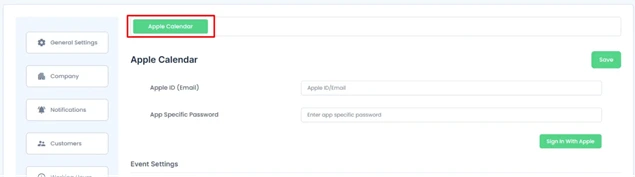
- Go to BookingPress → Settings → Integrations → Apple Calendar
- Enter your Apple ID and your App-Specific Password
- Save changes.
Step 4. Customize Event Details
Set how bookings appear in Apple Calendar by optionally configuring an event title, description, and location. You can use placeholders to automatically insert customer, service, staff, and appointment details.
Step 5. Connect Staff Calendars
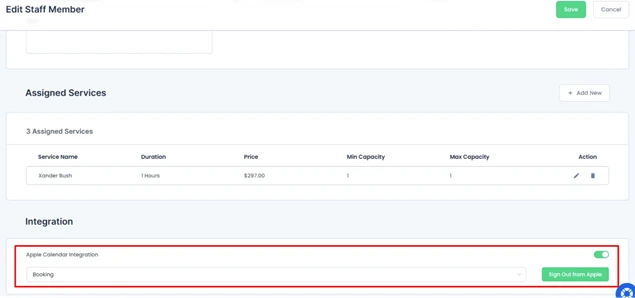
- Go to BookingPress → Staff Members
- Edit the staff profile
- Open the Integration tab
- Enable Apple Calendar Integration
- Enter the staff member’s Apple credentials (Apple ID and password)
- Select the calendar to sync
- Save changes.
Step 6. Set Sync Frequency

- In Apple Calendar Sync Settings (Cron interval) in BookingPress, choose how often BookingPress checks for busy events.
- Recommended: every 5 minutes
Now, when new bookings are added to Apple Calendar, busy Apple Calendar events block available slots in BookingPress. At this point, appointment details sync to the selected calendar. Updates are synced automatically based on the selected Cron interval.
Concluding: Syncing Bookings with Google Calendar, Outlook & iCal
When you use Google and Outlook, it’s a secure, simple, and reliable way to sync bookings with your WordPress. API provides real-time updates, OAuth – secure per-user access, which is great for:
- Adding Meet links
- Updating events instantly
- Avoiding sync delays.
Apple Calendar uses CalDAV, which is Apple’s standard for calendar syncing + iCalendar data format (events). Thanks to iCal and Apple Calendar integration, you can build a password-reliant connection with your site, even without an API, which is a faster and easier process.
Moreover, you can connect staff calendars based on their preferences and the calendars they already use, which greatly simplifies the sync process for the entire appointment scheduling business.
Related articles:
 14-day money-back guarantee