Whether it’s a meeting invite, webinar schedule, class timetable or appointment calendar, ICS files are a common way to share events between different calendar apps. But importing them isn’t always as obvious as it should be.
The good news? You can import an ICS file into Google Calendar in just a few minutes. Without any third-party tools. Once imported, all your events appear perfectly in your calendar. You can always stay organized and right on time.
In this blog, we’ll focus on how to import an ICS file into Google Calendar quickly and correctly, without missing events or breaking your schedule.
Let’s start by understanding what an ICS file actually is and how it works.
What Is an ICS File?
An ICS file (sometimes also known as an iCalendar file) is a standard calendar file format to share calendar info and event data between different calendars. This file contains information in sa tandardized way, such as:
- Event title and description
- Start and end date/time
- Time zone
- Location
- Organizer and attendee details
- Recurring event rules
ICS files are universal so they are widely used and work smoothly with popular calendars like Google Calendar, Apple Calendar, Microsoft Outlook, and Yahoo Calendar.
Thus, an ICS file is like a bridge between two different calendars. It allows you to import all events into Google Calendar instead of manually adding each one.
How to Open an ICS File (Before Importing It)
Before you import an ICS file into Google Calendar, it’s smart to know how to open it and check what’s inside. Besides, this helps you confirm the event details and avoid importing outdated schedules or wrong data.
Here are the most common ways to open an ICS file depending on your device and situation:
Method 1: Open an ICS File by Double Clicking It
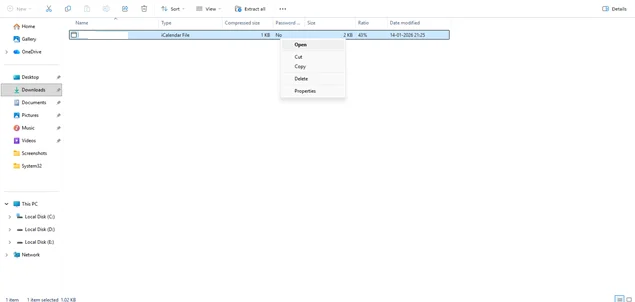
On most systems, simply double clicking the file will automatically open it in the default calendar app:
- Windows: Opens in Microsoft Outlook or Windows Calendar
- macOS: Opens in Apple Calendar
Method 2: Open an ICS File with a Text Editor
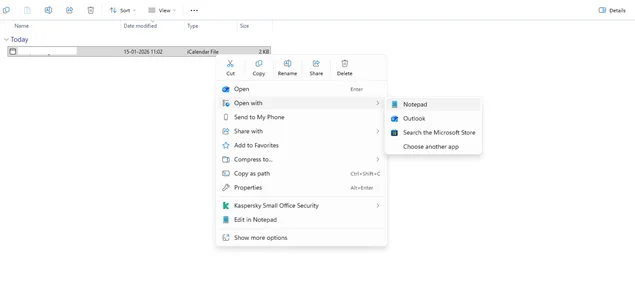
An ICS file is actually just a plain text file. So, you can easily open it by using your:
- Notepad (Windows).
- TextEdit (macOS).
This view shows raw event data like dates, times, and recurrence rules. That’s why this way is only good for troubleshooting or verifying details, not for everyday use.
- First, go to your ICS file in the file manager (Extract the ICS file if it’s still inside the zip file).
- After that, simply just right click on the ICS file > Open With > Notepad or TextEdit.
Now, you’ll see the file’s data in simple plain text. With data such as: BEGIN:VEVENT, SUMMARY, DTSTART, and DTEND, you can understand the structure or make advanced edits.
So, Why Should You Open an ICS File First?
It’s always recommended to preview an ICS file before importing because what if:
- You received it from an unfamiliar source.
- It contains multiple events or recurring schedules.
- You want to double check time zones or event dates.
Once you’ve confirmed the info, you’re ready to import the file into Google Calendar and add all events in one go.
How to Import an ICS File into Google Calendar
Importing an ICS file into Google Calendar is actually super quick and simple. Once you follow these steps, all your events will appear right in your calendar.
Step 1: Open Google Calendar
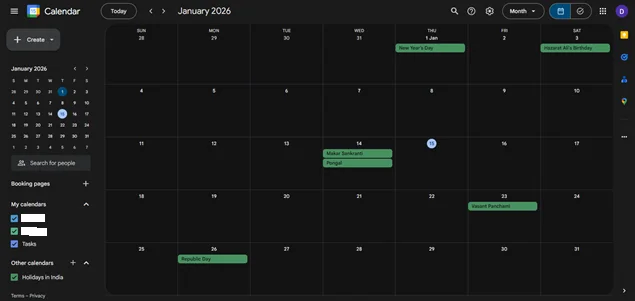
First thing first, head over to the Google Calendar in your browser (Sign in with your Google account if you haven’t yet). Also, make sure you’re in the right calendar view where you want the events to appear, such as:
- Day
- Week
- Month
- Year and so on.
Step 2: Access Import Settings
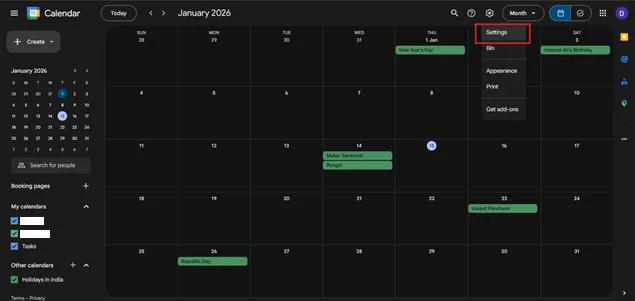
Now that we’re in, look at the top bar of your Google Calendar, and you’ll see a Settings (⚙️) icon. Simply click on it and choose the “Settings” option from the dropdown menu.
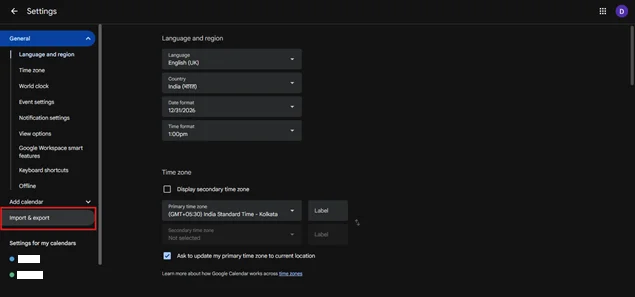
On the left sidebar, you’ll see the “Import & Export” option, so click on it.
Step 3: Upload Your ICS File
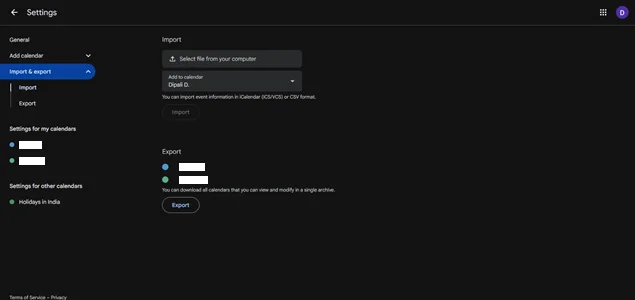
Under the Import section, you’ll get options for:
- Select a file from your computer.
- Add to Calendar.
Now, click on the “Select file from your computer” and choose the ICS file you want to import.
Step 4: Choose the Destination Calendar
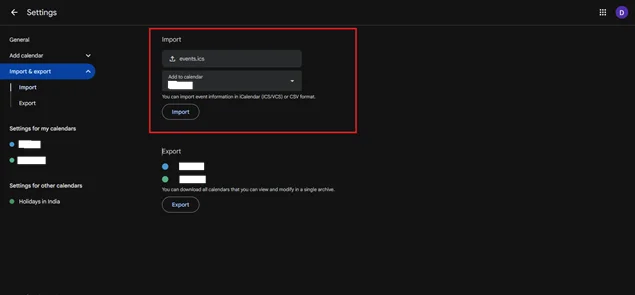
Next, as for another option, that is to decide which calendar you want to add the events of your new ICS file. Select the Google Calendar where you want these events to appear.
If you want to keep things organized, you can also create a dedicated calendar for imported events.
Step 5: Start the Import
At last, just hit that “Import” button, and you’re done!
From here on, Google Calendar will process the file and add all events automatically.
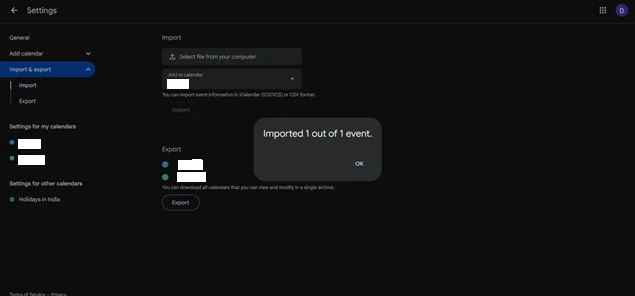
Once all done, you’ll get a confirmation popup, showing how many events were added to your Google Calendar successfully.
Step 6: Check Your Calendar
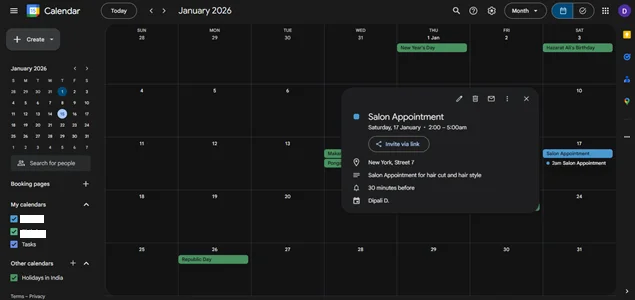
Check imported events manually. Don’t forget to pay close attention to:
- Dates and times.
- Recurring events.
- Event details like location and description.
Finally, you can turn any ICS file into a fully integrated Google Calendar schedule in just a few minutes. Therefore, this is great for managing appointments, bookings, webinars, or class schedules.
Common ICS Import Problems (And How to Fix Them)
Although it’s not always the case, importing an ICS file into Google Calendar is simple. Yet there are chances you may have run into some common issues. So here’s how to quickly sort things out.
1. Events Don’t Appear After Import
Why it happens: Wrong calendar selected or file corrupted.
Solution: Make sure you select the correct calendar during the import process. Try opening the ICS file in a text editor to check for event data or download a fresh copy.
2. Duplicate Events
Why it happens: because you may have imported the same ICS file multiple times.
Solution: Avoid importing the same file repeatedly. If duplicates occur, Google Calendar allows you to delete multiple events at once or use a clean calendar for each import.
3. Incorrect Time Zones
Why it happens: because your ICS file has a different time zone than your Google Calendar.
Solution: Open the ICS file in a text editor or calendar app to confirm your time zone. Also, you can adjust either the calendar settings or the event times before importing.
4. Recurring Events Not Importing Properly
Why it happens: As some ICS files use advanced recurrence rules that Google Calendar does not support, there are chances they may get interpreted differently.
Solution: Check if the events appear correctly in a desktop calendar (like Outlook or Apple Calendar) first. If needed, re-export the ICS file with simpler recurrence settings.
5. File Too Large to Import
Why it happens: Google Calendar has upload limits (up to 1MB) for ICS files.
Solution: Split large ICS files into smaller chunks or import only the events you need at a time.
By understanding these common ICS import problems and how to solve them, you can easily avoid frustrated moments and make sure your events appear exactly the way you want every time you import an ICS file.
Manual ICS Imports vs Real-Time Calendar Sync
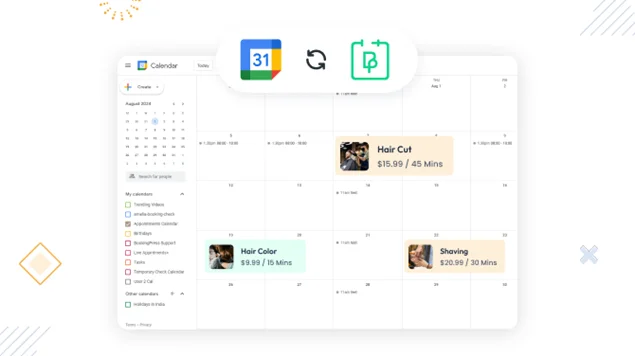
Importing an ICS file with event info barely takes a few minutes. You upload the ICS file, Google Calendar adds the events, and you’re done.
But is it actually good for businesses that take appointments and bookings every day? Also, there’s one more limitation.
Any future changes in the original calendar won’t automatically update. You’d have to download and import a new ICS file each and every time. Sounds like a waste of time, doesn’t it?
And that’s where real time calendar sync comes in.
With real time calendar sync, your calendar stays automatically updated whenever any kind of changes happen in your business schedules. Whether it be a new event, a change of time, or cancellations, all will show up the right way without adding any ICS file manually.
Thus, here’s a quick difference to make up your mind between manual ICS imports and real time calendar sync:
| Feature | Manual ICS Import | Real Time Sync |
| Update Events Automatically | ❌ No | ✅ Yes |
| One Time vs Recurring Updates | One time | Continuous |
| Effort Needed | Low | Very Low (No efforts at all! ) |
| Best For | Occasional imports | Ongoing schedules and appointments |
How BookingPress Simplifies Appointment Scheduling with Google Calendar
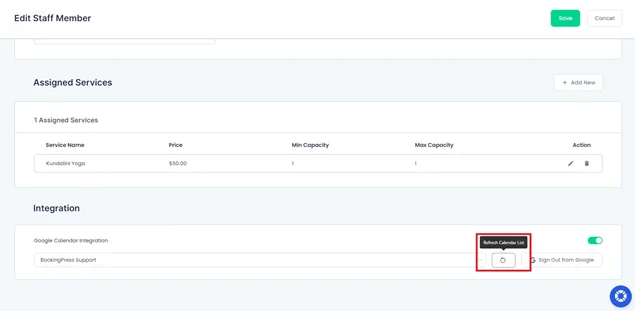
If you run any kind of service-based business, BookingPress makes syncing appointments with Google Calendar effortless.
You don’t have to handle any ICS files at all!
BookingPress is an all in one appointment booking software for WordPress that automatically sends new bookings, cancellations, or changes in existing bookings to Google Calendar.
Here are the key benefits of using BookingPress for Google Calendar sync:
- Automatic syncing: All appointments appear instantly in your calendar.
- Avoid double bookings: Calendar conflicts are minimized because availability updates in real time.
- Multiple popular calendars: Assign bookings to different calendars for teams, staff, or service types.
- Time saving: No more downloading or importing ICS files manually.
With BookingPress, you not only keep your calendar accurate but also give a smooth experience for your clients and staff members, all while saving time on manual importing.
Final Thoughts
So, here’s how to import an ICS to Google Calendar. And the best part is that it only barely takes a few minutes. Here’s a quick recap of how to import an ICS file into Google Calendar:
- Firstly, open your Google Calendar in your browser.
- Next, in the top right, click on ⚙️ icon > Settings.
- From here on, simply go to the “Import & Export” from the left menu bar.
- Here, you have to upload your ICS file under the “Select file from your computer” and choose the calendar where you want it to appear.
- Click the “Import” button, and that’s it.
For occasional events, manual ICS imports work perfectly and only take a few minutes. However, if you’re managing appointments, bookings or recurring schedules every day for your service-based business, using Google Calendar + BookingPress is the best option.
BookingPress is the best appointment booking plugin for WordPress around here that takes the hassle out of syncing calendars, keeping everything updated in real time.
With just the right setup, your Google Calendar becomes more than just a calendar. It’s a smart, automated tool to help you and your business stay organized and productive.
You May Also Like:
- 8 Best Google Calendar Alternatives (Expert Picks)
- Google Calendar Vs Apple Calendar: Which One to Use?
- How To Sync Bookings with Apple Calendar
Frequently Asked Questions
What is the ICS file format for Google Calendar?
An ICS file (iCalendar file) for Google Calendar is a standard calendar format which is used to share event information between different calendar apps such as Apple Calendar, Google Calendar, and Outlook Calendar.
Where is the ICS link in Google Calendar?
If someone shares an event or calendar in ICS format, you usually get a link ending with .ICS. To know whether your ICS link is in your Google Calendar, you simply have to:
- Open your Google Calendar.
- Next, go to Settings > Add calendar > From URL
- Here, you just have to paste the ICS link.
Thus, it allows you to subscribe to a calendar or import events directly without downloading the file first.
How do I save an ICS file to my calendar?
To save an ICS file to your Calendar, you first have to open your Calendar in the browser. If it’s a Google Calendar, go to the ⚙️ icon > Settings > Import & Export > Import. Here, select and upload the ICS file. Then, click on the “Import” button.
Can you import a list of dates into Google Calendar?
Yes, you can import a list of dates into Google Calendar using an ICS file. A single ICS file can have multiple events or recurring dates.
How do I open an ICS file?
You can open an ICS file to check event details by:
- Double clicking on the ICS file, which will open in your default calendar app (Outlook, Apple Calendar, or Windows Calendar).
- Or you can use your Text editor, such as Notepad or TextEdit.

 14-day money-back guarantee