

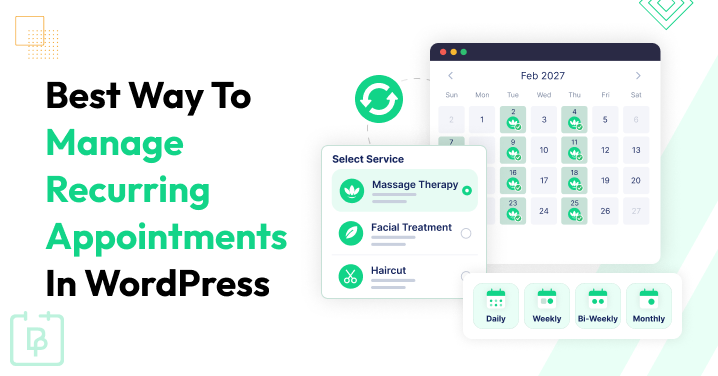
To manage recurring appointments in WordPress, you need a powerful appointment scheduling plugin. The truth hurts, but not every booking plugin out there offers smart recurring appointment scheduling for your clients.
However, with BookingPress, you can safely set some of your services into the recurring mode. By allowing your customers to book services from your WordPress website, you simply automate regular sessions.
This means you can sell treatment plans, lesson packages, or multi-session training programs with desired automation.
In this tutorial, we explain the best way to manage recurring appointments in WordPress with BookingPress and its super powerful extension that makes repeated bookings possible without effort.
TL;DR: The best way to manage recurring appointments in WordPress is with BookingPress and its Recurring Appointments add-on. You can automate repeated bookings, let customers schedule multiple sessions in one go, manage availability, and handle all appointments from a single dashboard.
Why The Solution From BookingPress Makes a Difference
You can use BookingPress as a multipurpose booking plugin for services and event scheduling. And the default set of features is quite often enough for many needs.
But when you need to connect something special, like recurring appointments (we call it special because not every business needs it), then you simply need to connect these features through optional add-ons.
In our case, we use the Recurring Appointments add-on. By enabling this add-on, you add a layer of recurrence to your services.
In a client-facing scenario, customers see appointments that can be booked into the future, can choose them, and make an appointment with several dates in a cart.
In addition to simply making a service bookable as a repeated one, why does this add-on from BookingPress make a difference?
- You can select individual services that can be recurring, leaving others for one-time bookings.
- You can set a minimum number of recurring appointments to encourage a number of treatments, lessons, or maintenance services to be booked in advance. So, it’s not only that you give an option to schedule a few appointments, but you may also make it an obligation when multiple visits are simply required.
- The recurrence runs on the pre-made schedules that you can choose (daily, weekly, biweekly, or monthly).
Essential Options Of The Recurring Appointments Add-on
The tool was designed to meet the expectations of the businesses that deal with repeated sessions. So, here are the key capabilities you get with the Recurring Appointments add-on from BookingPress:
Flexible scheduling
Customers can book a series of appointments in advance and choose a start date, time slot, number of sessions, and recurring frequency.
Book multiple appointments at once
The booking plugin offers the convenience of scheduling multiple appointments in one booking process. They can review all the selected sessions and pay for everything altogether.
Check availability for each appointment
When a time slot in your booking form is marked as booked, the nearest time in the future is suggested to the customer.
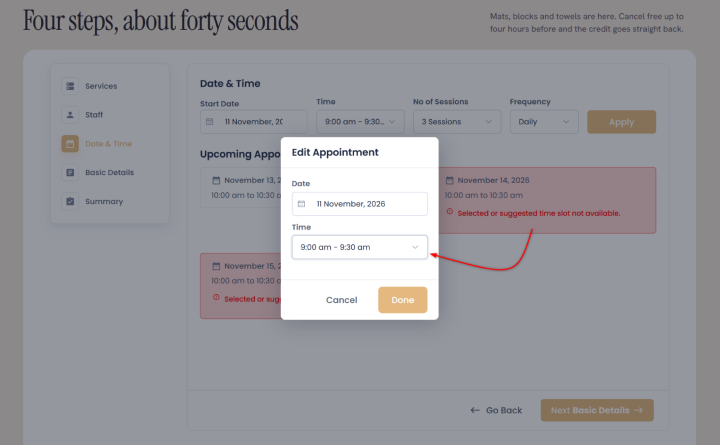
Edit appointment dates and times
Individual appointments in a series can be edited or deleted from your BookingPress dashboard.
Clear pricing before checkout
The booking form shows a summary of all scheduled appointments and the combined amount a customer needs to pay online.
Keep track of upcoming appointments
The add-on lets you include a list of recurring appointments in booking notifications. You can also configure cancellation and rescheduling links in email notifications.
Send a reminder when the series is complete
Once all appointments in a series are marked as completed, BookingPress can automatically send the customer a follow-up notification to make sure they book again.
What Do You Need To Get Started?
Want to have all the features we’ve covered on your WordPress site?
Let’s create a summary of what you need to start offering recurring appointments to your clients on WordPress.
- BookingPress – Professional or Enterprise plan.
- The Recurring Appointments add-on. It’s free with one of the plans above.
If you already have an up-and-running setup of BookingPress, you can simply follow the rest of our tutorial to enable recurrence for chosen services.
Hands-On With Your Recurring Appointments On WordPress
Let’s go through the entire process together to show you how the add-on works for you as a website owner – and your clients, too.
Install The Add-On And Enable Repetition For Services
- Activate the Recurring Appointments add-on from the Add-ons menu in the BookingPress plugin. Login to BookingPress and go to My Account > Access Passes > download the add-on from “View your downloads”.
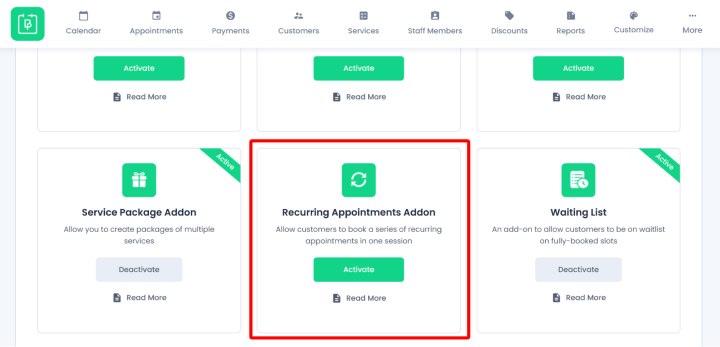
- Download the add-on, then install and activate it on your WordPress.
After that, choose services you want to enable recurrence for:
- WordPress > BookingPress > Services > Edit Service (or add a new one).
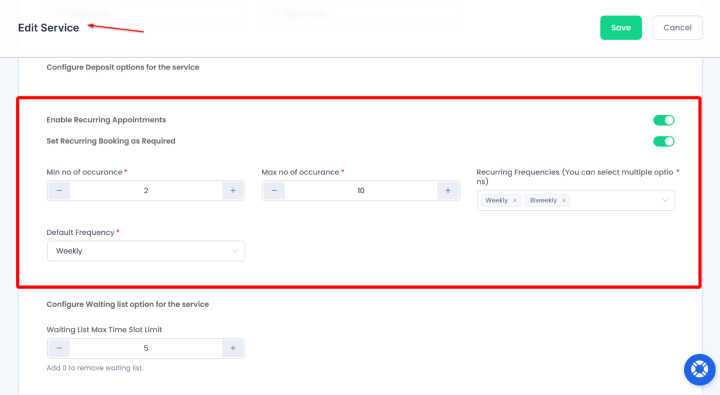
- Tick the toggle that says ‘Enable Recurring Appointments’.
- Configure the prompted settings: Max and min number of bookings, recurring frequencies (daily, weekly, etc.), default frequency.
- Save.
Configure Recurring Appointment Notifications And Invoices
After you’ve enabled and configured recurrence options for chosen services, you can adjust your notifications and invoices for each scheduled session.
- Email notifications
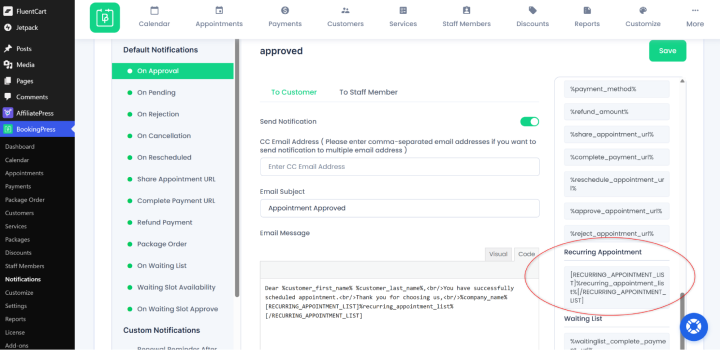
Go to BookingPress > Notifications and edit the relevant email templates.
Use the %recurring_appointment_list% tag to display all recurring appointments in the email.
Feel free to add cancellation or rescheduling links too.
- SMS and WhatsApp notifications
If you use the BookingPress SMS or WhatsApp notification add-ons, go to BookingPress > Notifications and add %recurring_appointment_list% to the relevant message templates.
The first booking notification is sent once for the series, not separately. Scheduled SMS and WhatsApp notifications, however, can be sent for each appointment.
- Invoices
If you use the BookingPress Invoice add-on and want to show all the details, add the [BOOKINGPRESS_RECURRING_ITEMS]…[/BOOKINGPRESS_RECURRING_ITEMS] shortcode to your invoice template to include recurring appointment information.
- Follow-up notifications
Need some automatic encouragement for customers to book again after completing a series? Set this via BookingPress > Notifications > Renewal Reminder After Recurring Appointments Completion and enable the notification.
It is triggered when all appointments in the series have been marked as completed.
Customize The Recurring Booking Form
You can also tweak the client-facing side of booking such an appointment.
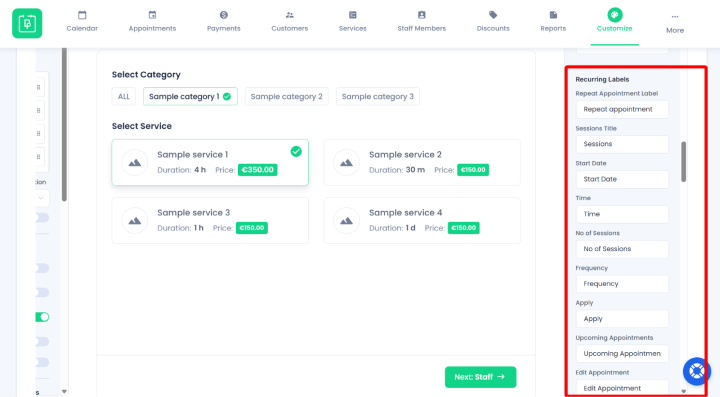
If you change the form’s colors, labels, etc., which may help clients more easily notice such options.
- Go to BookingPress > Customize > Forms to customize colors for suggested and unavailable time slots.
- Update form labels to fit your business.
- Go to BookingPress > Settings > Messages to customize the validation messages used for errors.
How Customers Book Recurring Appointments
So, what does the process look like for your target audience? It’s pretty simple:
- The service with the support for recurring bookings is selected in the form. The client then chooses the starting date and time for the first appointment.
- A recurrence option is then displayed (daily, weekly, biweekly, or monthly). They choose how many appointments they want to schedule.
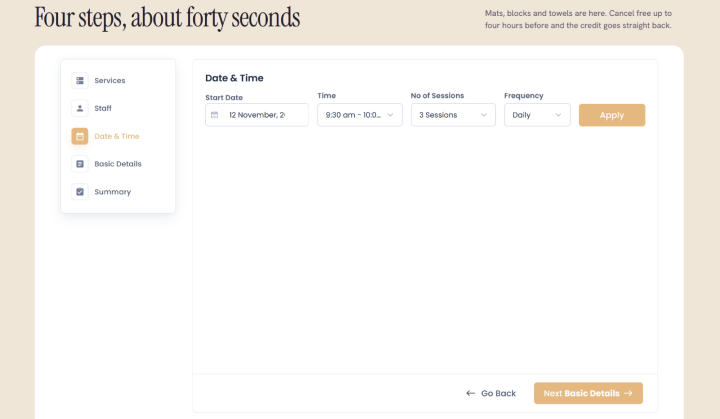
- Customers can review and edit upcoming appointments.
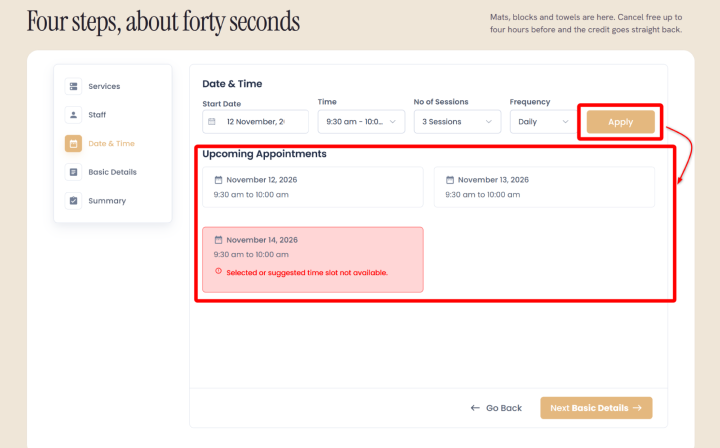
If a selected slot is unavailable, BookingPress suggests the nearest available alternative on the same day.
- Time to review the summary and pay!
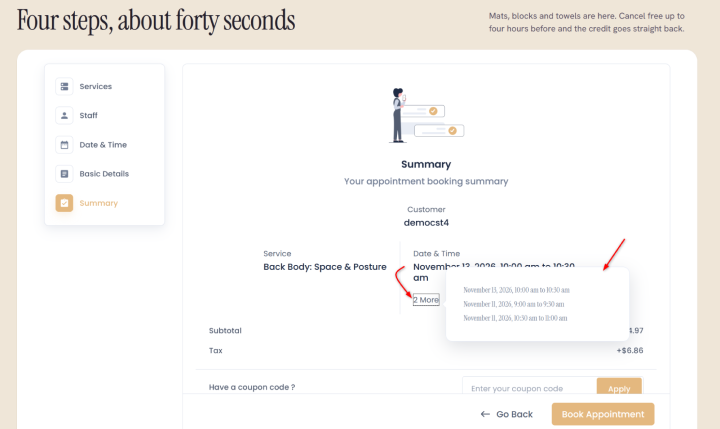
- A confirmation page is displayed with booking details, and notifications are sent, too.
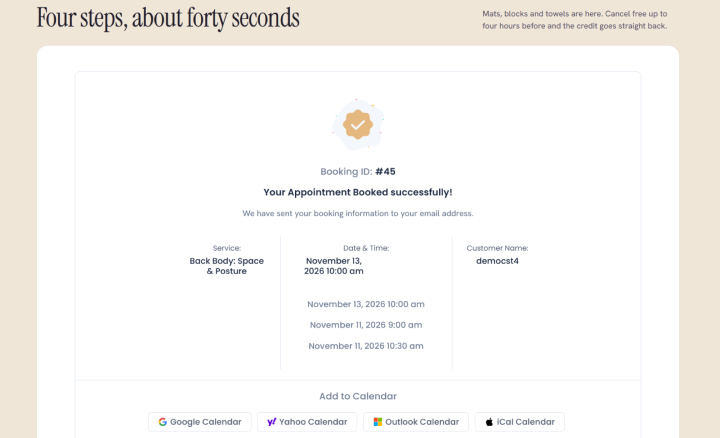
The Recurring Appointments extension also has its limitations: no support for Day Services or Custom Duration Services, and the Happy Hours pricing doesn’t work for recurring bookings, too.
Manage Recurring Appointments
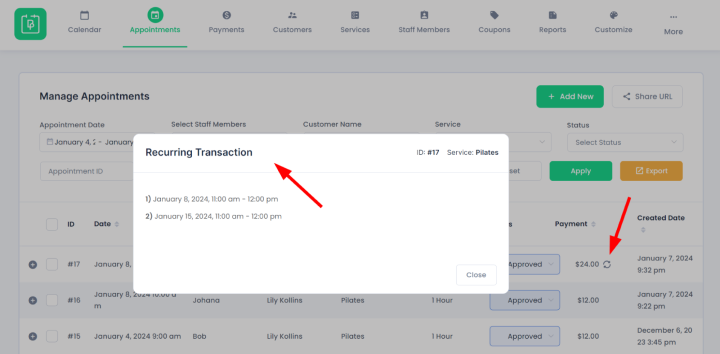
Recurring appointments can be managed from the same menu where you control regular appointments: WordPress > BookingPress > Appointment.
- View recurring appointments with their dates, time slots, and service names.
- Edit or delete individual appointment sessions.
- Manually increase the number of sessions or change the recurrence frequency (BookingPress will update the series).
- Create recurring appointments manually for customers.
Concluding: What’s The Best Way To Manage Recurring Appointments In WordPress?
The best way to manage recurring appointments in WordPress is to entrust them to a professional appointment scheduling plugin like BookingPress. It has a dedicated recurring appointments add-on that handles all the automation of repeated sessions.
After a few basic configurations for the chosen services, you can easily enable the recurring feature support. In the booking wizard, your clients will be able to choose time slots with the repetitions that suit their needs and pay online for all the sessions in one cart.
Related articles:

 14-day money-back guarantee