


Appointment scheduling functionality provided by BookingPress fully supports automated notifications to clients through many modern methods, including WhatsApp and Telegram.
These notifications can be sent to customers when major appointment-related things happen, for example, when a new appointment is booked, confirmed or paid without your manual control.
There are tons of benefits of such automated communications, including:
- Instant automatic booking updates to make customers aware of any changes.
- Better communication and less confusion about appointment times, changes, or cancellations.
- Higher engagement.
- Less manual work for your staff.
In today’s overview, we explain how they work in BookingPress.
Emails for Appointments in BookingPress
Email notifications are the core automated communication feature in BookingPress.
They are free, can be used without any extra add-ons, fully customizable, and sent to customers as well as your team (to notify the person providing the service).

Each notification can be edited directly using a built-in text editor, so you control the message content and tone.
You can send emails to customers for common appointment events such as:
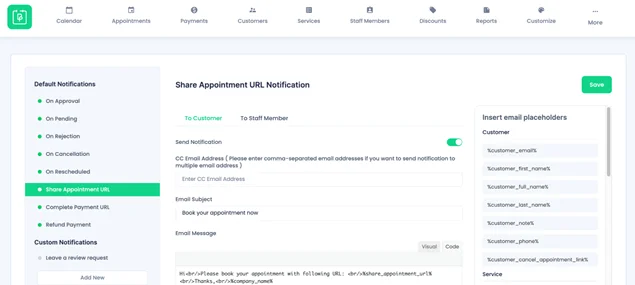
- Appointment approved or pending.
- Appointment rejected or canceled.
- Appointment rescheduled.
- Payment links or refund updates.
- Sharing a booking link.
If needed, you can also add CC recipients, allowing notifications to be sent to additional email addresses. Any customer email notification can be easily disabled using the Send Notification toggle.
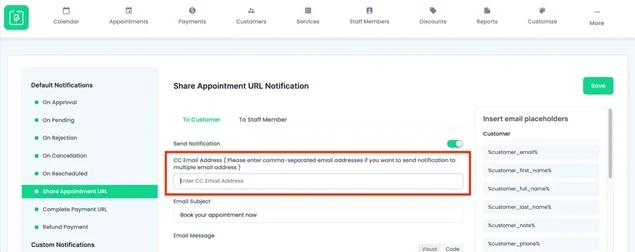
Just like customer emails, BookingPress can notify staff members when appointments are booked, changed, or canceled:
- Enable or disable staff notifications per event.
- Add extra email addresses in CC to keep managers or admins informed.
1. Custom and scheduled email notifications
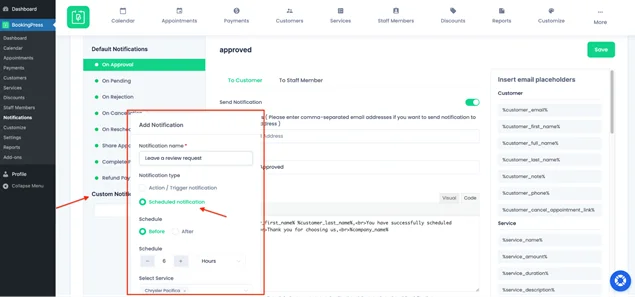
Beyond the default notifications, BookingPress allows you to create custom email notifications. These can be:
- Trigger-based – sent when an appointment status changes.
- Appointment Scheduled – sent before or after an appointment (for reminders or follow-ups).
You can choose which services and appointment statuses should trigger each custom notification, which means you are fully flexible here.
2. How to Set Up Email Notifications
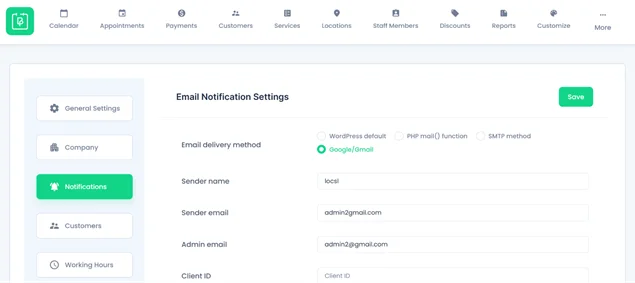
Let’s understand the basic steps of setting up email notifications:
- Go to BookingPress > Settings > Notifications.
- Choose how emails should be sent (SMTP, Google/Gmail, or other mail services).
- Set your sender name and sender email.
- Enable notifications for customers and/or staff.
- Customize email messages for each booking event.
For best deliverability, it’s recommended to use SMTP or Google/Gmail instead of basic PHP mail.
Email notifications are a core part of BookingPress and play a key role in delivering a smooth and professional appointment booking experience.
Sending SMS Notifications for Appointments
SMS notifications in BookingPress help you automate the same messages to your customers without relying only on emails. Many people read SMS messages immediately, so it’s the best way to avoid no-shows even better.
You need to connect the SMS Notifications add-on, which is ready to be used within any paid plan.
With this add-on, you can automatically send text messages to customers when something important happens with their appointment.
1. How SMS messages are customized
BookingPress uses placeholders to personalize SMS messages. Placeholders are short codes that are replaced with real information, such as the customer’s name, service name, appointment date, or time.
For example, when an SMS is sent, placeholders are automatically filled with:
- Customer details
- Staff details
- Service selected
- Booking status
You simply copy the placeholders from the list and paste them into the SMS message box.
2. How to set up SMS notifications in BookingPress
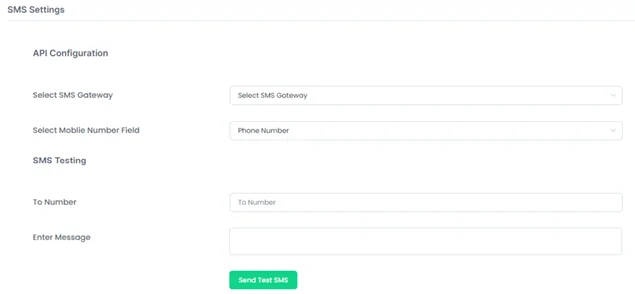
Setting up SMS notifications is simple and only takes a few steps:
1. Activate the SMS add-on: Go to BookingPress > Addons > Install and activate the SMS Notification Add-on.
2. Configure SMS settings: BookingPress > Settings > Notifications and open the SMS settings section.
3. Choose an SMS gateway: Choose a gateway with which you have an account. BookingPress provides 36 predefined SMS gateways. Available gateways include Twilio, Nexmo, Clickatell, Text Local, MessageBird, and more. View all supported providers here.
4. Enter gateway credentials: After selecting a gateway, fill in the required credentials provided by your SMS service provider.
5. Select the mobile number field: Under Select Mobile Number Field, choose the Phone Number field and save the settings.
3. Setting SMS Messages for Different Booking Events
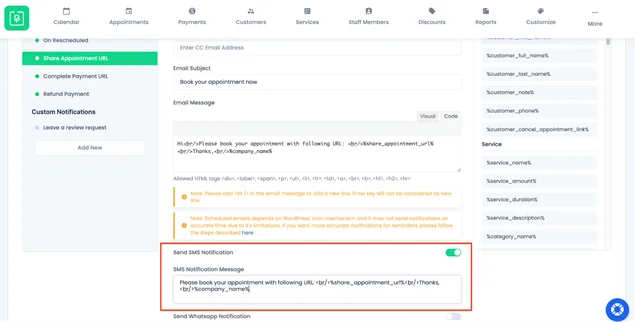
To define what message is sent to customers:
- Go to Notifications > SMS Notification.
- Choose the booking event (new booking, cancellation, reschedule, payment status, etc.).
- Paste placeholders into the SMS Notification Message textbox.
- Customize the message text as needed.
This works just like emails we’ve described above but is optimized for short and clear SMS messages.
Using WhatsApp Notifications in BookingPress
WhatsApp notifications in BookingPress work for confirmations, reminders, cancellations, and payment-related updates.
They let you send appointment updates to customers directly on WhatsApp, which guarantees higher visibility and faster responses! You need just one add-on for this, available in any premium plan: WhatsApp Notification.
Upon setup, it enables your booking plugin to send automated messages to customers based on key booking events, such as:
- Appointment approved or pending.
- Appointment canceled or rescheduled.
- Payment links and status updates.
BookingPress supports two WhatsApp gateways:
- Twilio WhatsApp.
- WhatsApp Business (via Meta/Facebook Developer).
1. Key setup
While WhatsApp itself requires external account setup, most of your work happens inside BookingPress once credentials are ready. To get credentials, view our docs.
BookingPress-side notifications setup includes these key steps:
1. Activate the add-on: Go to BookingPress > Addons and activate the WhatsApp Notification add-on.
2. Choose a WhatsApp Gateway: BookingPress > Settings > Notifications and select either Twilio or WhatsApp Business (Meta).
3. Enter gateway credentials: Depending on the gateway, you’ll paste the required IDs, tokens, or keys obtained from Twilio or Meta into the WhatsApp settings section.
4. Save and enable WhatsApp notifications: Once credentials are saved, WhatsApp becomes available alongside Email and SMS notifications in BookingPress.
2. Creating WhatsApp Messages in BookingPress
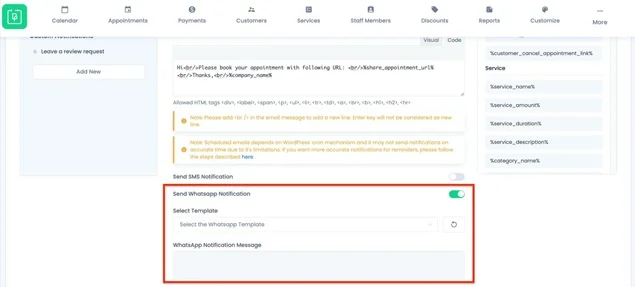
After setup, WhatsApp notifications are managed just like email notifications:
- Go to BookingPress > Notifications.
- Select the booking event (approved, pending, canceled, etc.).
- Enable WhatsApp for that event.
- Write your message using BookingPress’s message editor.
Messages are automatically sent when the selected booking action occurs.
WhatsApp requires pre-approved message templates, which are created and approved inside Twilio or Meta before they appear in BookingPress.
What to choose – Twilio vs WhatsApp Business (Meta)? Twilio is easier to manage if you already use Twilio for SMS or messaging. WhatsApp Business (Meta) is more direct but requires more setup, approvals, and templates inside Facebook’s developer tools.
In both cases, BookingPress only needs the final credentials and approved templates to send notifications.
Telegram notifications
If your audience actively uses Telegram and prefers instant, app-based messages, this is a great alternative to email or SMS notifications.
Telegram notifications in BookingPress allow you to send appointment updates directly to customers, admins, and staff through Telegram. Instant delivery inside the Telegram app means no SMS costs and high visibility; moreover, you can use them alongside email, SMS, and WhatsApp notifications.
The Telegram notification add-on sends automatic messages for the same booking-related messages:
- Appointment booked or confirmed.
- Appointment pending or canceled.
- Appointment reminders and updates.
So first up, ensure the add-on is installed and activated on your WordPress.
1. Setting up Telegram in BookingPress

After the Telegram Notification add-on activation, go to BookingPress > Settings > Notifications > Telegram Settings.
Here, you’ll configure the connection between BookingPress and Telegram by:
- Entering your Telegram API credentials.
- Verifying your Telegram phone number via OTP.
- Selecting a custom field used to collect the customer’s Telegram username.
This is needed to make sure that BookingPress knows exactly where to send Telegram messages.
You can set up admin and staff Telegram messages:
- Admin notifications can be enabled by entering the admin’s Telegram username in BookingPress > Settings > Company.
- Staff member notifications can be set by adding each staff member’s Telegram username in their profile under BookingPress > Staff Members.
Staff members can also update their Telegram username from their own dashboard.
2. Creating Telegram messages
Telegram messages are managed from the same notification system as email and SMS:
- Go to BookingPress > Notifications.
- Select a booking event (confirmed, pending, reminder, etc.).
- Enable Send Telegram Notification.
- Write your message and save.
Messages are sent automatically whenever that booking event takes place.
Conclusion – Setting Custom Notification in BookingPress
BookingPress allows you to choose many ways to send automated notifications based on booking actions, from simple emails to instant SMS, and even in-app messages in WhatsApp and Telegram.
You may also combine all these methods to get the best deliverability rates, improve communication with clients, forget about no-shows, and save a lot of time!
Related articles:
 14-day money-back guarantee