

SMS Notification Setup (Addon + Message Configuration)
You can send booking notifications automatically to all your customers via SMS in BookingPress using tons of SMS gateways.
In this guide, we’ll cover how to enable the SMS notification addon, configure gateways and set up notification messages.
How to Enable the SMS Notification Addon
To start sending automatic notifications via SMS, you first need to activate the SMS Notification add-on from your BookingPress dashboard.
1. From your WordPress dashboard, head over to the BookingPress → Add-ons.
2. Activate the “SMS Notification” addon which you’ll find under the Integrations section.
3. Click the Activate button.
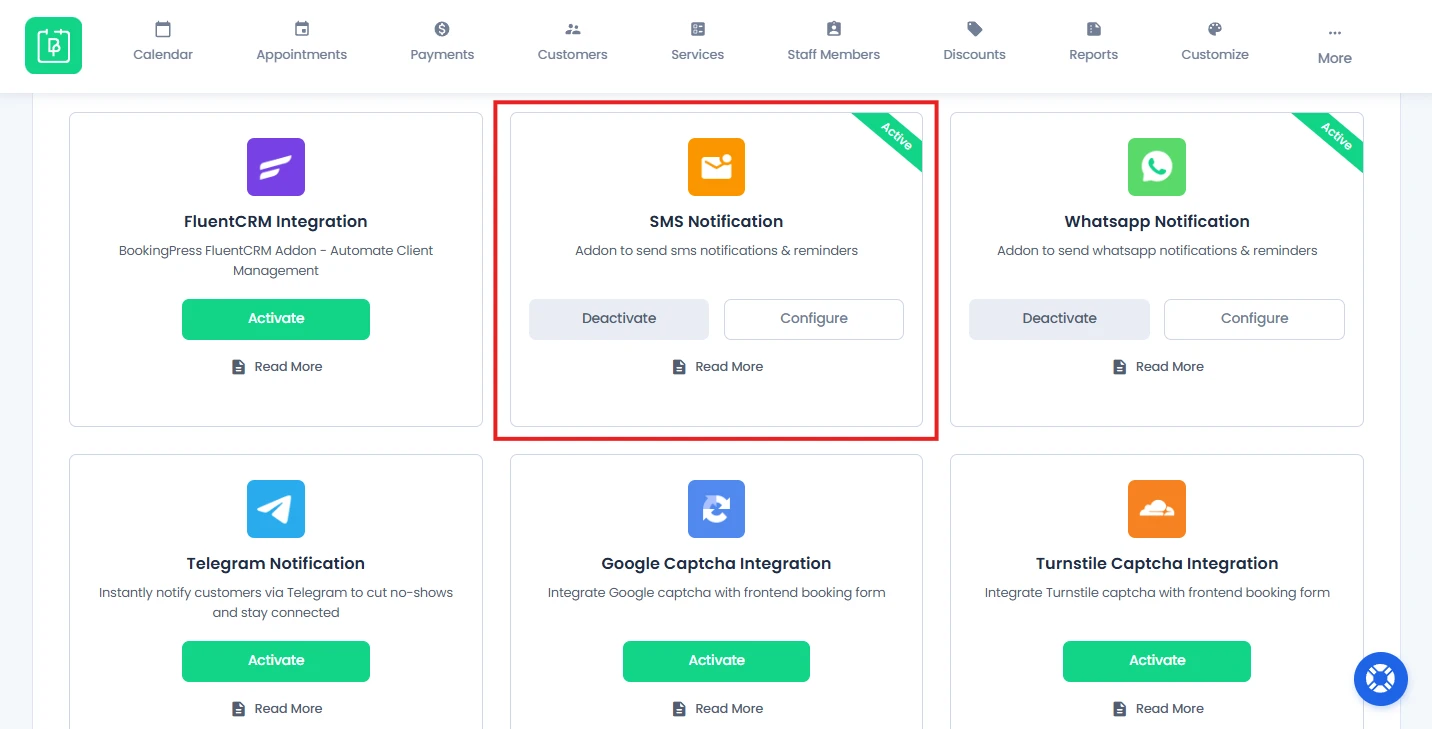
After activation, you can configure SMS settings from BookingPress → Settings → Notifications → SMS Settings.
SMS Notification Integration Options (Supported Gateways)
To send SMS notifications, you first have to pick an SMS gateway under the API configuration section of SMS settings.
The best part is BookingPress supports over 35+ SMS gateways including:
- Alcodes
- BearSMS
- BulkSMS
- Cheap Global SMS
- Clickatell
- ClickSend
- D7 SMS
- Experttexting
- EZTexting
- Exotel
- Easy Send SMS
- EngageSPARK
- Fast2sms
- MSG91
- MSG Club
- Messente
- Message Bird
- Movile
- Nexmo
- Redoxygen
- RingCaptcha
- Routee
- Spirius
- SMS Global
- Swift SMS Gateway
- SMS Gateway Center
- SMS API
- Text Local
- Textbelt
- Text Marketer
- Telnyx
- Twilio
- Telerivet
- Vianett
- Wavecell
- 1s2u
Now select the gateway you want and make sure to enter all the required credentials.
How to Configure SMS Settings in BookingPress
After activating SMS Notification integration, click on the “Configure” button to automatically redirect to BookingPress → Settings → Notification → SMS Settings.
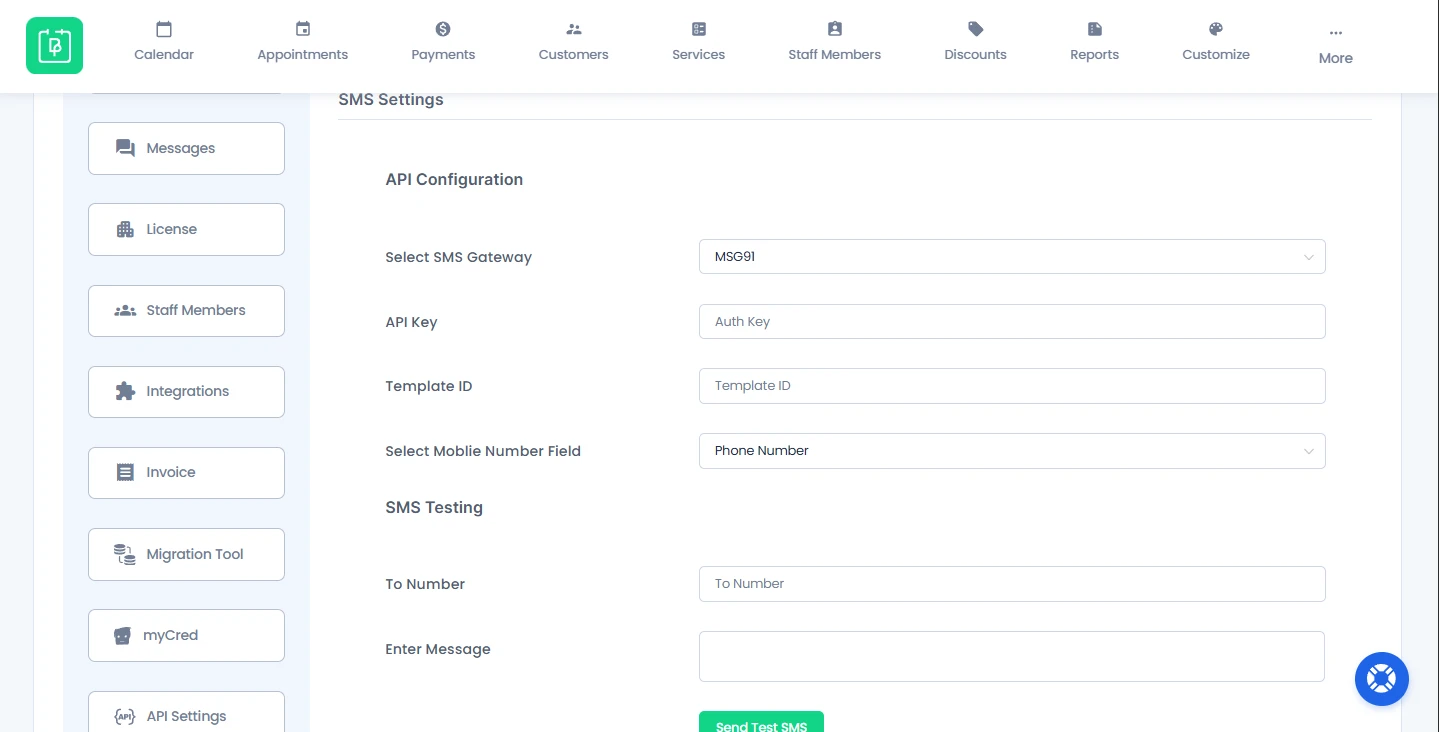
You choose your SMS gateway:
- Enter all the must-have API credentials. (Every SMS gateway is going to have different fields and API credentials)
- Under Select Mobile Number Field, choose the Phone Number field.
- At last, click the Save.
If you want to test SMS before actually implementing it, you can do that from the SMS Testing section. Enter the “To Number” and your message to send a test SMS.
Now your SMS gateway is ready to send notifications.
How to Configure SMS Notification Message
You can set what message will be sent to customers via SMS by heading over to BookingPress → Notifications.
Here, simply toggle on the “Send SMS notification”, and now enter your message in the SMS Notification Message box.
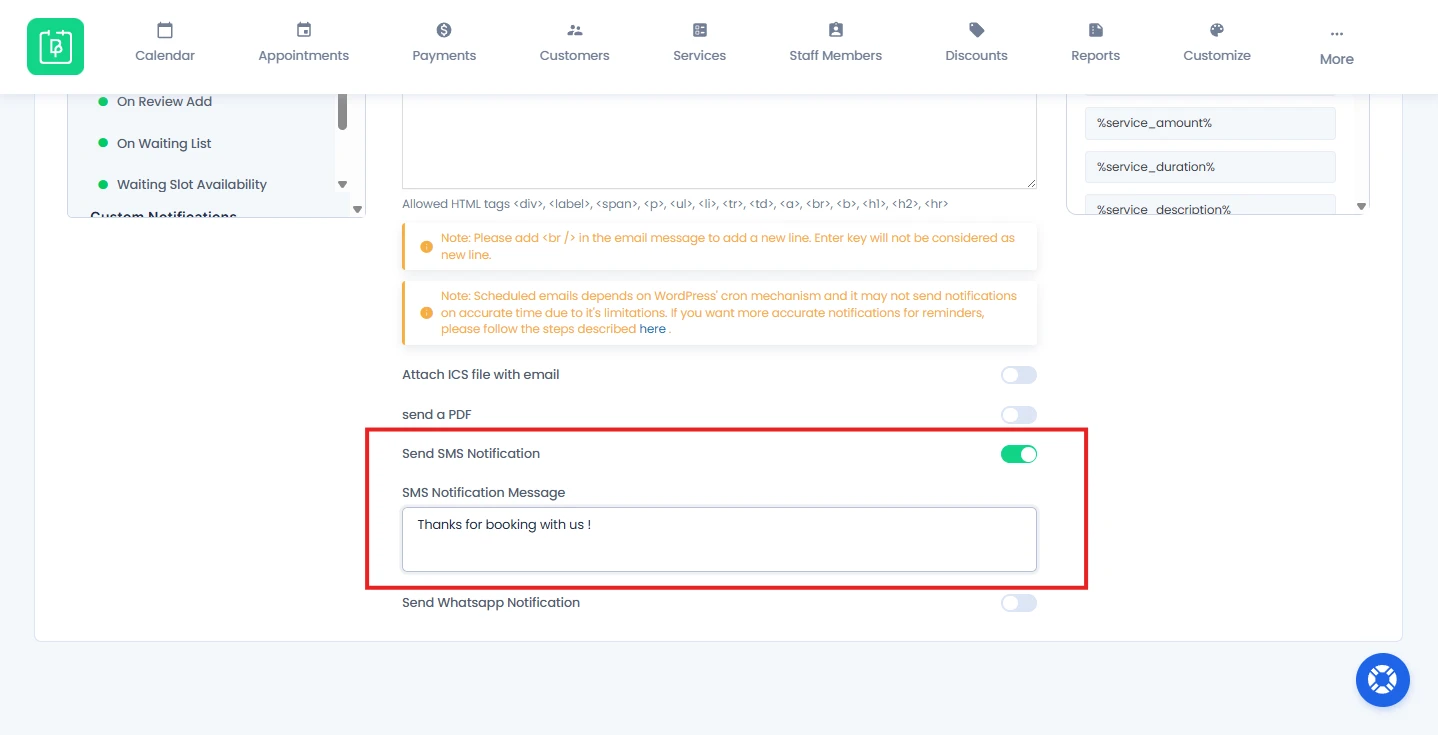
Next, just like Email Notification, if you click on any of the placeholders from the “Insert email placeholders” list, now it’ll automatically paste on both Email and SMS Notification Message.
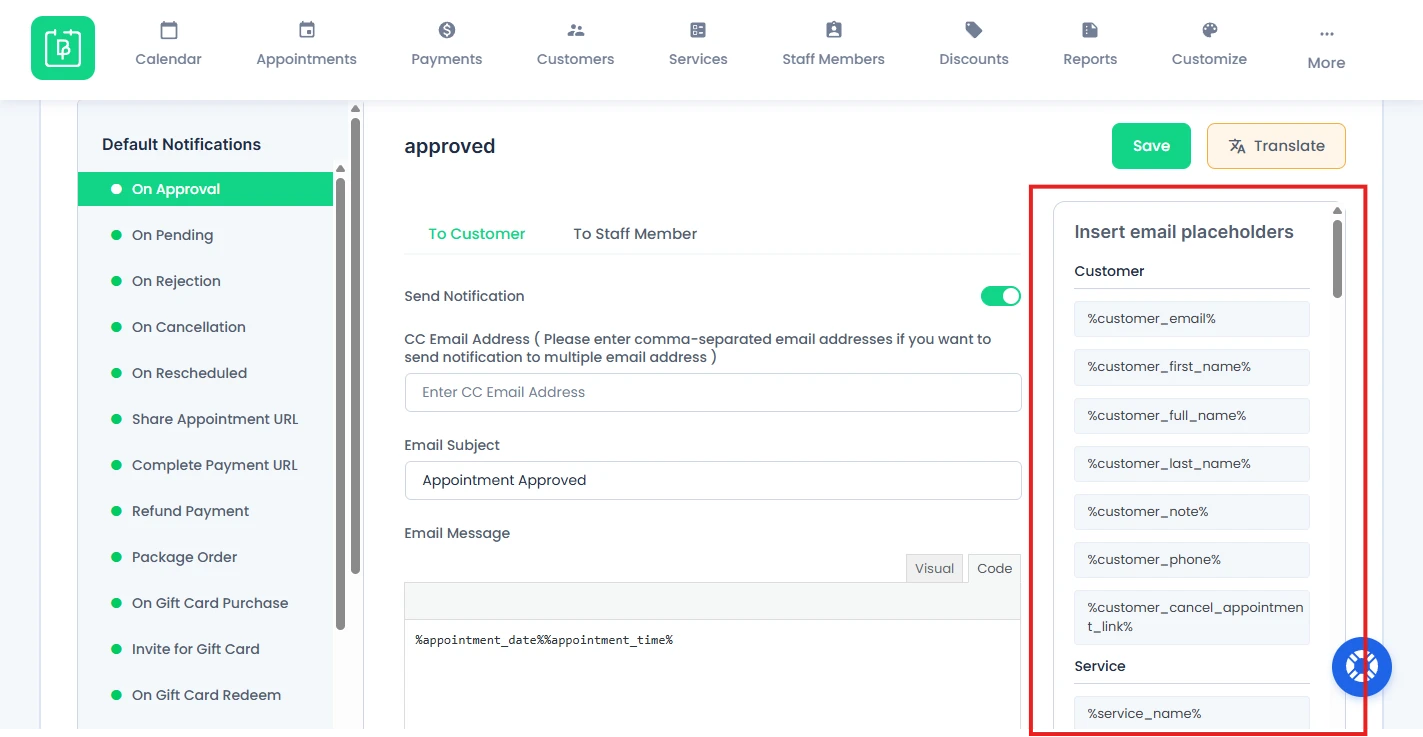
These placeholders will be replaced with actual data such as:
- Customer details
- Staff information
- Appointment details
- And a lot more….
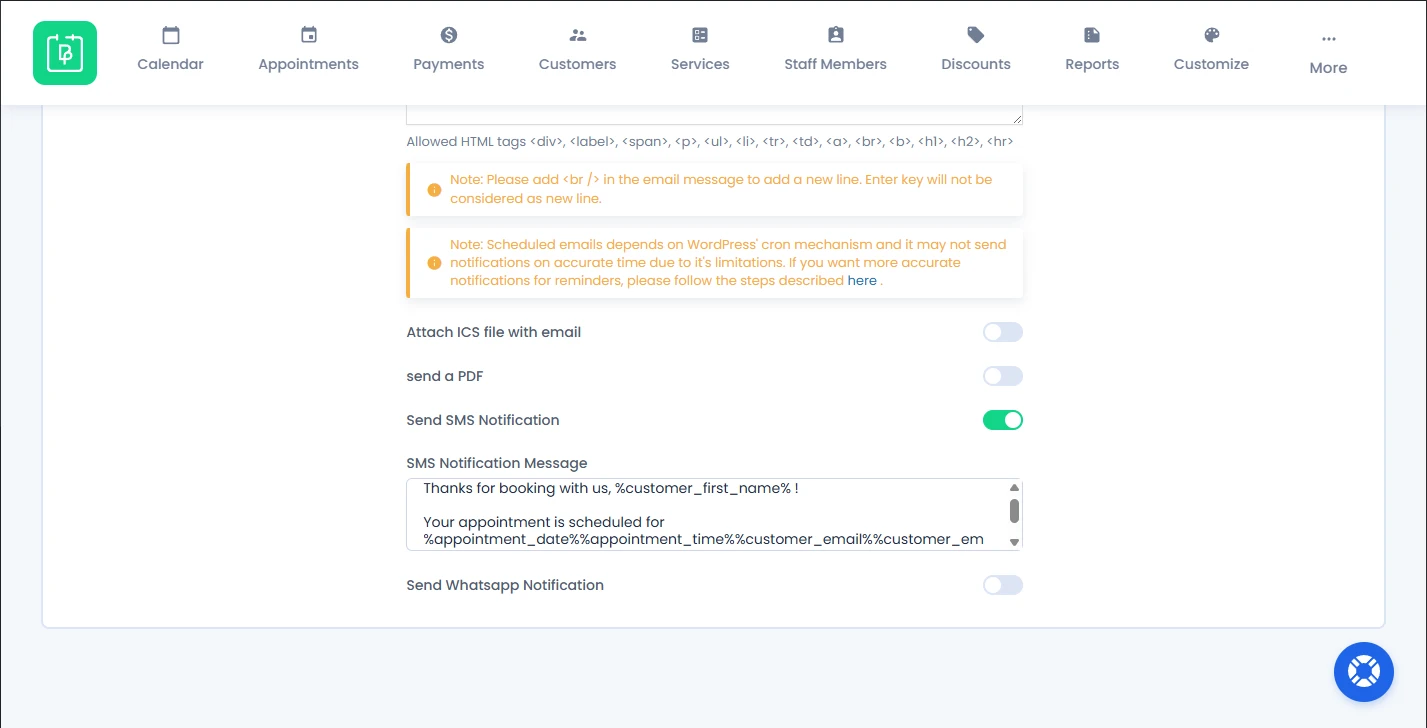
How SMS Notifications Work
First of all, a customer books an appointment from the BookingPress booking form.
After the booking is successful, the BookingPress system triggers the SMS notification automatically
Now the SMS message is sent via the selected gateway. Inside the SMS message, all placeholders will be replaced with the real time data.
Need a hand?
Our world-class support team is happy to help. Send us a message and we’ll take it from there.
 14-day money-back guarantee