Debug Log Settings
Debug Log settings allows you to track and troubleshoot issues related to payments, appointments, email notifications, integrations, imports, exports and REST API activity in BookingPress.
You can enable logs for specific modules, then view, download, or clear the recorded activity right from the BookingPress → Settings → Debug Log panel.

Understanding Debug Log Actions
When you enable any debug logs for a module, BookingPress offers the following actions to help you manage and troubleshoot recorded activity:
View Log

You can quickly check recorded log activity right inside a popup box after clicking on View Log option, without downloading the whole log file.
Important: Debug Logs will appear only after you enable and save the Debug Log option and perform the related action.
This is useful for reviewing:
- Payment related errors.
- Appointment activity.
- Email notification issues.
- Integration related events.
Download Log

From here, you can easily export logs for troubleshooting, or just share it with our customer support team to solve your problems.
You can download logs based on a specific duration:
- Last 1 Day
- Last 3 Days
- Last 1 Week
- Last 2 Weeks
- Last Month
- All
- Custom
If you choose the “Custom” duration from the “Select log duration to download” form field, you can set your preferred date range for downloading logs from the calendar.
Clear Log
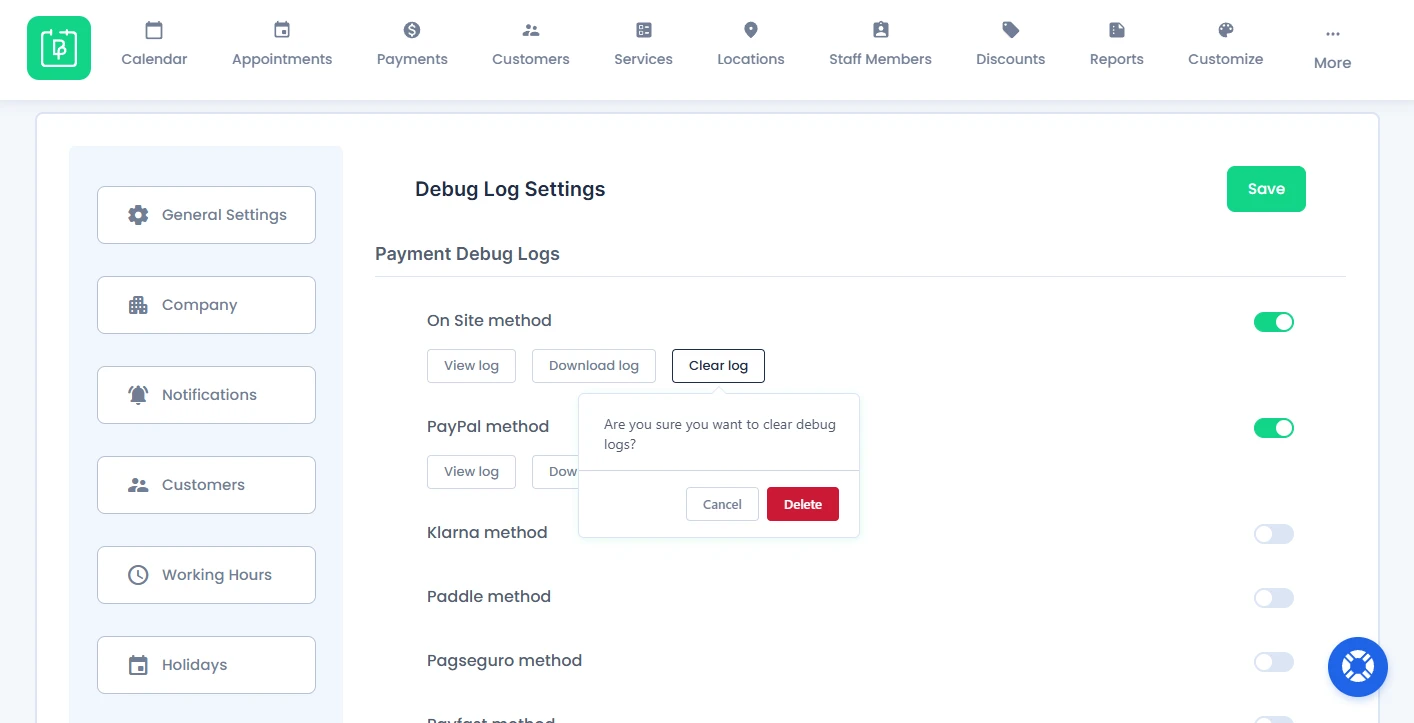
Using the Clear Log option, you get to permanently remove stored debug logs for the selected module.
Before clearing logs, BookingPress will show the following confirmation message:
“Are you sure you want to clear debug logs?”
It is recommended to download logs before clearing them if you may need them later for troubleshooting or support purposes.
Payment Debug Logs

Payment Debug Logs lets you keep a track and troubleshoot payment related activity inside BookingPress.
Just toggle on the Debug Logs for the particular payment gateway method you see errors with to track payment processing events, failed transactions, gateway responses and all payment errors during appointment bookings.
It will help to debug the actual issue while processing the payment.
You can then:
- View logs directly from the popup box.
- Download logs for troubleshooting.
- Clear logs when no longer needed.
BookingPress supports debug logs for all of its payment methods including on-site, PayPal, Stripe, and more. You can use these logs for troubleshooting issues such as:
- Failed online payments.
- Incomplete transactions.
- Payment gateway connection issues.
- Payment verification problems.
- Booking payment mismatches.
Integration Debug Logs

Integration Debug Logs lets you track and troubleshoot activity related to third party integrations which are connected with BookingPress.
Remember you’ll only see the integrations which are activated.
You can enable logs for specific integrations to monitor synchronization activity, API communication, notification delivery and integration related errors.
After enabling, you can:
- View logs directly from the popup box.
- Download logs for troubleshooting.
- Clear logs when no longer needed.
From here you get to check debug logs for all of BookingPress integrations such as Microsoft Teams, Outlook Calendar, SMS, WhatsApp, Zoom, and more. You can use when facing:
- Calendar synchronization failures.
- Meeting creation issues.
- Notification delivery problems.
- Integration connection errors.
- Automation triggers failures.
Appointment Debug Logs

Appointment Debug Logs allows you to track and keep an eye on appointment related activity within BookingPress.
These logs record booking activity during appointment creation, submission and processing from the frontend booking form.
You can then:
- View logs directly from the popup box.
- Download logs for troubleshooting.
- Clear logs when no longer needed.
Appointment logs can help identify issues such as:
- Appointment booking failures.
- Incomplete booking submissions.
- Scheduling conflicts.
- Booking form processing issues.
- Unexpected appointment behavior.
Email Notification Debug Logs

Toggle on Email Notification Debug Logs for troubleshooting email message activities and errors in BookingPress.
Enabled logs allow you to:
- View logs directly from the popup box.
- Download logs for troubleshooting.
- Clear logs when no longer needed.
These logs can help identify issues such as:
- Customers not receiving booking emails.
- Staff notification failures.
- Appointment confirmation email issues.
- Email sending errors.
- SMTP or mail configuration problems.
Import/Export Debug Logs

From here, you can track data import and export activity within BookingPress.
After enabling, you can:
- View logs directly from the popup box.
- Download logs for troubleshooting.
- Clear logs when no longer needed.
BookingPress supports the following Import/Export logs:
- Export Logs
- Import Logs
These logs can help troubleshoot issues such as:
- Incomplete data imports.
- Failed export processes.
- Formatting or file-related errors.
- Interrupted import/export activity.
- Missing imported records.
Package Debug Logs

Package Debug Logs lets you track and troubleshoot package order activity in BookingPress. Useful for tracking package transactions, order processing activity, and more.
Later, you can:
- View logs directly from the popup box.
- Download logs for troubleshooting.
- Clear logs when no longer needed.
BookingPress currently supports “Package Order Logs”. These logs can help identify issues such as:
- Failed package purchases.
- Incomplete package orders.
- Payment-related package issues.
- Package activation problems.
- Unexpected package order behavior.
REST API Debug Logs

Using REST API Debug Logs, you can track API requests and responses related to BookingPress integrations and external connections.
You can then:
- View logs directly from the popup box.
- Download logs for troubleshooting.
- Clear logs when no longer needed.
These logs can help troubleshoot issues such as:
- Failed API requests.
- Authentication or permission errors.
- Missing API responses.
- Integration communication failures.
- Webhook or automation issues.
Gift Card Debug Logs

Gift Card Debug Logs lets you troubleshoot gift card order activity in BookingPress. You can enable logs to track gift card purchases, order processing and related payment activity.
After enabling, you can:
- View logs directly from the popup box.
- Download logs for troubleshooting.
- Clear logs when no longer needed.
BookingPress currently supports “Gift Card Order Logs”, and these logs helps fix issues such as:
- Failed gift card purchases.
- Incomplete gift card orders.
- Payment processing issues.
- Gift card order mismatches.
- Unexpected gift card transaction behavior.
Important Notes
- Enable Debug Logs only while troubleshooting specific issues.
- Download logs before clearing them if you may need them later for support.
- Clearing logs will permanently remove the stored log records for the selected module.
- Integration, Addons and Payment gateway logs will appear only after activating their respective BookingPress add-ons.
- Share the downloaded Debug Logs with the BookingPress customer support team so they can review and diagnose the problem.
Need a hand?
Our world-class support team is happy to help. Send us a message and we’ll take it from there.
 14-day money-back guarantee