On-Site Payment
In this guide, we will go over how to set up an on-site payment method for appointment bookings made by customers in-person at the time of appointment.
What is the On-Site Payment Method?
The on-site payment method allows your customers to pay in cash when they come for booked appointments.
Please Note: On-site payment method will be enabled by default.
How to Enable or Disable On-Site Payment Method For Bookings
1. In the WordPress Dashboard, reach to the BookingPress → Settings → Payments.
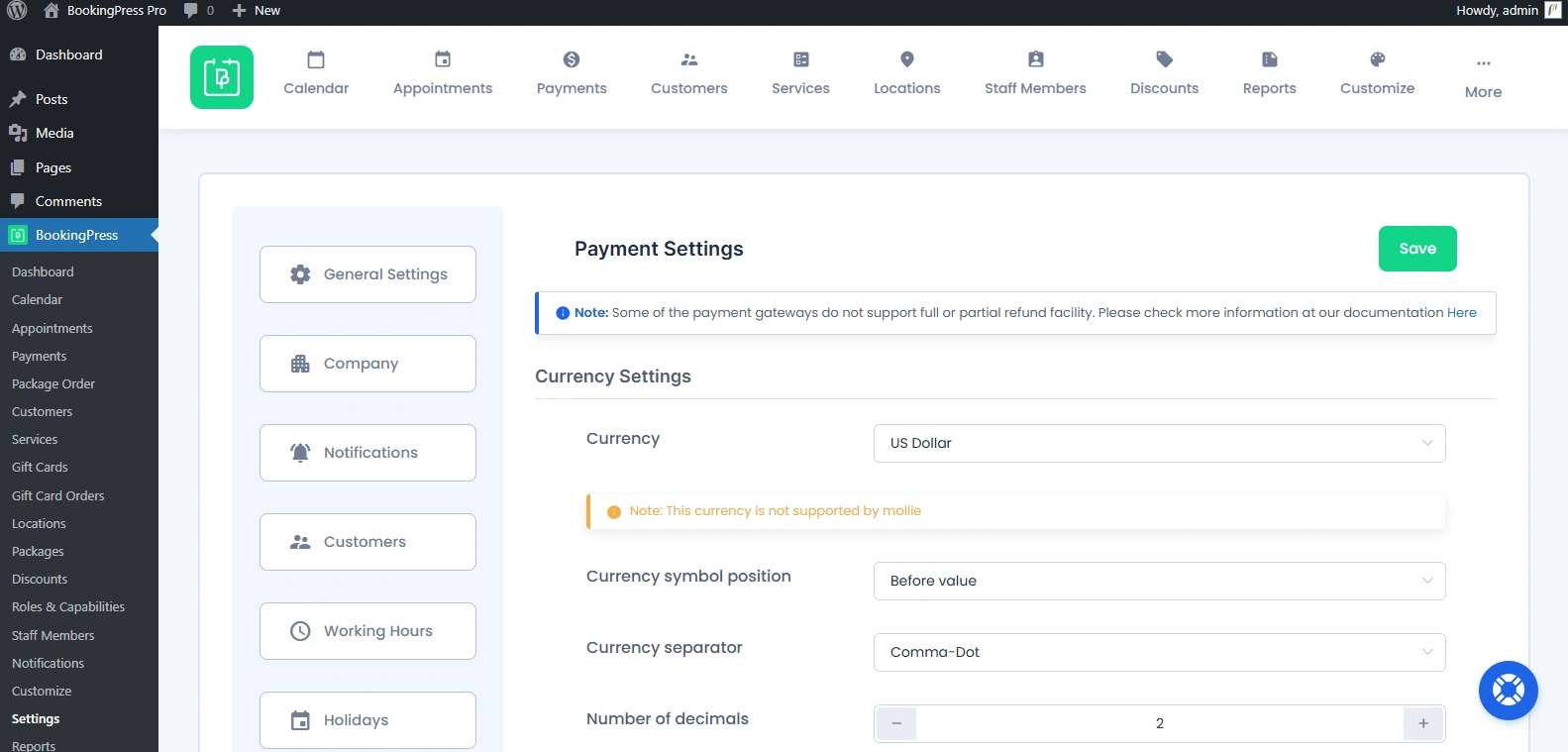
2. From here, you’ll see the On-Site payment method by default under the Payment Method Settings section.
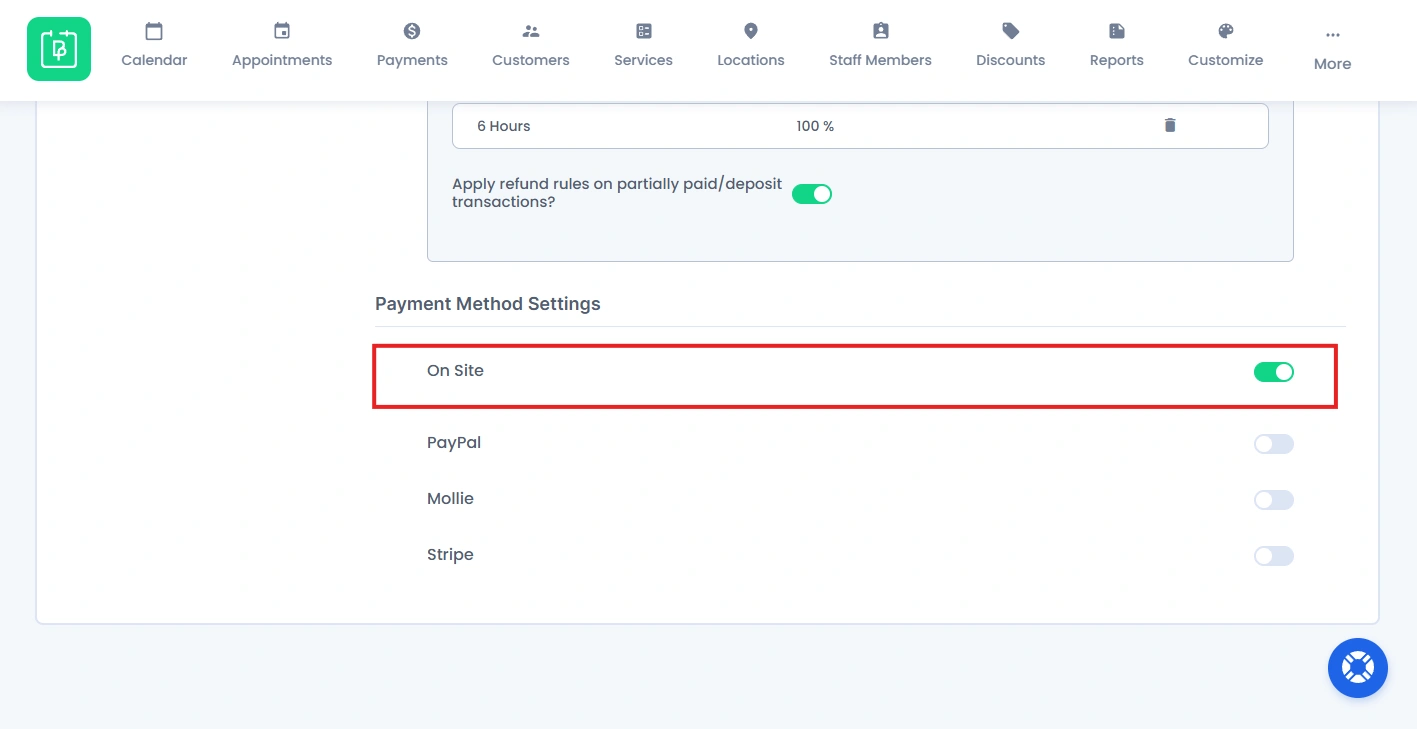
3. Simply toggle ON/OFF to enable or disable it.
What Happens After On-Site Appointment is Booked?
After you managed enable On-Site payment method, here’s what goes behind the scenes:
1. On-Site Payment Options Appears Under “Select Payment Method”
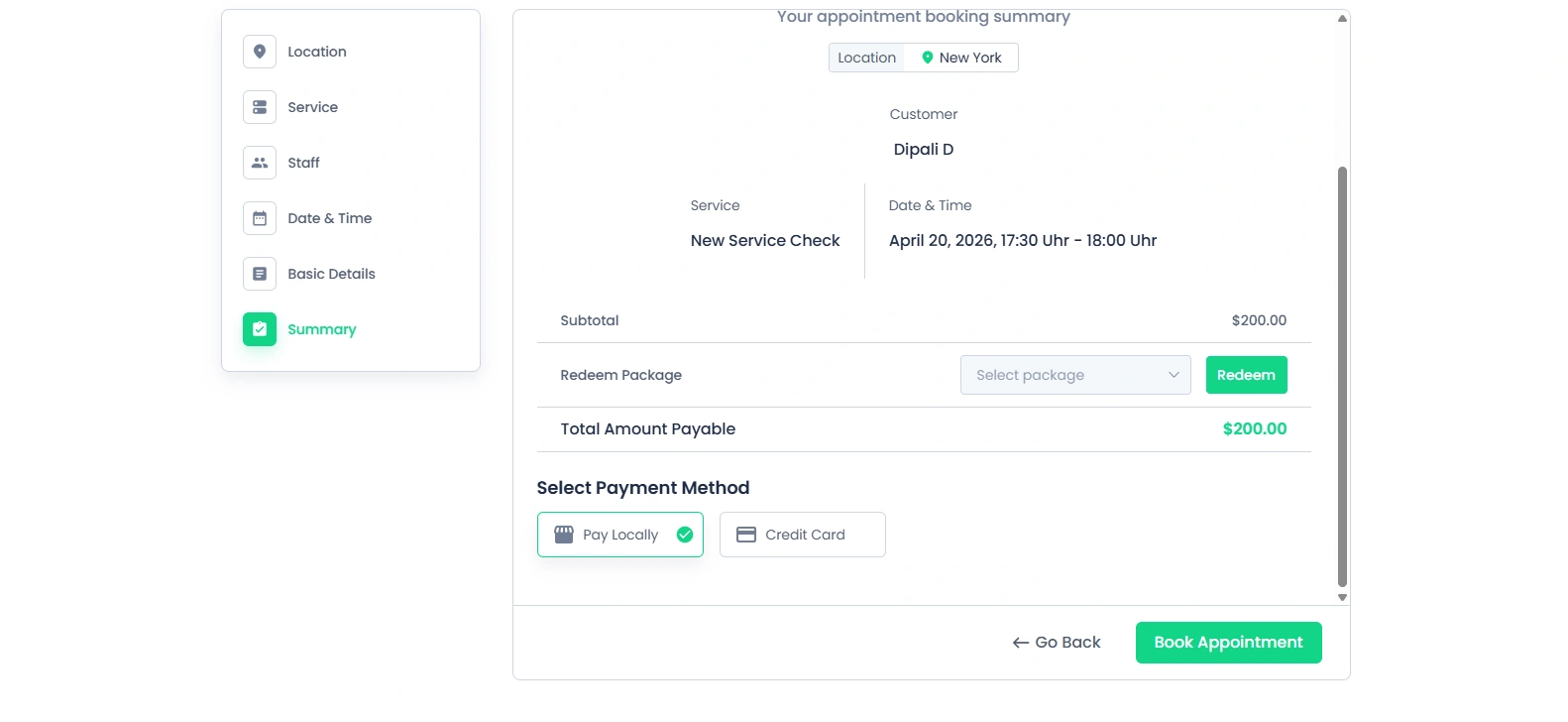
You customers see the option to pay locally to proceed. The appointment is recorded in your BookingPress dashboard right after the booking form is submitted. No payment step blocks the booking.
2. No Online Payment is Processed
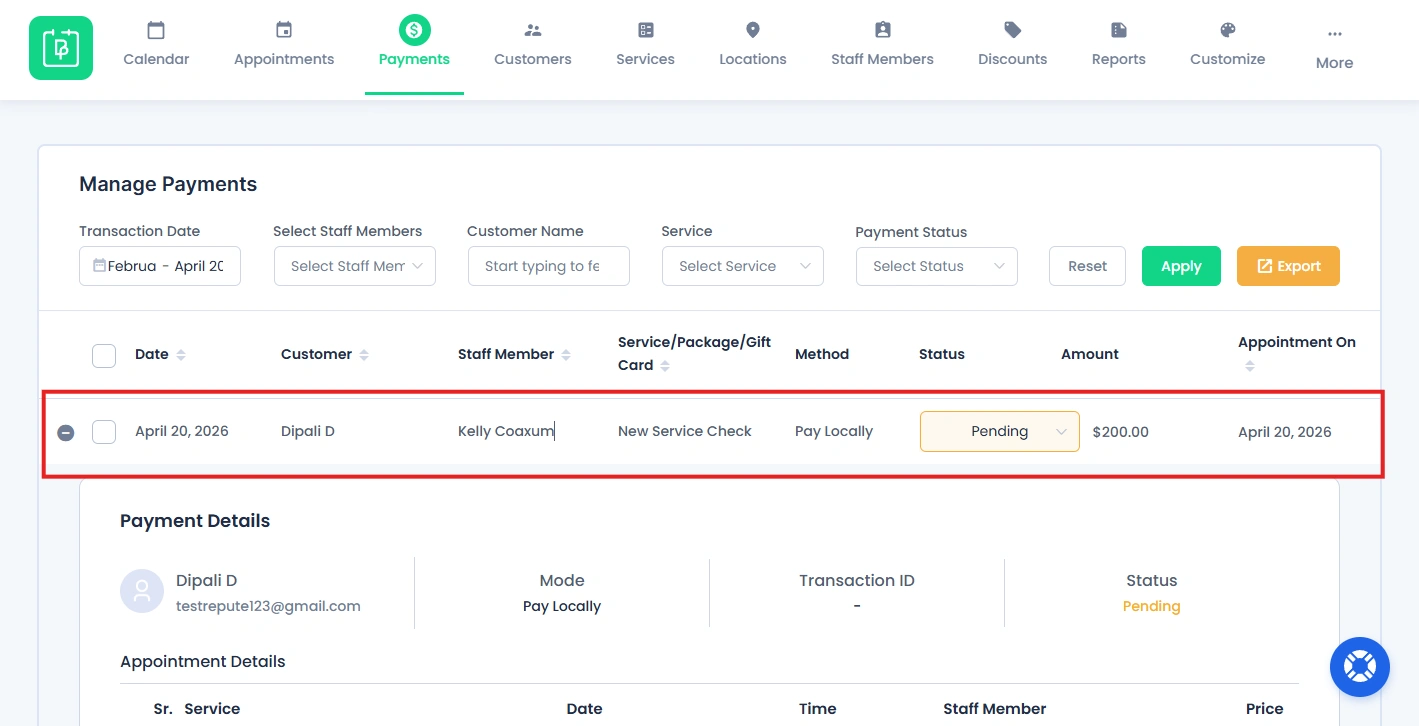
Now that payment mode is an offline method, no transaction happens either on the website.
No gateway is triggered. No payment verification happens automatically.
Thus, the payment status of that appointment is also “Pending”. You have to change to “Paid” manually once the customer pays you locally.
3. Booking Status Depends on Your Settings
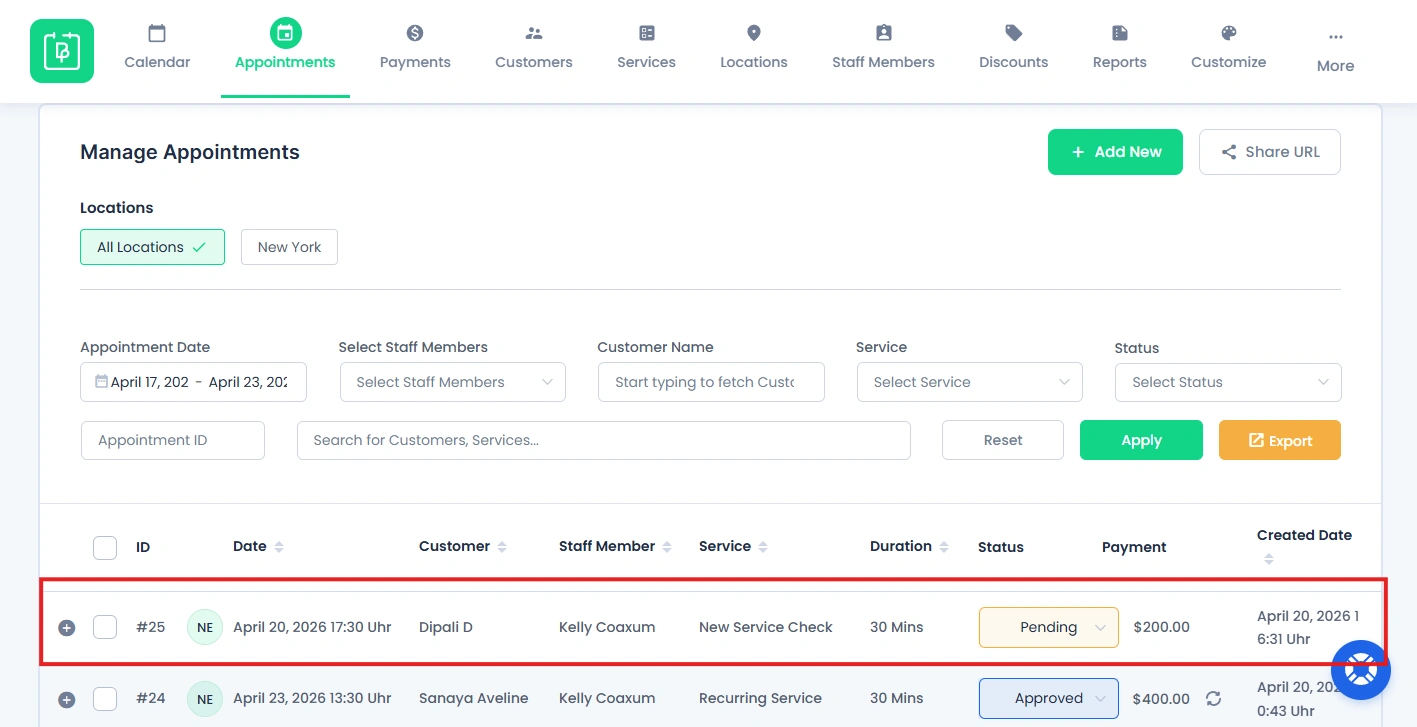
The status of the appointment is by default “Pending“. You have to change it manually to “Approved“.
4. Payment is Collected Offline
The real payment is done at the time of the appointment
- The customer pays in cash or offline.
- Admin/service provider collects payment manually.
- You may update the status to Paid. (if tracking is enabled in your workflow)
Please Note: You can now accept secure in-person payment as well using BookingPress Stripe POS Integration.
In short, On site payment methods separate booking confirmation from payment collection. This sure gives flexibility but also needs you to manually manage it all from the admin side.
Need a hand?
Our world-class support team is happy to help. Send us a message and we’ll take it from there.
 14-day money-back guarantee