

Telegram Notification
BookingPress lets you send automatic appointment notifications via Telegram.
Here, we’ll show how to send automatic appointment confirmation and reminders via Telegram using the BookingPress.
How to Enable the Telegram Notification Addon
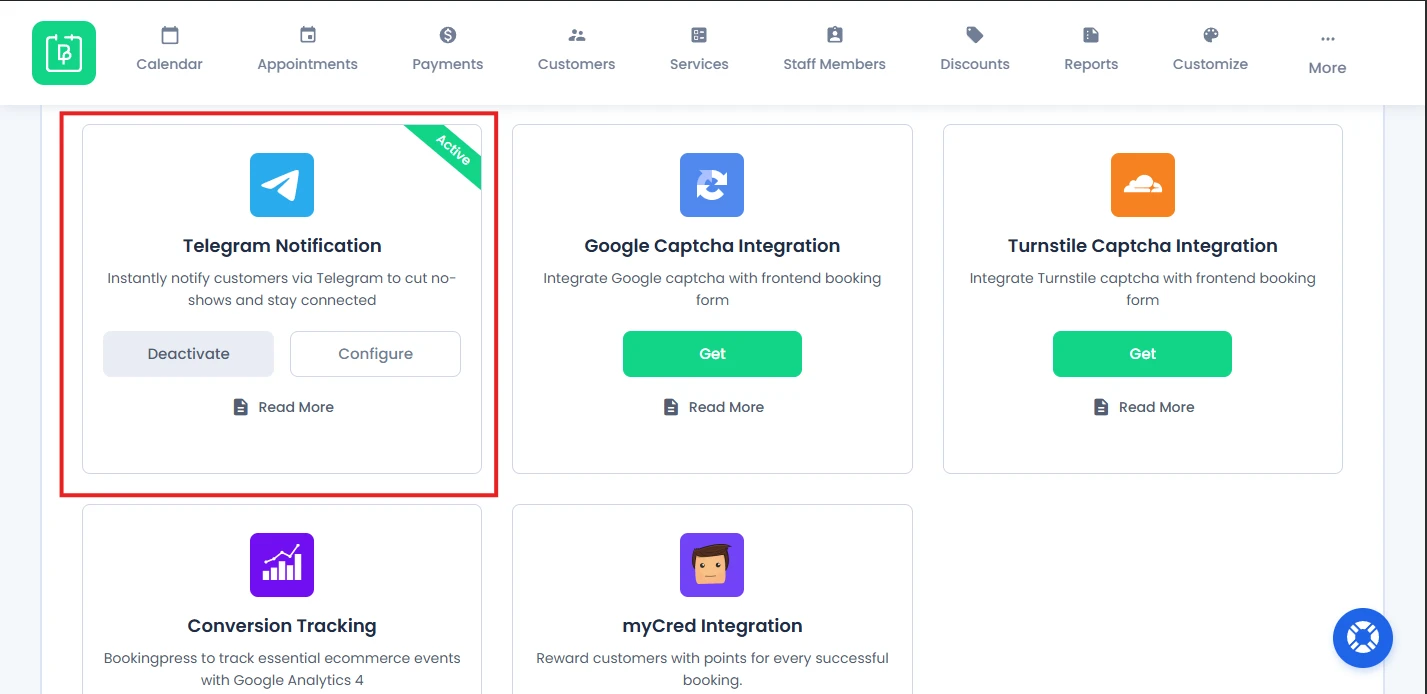
To start sending automatic notifications via Telegram, you first need to activate the Telegram Notification add-on from your BookingPress dashboard.
1. From your WordPress dashboard, head over to the BookingPress → Add-ons.
2. Activate the “Telegram Notification” addon which you’ll find under the Integrations section.
3. Click the Activate button.
How to Set Up Telegram Notifications in BookingPress
After activation, you can configure Telegram settings from BookingPress → Settings → Notifications → Telegram Settings. Or you can simply click on the “Configure” button under the Telegram Notification integration module after activation to redirect to Telegram Settings.
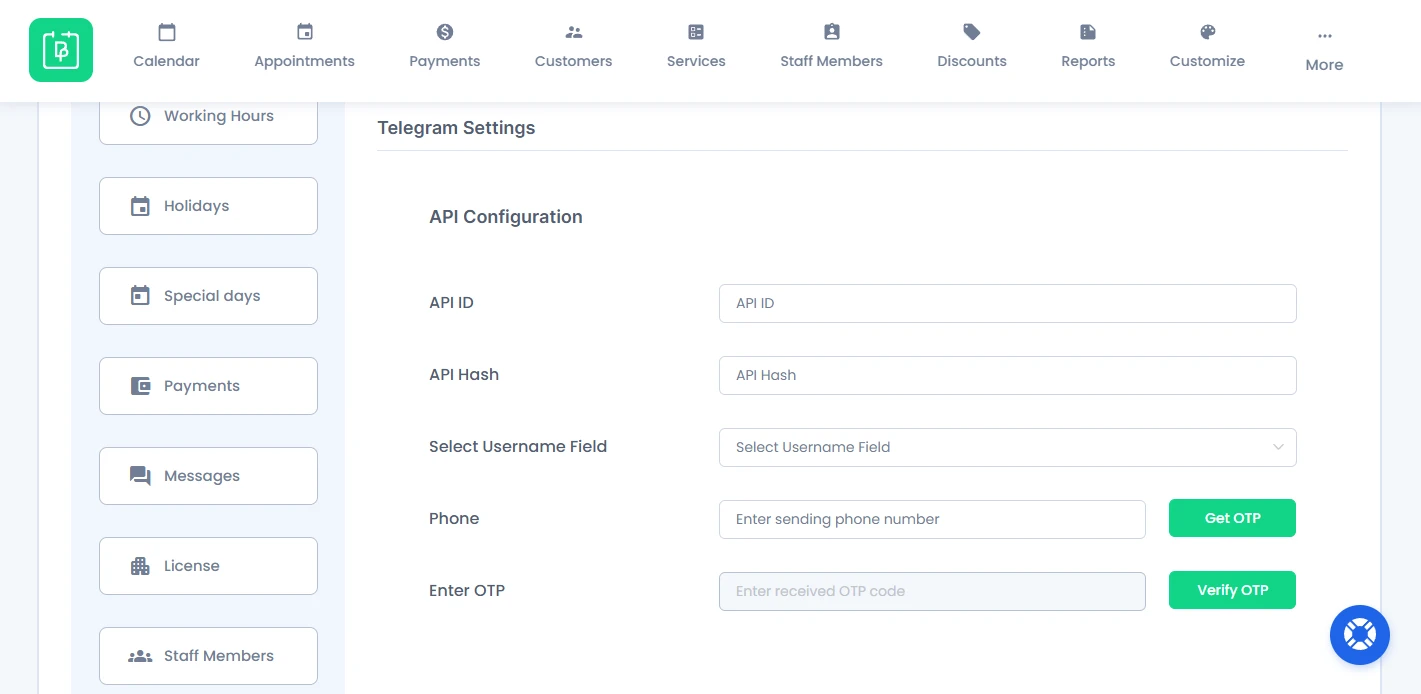
Inside the Telegram Settings, you have to enter all required credentials to connect your Telegram account with BookingPress.
Fill in the following details:
API ID & API Hash
These credentials are required to connect with Telegram. If you don’t have them yet, follow the steps in the below.
Select Username Field
You can pick the custom field that collects the customer’s Telegram username during booking. Make sure you have already created this field in your booking form.
Phone Number
Enter the phone number linked to your Telegram account (with country code).
Now it’s time to verify your Telegram account
After you enter your phone number:
- Click “Get OTP“.
- Telegram will send a verification code to your account.
- “Enter OTP” in the field given.
- Click “Verify OTP“.
After successful verification, your Telegram account will be connected to BookingPress.
After completing all fields, simply hit that Save button on the top right corner of the Notification Page.
Your Telegram integration is now active and ready to send notifications.
Obtaining Telegram API Credentials
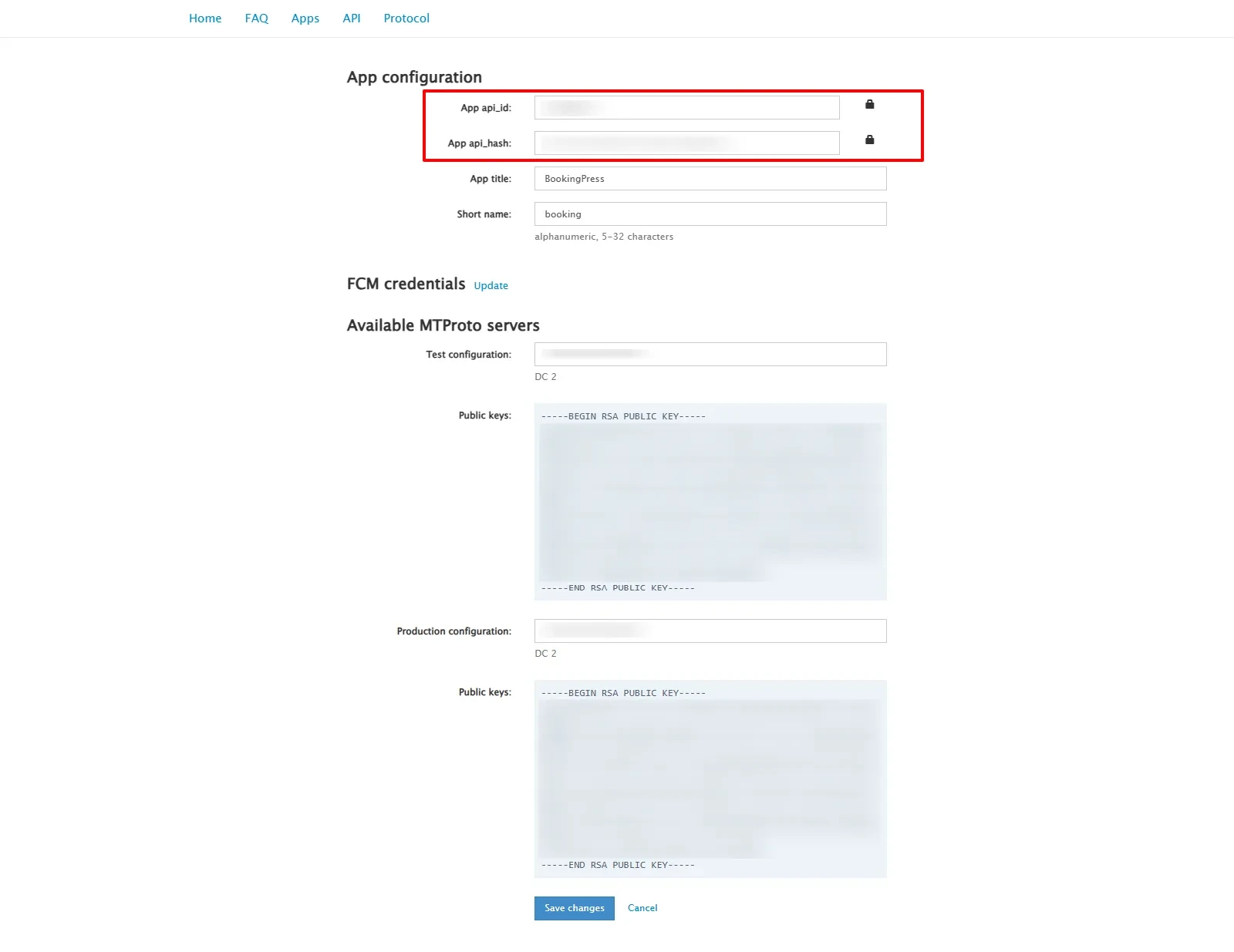
To use the Telegram API, follow these steps:
- Sign up for Telegram using the official app.
- Visit: https://my.telegram.org
- Log in and go to API Development Tools.
- Fill out the required form.
- You will receive your API ID and API Hash.
- Add these credentials in BookingPress → Settings → Notifications → Telegram Settings.
Note: Each phone number can only be linked to one API ID.
How to Configure Admin and Staff Telegram Notifications
After you manage to successfully connect your Telegram account, set up who should get the Telegram notifications for new bookings and updates.
Send Notifications to Admin
To receive Telegram notifications as an admin, you can:
- Go to the BookingPress → Settings → Company.
- Look for the Telegram Username field.
- Enter your Telegram username.
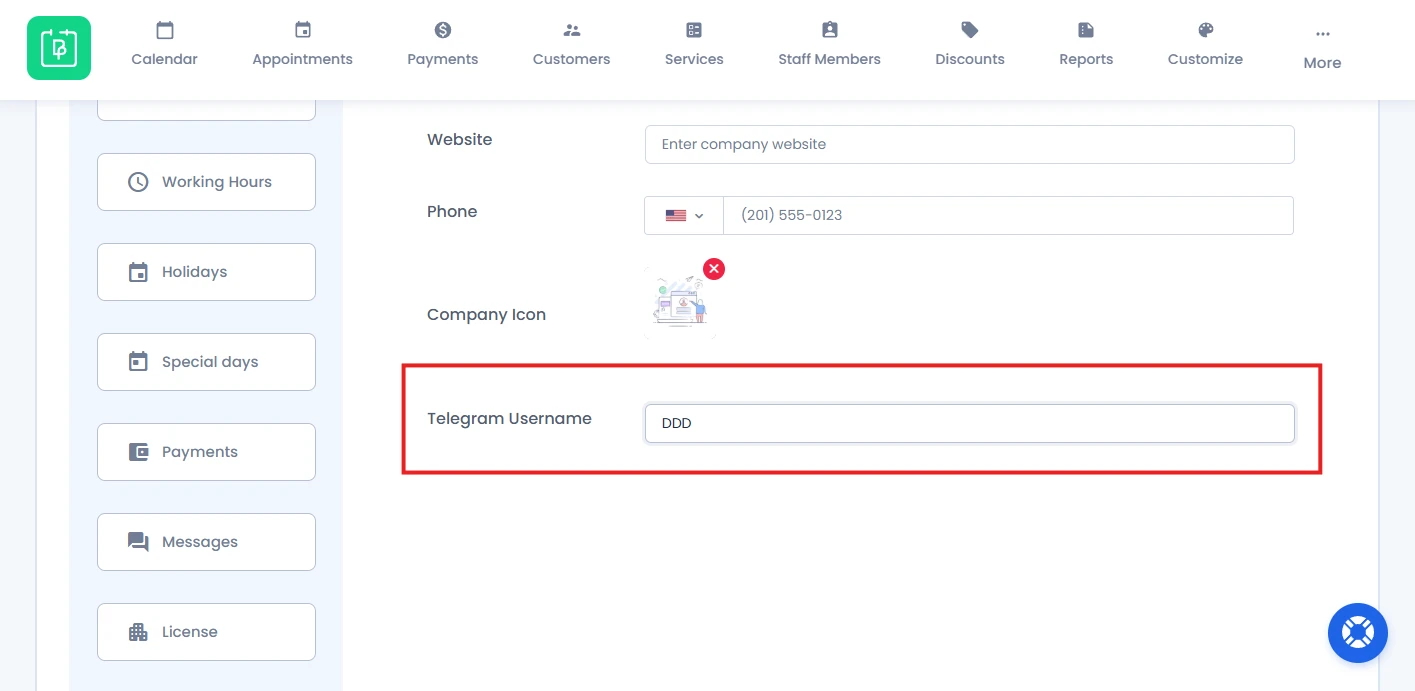
- Click the Save button and that’s it.
Send Notifications to Staff Members
If you are using the Staff Member Addon, each staff member can also get Telegram notifications. All you have to do is:
- Go to BookingPress → Staff Members.
- Edit the desired staff member.
- Enter their Telegram Username in the provided field.
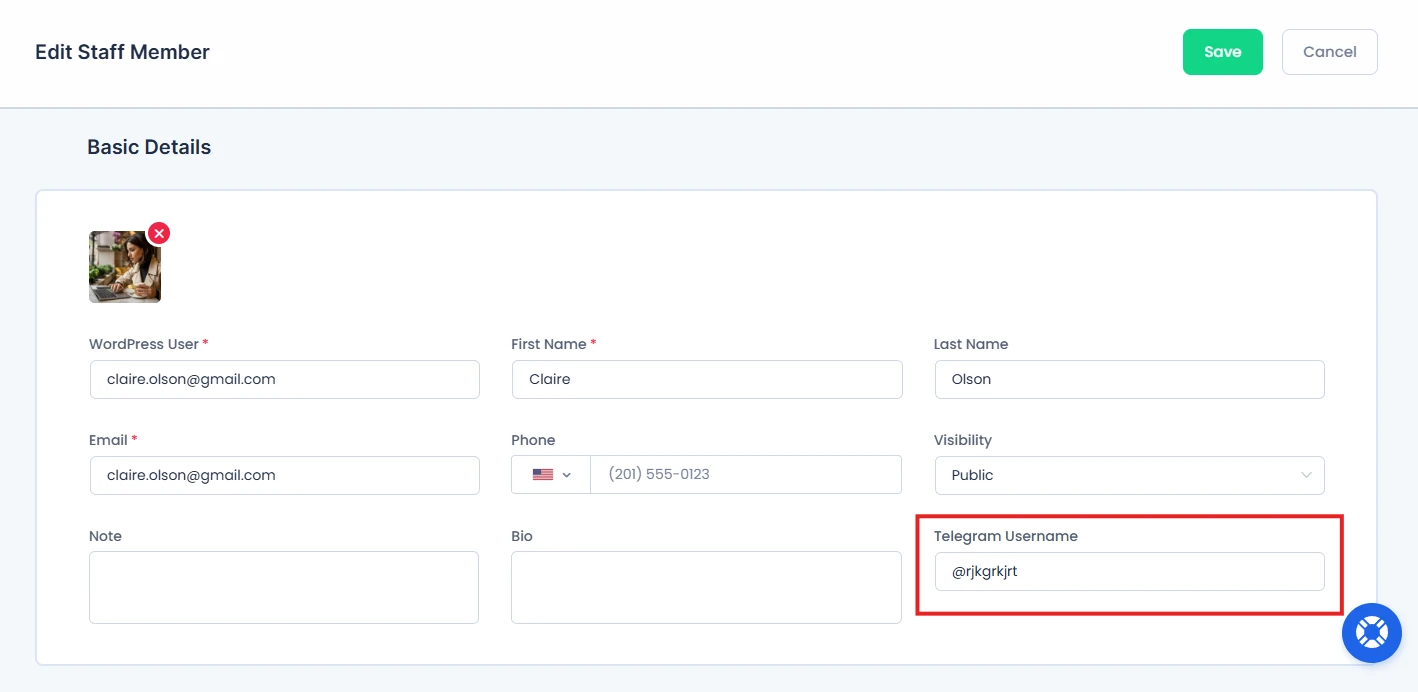
- Save the changes.
- That’s it!
Even staff members can also update their Telegram username from their Staff Dashboard, if allowed.
How to Customize Telegram Notification Messages
After setting up Telegram recipients and settings, the next step is to set what message will be sent to customers, admin or staff.
For customizing Telegram messages:
- Go to BookingPress → Notifications.
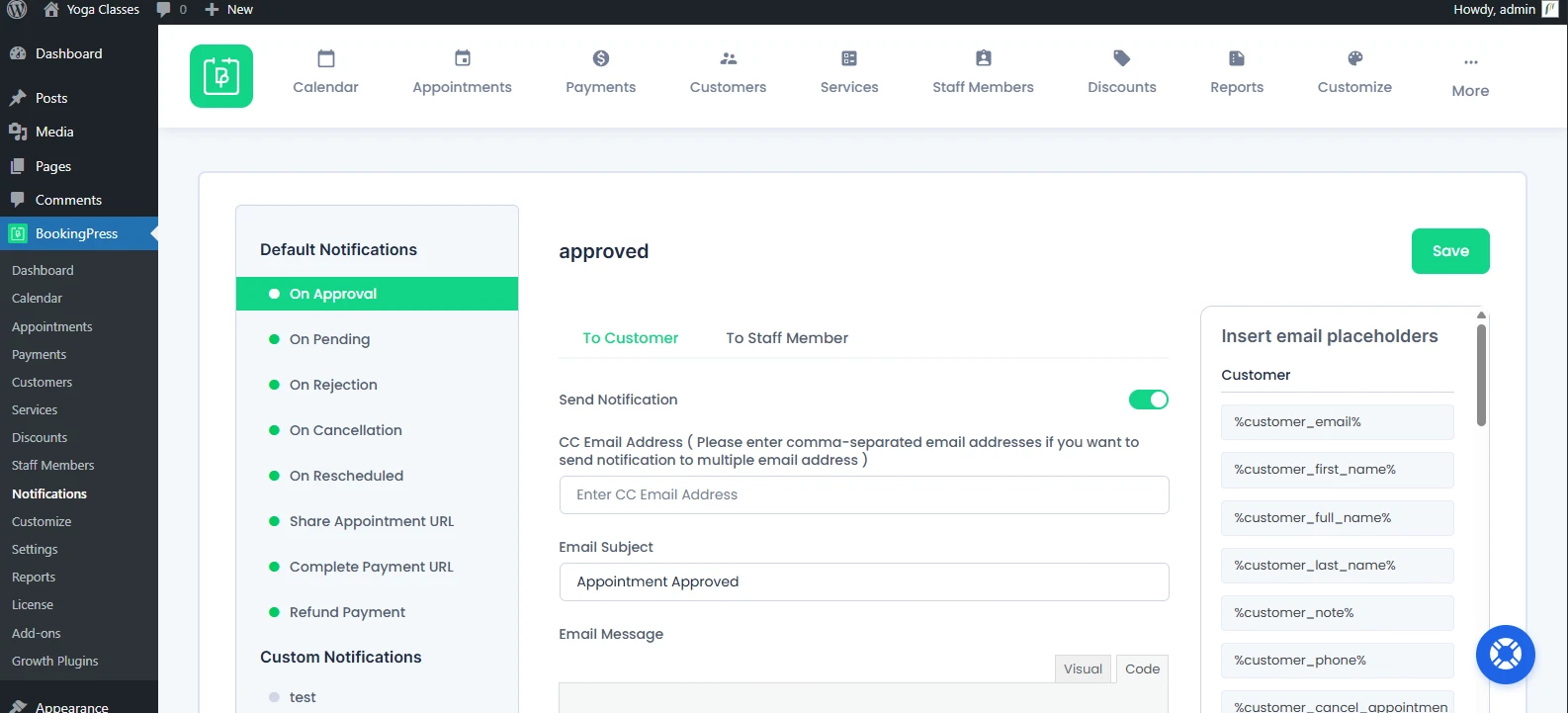
- Select the notification event (Booking Confirmed, Appointment Reminder, etc.)
- Scroll down to find Send Telegram Notification.
- Toggle it ON.
- Add Your Message Content.
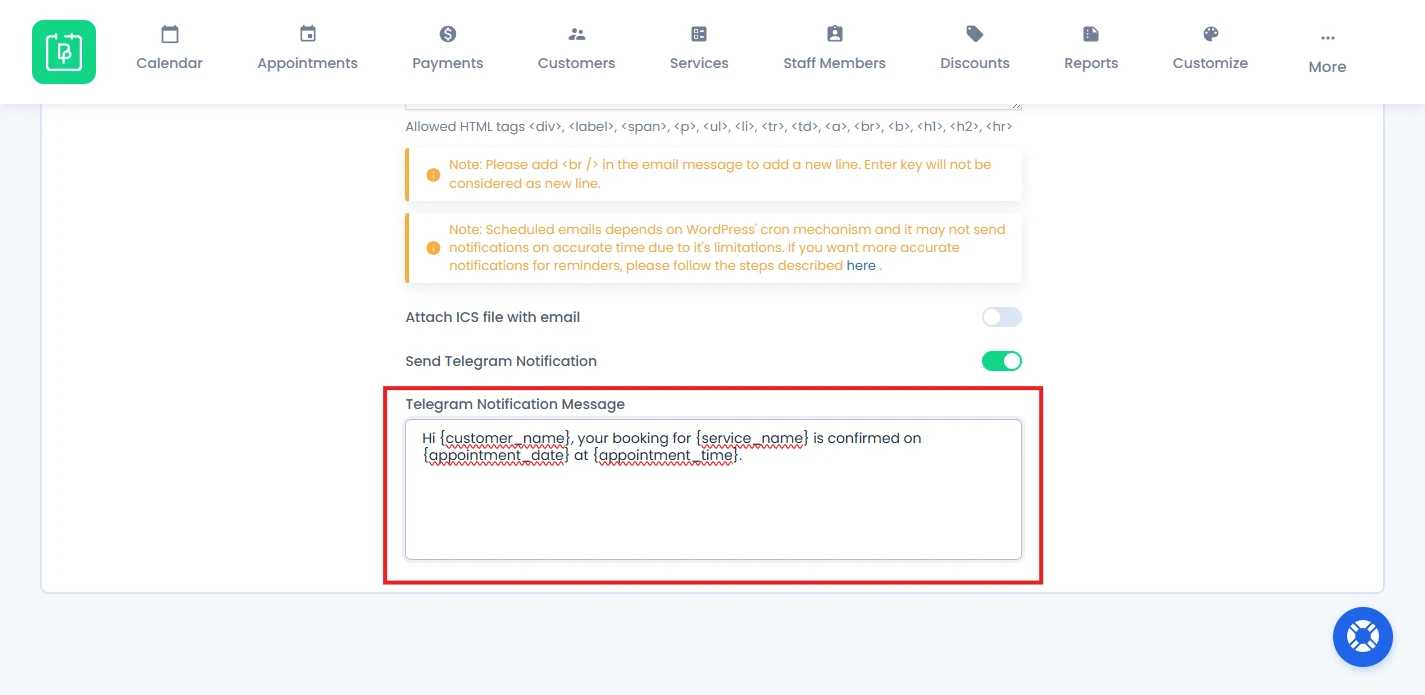
Besides, Placeholders can be added to the “Telegram Notification Message” box to dynamically show client, booking, service or any detail right away in real time.
You can add placeholders make the Telegram messages more personalized such as:
- Customer name.
- Service name.
- Appointment date and time.
- And many more…..
Here’s a simple example:
Hi {customer_name}, your booking for {service_name} is confirmed on {appointment_date} at {appointment_time}.
After adding your message, hit the Save button and that’s all!
Now your automatic Telegram notifications are now fully configured.
How Telegram Notifications Work
First of all, a customer books an appointment from the BookingPress booking form.
After the appointment is finally booked, the BookingPress system automatically sends the Telegram notifications.
Now the Telegram message is sent to the user via their Telegram username. Inside the message, all placeholders are replaced with real-time booking details.
Need a hand?
Our world-class support team is happy to help. Send us a message and we’ll take it from there.
 14-day money-back guarantee