

myCred Integration
To get and Activate myCred, please follow the below steps.
Note: To use the BookingPress myCred Addon, you need to install and activated myCred Plugin which is available at wordpress.org
- First, login to the BookingPress Website, and you will be redirected to the My Account page.
- Now, click on the “Access Passes” link from the left menu panel.
- After going to the Access Passes, click on the “View your downloads” button.
- From the list, please look for the “myCred” add-on, click on the download button, and it will automatically start downloading the addon. After the download is finished, upload the downloaded zip file to WordPress just link any other WordPress Plugin, then install and activate the addon to use it.
myCred Settings Overview
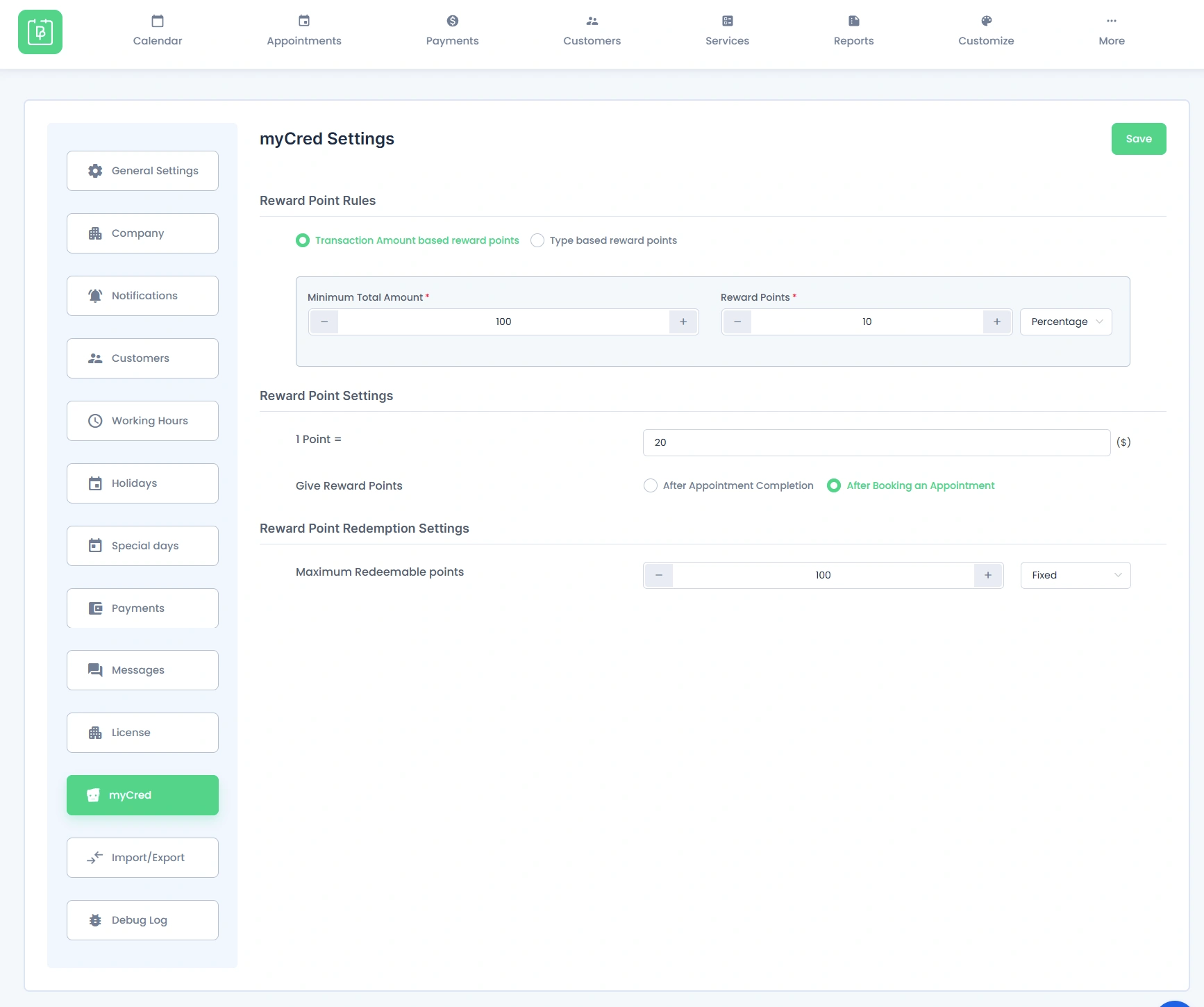
The myCred settings screen is divided into three main sections:
Reward Point Redemption Settings – Configure how many points can be redeemed per transaction.
Reward Point Rules – Define when and how many points are awarded.
Reward Point Settings – Set the monetary value of each point.
Note: The myCred redemption option on the frontend will be visible only to logged-in users.
Reward Point Rules
This section determines the logic used to calculate how many reward points a customer earns for a booking.
Choose how points are calculated. Two options are available:
- Transaction Amount based reward points – Points are awarded based on the total booking amount. For example: spend $100, earn 10 points.
- Type based reward points – Points are awarded based on the booking action type, regardless of the transaction value.
Minimum Total Amount
Sets the minimum booking value a customer must reach to get the reward points. The stepper control lets you increase or decrease this value.
Reward Points
The number of points awarded when the Minimum Total Amount is met. Works together with the type selector on the right:
- Fixed – Awards a flat number of points regardless of the exact booking amount (e.g. always 10 points for any booking ≥ $100).
- Percentage – Awards points as a percentage of the booking total (e.g. 10% of a $200 booking = 20 points).
Reward Point Settings
This group defines the monetary value of each point and when customers receive them.
1 Point = Sets the currency value of a single reward point. Displayed in the admin as 1 Point = [value] ($). Default: 20, meaning 1 point is worth $20 at redemption.
Give Reward Points
Controls when points are credited to the customer’s myCred balance. Two options:
- After Appointment Completion – Points are only credited after the appointment time is completed. Safer for businesses with frequent no-shows or cancellations. For eg. If customer appointmetn is of 11:00 to 13:00 then customer gets reward poitns after 13:00
- After Booking an Appointment (default) – Points are credited immediately when the customer completes the booking, before the appointment takes place.
Note: If “After Booking an Appointment” is selected and the customer later cancels their appointment, the awarded points will be automatically deducted from their myCred balance upon cancellation.
Reward Point Redemption Settings
This group controls how customers can apply their accumulated points when checking out.
Maximum Redeemable Points: Sets the upper limit on how many points a customer can apply to a single booking. Works the same way as the Reward Points field – choose Fixed or Percentage:
- Fixed – A hard cap on the number of points redeemable per transaction (e.g. max 100 points per booking). Default: 100.
- Percentage – A percentage of the customer’s current balance they can use per transaction (e.g. up to 50% of their total points).
Click the Save button at the top-right corner of the myCred Settings screen after making any changes.
Frontend: Redeeming Reward Points
Customers can redeem their accumulated myCred points directly from the booking form during booking.
Once a customer has enough points in their myCred balance, a redemption option will appear on the payment step of the booking form. The discount is applied instantly based on the point value you have configured (1 Point = $X).
Points are subject to the Maximum Redeemable Points limit set in the admin settings – customers cannot redeem more than the configured cap per transaction.
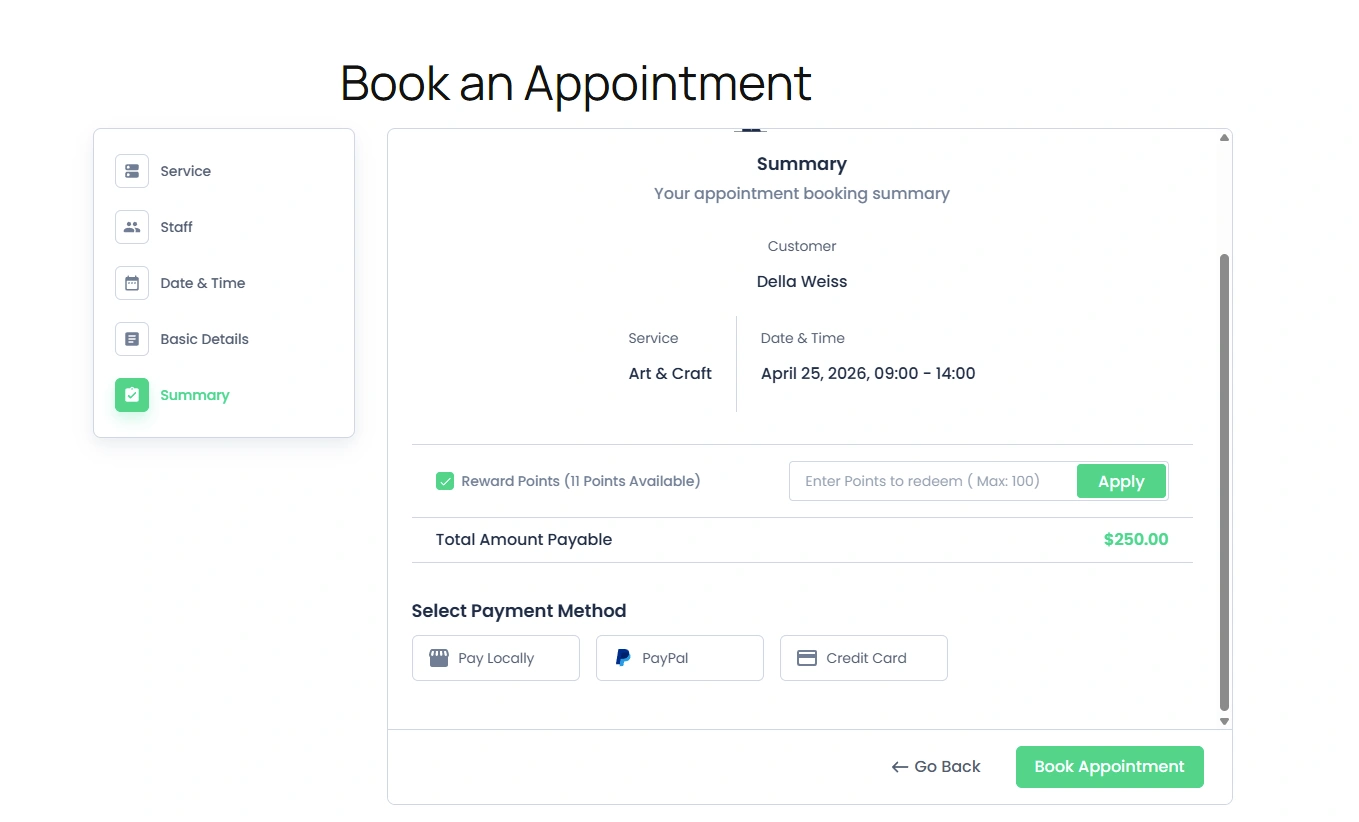
Note: If the customer does not have enough points to cover the full booking amount, the remaining balance must be paid through the available payment method.
 14-day money-back guarantee