
Google Address Autocomplete Integration Addon
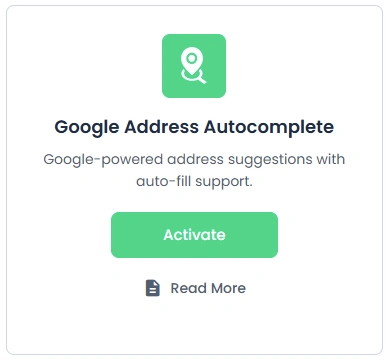
To get and Activate Google address autocomplete, please follow the below steps.
- First, login to the BookingPress Website, and you will be redirected to the My Account page.
- Now, click on the “Access Passes” link from the left menu panel.
- After going to the Access Passes, click on the “View your downloads” button.
- From the list, please look for the “Google Address Autocomplete” add-on, click on the download button, and it will automatically start downloading the addon. After the download is finished, upload the downloaded zip file to WordPress just link any other WordPress Plugin, then install and activate the addon to use it.
The Google Address Autocomplete Addon lets users search by postal code or address to auto-fill the address field in the BookingPress form.
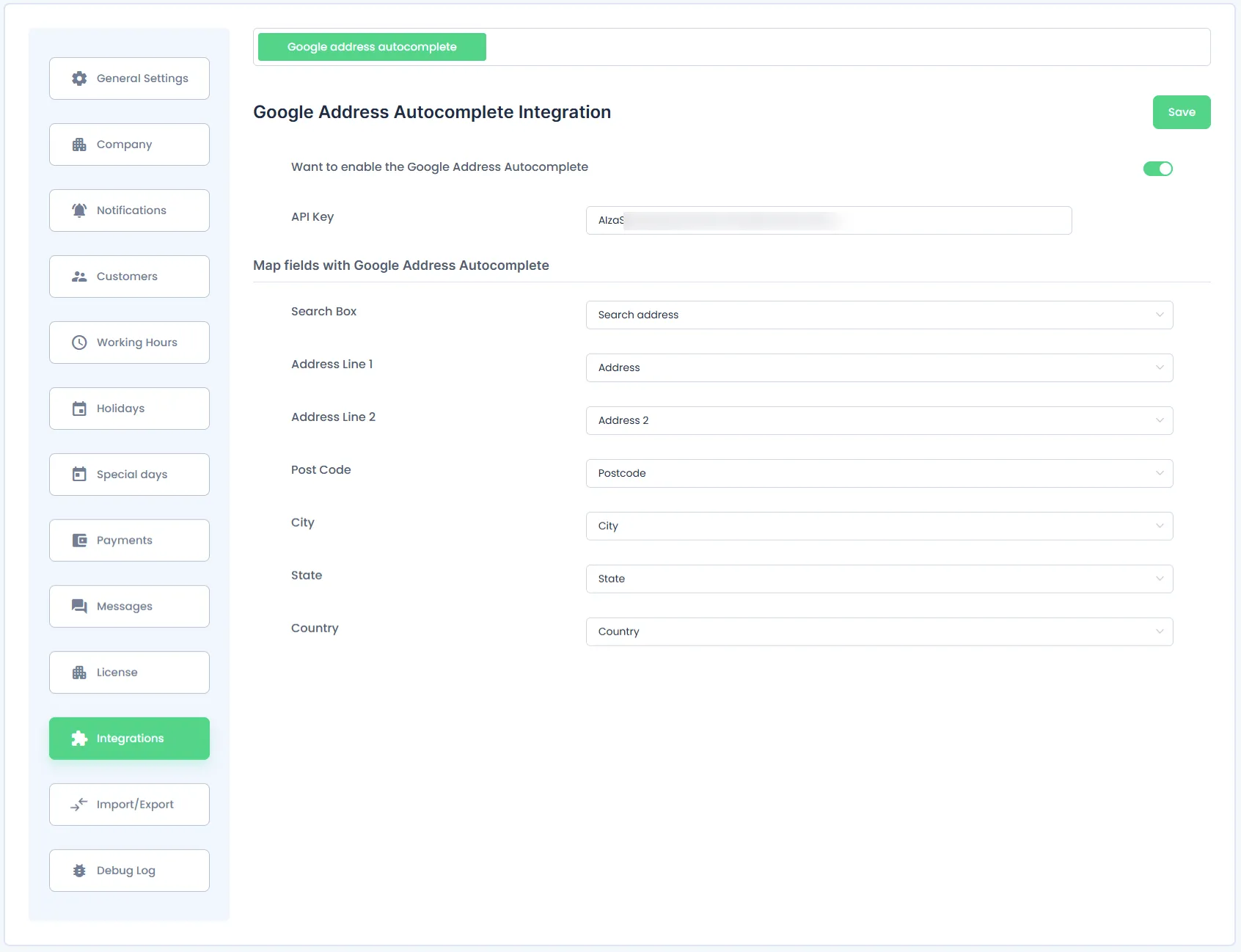
Once activated you can configure the same in BookingPress > Settings > Integrations > Google address autocomplete
Generate an API key for Google Address Complete
- Enable Google Maps API & Google Places API by follow the steps given below
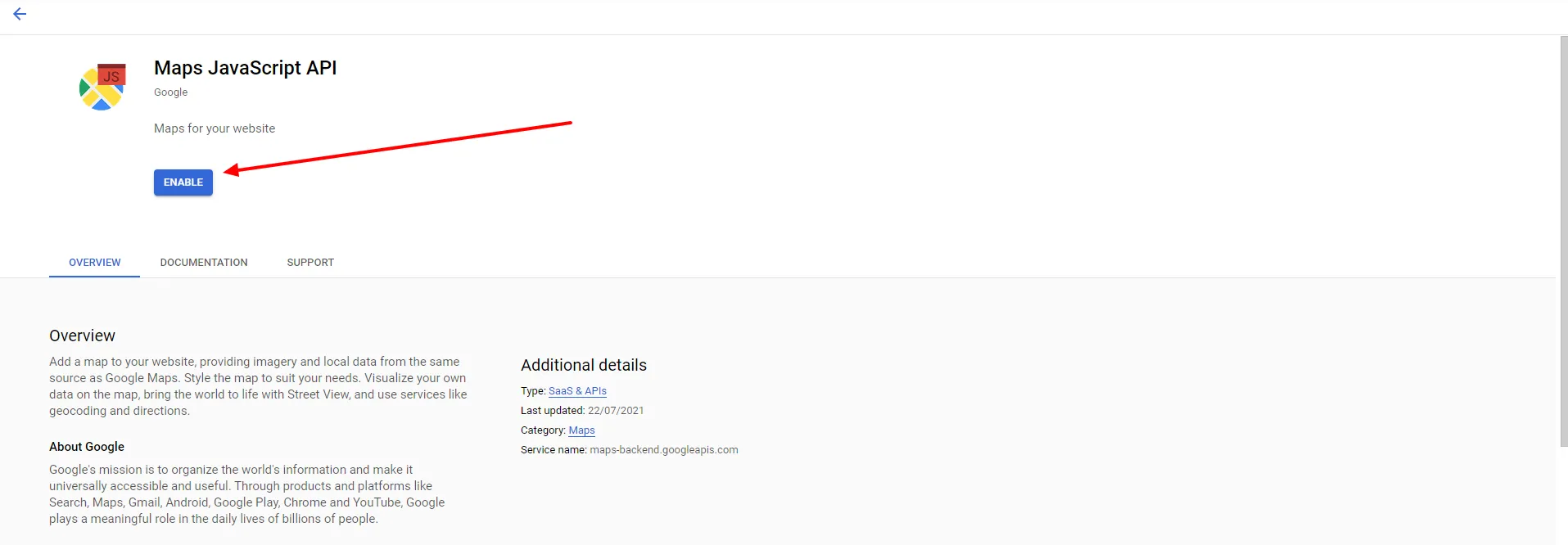
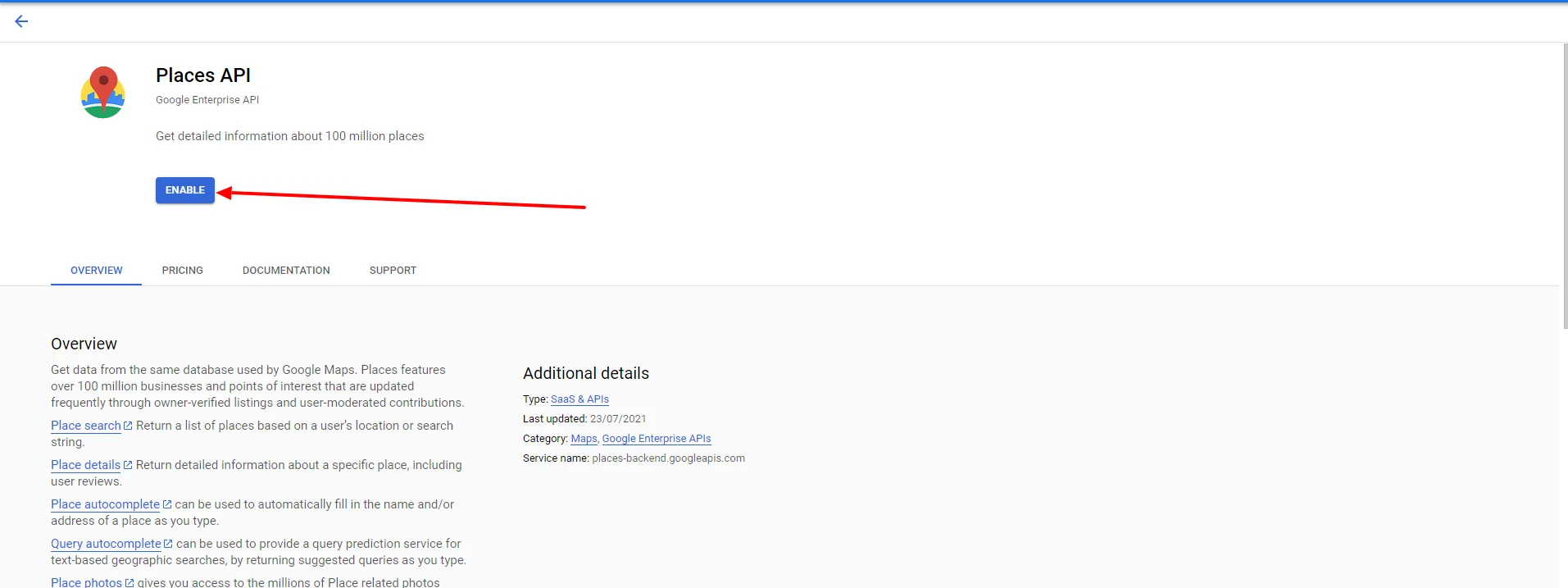
- Go to the Google API Console and search Google Maps API and Google Places API from Library option.
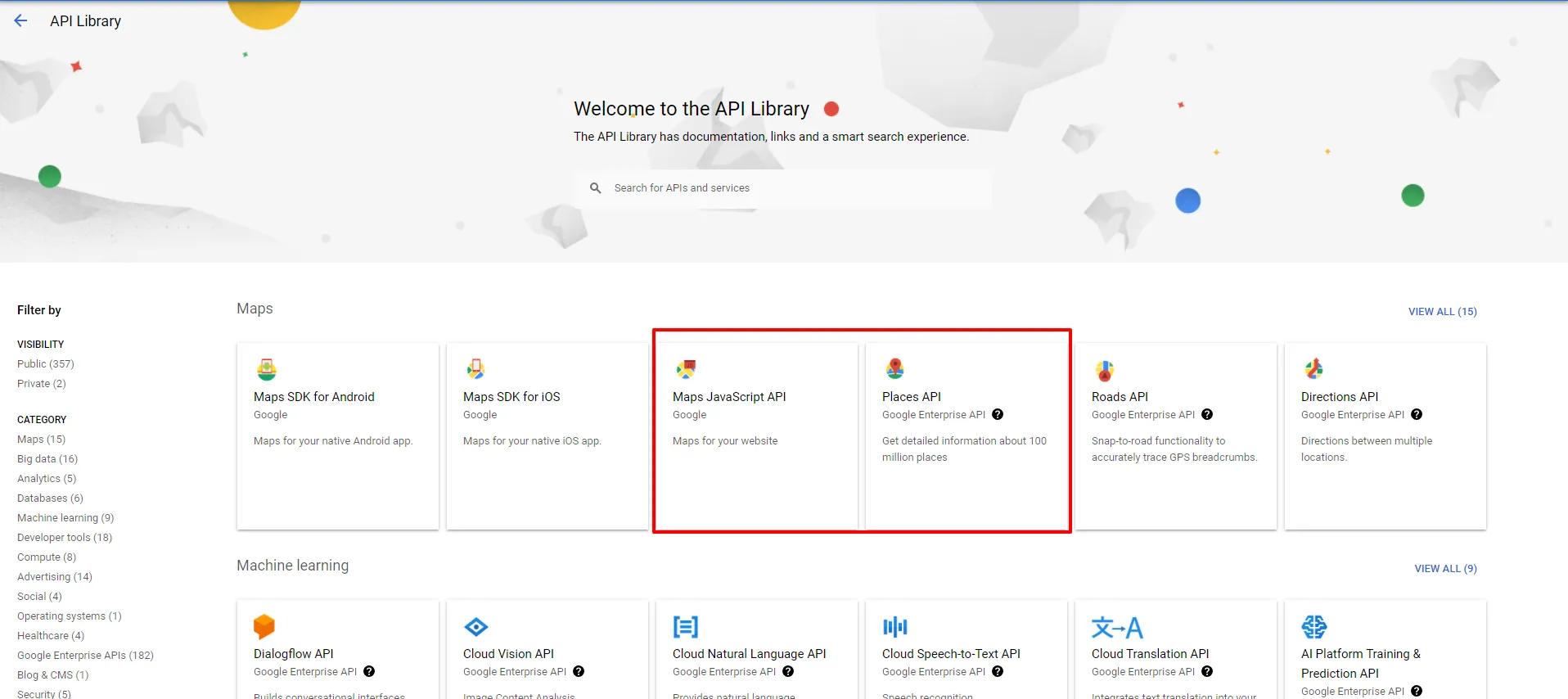
- Enable Google Maps API
- Enable Google Places API
- To get API Key please follow the steps given below.
- Go to the Google API Console
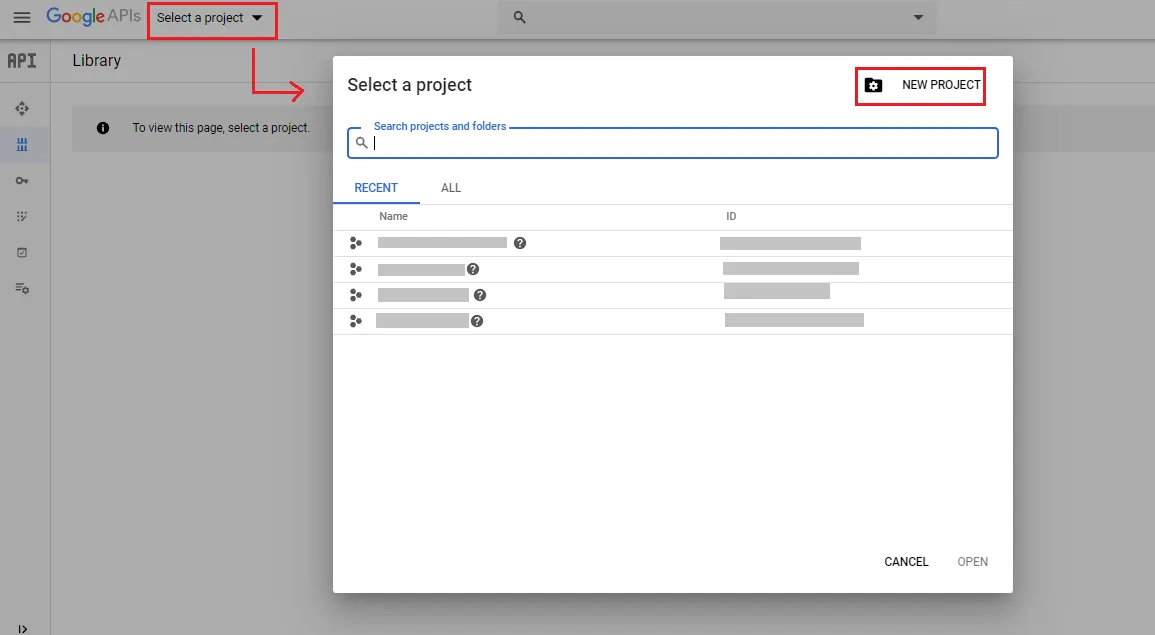
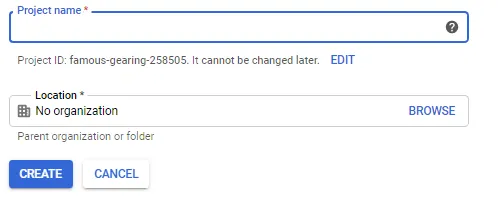
- From the project drop-down, select an existing project , or create a new one by selecting Create a new project.
- In the sidebar under “API & Services”, select Credentials, then select the OAuth consent screen tab. Choose an Email Address, specify a Product Name, and press Save.
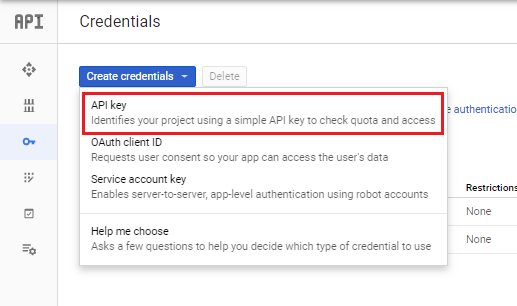
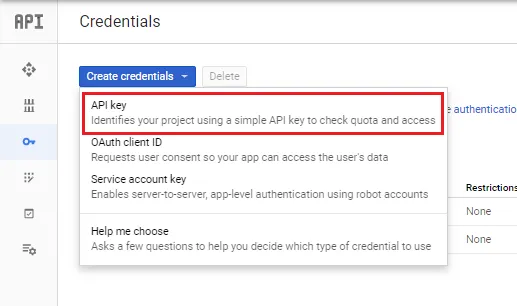
- In the Credentials tab, select the Create credentials drop-down list, and choose API Key to get API Key.
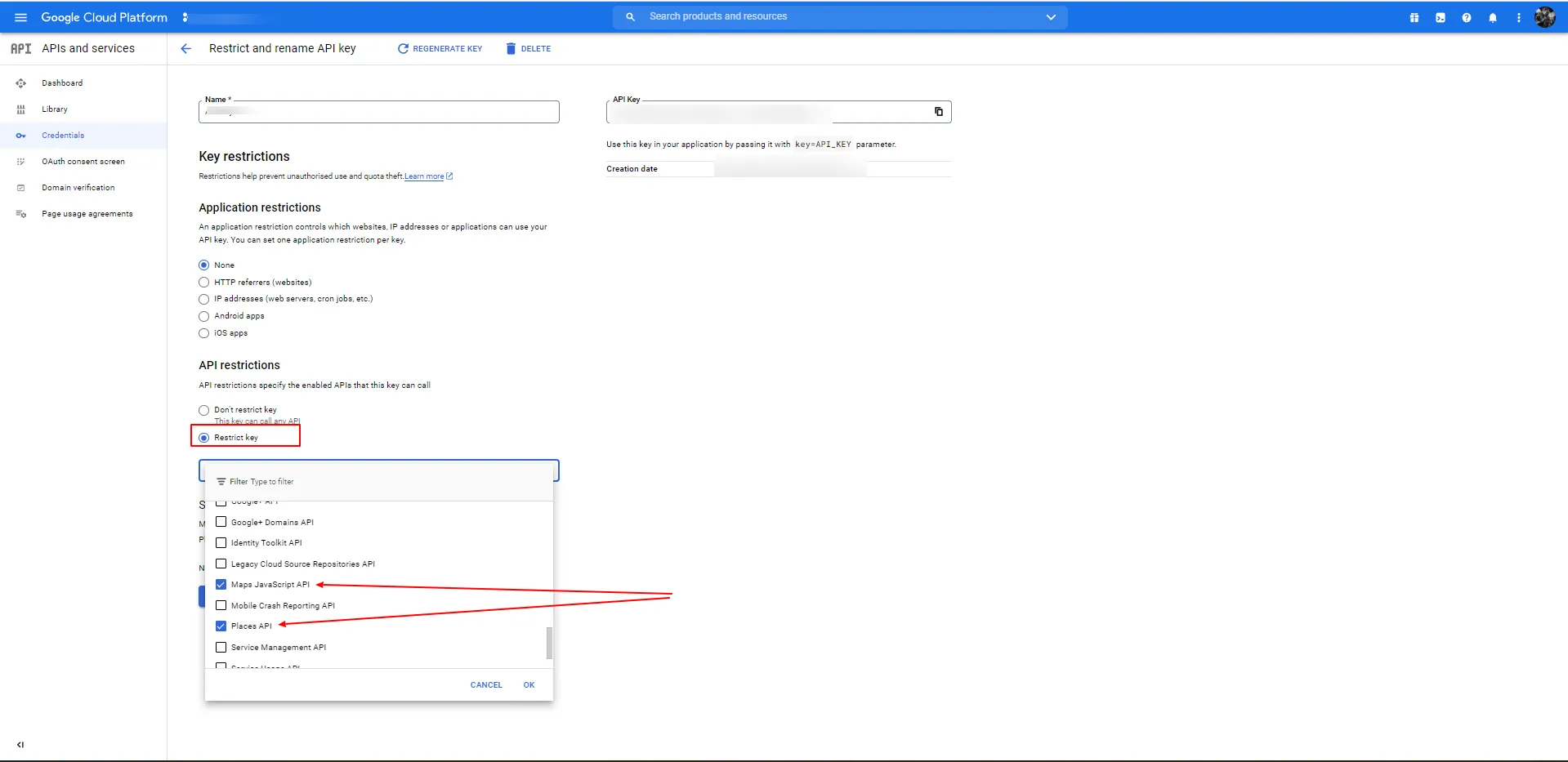
Set restriction for newly created API by selecting Restrict Key option from API restriction. Enable only Maps JavaScript API and Places API option from the API restriction dropdown.
Note: Google Maps and Places services require billing to be enabled for the Google Cloud project linked to your API key. You can enable billing here: https://console.cloud.google.com/project/_/billing/enable
How to Access and Set Up Google Address Autocomplete
- Once you have the API key you can head over to
BookingPress> Integration > Here chooseGoogle address autocompletefrom the top bar. - Go to BookingPress → Integrations and enable the “Want to enable the Google Address Autocomplete” switch
- Enter enter you’re Google Address API key
- In the Map Fields section, configure your address fields for Google Address Autocomplete and save the changes.
Note: For the map field, you can select any custom field you’ve created from BookingPress > Customize > Custom Fields. However, the default BookingPress fields cannot be selected.
 14-day money-back guarantee