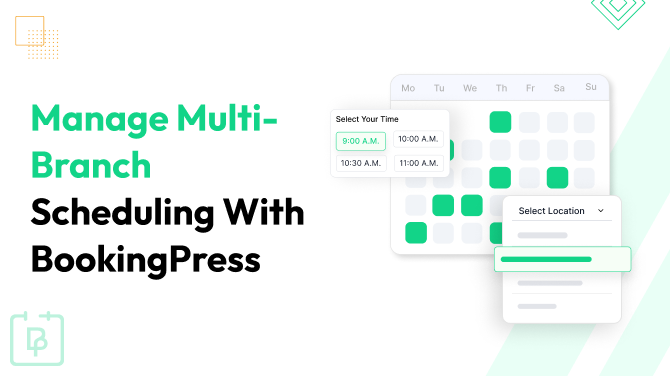
How to Manage Multi-Branch Scheduling With BookingPress


Businesses in the service industry can have multiple branches in a single city (e.g., several salons) or a multi-location hierarchy across regions (region > branch > staff).
This requires more complex shift scheduling and resource management in reality, which means digital scheduling software should also be able to handle these real-life workload layers.
In our tutorial, we’re breaking down the multi-branch and multi-location scheduling process for service-based businesses that have a WordPress site and use BookingPress.
Common Issues of Multi-Location Business Scheduling
Massage therapy chains, schools, gyms with personal training, medical clinics, cleaning and pest control companies – these are just a few examples when multi-location can be involved, with their specific issues.
The task of scheduling software is to solve some of the most common issues of multi-location scheduling:
- Double-booking across branches (especially when staff travel between locations or resources are shared).
- Poor booking UX for customers, thus, booking the wrong location.
- Staff assigned to the wrong calendars because of overlapping shifts and availability conflicts.
- Inconsistent services across branches because many booking systems don’t handle different prices and durations.
- No consolidated corporate reporting.
- Permissions problems and staff unable to access correct calendars.
- Inconsistent customer communication.
Now, let’s look at what scale BookingPress can solve for your WordPress site and multi-location business overall!
How BookingPress Handles Multi-Branch Scheduling
BookingPress is a unique WordPress appointment scheduling plugin that supports this scenario of staff-specific calendars in multiple locations.
Here is the general picture of what BookingPress offers to handle your multi-branch scheduling strategy.
Centralized + distributed management
You will have one master WP dashboard, plus accounts for staff who operate in different locations. For even more business role flexibility, you can use the Roles & capabilities add-on from BookingPress.
Location-aware booking
The plugin lets customers choose a location first, show services available in that specific branch, and display staff availability per location. You can also customize how this step appears in the booking form.
Staff mobility
The same staff members can work across multiple locations that you add via the booking plugin. This means you can assign a staff member to multiple branches with variable hours.
Multi-branch reporting
BookingPress allows you to filter performance reports data by branch/location, staff member, and even particular services they provide.
Staff scheduling flexibility
With the specialist add-on for Multi-Staff by BookingPress, you can make sure that multiple staff resources can be chosen by a client for one service within the same branch.
Support for virtual appointments
Regardless of whether your business offers in-person or virtual appointments, the plugin accommodates them, even if you have multiple locations.
Moreover, to fit this need even better, it supports:
- Centralized booking system with staff-specific availability.
- Calendar sync (Google, Outlook).
- Timezone handling.
- Appointment buffers.
- Walk-in + appointment hybrid scheduling.
- Staff accounts in multiple locations.
- POS integration at the branch level (currently Stripe).
- Branch manager access controls (through WP user roles).
- Location selector in booking forms for customers.
- Overbooking protection.
- SMS and email reminders.
Now, let’s set up the BookingPress for a multi-location business and accept client bookings in different branches.
BookingPress Multi-Location Setup
We’ll be omitting general settings and the step-by-step plugin installation for this tutorial, as there are plenty of online resources available.
Instead, we want to focus on the particular setup of services and staff members in regard to configuring multiple locations.
What’s required?
- BookingPress Professional or Enterprise: View plans.
- Location add-on (free with those premium plans). Must be installed and activated on your BookingPress-powered site.
Then, make sure to follow these steps:
Step 1. Add services
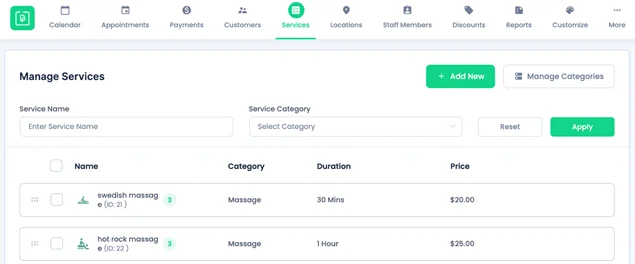
If you haven’t added any services yet, it’s crucial to start with them. These are your offerings that can be booked at multiple locations. For example, the same hot stone massage can be offered in three different salons.
Go to Services > Add new > and customize your service settings. For example:
- Service price and duration.
- Detailed service description and service image.
- Buffer times for better time management.
- Recurring appointments if needed.
- Appointment capacity.
Step 2. Add staff members
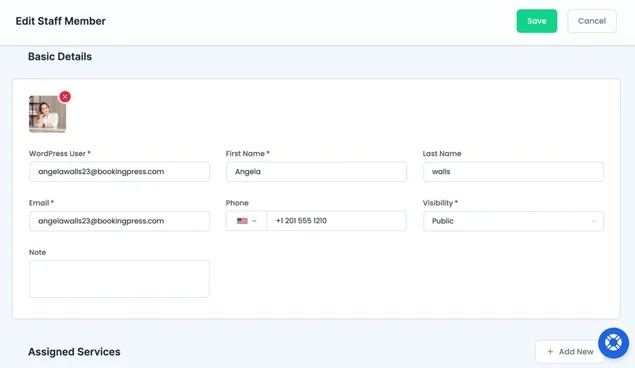
For a multi-staff business, availability should be assigned to a staff member. Otherwise, general availability from the ‘Working hours’ (in Settings) menu will be applied.
Go to Staff Members > Add new > add personal details and assign services a person is eligible to perform.
Step 3. Set individual staff schedule
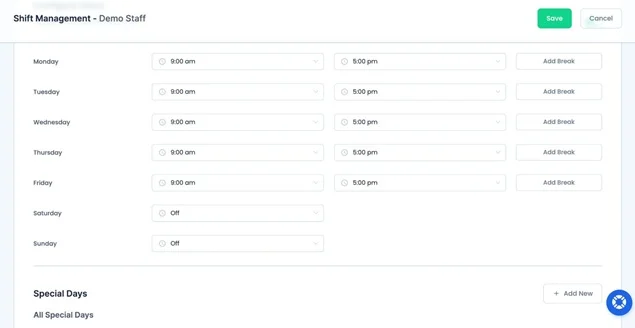
Go to BookingPress > Staff Members, select the staff member, then hover over the Settings icon and click Shift Management. In addition to normal availability, you can add special days and holiday schedules for every service provider.
Note: This schedule applies only to the selected staff member and does not affect the global settings set in ‘Working hours’.
Step 4. Add locations
Locations are actually an umbrella term – those can be anything from cities to rooms.
Go to Locations > Add new.
When adding location details, including images, you can add services that are provided at this location and staff members who can work at this location within the ‘Assigned services’ menu. You can also set an appointment capacity.
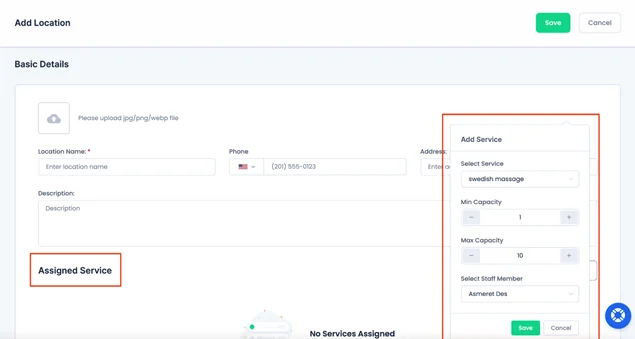
Step 5. Enable the same staff to work in different locations
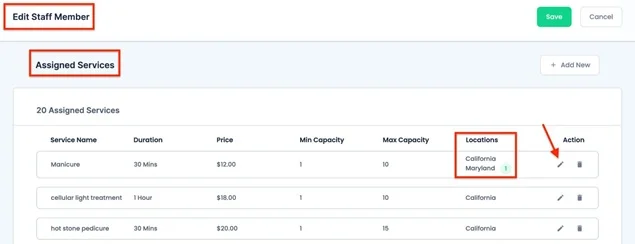
To assign specific locations as working places to the same person, go to Staff Members > Edit Staff Member > Assigned Services > Edit service > in the Location field, select all the locations a person works at > Save.

In the list of all assigned services, you can see in which locations this staff member can provide a particular service.
Step 6. Add a different personal staff schedule per location (optional)
Do you need each member to have different availability per location?
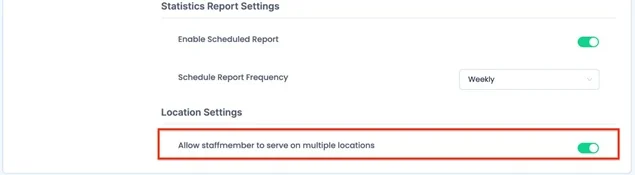
Once the Location add-on is activated, go to Settings > General Settings > Click ‘Enable staff members to serve in multiple locations’ > Save.
Then go to Staff Members > hover over the staff member you want to edit > click the Shift Management button > set location-specific hours by selecting a location from the dropdown and configure the Working Hours and Special Days for that staff member at the chosen location.
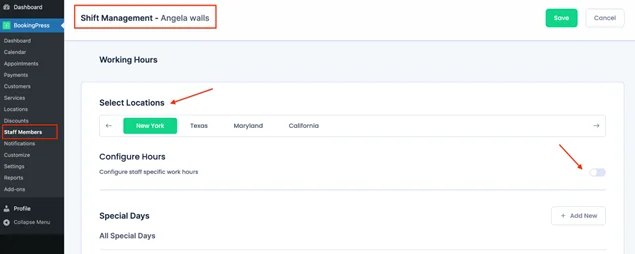
To define availability for the same staff member at other locations:
- Select a different location.
- Set its Working Hours and Special Days accordingly.
Now, each staff member can have a unique schedule for every location they work at!
Step 7. Add a different service availability per location (optional)
If certain services are only offered in specific locations (spa, dental chain), branches have different operating hours, or staff skills differ across locations, you can set different service availability per location in BookingPress.
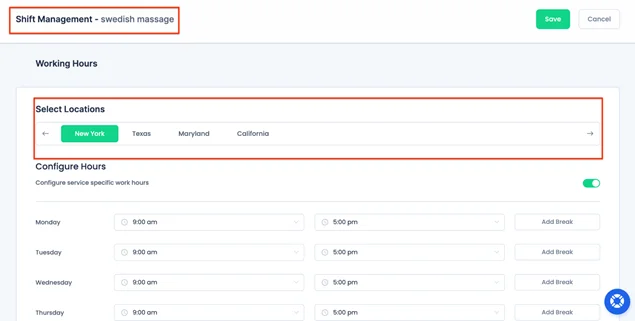
Go to BookingPress > Services > Hover over the service you want to edit > Click the Shift Management button.
Then, configure location-specific hours. Choose the location from the dropdown and set the Working Hours and Special Days for that service at the selected location. Repeat for other Locations.
Different service and staff member availability per location is essential when there are differences in:
- Service menu
- Staff skills
- Equipment/resources
- Legal rules
- Opening hours
- Seasonal demand
- Local promotions
- Pricing/duration
- Franchise flexibility
Limitations:
- You can’t assign branch-specific prices since prices are set for individual services and can vary per staff member/per appointment duration.
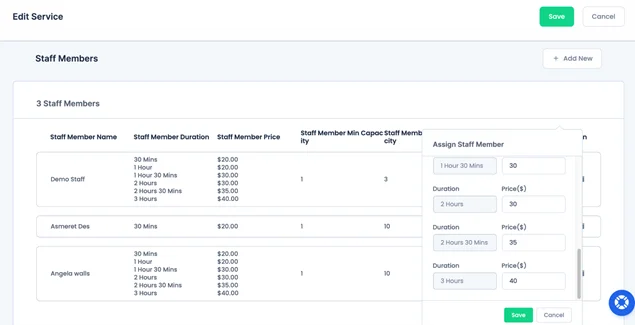
- With the Cart add-on active along with Locations, the Location step disappears at the Cart, and services and staff are automatically filtered by the location chosen earlier.
Conclusion: Smooth Multi-Branch Scheduling Strategy with BookingPress
BookingPress is the only solution for WordPress that deeply adapts to the needs of multi-branch service businesses, whether you are a studio, clinic, or hub. How?
The booking plugin allows you to smoothly cover the most common needs a multi-branch business expects from the scheduling tool:
- Add unlimited locations of different types (e.g. offices, each with its own address, hours, and resources).
- Assign the same staff to different locations (e.g. your staff member working at both downtown and suburban branches on different days).
- Create different working schedules per staff/per location (e.g. employee available 9 AM – 5 PM at one clinic but 12 PM – 8 PM at another).
- Create different availability per service/per location (e.g. a haircut service with different time slots at each salon).
Related articles:



Brian is a WordPress expert with a decade of developing experience & technical-writing. He enjoys blogging, movies & hiking.

Get BookingPress Premium
60+ Premium Addons
20+ Payment Gateways
Plan starts at just $89
Get Premium NowLike our insights? Click the badge to add BookingPress as your preferred source on Google.

Add as a Preferred
Source on Google