How to Set Deposit Payments In Online Booking With BookingPress


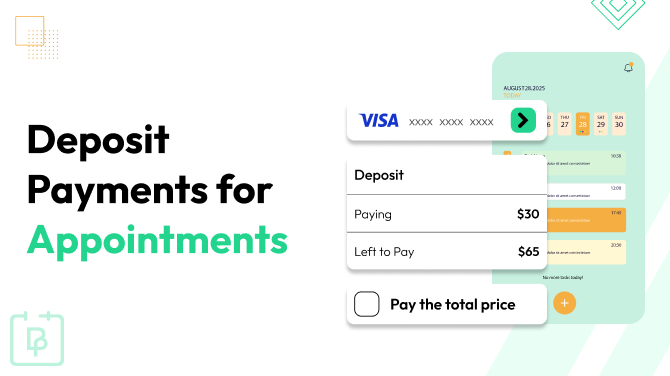
Today, we want to share a quick WordPress tutorial on how to charge a deposit for online service bookings instead of the full amount. And you only need BookingPress and its Deposit add-on for this!
Let’s firstly find out what deposits are, when they’re useful, how to set them up in BookingPress, and the best ways different businesses can use them.
Are you a firm believer in deposits’ power? Then let’s go.
What is a Deposit in Online Bookings & Who Needs Them?
A deposit is a smaller payment customers make in advance to reserve a service slot, instead of paying the full amount when booking. The remaining balance is typically paid later, either before the appointment, at the appointment, or via a separate payment link.
Why should you consider charging deposits online? Here are a few benefits:
- If people have paid for something, they are more interested in coming.
- Reduces financial risk even if a customer cancels.
- Make your services more accessible for customers, especially if those should be paid far in advance.
- Cash flow friendly.
Deposits can be absolutely crucial for businesses where missing appointments is expensive or preparing for appointments requires time and resources. Just a few more examples:
- Personal trainers or coaches with 1:1 sessions.
- Clinics and healthcare providers that block out long appointment slots.
- Wellness centers with limited capacity.
Those above and similar often suffer from no-shows or last-minute cancellations. Deposits are the way to protect their schedule and revenue, of course.
How to Set Up Deposits in BookingPress
BookingPress, which is for appointment scheduling on WordPress, makes deposit payments optional via a dedicated Deposit add-on. It’s super easy to use.
Step 1: Enable the Deposit Payment add-on
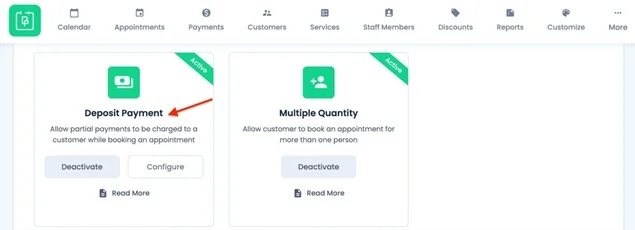
Find the Deposit add-on among the Add-ons in BookingPress (you might need to download it in your account).
After installing and activating the Deposit Payment add-on, go to BookingPress > Settings > Payment Settings > Deposit Payment.
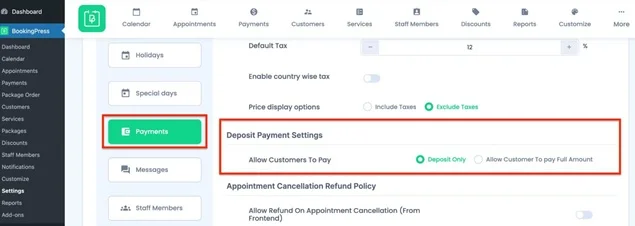
Here, you can allow customers to pay only the deposit amount when booking an appointment. Set to ‘Deposit only’ and save the changes.
Step 2: Configure Deposit Settings
Once the add-on is active, you can set a deposit amount for every service you have.
Go to any service > Add / Edit Service > Configure Deposit:
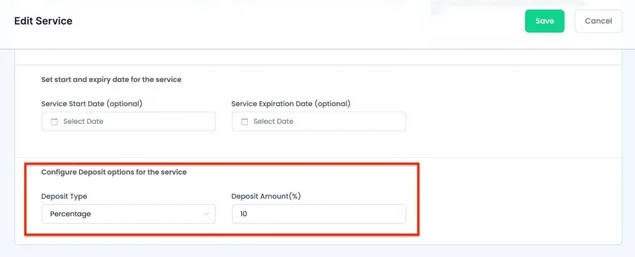
You can choose the type of depot to apply:
- Percentage: e.g. 20% upfront
- Fixed Amount: e.g. $25 upfront
The deposit will automatically be calculated based on the customer’s selection. If you don’t want to charge a deposit for a particular service, just set the amount to 0.
At the form checkout page, a customer will see how much they are paying now:
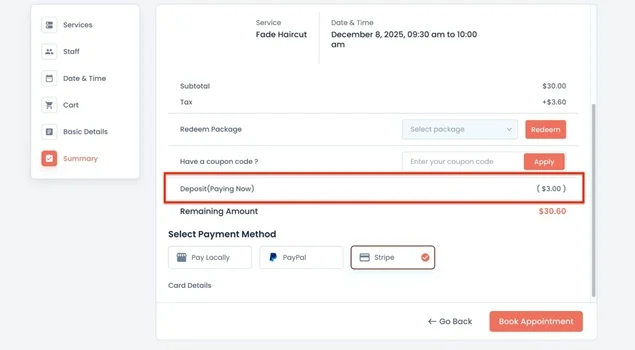
If you want to display deposit amounts in invoices or emails, add the tag: {deposit_amt}. It will display the deposit paid for that booking.
If you use the Cart Add-on, BookingPress can calculate deposits per service when customers add multiple services to their cart. However, deposits cannot be used with the Multi-Service add-on (for simultaneous bookings).
You can also send a payment link to customers to complete payment for appointments that were partially paid, just as you do for manually booked appointments.
Refunds when deposits are involved:
BookingPress supports refund policies with deposits, too! Go to BookingPress > Settings > Payments > Appointment Cancellation Refund Policy and enable: “Give a refund on cancellation?”.
You can choose:
- Full Refund
- Partial Refund
There’s also a specific option: Apply refund rules on partially paid/deposit transactions?
Enable this if you want refunds available to customers who only paid a deposit.
Additional rules and limitations:
- Deposits do not apply to Packages sold via the Service Package add-on (because deposits are assigned to individual services).
- Discounts from the Advanced Discount add-on don’t apply to deposit payments.
- When the deposit is enabled, and a gift card (via the Gift Card add-on) is used, deposits are limited. If there’s a remaining balance, customers must pay it in full right away, and the deposit option won’t be available.
Best Deposit Use Cases for Different Businesses
Deposits work best where customer commitment is critical or prep work is non-recoverable. Consider beauty salons, for example:
- Color treatments
- Hair extensions
- Nails and spa packages
For coaches and trainers, clients often rebook, long sessions block your schedule, that’s why deposits work for:
- Personal training
- Coaching packages
- Workshops
Clinics and medical services also need a deposit because no-shows waste expensive time blocks.
- Consultations
- Specialist sessions
For photographers, booked slots are lost permanently if canceled, whether mini sessions or full sessions.
In each of these cases, deposits lower the barrier to booking and protect the financial side of your business.
Final Thoughts: Why Use Deposits with BookingPress?
Finally, should you charge the full amount up front or just take a deposit? Deposits are often a smart balance if you need to be sure a client arrives, yet don’t ask too much from them in advance.
And with BookingPress, you have an easy setup with tons of benefits:
- Set deposits per service.
- Charge fixed or percentage amounts.
- Accept balance payments later.
- Automate refund policies, including deposits.
- Clearly state deposit info in customer communications and invoices.
Charging a deposit instead of full pre-payment helps you reduce no-shows, encourage customer conversions, and overall have more flexible payment options for your service business. So why not give them a try?
You May Also Like:



Brian is a WordPress expert with a decade of developing experience & technical-writing. He enjoys blogging, movies & hiking.

Get BookingPress Premium
60+ Premium Addons
20+ Payment Gateways
Plan starts at just $89
Get Premium NowLike our insights? Click the badge to add BookingPress as your preferred source on Google.

Add as a Preferred
Source on Google