If you’re planning to build a WordPress website that accepts hourly bookings, you’re already on the right track, especially if your audience includes international or multilingual users.
So, if you run a salon, offer city tours, manage wellness services, or rent out spaces like gyms or studios, allowing customers to browse and book in their preferred language may not just be an improvement but a total must. It’s often used on sites that serve tourists, expats or international clients, and overall multicultural local audiences.
A multilingual WordPress booking site automatically deals with things like:
- Users understand services clearly
- Booking forms are easy to complete
- Notifications (SMS, emails) are received in the correct language
- Invoices are sent in the preferred language.
In this guide, we’re explaining how to build a multilingual WordPress booking website with a step-by-step tutorial, including hosting, bookings, and translating your entire booking flow.
TL;DR. This guide explains how to build a multilingual WordPress booking site with BookingPress, covering hosting, setup, services, translations, and automation to deliver a seamless booking experience for global users.
Step 1. Choose WordPress.org and Hosting
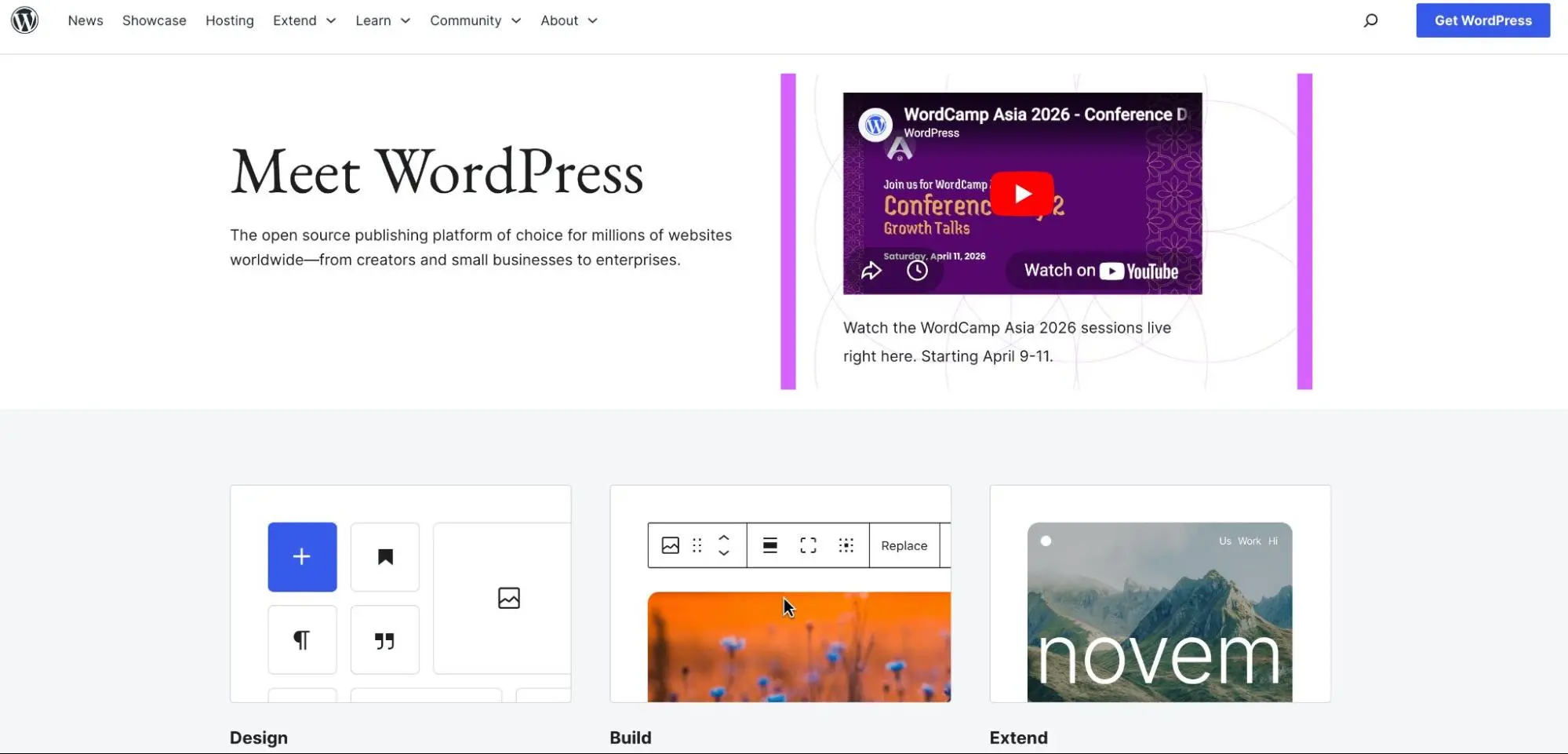
To build a flexible and scalable booking website that is multilingual, you’ll want to use WordPress.org (such sites are stored on their own hosting space).
Choosing the right hosting plan might be scary and overwhelming for beginners. But from our experience, this is what makes sense:
- Start with an affordable plan and upgrade later if traffic grows.
- Look for hosting labeled “optimized for WordPress” simply because these typically offer things like automatic (often called one-click) WordPress installation and built-in caching or security features.
- Booking websites are not extremely resource-heavy, so you don’t need high-end hosting from the start.
To reduce expenses, you may purchase hosting, themes, and plugins during Black Friday sales, when many providers offer steep discounts in November.
Step 2. Install WordPress and Access Dashboard
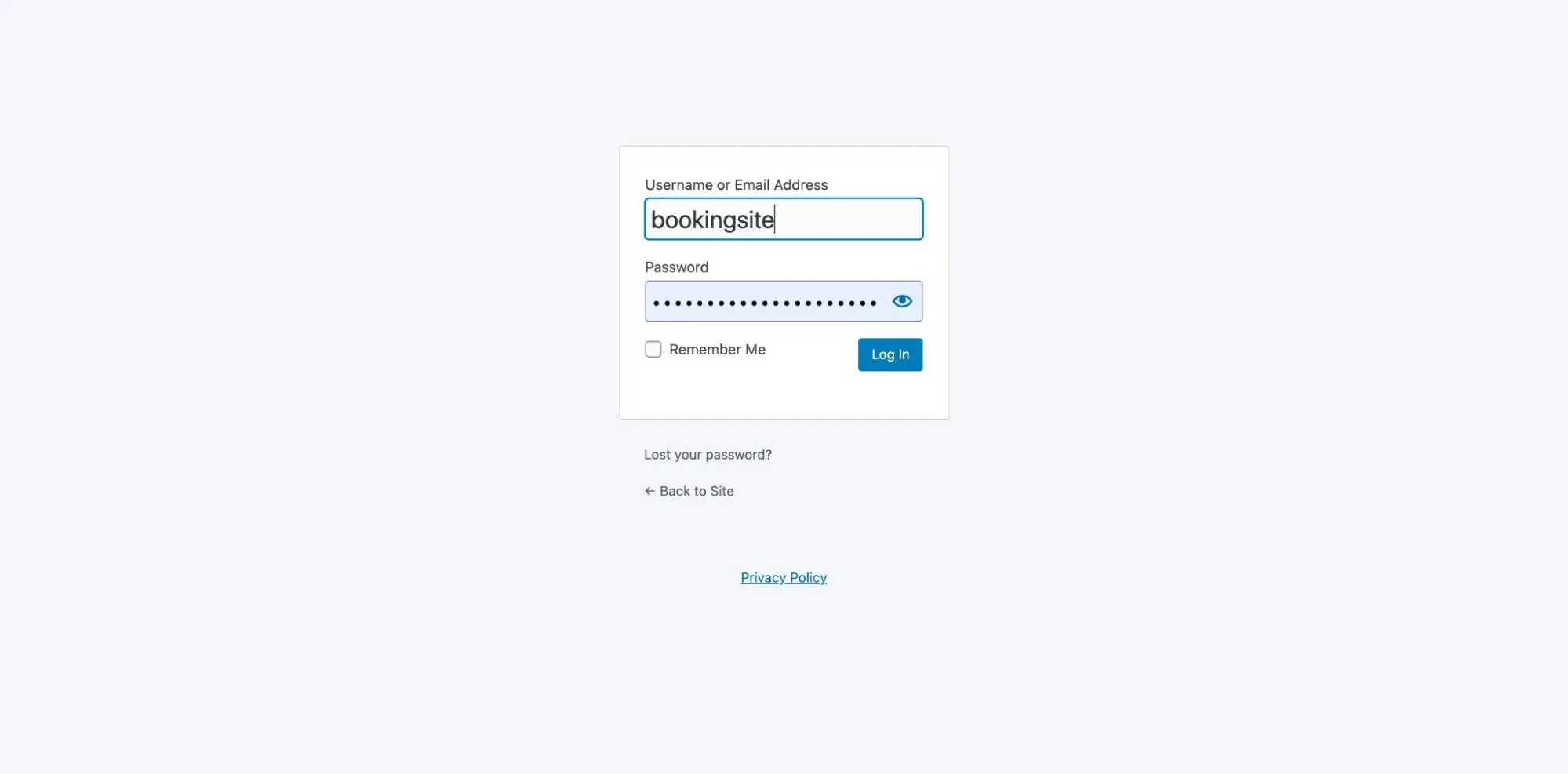
This is the most emotional step – because you now have your own site’s back office, where you can start creating the workflows and features for your future customers.
Once your hosting is ready:
- Install WordPress (search for tools in the dashboard).
- Log into your dashboard (from your hosting panel or using yourdomain.com/wp-admin).
- You’re now ready to build your site.
Step 3. Choose a Theme and Design Your Website
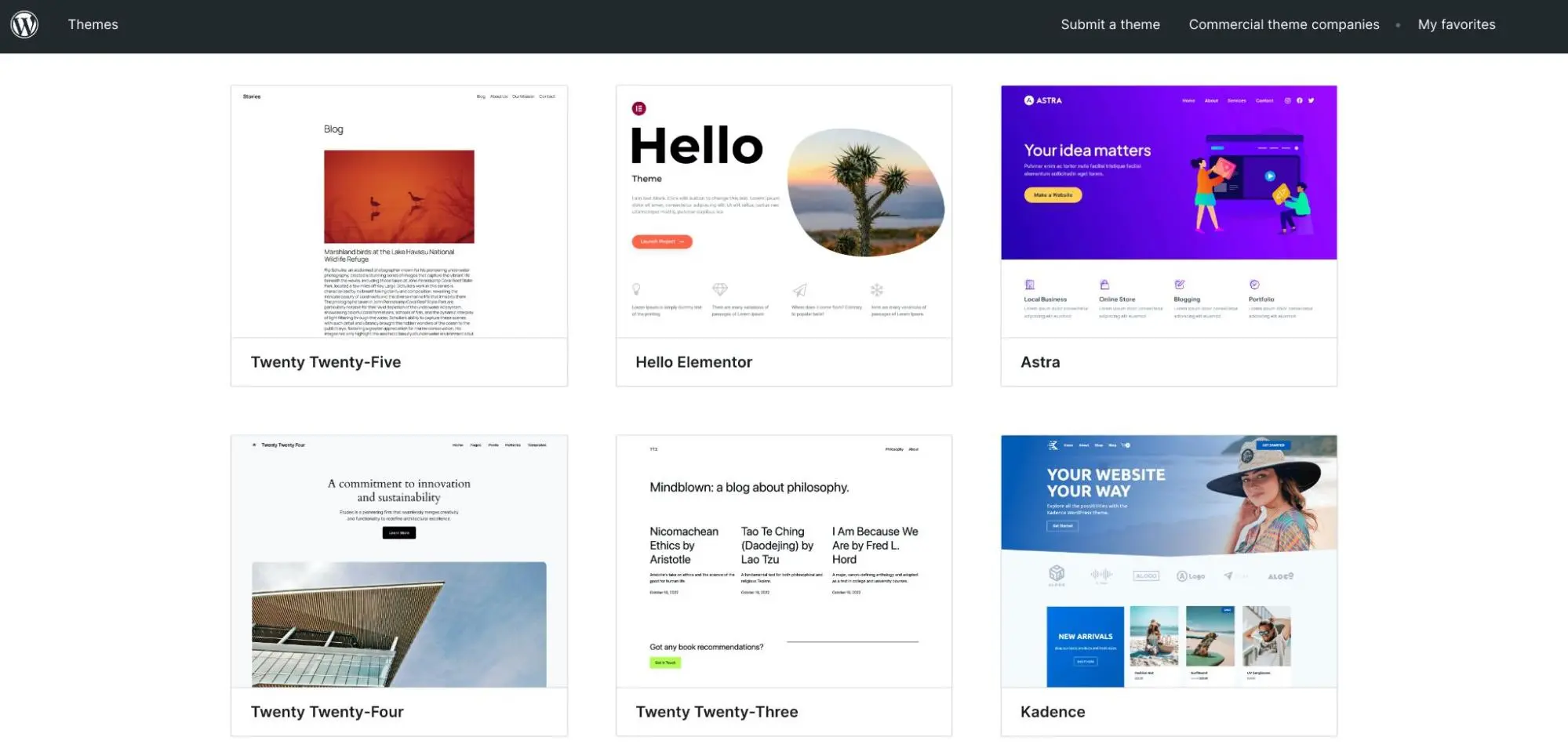
As with any modern site builder or platform, you may skip the step of hiring a team for custom design or development. In this (DIY) case, you normally go with a WordPress theme that gives your website the look and vibe you want. We won’t pretend otherwise – choosing a premium WordPress booking theme is usually more rewarding because paid designs are of better quality and come with extra support and help from developers. Also, look for designs that truly fit your business.
So, what are the essential pages for booking websites? No matter your niche, your site should include:
Core pages:
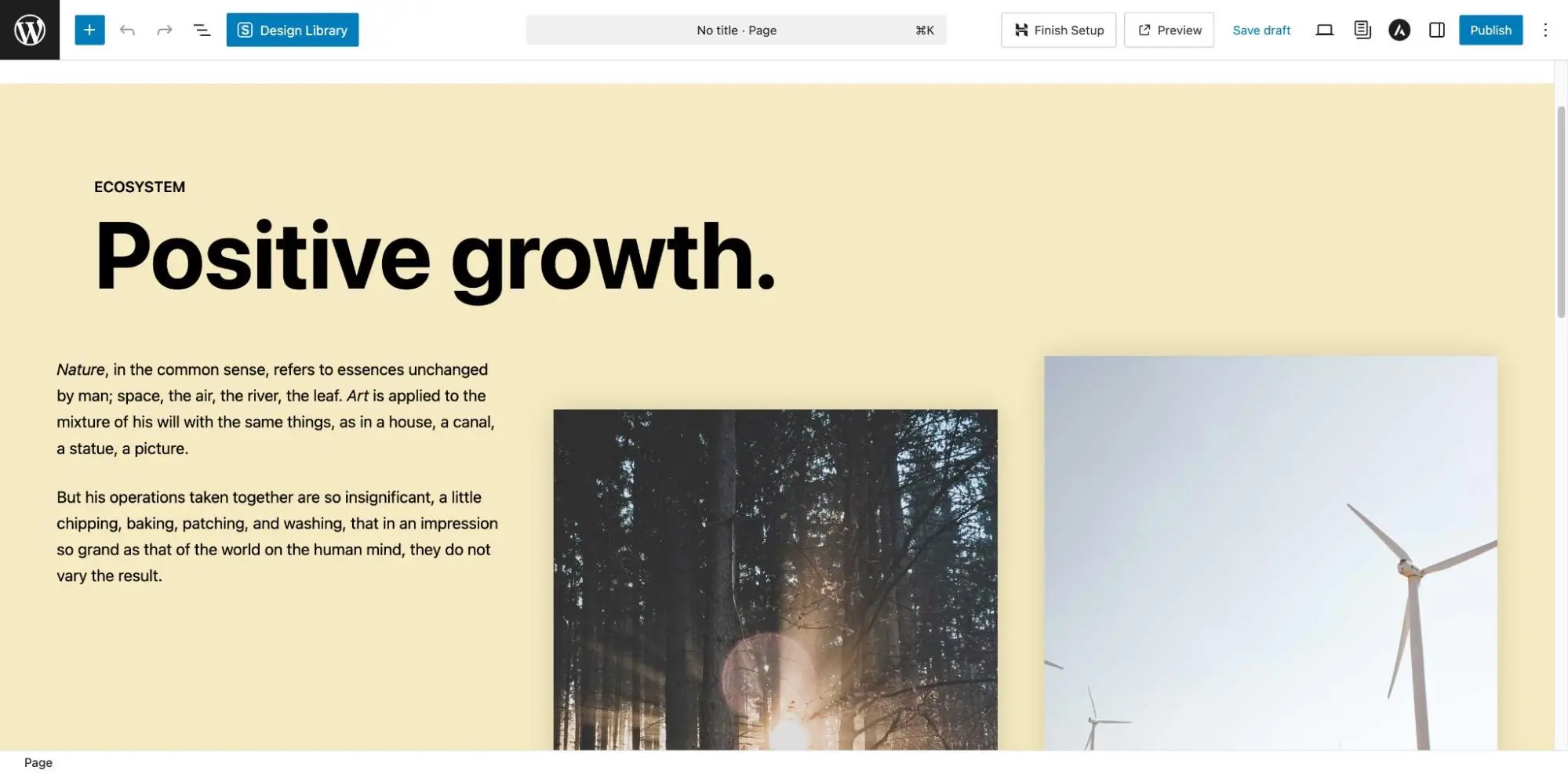
- Homepage – overview of services and booking CTA
- Services page – list of offerings with descriptions
- Booking page – where users schedule appointments
- About page – build trust and credibility
- Contact page – include map, phone, and form.
Recommended examples:
For salons:
- Staff profiles
- Pricing page
- Before/after gallery
For city tours (hourly bookings):
- Tour packages
- Schedule/calendar view
- FAQs for travelers
For medical/wellness services:
- Service explanations
- Certifications/licenses
- Privacy policy (important)
For hotels offering fitness or facilities:
- Facility booking page (gym, spa, etc.)
- Guest vs. non-guest booking options
- Membership or passes
Of course, all these pages take time to build but they are very important for the site visitors as well as SEO (so that search engines like Google or LLM like ChatGPT can better discover your site).
Step 4. Add Booking Functionality with BookingPress
To enable bookings with multilingual features, use BookingPress. It fully automates bookings for any business like selling wellness services or tours, with the staff accounts, real-time availability, and perfectly featured unlimited services.
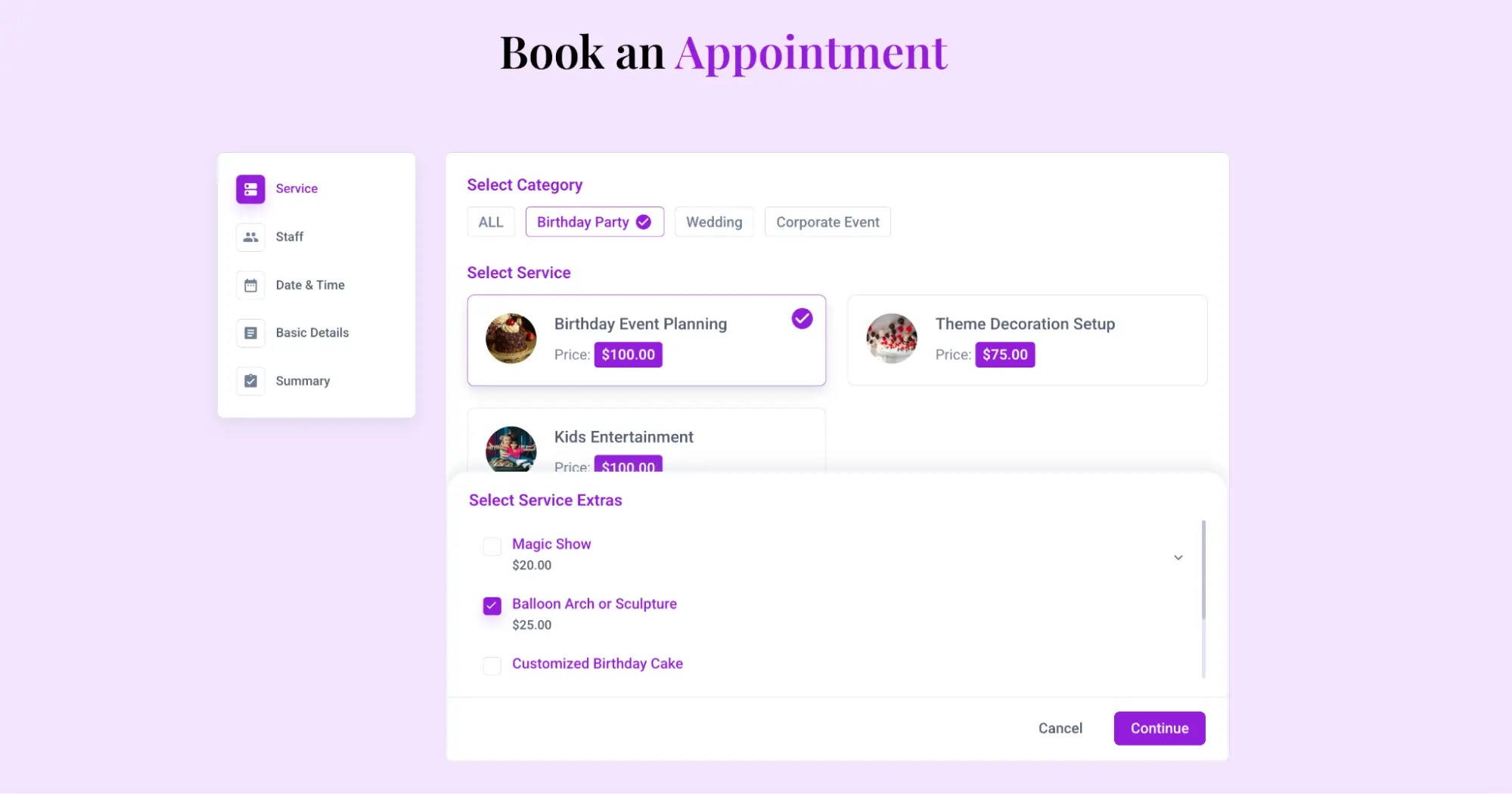
What does BookingPress help you achieve in the first place? A very brief list of its capabilities includes:
- Accept hourly or time-slot bookings
- Manage staff schedules
- Set availability rules
- Offer multiple services that visitors can choose (optionally with add-ons at checkout)
- Send automated notifications with SMS, messenger like WhatsApp, or email
- Accept online payments with 15+ international gateways
- Support multi-location (multi-branch) bookings
- Enable multilingual booking experiences.
Let’s take a closer look at a few important settings for your WordPress booking website for global site visitors.
Step 5. Set Up Services and Booking Logic
BookingPress is huge and gives you many ways to customize it. So, yes, it will take some time to go through different setups, but that can give you many advantages over competitors.
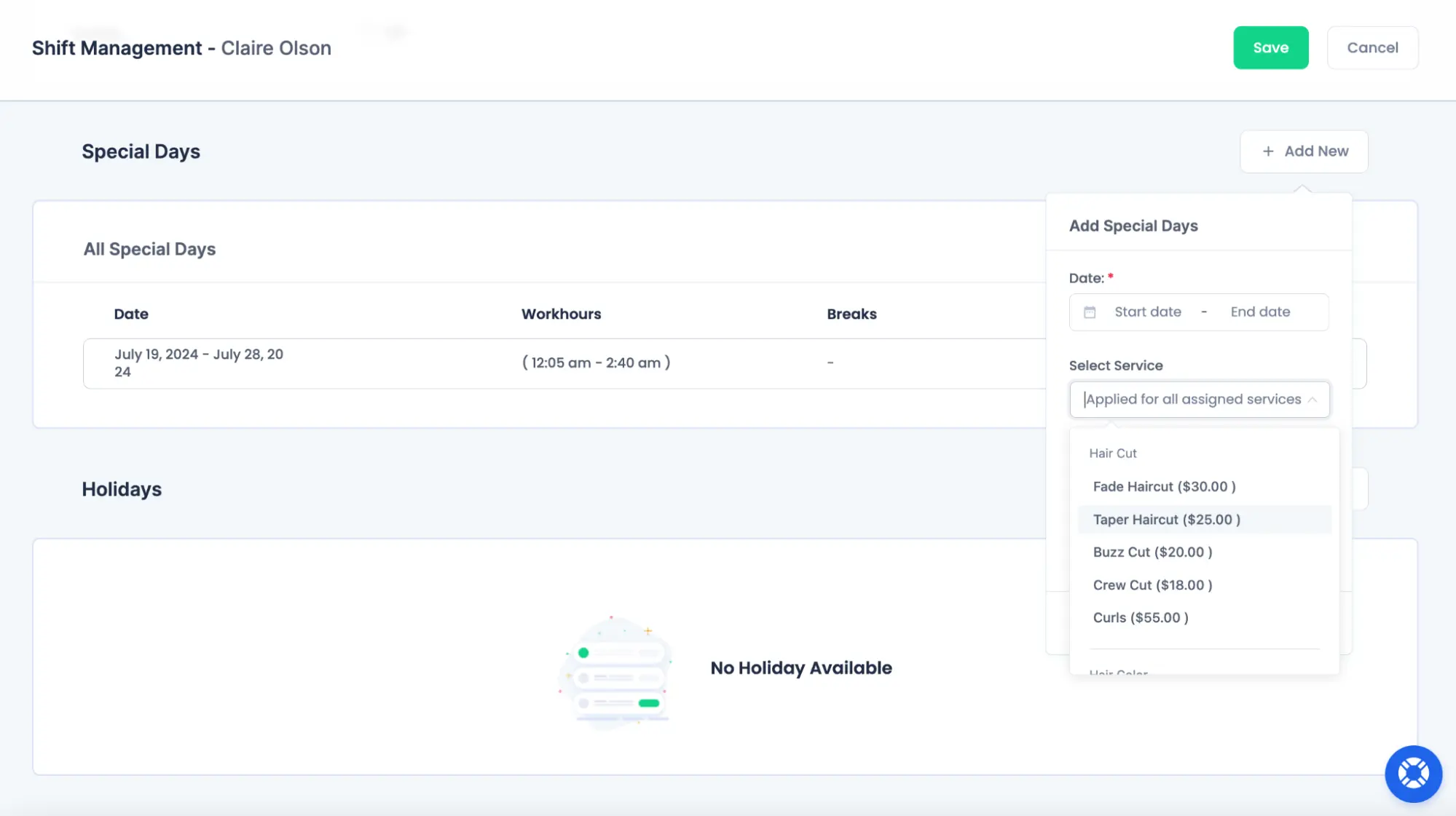
One of the key things you need to do after BookingPress is installed is making sure it works for your booking logic. For this, create services with their durations. Those will differ based on your business.
- Haircut (30 min)
- City walking tour (2 hours)
- Massage session (1 hour)
- Gym access (hourly slot)
Next, availability tied to staff schedule and shifts should be applied (and specific staff members perform assigned services). You can define:
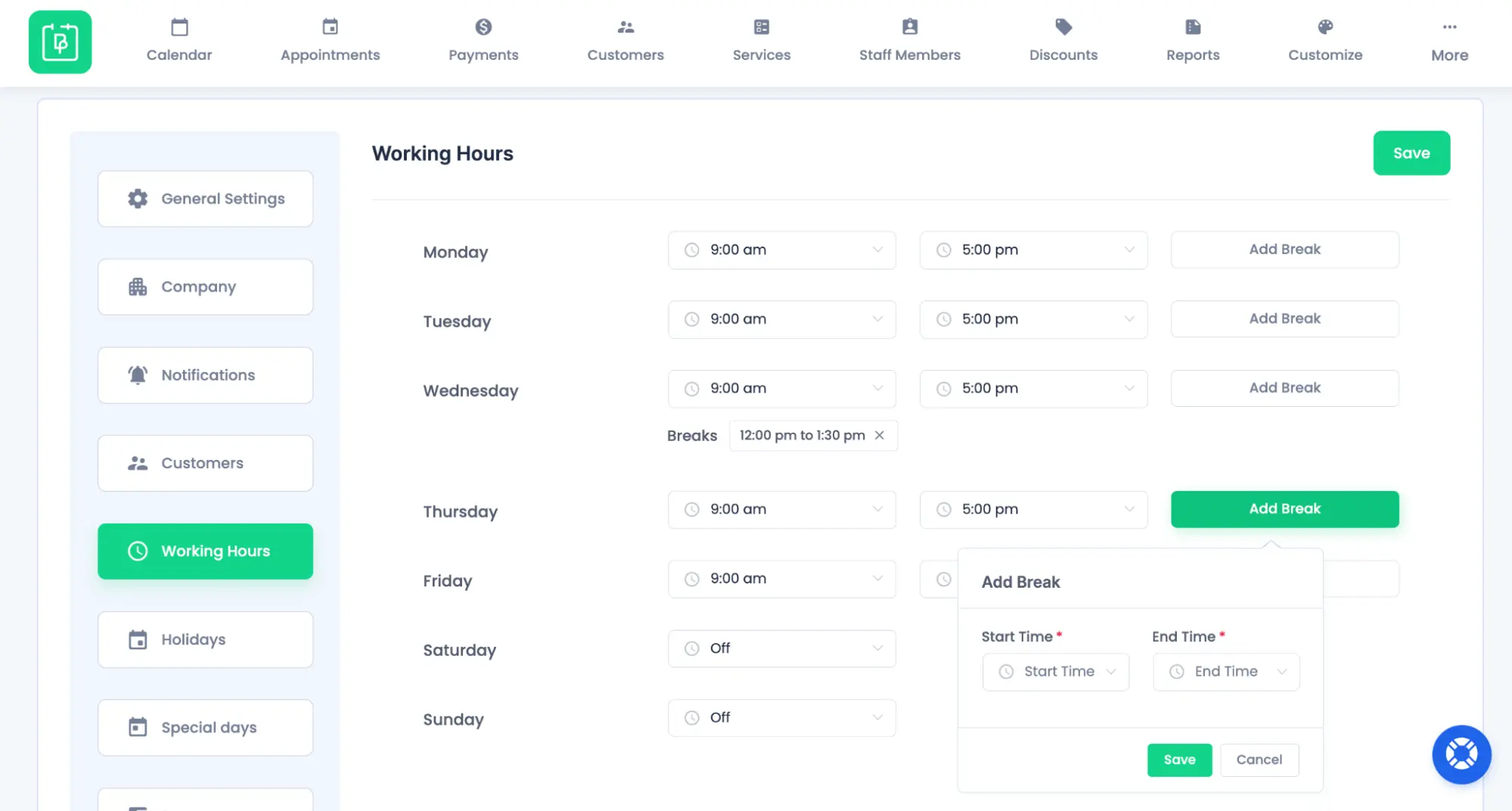
- Working hours
- Break times
- Holidays
- Service-specific availability
Real-time availability of staff ensures that bookings only happen when services are actually available – the calendar on your site will always show that.
With BookingPress, you can even enable smart scheduling with advanced settings to allow multiple staff per service, different availability per staff+service, and multi-branch scheduling (great for franchises or multiple locations).
Step 6. Optimize Bookings with Notifications and Upsells
With BookingPress, you don’t just place a booking form on your WordPress site. You can customize booking confirmations, reminders, follow-ups – all sending from email, SMS or WhatsApp (if enabled).
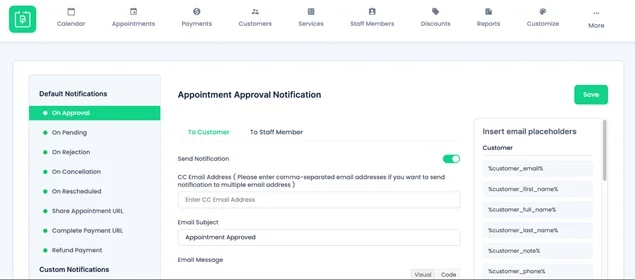
This reduces no-shows and improves communication significantly, which is especially important for international travelers.
You can also increase revenue by:
- Adding extra services (e.g., add-ons like massage, can add aromatherapy)
- Offering discounts for different conditions
- Suggesting flexible booking hours.
With all the available booking plugin add-ons, you can customize all to your specific topic.
Step 7. Making Your WordPress Booking Website Multilingual
Now comes the most important part: translating booking experiences for the site visitors (and making it easy for them to change the language).
A multilingual site typically includes:
- Language switcher (front-end)
- Translated pages and content
- Translated booking forms and notifications
Let’s break down what you can translate and how it works in practice with BookingPress.
What’s required?
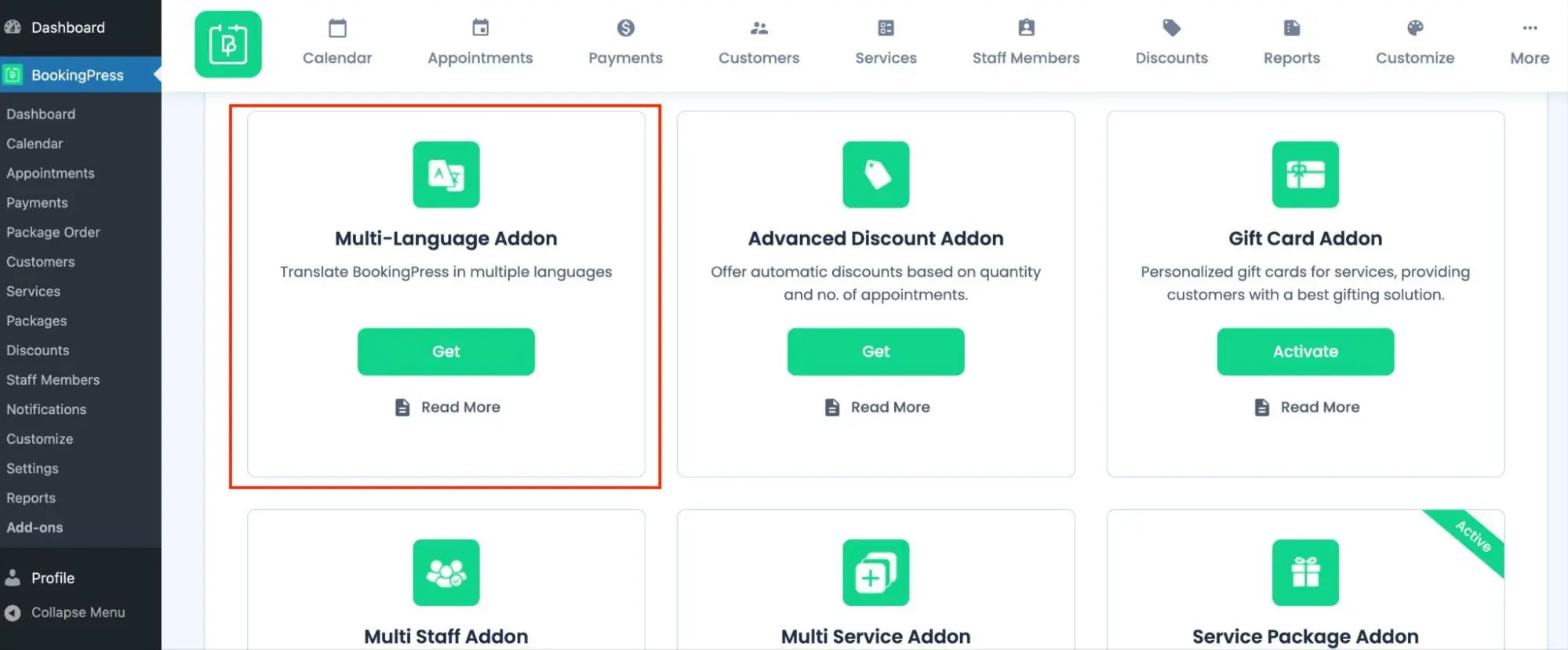
In the booking plugin, you simply need to enable the specialist Multi-language add-on.
Beyond BookingPress and its add-on, you need a translation / multilingual plugin of your choice, because WordPress doesn’t support these features out of the box (at least, at the moment). This is a third-party plugin. With BookingPress, you can safely use these popular translation plugins:
This means, first of all, choose the plugin that suits your needs and budget, then install it on your WordPress – and after that, it can be connected to BookingPress for translating your site and key booking experiences for your clients. Pay attention that some of them are free or freemium, while others are fully premium-only.
Another important note – each translation has a different methodology to help you translate your website and plugins. Based on the plugin you’ve chosen, you’ll need to learn their instructions on where to enable the languages and how to get specific things translated.
There are also different instructions on how you connect BookingPress to a chosen translation plugin: view docs.
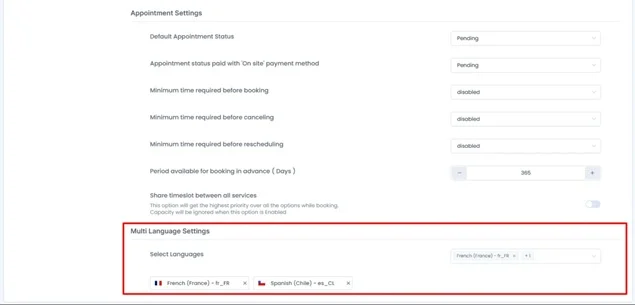
What can be translated in your booking system with BookingPress?
Once you’ve connected the two plugins, get down to business and see what can actually be translated.
1. Services in multiple languages
In BookingPress, you can translate:
- Service names
- Service descriptions
When users switch languages, they’ll see the correct version automatically.
2. Booking form labels and fields
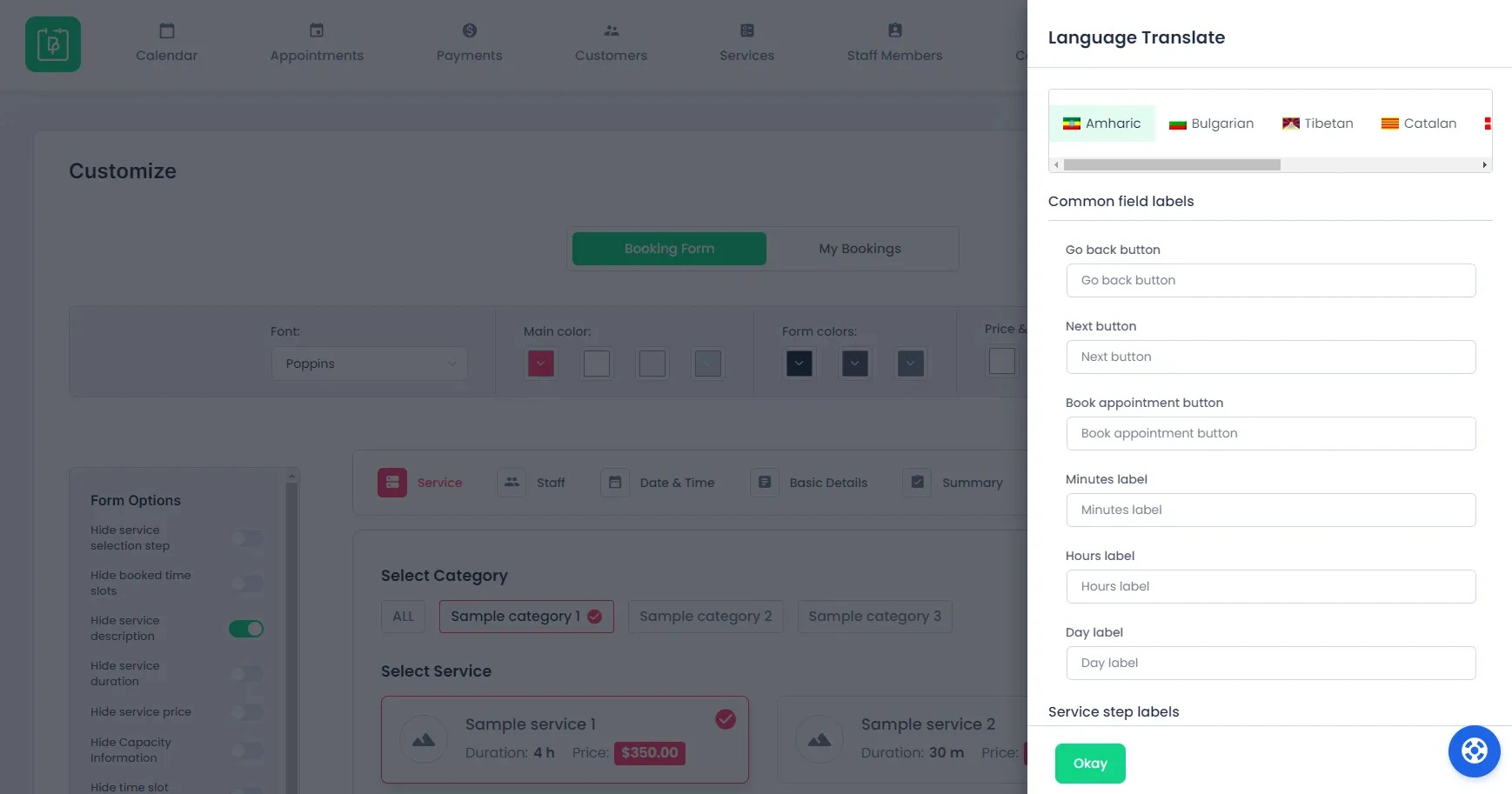
You can translate:
- Field labels (Name, Email, Date)
- Error messages
- Placeholders
Example:
- “Select Date”
- “Enter your name”
This makes it fully understandable for guests how to complete the booking.
3. Custom fields and “My Bookings” section
If your booking form includes custom fields (e.g., preferences, notes), these can also be translated. The “My Bookings” dashboard (for users) can reflect their chosen language too.
4. Staff member names
You can localize staff names where needed, which might be useful for international teams, localized branding, or even simply easier to read for the site visitors.
5. Notifications (Email, SMS, WhatsApp)
You can translate communications with customers:
- Email subject lines
- Email content
- SMS/WhatsApp messages
Real-life scenario: if a user books in French, they receive a confirmation email in French, and reminder messages are also in French. Super simple and seamless.
6. Company information
You can translate the company’s name and address as well. This is especially useful if you operate in multiple countries and want to be better recognized as a brand.
7. Customer settings
You can localize field labels and form instructions, which ensures every interaction is language-appropriate.
8. Common messages
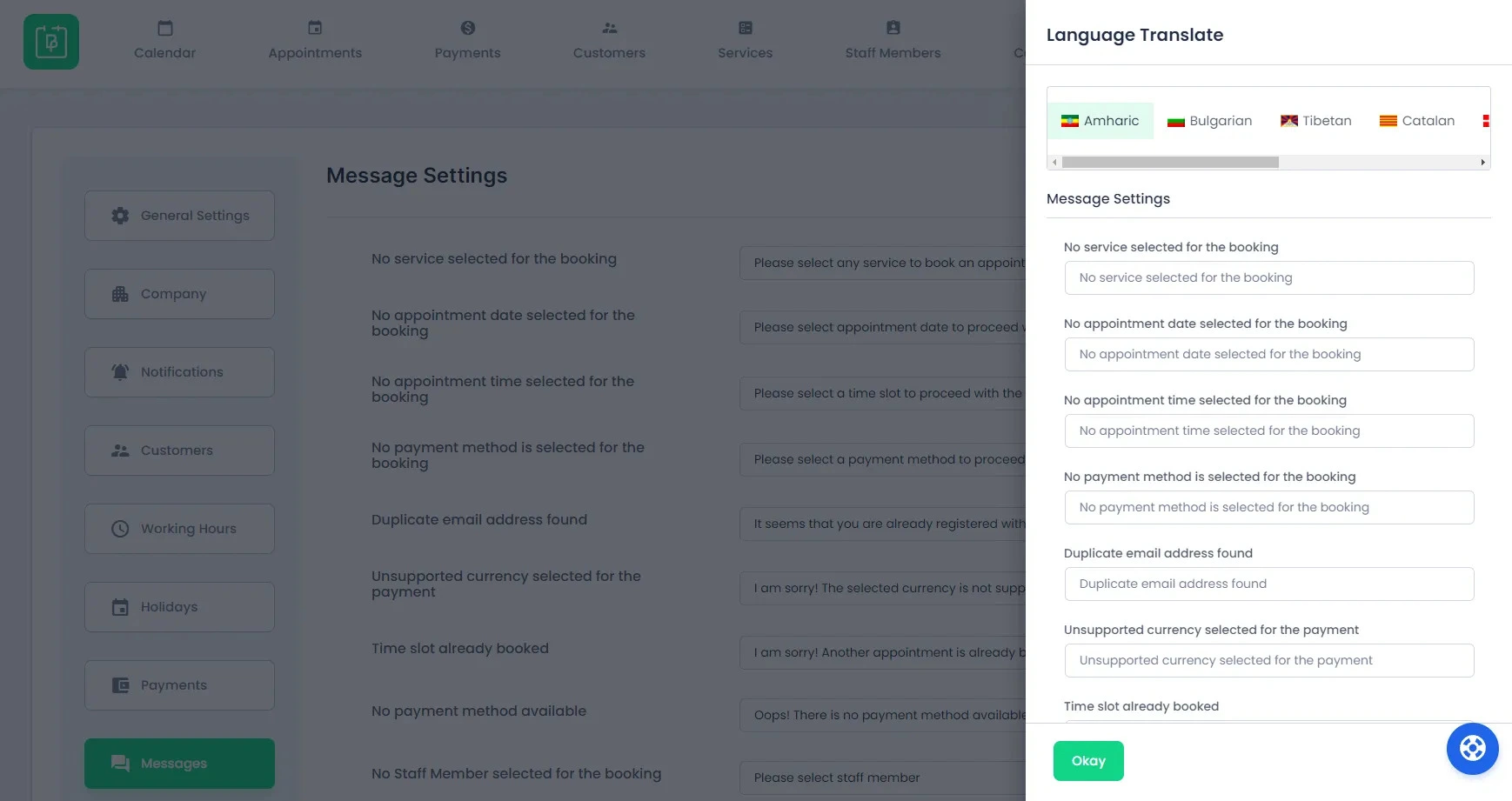
On every step of a booking, everything is translated too:
- Error messages
- Success messages
- Booking confirmations
9. Invoices
Invoices can also be multilingual, allowing you to:
- Customize invoice templates
- Translate all invoice content
- Display invoices in the booking language
Finally, what does a multilingual booking workflow look like for a customer? Let’s say you run a city tour business.
- A user visits your website
- They switch the language to French
- They browse services (translated)
- They book a tour using the French booking form
- They receive confirmation email in French
- They receive reminders in French
- Their invoice is also in French.
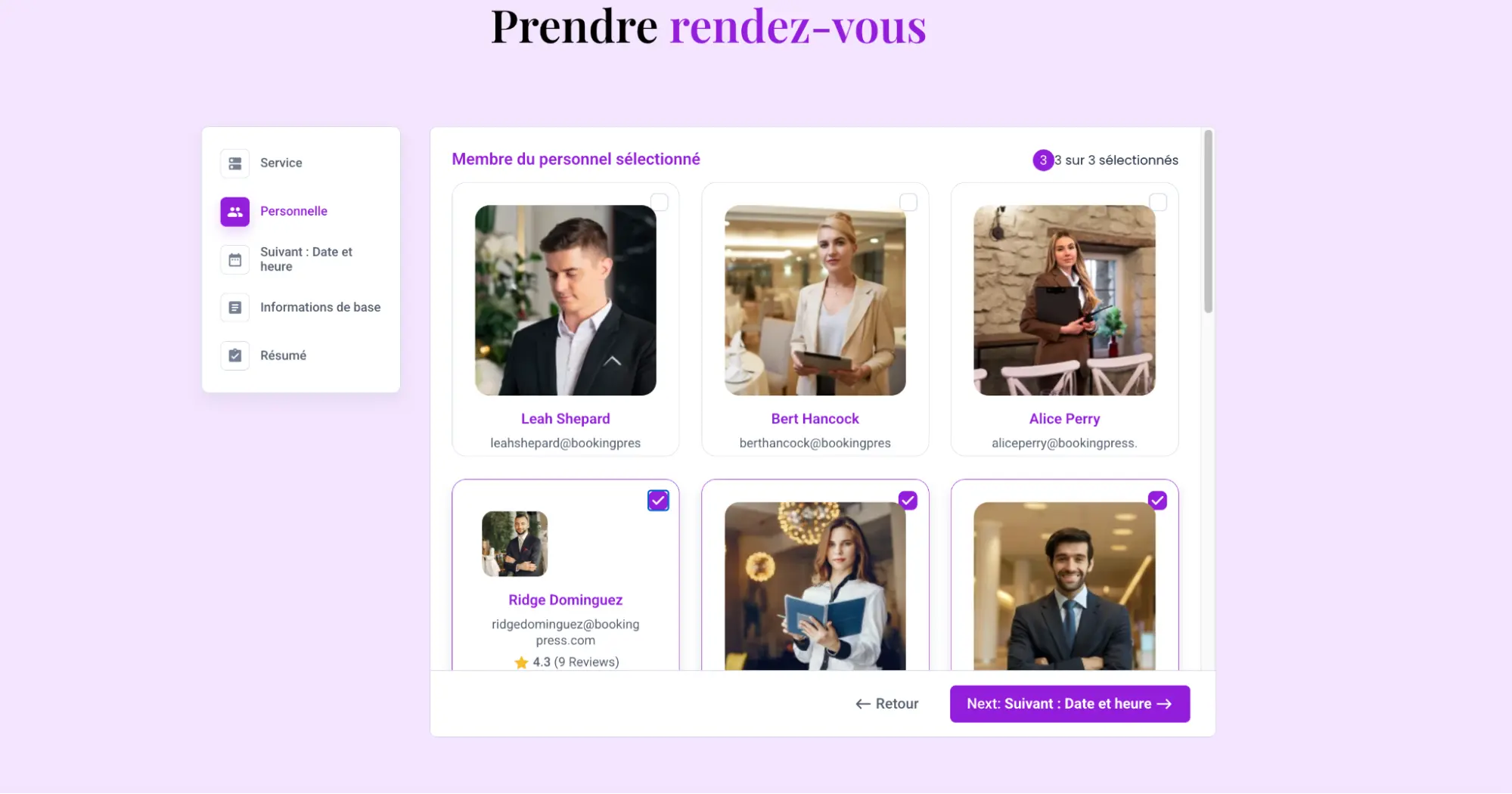
Everything matches their language, on every step of the interaction.
Best Practices for Multilingual Booking Websites
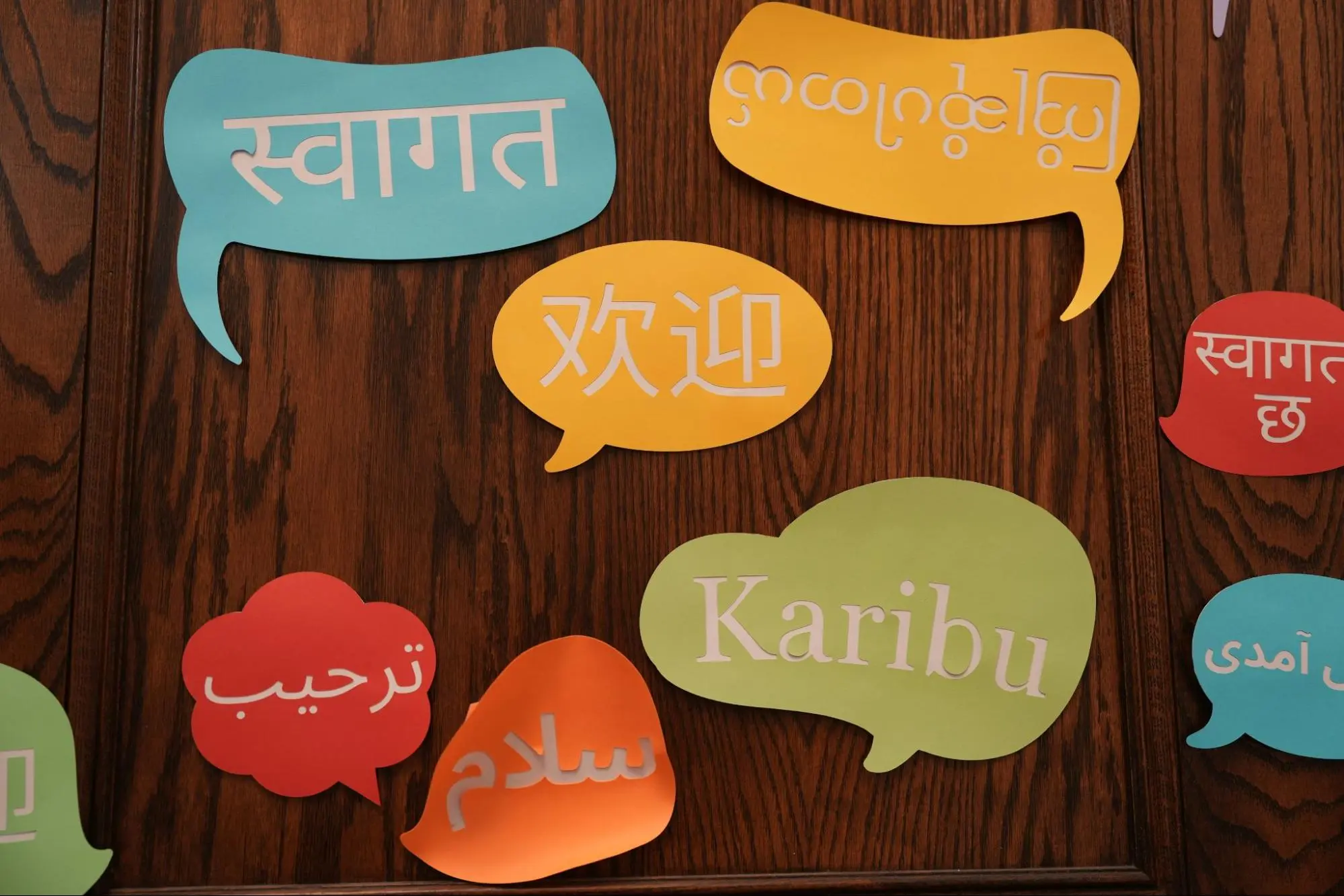
To make your translation routine rewarding, here are a few more tips to get you going:
- To make your site effective, keep translations consistent and avoid mixing languages within the same page or flow.
- Prioritize key languages, starting with English, the local language, and the top tourist languages.
- Test the full booking flow to check:
- Booking form
- Notifications
- Payments
- Language switching
- In addition to the booking form, translate the home page and all key website pages.
Finally, How to Set up a Multilingual WordPress Booking Site?
Building a multilingual booking website on WordPress requires just a few plugins that help you create a seamless, localized user experience, helping tourists or your target international audience to find your site and make booking easier. This is the only way to reach a global audience, increase bookings, improve user satisfaction, and build trust across cultures.
Here is a plan sailing start:
- Set up your site
- Enable bookings with BookingPress
- Add languages and translation with any multilingual plugin supported by BookingPress.
Over time, you can refine and expand your multilingual experience based on your audience.
If you enjoyed this, you’ll like these too:
 14-day money-back guarantee