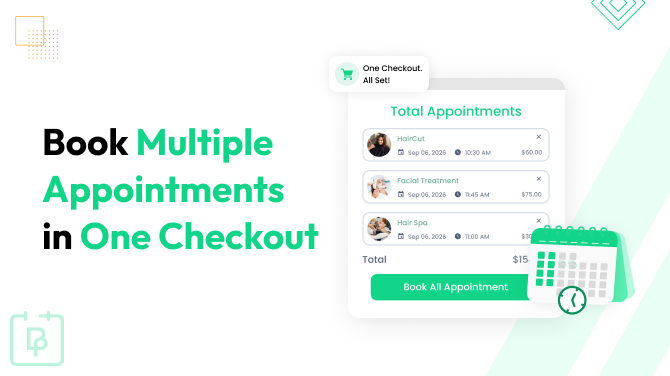
The Cart add-on from the BookingPress WordPress appointment scheduling plugin is perfectly suitable when you need your customer to book different services and times (sometimes even groups) in one checkout.
Without this add-on, your customers normally repeat the entire booking and checkout process for every appointment they need. And what if you are a wellness studio and want to make it easy to book multiple treatments in one go? Or a medical practice where specific services are impossible without others? Or a coaching business – you definitely don’t want your B2B booking for colleagues to be that time-consuming.
With the add-on, they can select several appointments and times, review them together, provide their details once, and make one payment (if you use payments) or simply place a booking request. Overall, a much faster and more convenient process!
Let’s guide you through the extra benefits of this add-on and how it’s added to your WordPress site.
TL;DR: The BookingPress Cart add-on lets customers book multiple appointments with different services, staff members, dates or times in a single checkout. Customers simply have to fill in their details once, review all appointments together and complete one checkout, while each appointment is still separately manageable.
What Does The Cart Add-on From BookingPress Deliver?
What can you do with the Cart add-on? Which problems does it solve for the daily life of the appointment-focused business?
Customers Can Book Different Appointment Dates In One Cart
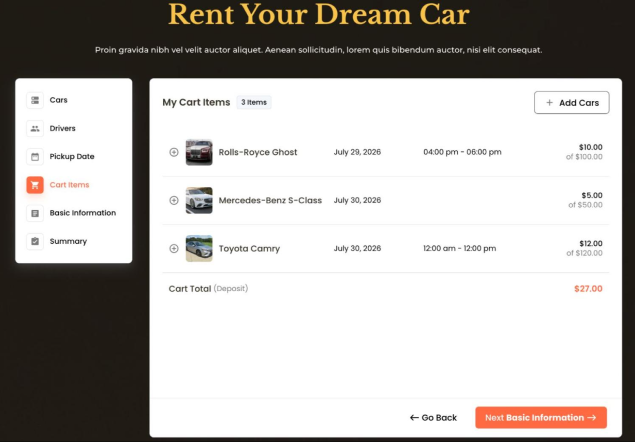
Each cart item is an individual appointment, which implies it may have its own service, staff member, date, and time. This means customers can add appointments scheduled for different dates or time slots to the same cart. They can also review and edit them in the cart (just like with normal products).
Paired With The Multiple Quantity Add-on, Customers Can Book For Groups
If you also use the Multiple Quantity add-on to allow multiple people for an appointment slot, a person who books can also book many time slots, each containing many people/seats, all within one booking invoice.
Entering Customer And Payment Details Only Once
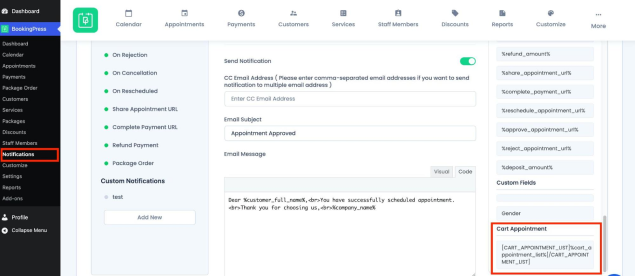
The Cart add-on makes the whole process much faster. Email notifications you automate to customers may also contain a complete list of appointments using the cart appointment placeholder. Scheduled SMS or WhatsApp reminders are then sent for each appointment. Notifications related to a status change are also sent for the specific appointment that was booked.
When Does It Work Best?
Still, the booking cart is not the silver bullet. It might not be perfect for services like tourism, where each appointment should be automatically assigned to a specific tourist name.
But for the rest of the cases, you can safely use it. The cart functionality definitely works well in cases like:
- One person books several services or dates for themselves.
- One customer is the main contact for all appointments.
- Individual attendee names are not required.
How To Enable The Cart For Your Online Bookings?
To use the BookingPress cart extension, follow these simple steps:
- Install the add-on (you might need to go to your BookingPress account and download the Cart add-on via ‘View your downloads’). Then activate it on your WP where BookingPress is installed.
- Go to BookingPress → Customize → Forms to personalize cart labels via the Cart Step settings.
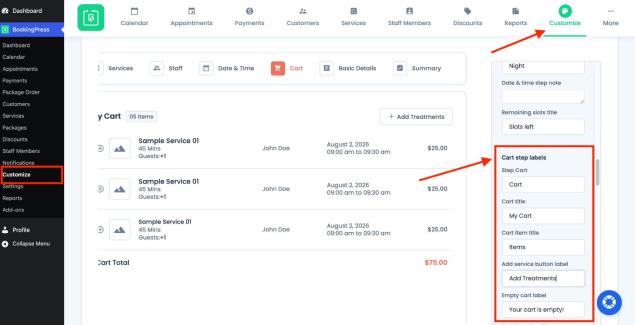
For instance, if you are a salon, ‘Treatments’ is a logical cart label:
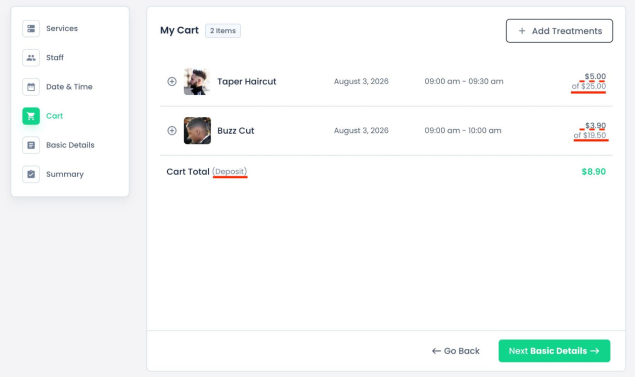
You may also update labels for the cart title, items, duration, staff, total, deposits, extras, etc.
- Add the cart info to invoices with the dedicated shortcode if you want all appointments in the cart to be listed there: [BOOKINGPRESS_CART_ITEMS].
Add it via BookingPress → Settings → Invoice (if the Invoice add-on is used).
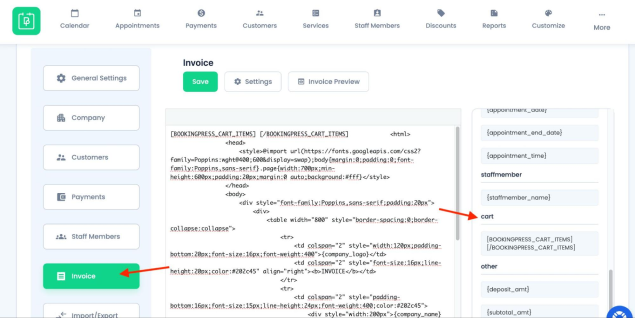
- Go to BookingPress → Notifications if you want to show all cart appointments in an email. There, add the cart appointment list tag. You may also use the %cart_appointment_list% inside SMS and WhatsApp notifications.
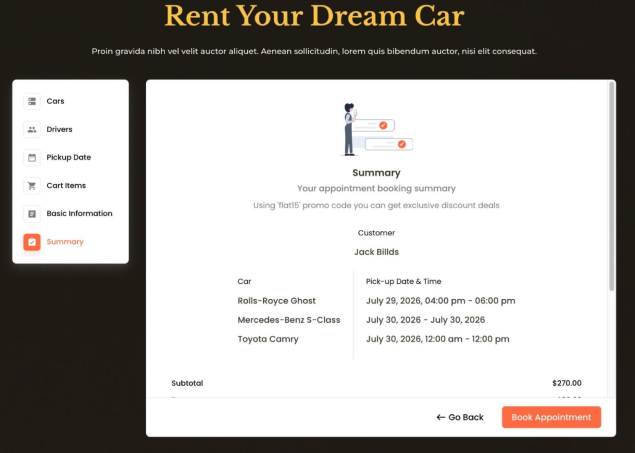
This turns your BookingPress booking form into the shopping cart for appointments.
Customers add timeslots one by one before they reach the final checkout page.
If you use the Deposit Payment add-on for partial payments, such ones are calculated separately for each service when the Deposit add-on is enabled (whether it’s a percentage or a fixed amount). That’s because you set deposit settings individually for each service and can have different amounts for them.
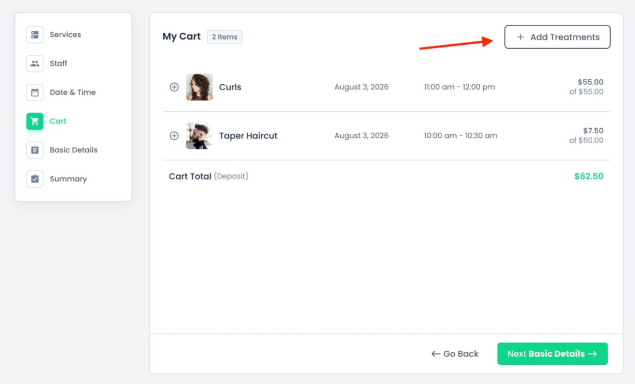
By the way, how do you see such appointments on the backend? How do your customers see them?
As usual, you can find all appointments via BookingPress → Appointments. Each appointment can be edited, cancelled, or managed separately, even though the customer booked them together.
Also note, as an admin, you can’t create a booking with appointments added as one cart. From the BookingPress backend, you can only add several back-to-back services in one appointment when the Multi-Service add-on is used. Unlike Multi-Service, the Cart add-on is about several independent appointments in one checkout and works for the client-facing booking experience.
When the Customer Panel is enabled, customers can view their cart appointments in their account. If it’s allowed for their account (via your settings), they may also cancel or reschedule individual appointments.
How To Assign Different Appointments To Different People
When the Cart extension is used, BookingPress still collects customer details once for the whole order / transaction at checkout.
However, customer details are generally entered once.
As you see, it’s not a good fit when every appointment must be registered under a different person’s name.
In that case, you may advise your customers to make separate bookings or, on your end, add the dedicated field to checkout, which you can add with the Textarea custom field, for example.
The customer would need to identify each appointment manually in that field, so it makes sense to add instructions like “Please list the appointment date, time, and attendee name”.
Concluding: How To Let Customers Book Multiple Appointments In One Checkout
The Cart add-on from BookingPress lets your customers book multiple appointments, so that they don’t need to do separate bookings for every service. Salons and spas, tutors, clinics – anyone where multiple appointments in one invoice is common – can significantly simplify checkout for customers. Bear in mind the following:
- Each cart item is a separate appointment with its own service, staff member, date, time, and status.
- Customer details are collected once for the entire checkout (one main customer is assigned to all appointments in the cart).
- In the admin dashboard, appointments booked together can still be edited, cancelled, or rescheduled individually.
- If you collect deposits, they are calculated separately for each service based on its fixed or percentage settings.
- Admins can’t add appointments to carts from the backend just like customers do.
- You may update invoice and notification templates in BookingPress with the Cart placeholders to show all appointments.
It works for every premium plan of BookingPress and can be activated in a few minutes.
Related articles:
 14-day money-back guarantee