10 Google Calendar Tips to Supercharge Your Daily Productivity


Did you know that you can drag and drop events in Google Calendar? Or that you can cancel events with your voice? We’ve got a whole lot more ideas for you to become super productive with scheduling and planning – with that same good old Google Calendar!
First, what are the top concepts of Google Calendar that are made to make you more productive?
- Prioritize easier with visual time blocking, reminders, notifications, and recurring events.
- Schedule your events and then coordinate them with your colleagues using event sharing settings.
- Use dual-time zones for coordination with international colleagues.
- With automatic reminders, the chance of missing appointments or deadlines is smaller.
- You can attach documents (e.g., meeting agendas, links to Google Drive) directly to events and don’t need to spend even more time for coordinated actions.
- Accessible across devices (web, mobile, tablet) for the full convenience.
Let’s not jump to the top Google Calendar tips for productivity!
TL;DR: Google Calendar is a powerful productivity tool when used the right way. Here are some smart Google Calendar hacks you’ll wish you knew sooner:
– Visual time blocking and color coded events make your day plans look like a pro.
– Work faster by attaching files, links and meeting details to events.
– Manage meetings on an international level with dual time zones.
– Save time with drag and drop scheduling and recurring events.
– Use voice commands to manage your calendar hands free.
– Avoid missed meetings with its automatic notifications and reminders.
– Keep everyone on the same page using shared calendars and the “Find a time” feature.
– Save time by simply dragging and dropping events and specials.
– Advanced appointment scheduling with Google Calendar + BookingPress.
Google Calendar boosts daily productivity for individuals and when paired with BookingPress, it becomes a complete scheduling and booking solution for businesses.
How Google Calendar Features Improve Daily Productivity?
Before we dive deeper into the best tips for Google Calendar, here’s how its core features actually make your day more productive:
1. Visual Time Blocking Keeps Your Day Organized
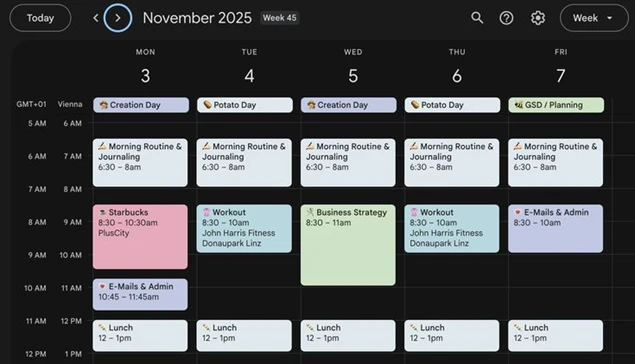
Google Calendar allows you to see your complete day, week or month at a glance. Thus, by blocking time for meetings, tasks and personal work, you know right away:
- What needs your attention right now?
- How much free time do you really have?
- When you’re overbooking yourself.
This way, it is super easy to prioritize important tasks instead of reacting to everything at the last minute.
2. Reminders and Notifications Prevent Missed Tasks
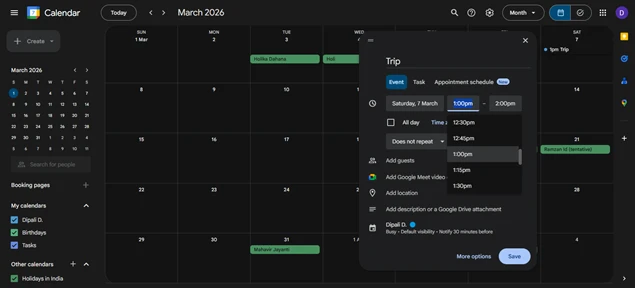
Automatic reminders ensure you never forget meetings, deadlines, or follow-ups. You can receive:
- Popup notifications
- Email reminders
- Mobile alerts
This reduces mental stress and eliminates the need to constantly “remember to remember.”
3. Recurring Events Save Time on Repetitive Planning
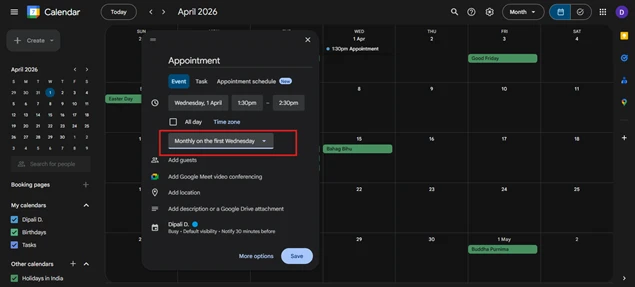
For tasks that repeat, for example, daily standups, weekly reviews, and monthly check-ins, Google Calendar handles the repetition for you.
Set it once, and it:
- Automatically schedules future events.
- Keep your routine consistent.
- Saves time spent recreating the same events.
4. Event Sharing Improves Team Coordination
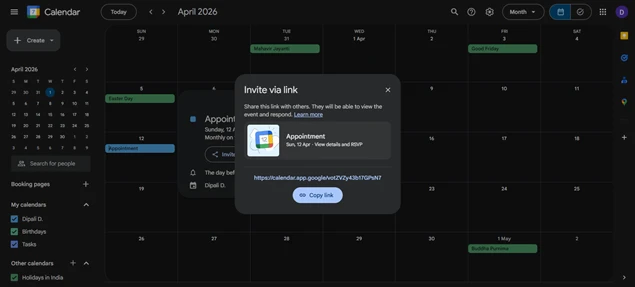
With shared calendars and event invitations, every single team member stays on the same page. Thus, you can easily:
- Share the availability of your full day.
- Avoid unnecessary and repetitive communication.
- Immediately see who’s free and when.
This feature is seriously useful for teams, remote workers and businesses who have to manage multiple schedules at once.
5. Dual Time Zones Simplify Global Scheduling
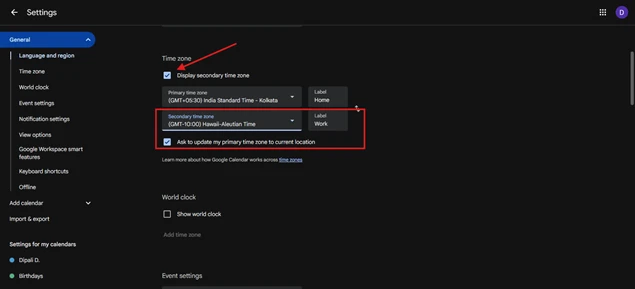
Working with international colleagues or clients? No problem! Google Calendar shows you multiple time zones, leaving no room for confusion and missed meetings.
6. Attach Files and Links Directly to Events
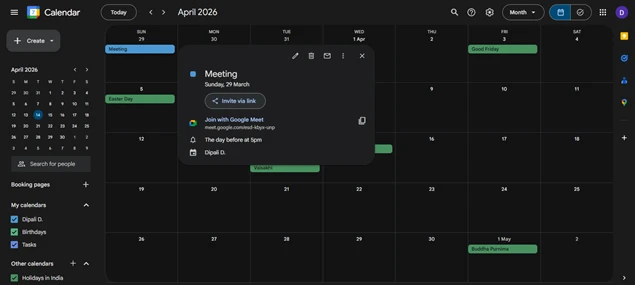
With Google Calendar, you can attach the following to each event you create.
- Meeting agendas.
- Google Drive files.
- Video call links.
- Reference documents.
Everything related to the task stays in one place. So you spend less time searching and more time doing.
7. Access Your Schedule Anytime, Anywhere
Google Calendar syncs across:
- Desktop
- Mobile
- Tablet
This means your schedule is always updated, whether you’re at your desk or on the move, keeping your day running smoothly.
10 Google Calendar Tips to Supercharge Your Daily Productivity
1. Use Drag-and-Drop Functionality
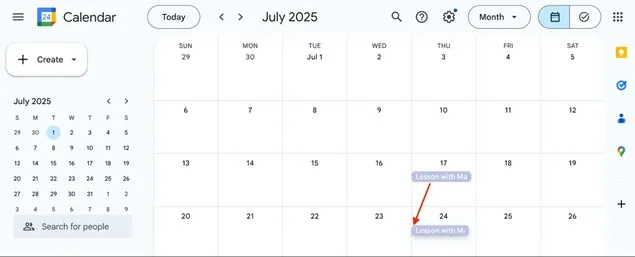
If you are adding multiple events every day, there is a high risk of simple human error. But don’t worry, Google Calendar is drag-and-drop-friendly.
Simply drag the needed event and drop it on another date. Even if it’s a recurring event like ‘Monthly on the third Thursday’, but you drag it to Friday, Thursday also changes to Friday in the settings!
2. Color-Code Events
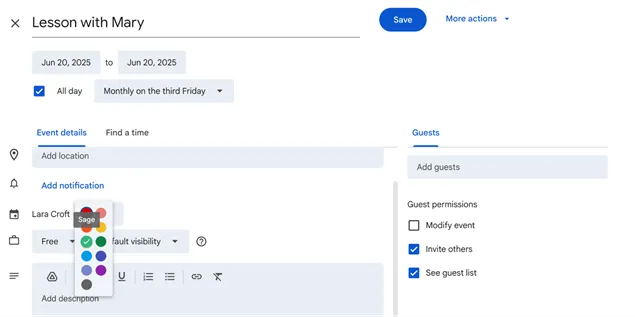
Color coding makes your calendar truly yours, with a more organized dashboard of your day or week. For a specific event, do the following:
- Open the event and click Edit.
- Click the color icon next to the calendar name.
- Check the color of the event in the calendar.
Use color coding to quickly find high-priority tasks and block time! You can also create separate calendars for work or other needs and assign different colors.
3. Restore Deleted Events
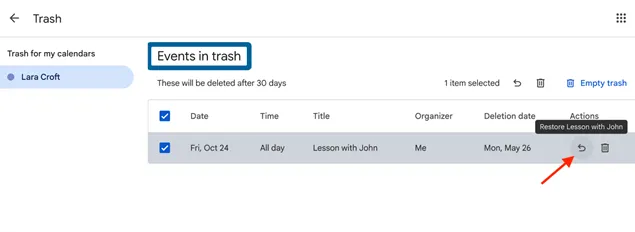
Deleted an event by accident? This is not forever! Don’t worry, Google Calendar has a built-in Trash feature that lets you recover deleted events easily.
You will find it by clicking on the Settings icon and then clicking on the trash can icon. You’ll see a list of events you’ve deleted recently. Find the one you want to bring back and click Restore – it’ll pop right back into your calendar like nothing happened.
4. Use Built-In Appointment Booking
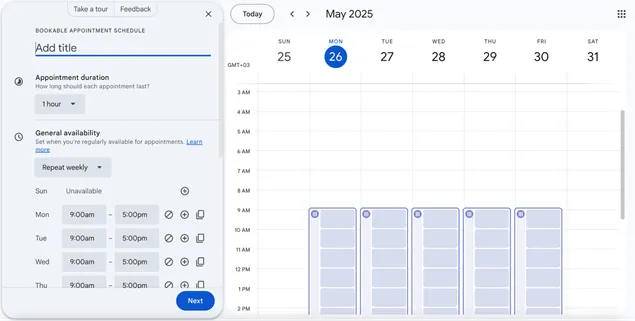
Did you know that you can sell appointment slots within your Google Calendar? With its recently integrated functionality, you can:
- Choose appointment duration and available time slots.
- Customize meeting details (location, video call link, etc.).
- Share the booking page link so others can book appointments.
Just think how your productivity will be improved with this cool staff – automatic reminders, Stripe integration (where you can charge for sessions directly), and shared booking pages for multi-calendar availability.
It’s perfect for managing scheduling and availability for freelancers, consultants, educators, and anyone!
5. Use a Shared Calendar + “Find a Time” Feature
Want others to see when you are available without wasting your time? Save a lot of time for everyone by creating a shared calendar, which means others can see when you are available.
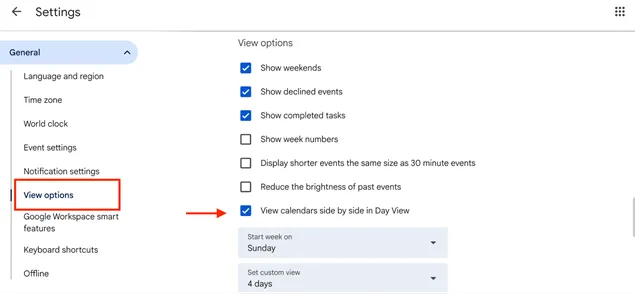
To view guests’ calendars side by side in Google Calendar (Day view):
- Make sure “View calendars side by side” is enabled in Settings > View options.
- Go to Google Calendar.
- Use “Search for people” to find a guest.
- Click Create (+) > Event, then click “Find a time” to compare calendars (only works if they’ve shared their calendar).
6. Integrate Google Calendar With Other Software

First of all, integrated with Google Workspace, Google Calendar can show colleagues’ availability (you don’t need to write emails when setting meetings).
Are you also using different scheduling or calendar apps for your business or website? Try checking if your software supports Google Calendar.
You will surely be more productive if you can receive notifications about Google Calendar interactions within your software, like appointment booking or event scheduling. Worth to mention, the BookingPress WordPress booking plugin easily integrates with Google Calendar.
7. Sync Events Across Accounts and Apps
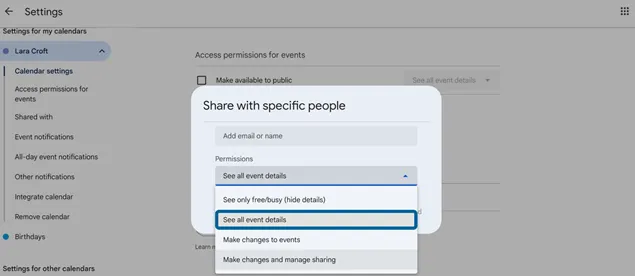
Got many accounts, personal and business, and don’t want to jump from one to another? This will be your favorite Google Calendar tip. You can’t merge calendars, but you can sync them by sharing calendars between your accounts in the following way:
- Open Google Calendar in your primary account.
- On the left, under “My calendars”, hover over the calendar > click ⋮ > Settings and sharing.
- Scroll to ‘Shared with’ > Click ‘Add people and groups’.
- Add your other Gmail account(s) and give “Make changes and manage sharing” access.
- Repeat from each secondary account if required.
It’s also easy to share data with other calendars using iCal.
For example, you can sync it with Apple Calendar (Mac, iPhone/iPad)
- Go to Settings > Calendar > Accounts > Add Account > Google.
- Sign in with your Google account and turn on Calendar sync.
8. Change Calendar Visibility
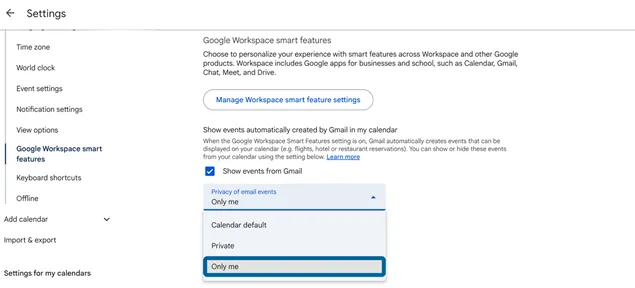
The privacy of any calendar is key – you should not worry each time whether anyone can see your calendar. In most calendar apps, the default visibility settings for a calendar is private (visible to you).
To change visibility for all events:
- Go to Google Calendar > Settings > Google Workspace smart features.
- Under “Show events from Gmail”, choose a visibility option (Calendar default, Private, Only me).
- Choose whether to apply this to all events or just new ones.
To make changes to a chosen event, go to visibility:
- Open the event in Google Calendar.
- Click Edit > Default visibility, then choose Default, Public, or Private.
- Click Save.
9. Use Voice Commands in Google Calendar
Want to add events with your voice? It’s a super game-changer for your productivity, especially when you are on the go or multitasking a lot (most likely, a big part of your life!).
For this, you need to use Google Assistant to manage your calendar hands-free on Assistant-enabled devices. Here is what you need to configure to make the setup work:
- Link your Google Account and enable Voice Match and Personal results in the Assistant app.
- Ensure your Google Calendar is synced.
Then, voice templates like the following can work:
- Add events:
“Hey Google, add a meeting on Friday at 2 PM.”
“Schedule dinner with Sarah at 7.”
- Check your schedule:
“What’s my first meeting today?”
- Cancel events (U.S. English only):
“Cancel my 3 PM meeting.”
- Ask about shared calendars:
Enable them in Assistant settings to hear those events too.
10. Enable Notifications and Email Reminders
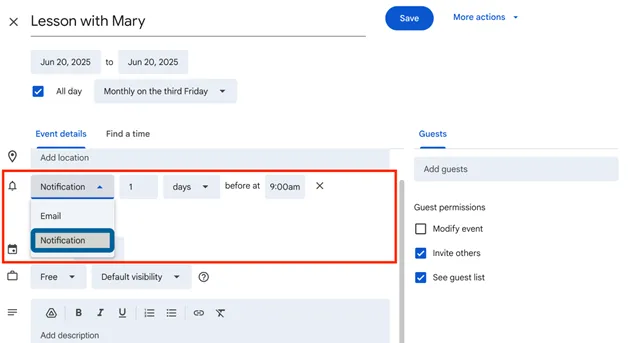
You don’t have to remember the sequence of the events or check the calendar from time to time – simply add popup or email reminders before events (e.g., 10 minutes or 1 day ahead). This works via the Notifications menu on Google Calendar.
For all events:
- Open Google Calendar.
- Go to Settings > Notification settings.
- Set your preferences: turn notifications on/off, adjust snooze timing (Chrome only), and get alerts only for events you’ve accepted.
For a single event:
- Open the event and click Edit.
- Under Notifications, you can add, change, or remove alerts (email or desktop).
- Click Save when done.
Note that these changes apply only to you, not other guests.
Limitations of Using Google Calendar for Business Scheduling
Google Calendar is truly mind blowing for personal planning and basic team coordination. But when it comes to business scheduling, appointments and client bookings, it does have some limitations.
Afterall, everything is not perfect. You have to make it perfect. Thus, here are a few areas where Google Calendar alone may fall short for growing businesses:
1. No Built-In Client Booking System
Google Calendar doesn’t offer a complete customer facing booking experience. While appointment slots sure do exist and that’s it. They only exist. With Google Calendar, you can’t:
- Customize booking forms.
- Collect client data beyond just simple info.
- Add custom questions or consent fields.
And so many more features that ACTUALLY boost user experience. This makes it less suitable for businesses that rely on structured client data.
2. Limited Automation for Appointments
If you are a service based business owner, you already know that scheduling involves more than just adding events. Google Calendar lacks:
- Automated confirmations.
- Follow up emails.
- Rescheduling or cancellation workflows.
- Spam protection.
- Advanced reporting and analysis.
These tasks often end up being handled manually, which only increases the workload.
3. No Native Payment Collection
If you offer paid appointments or services, Google Calendar doesn’t let you:
- Collect payments during booking.
- Add deposits or partial payments.
- Connect bookings with invoices.
Thus, it ends up creating unnecessary friction for both businesses and customers.
4. Basic Availability & Staff Management
Managing multiple staff members or services can get tricky with Google Calendar. Afterall, why are you expecting so much from it? It’s a calendar at the end of the day, no matter how powerful.
Google Calendar doesn’t support:
- Staff wise availability rules.
- Service based scheduling.
- Booking limits per staff member.
- Role based access for team calendars.
We’ve seen businesses that try to rely on Google Calendar for management, often confused with multiple calendars or external tools.
5. Limited Branding & Customization
Google Calendar bookings are functional and working but not branded. Now, all businesses want to stand out and look professional and using Google Calendar is far from it.
With Google Calendar, you can’t:
- Customize booking pages with your brand colors.
- Add logos or marketing content.
- Create a personalized brand experience.
For customer facing scheduling, branding matters more than anything else here.
How BookingPress Enhances Google Calendar Workflows
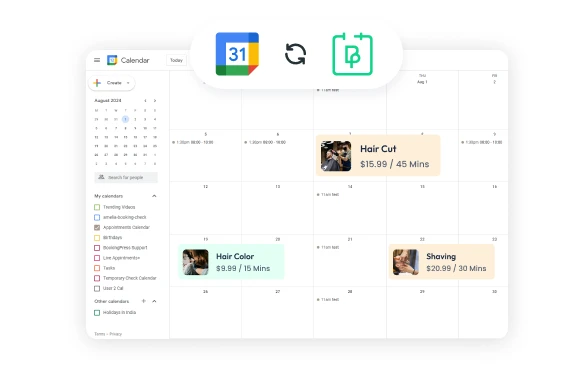
We understand that Google Calendar isn’t perfect. Especially for businesses who want an advanced level of scheduling for managing their clients and customers. Google Calendar has its own flaws, limitations, and missing features.
For many users, abandoning Google Calendar altogether isn’t realistic. People love it because it’s:
- Simple and easy to use.
- Feels like home.
- Already part of their daily workflow.
- Synced across multiple devices and teams.
- Most trusted Calendar for time management.
So instead of forcing you to switch tools or start from scratch, the smarter possible solution to overcome these limitations and embrace its key features is to build on what already works.
That’s exactly where BookingPress and Google Calendar work best together, not as competitors, but as complementary tools.
BookingPress doesn’t replace Google Calendar. Never, ever! It enhances it. It adds advanced booking, client management, payments, automation, and whatever Google Calendar is lacking, on top of Google Calendar’s reliable time tracking capabilities.
In simple terms:
- Google Calendar manages your time.
- BookingPress manages your bookings, clients, and revenue.
Here’s how BookingPress enhances your Google Calendar workflow:
- Brand your booking form the way you want.
- Send automated notifications and reminders via Email, WhatsApp, SMS, and Telegram.
- Effective team management and employee scheduling via a dedicated panel
- Two way sync of bookings across calendars like Google Calendar, Apple Calendar, and Outlook Calendar.
- Let you create packages of multiple services to sell your services in bundles.
- Centralized analytics dashboard.
- Let clients make multiple bookings at once. Also, allow group and recurring appointments.
- Options to sell extra with the main service.
- 20+ payment gateways such as PayPal, RazorPay, and more + POS Stripe.
- Advanced staff management, and each gets their own dedicated dashboard.
- Set happy hours pricing, buffer time, and even custom service duration.
- Smooth integration with Zoom, Google Meet, Zapier, MailChimp, and more for full automation.
In a nutshell, BookingPress + Google Calendar is a power combo with no limitations. Together, they create a powerful scheduling system that’s simple for you and effortless for your customers.
Final Words: Top Productive Google Calendar Tips for 2026
Google Calendar is evolving, and at the moment, it does more than just take care of your time plans.
It helps you become truly productive by managing your availability, improving coordination, and supporting goaloriented workflows, whether it’s a personal or business calendar.
You May Also Like:
- How to Enable Two-Way Google Calendar Sync with BookingPress
- Google Calendar Vs Apple Calendar: Which One to Use?
- 8 Best Google Calendar Alternatives in 2025 (Expert Picks)
You can use Google Calendar most efficiently by simply combining visual planning with automation. Thus, here’s how to use Google Calendar most effectively:
– Enable notifications and email Reminders.
– Use visual time blocking to plan your day, week or month.
– Set automatic reminders and notifications so you don’t miss tasks.
– Create recurring events for repetitive work.
– Use shared calendars and the “Find a time” feature to avoid back and forth scheduling.
– Attach files, links and meeting details directly to events.
You can make Google Calendar much nicer, easier to use and enjoyable by customizing it visually and structurally. You can use color coding to separate work, personal tasks and priorities.
Plus, you can create multiple calendars (work, meetings, personal, etc.) and assign different colors easily. And don’t forget to add a handful of emojis in your day to day task.
Here are the weaknesses of Google Calendar and where it falls short:
– No complete client booking system.
– Offers limited automation for confirmations, followups and rescheduling.
– Does not come with native payment gateways.
– Limited branding and customization.
– Works smoothly in its own ecosystem but not outside Google apps.
– No direct CSV/Excel support.
– No data analysis.
Yes, you can use Google Calendar as a daily planner. It comes with features such as time blocking, reminders, multiple calendars, drag and drop scheduling and color coding which helps you make a picture-perfect daily planner.



Brian is a WordPress expert with a decade of developing experience & technical-writing. He enjoys blogging, movies & hiking.

Get BookingPress Premium
60+ Premium Addons
20+ Payment Gateways
Plan starts at just $89
Get Premium Now