
BookingPress REST API Addon
REST API:
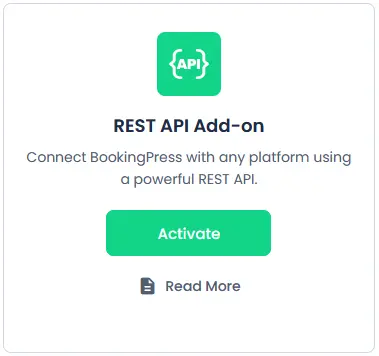
To get and Activate BookingPress rest API, please follow the below steps.
- First, login to the BookingPress Website, and you will be redirected to the My Account page.
- Now, click on the “Access Passes” link from the left menu panel.
- After going to the Access Passes, click on the “View your downloads” button.
- From the list, please look for the “REST API” add-on, click on the download button, and it will automatically start downloading the addon. After the download is finished, upload the downloaded zip file to WordPress just link any other WordPress Plugin, then install and activate the addon to use it.
The BookingPress REST API Addon provides a full REST interface to interact directly with your BookingPress booking system. This API allows you to programmatically create and manage appointments, customers, and other booking-related elements.
This addon empowers you to build custom booking systems, integrate appointment scheduling directly into your platform, and create tailored user experiences all through API calls.
Once activated you can configure the same in BookingPress > Settings > API Settings.
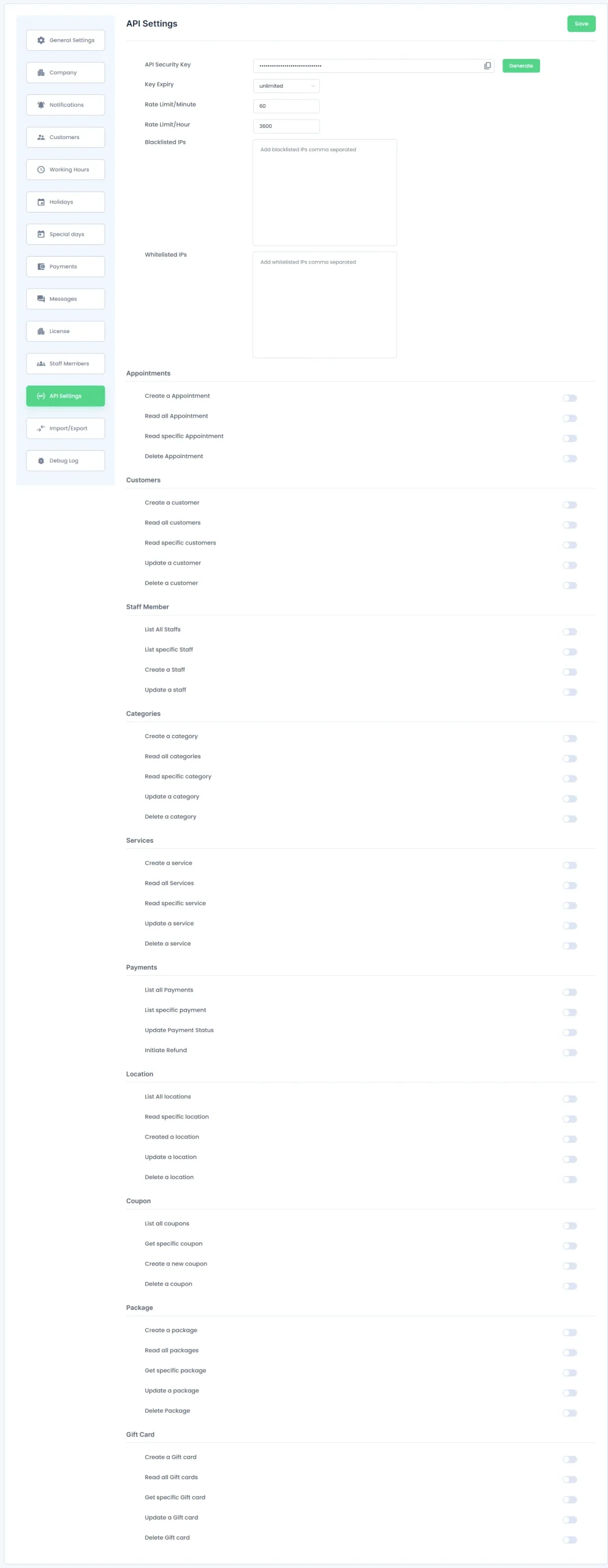
Generate API Security Key
Click the Generate button to create a new API Security Key. This key is required to authenticate API calls and interact with the BookingPress system securely.
API Settings Options
Below the security key, you’ll find several configuration options:
Key Expiry:
You can choose the expiration period for the API key. The available options are:
1 Year
2 Years
3 Years
Select the option that suits your needs. If you want the key to remain valid indefinitely, choose Unlimited.
Rate Limit/Minute
This setting allows you to define the number of API calls that can be made within one minute. For example, if you set this to 60, a maximum of 60 API requests will be allowed per minute.
Rate Limit/Hour
Similar to the rate limit per minute, this setting defines the maximum number of API calls allowed per hour. For example, if you set this to 3600, a total of 3600 requests can be made within an hour.
Blacklisted IPs
Here, you can specify IP addresses that are blacklisted from accessing the API. These are the IPs that will be denied access to the API system. Add the blacklisted IP addresses, separated by commas.
Whitelisted IPs
In this section, you can define IP addresses that are whitelisted and given special access to the API. Only the IPs listed here will be allowed to interact with the API. Add the whitelisted IP addresses, separated by commas.
API Permissions
Appointments
Enable or disable various actions for managing appointments, such as creating, reading, and deleting appointments.
Customers
Manage customers through the API, including actions like creating, reading, updating, and deleting customer data.
Staff Member
Manage staffmember through the API, including actions like creating, reading, updating, and deleting staffmember data.
Categories
Manage categories through the API, including actions like creating, reading, updating, and deleting category data.
Services
Define services and manage them with options to create, read, update, and delete service data.
Payments
Enable payment-related actions like listing payments.
Locations
Manage locations through the API, including actions like creating, reading, updating, and deleting location data.
Coupon
Manage coupon through the API, including actions like creating, reading, and deleting coupon data.
Package
Manage packages through the API, including actions like creating, reading, updating, and deleting package data.
Gift Cards
Manage Gift cards through the API, including actions like creating, reading, updating, and deleting gift card data.