
Two Factor Authentication
To get and Activate Two Factor Authentication Addon, please follow the below steps.
- First, login to the BookingPress Website, and you will be redirected to the My Account page.
- Now, click on the “Access Passes” link from the left menu panel.
- After going to the Access Passes, click on the “View your downloads” button.
- From the list, please look for the “Two Factor Authentication” add-on, click on the download button, and it will automatically start downloading the addon. After the download is finished, upload the downloaded zip file to WordPress just link any other WordPress Plugin, then install and activate the addon to use it.
Configuring Two Factor Authentication Settings
The Two-Factor Authentication (2FA) feature adds an extra layer of security to your system by requiring users to verify their identity using a one-time verification code sent to their email.
After activation, configure the integration: Navigate to BookingPress > Settings > Two Fact Auth tab.
Settings Overview
- Enable Two-Factor Authentication: Enable or disable the Two-Factor Authentication feature for user logins.
- Enable Email Verification: Enable or disable email-based verification.
- Enable WhatsApp Verification: Enable or disable WhatsApp-based verification. (with BookingPress WhatsApp Addon)
- Enable SMS Verification: Enable or disable SMS-based verification. (with BookingPress SMS Addon)
- Enable Telegram Verification: Enable or disable Telegram-based verification. (with BookingPress Telegram Addon)
- Two-Factor Authentication Code Length: Set the number of characters for the one-time verification code.
- Two-Factor Authentication Code Type: Select the type of code to be generated for verification.
- Enable Case Sensitive Code: Specify whether the verification code should be case-sensitive.
- Code Expiry Lifetime (In Minutes): Set how long the generated verification code remains valid.
- Two-Factor Verification Message: Customize the message sent to users containing the verification code. You can use placeholders to dynamically insert relevant details into the message.
- Available Placeholders:
- {CODE} – Replaced with the actual one-time verification code.
- {CODE_DURATION} – Replaced with the validity duration (in minutes) of the code.
After complete setup of Two-Factor Authentication settings, please check login form from frontend. customer will receive a verification code via Email/SMS based on plugin settings.
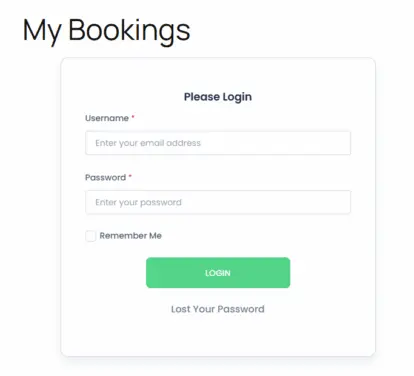
When customer tries to log in and if username and password both are correct, then system will give you option to enter received code in email/SMS or based on selected method as displayed below:
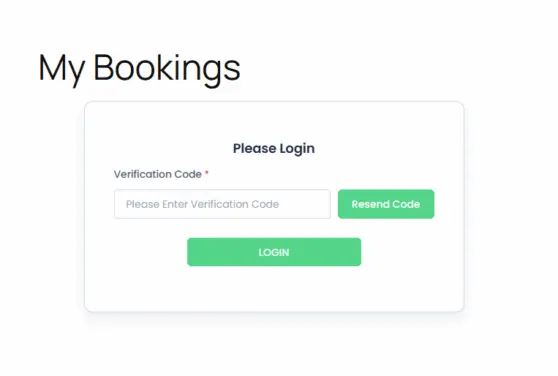
After verified successfully, customer will be able to log in to the website.