Customer Settings
The Customers page allows you to control how customer accounts and booking behavior work inside BookingPress.
You can manage customer related settings such as:
- Create WordPress users upon appointment booking.
- Auto login user after successful booking.
- Custom Field Settings.
You can set your Customers settings from BookingPress → Settings → Customers.
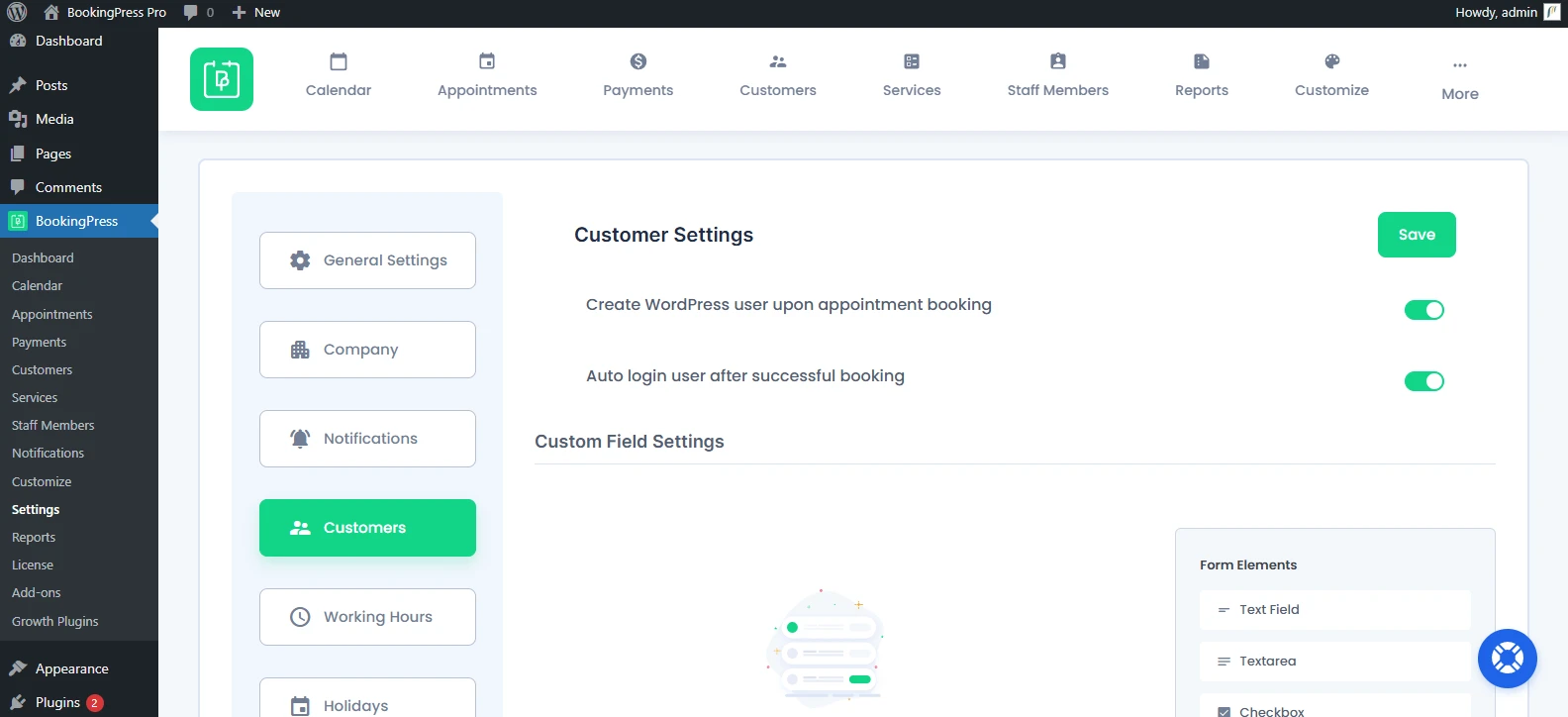
Now, let us walk through each setting available in the Customers Settings panel.
Create WordPress user upon appointment booking
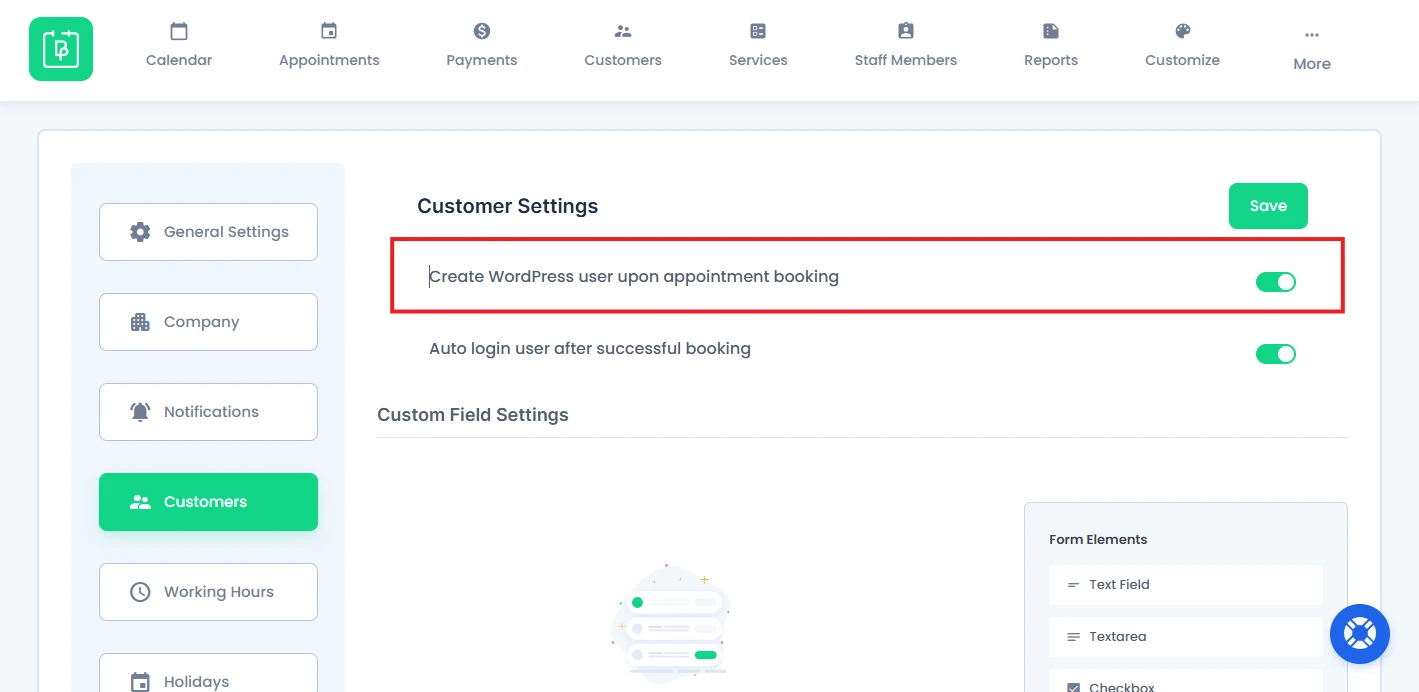
Toggling it on will make the system automatically create a WordPress user account when a customer books an appointment from the front end booking form.
This settings is very useful when your customers wants to:
- Access their bookings later
- Log in to a customer panel
- Manage appointments easily
- Reschedule or cancel bookings online
Once enabled, BookingPress will automatically create and connect a WordPress user account for customers who are not already logged in.
However, make sure the Email field is visible and marked as “Required” in your booking form.
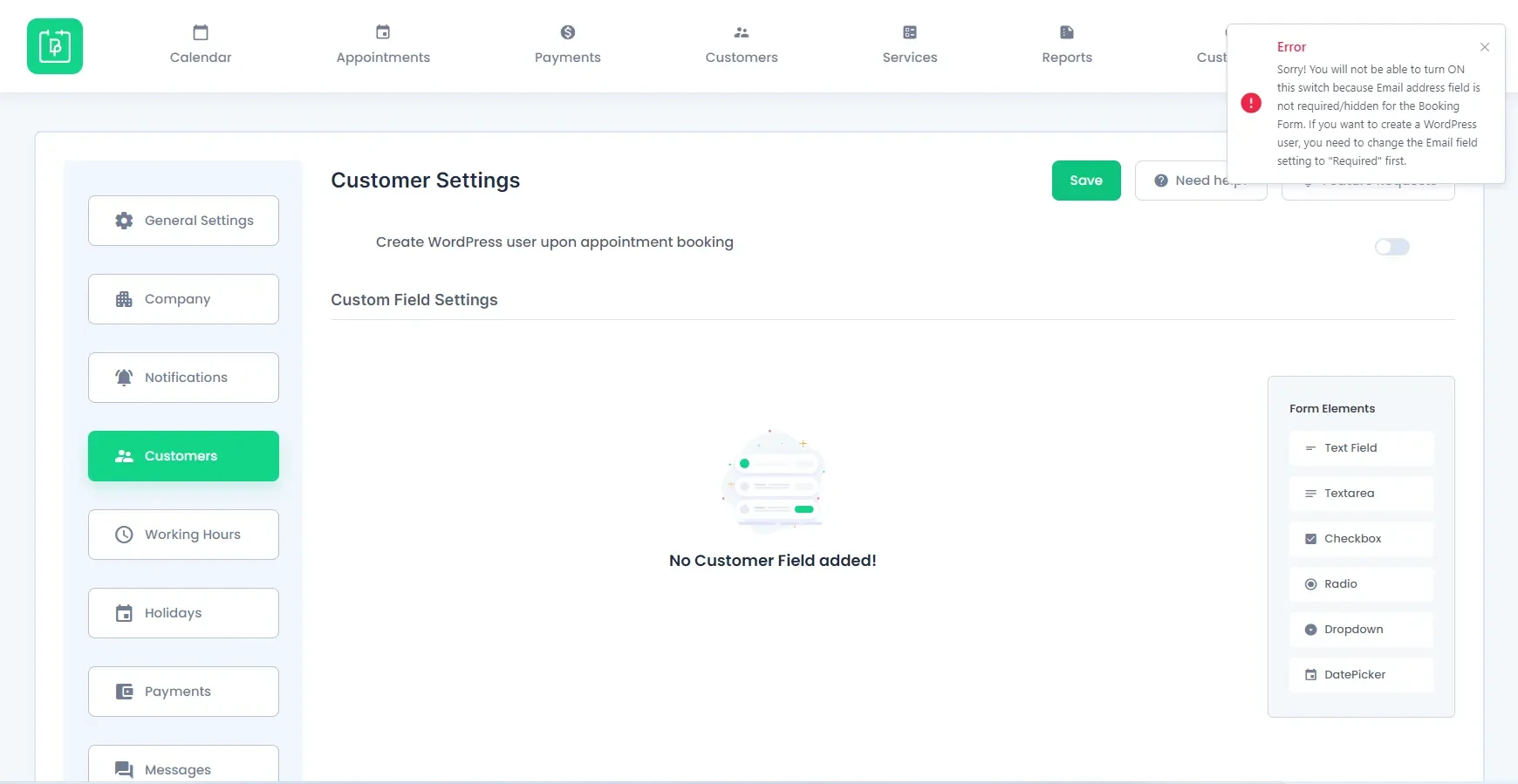
If the Email field is set to “Hidden” or “Not Required” under Customize Fields, you can’t enable the option and will see an error. Afterall, BookingPress needs a unique email address to create and connect WordPress users properly.
Auto login user after successful booking
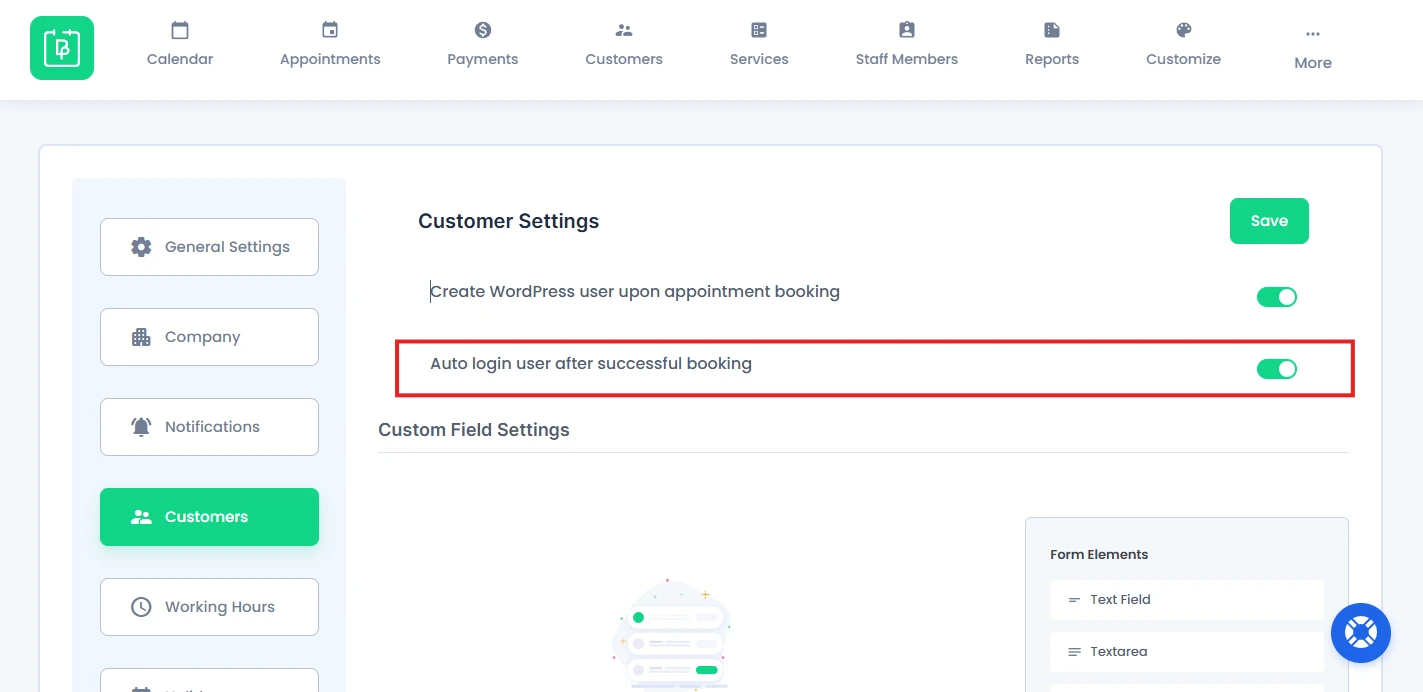
When this option is enabled, customers are automatically logged in right after they book an appointment. They do not have to go to the My Bookings page and log in manually.
Note: This will only show up when the Create a WordPress user upon appointment booking is enabled.
This allows customers to immediately access these all without manually entering login details again:
- Their bookings.
- Customer dashboard.
- Appointment details.
- Reschedule or cancellation options.
This way you can give your customers a much faster and smoother user experience.
Important Note: The Auto Login feature is applicable only for new users who are booking an appointment for the first time and are not already existing WordPress users.
How BookingPress Handles User Creation
BookingPress handles customer registration differently based on whether the customer is already logged in or booking as a guest.
Important Note: Create WordPress User option will only work at the front end of the BookingPress Website.
There are mainly two user scenarios:
- Logged-In Users
- Non-Logged-In Users
Logged-in User
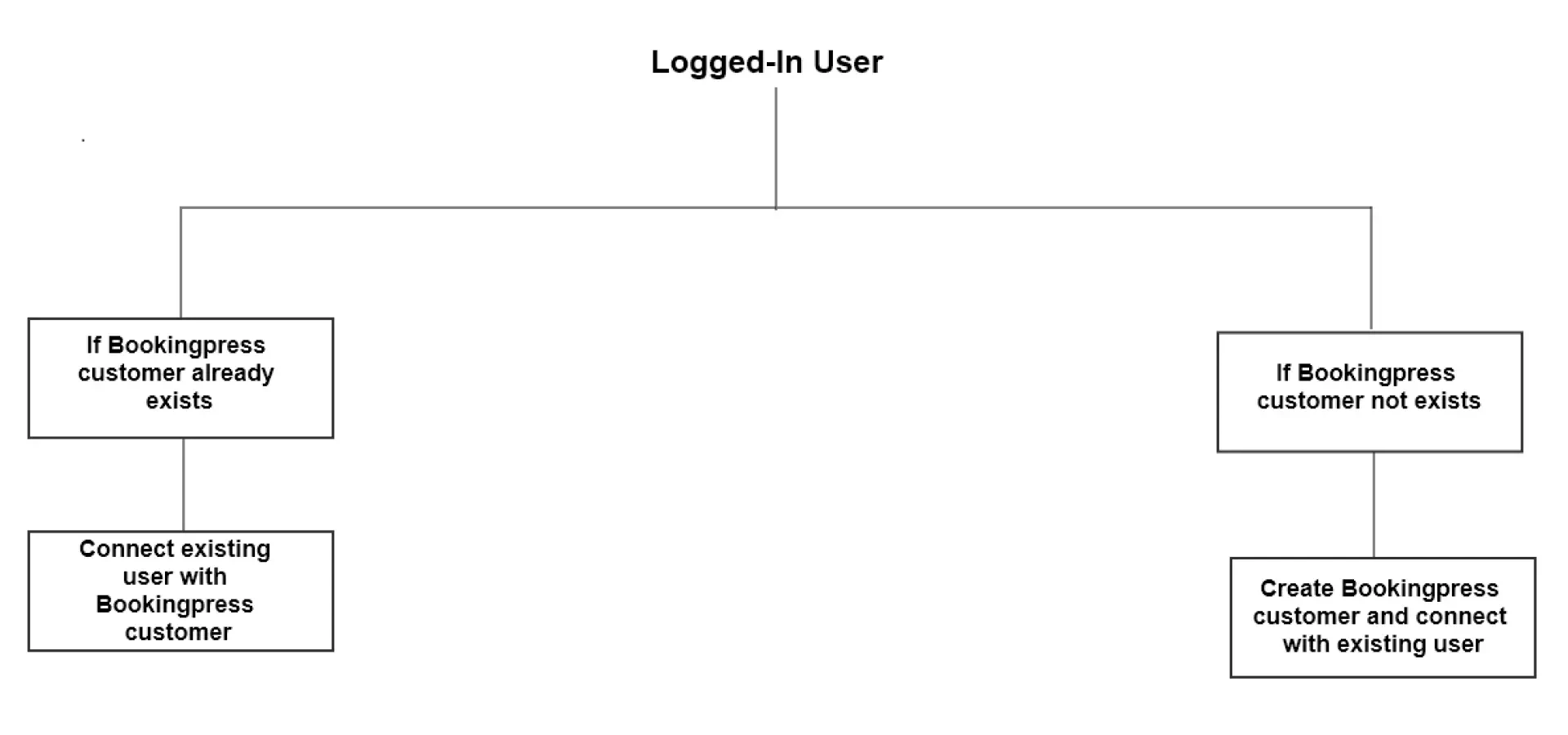
If a customer (user) is already logged-in to their WordPress account then BookingPress checks whether the logged-in user’s email already exists as a BookingPress customer.
1. If the BookingPress Customer Already Exists, BookingPress connects the existing BookingPress customer profile with the logged-in WordPress user account.
2. If the BookingPress Customer Does Not Exist, BookingPress creates a new BookingPress customer profile, automatically and connects it with the logged in WordPress user.
Non-Logged-in User
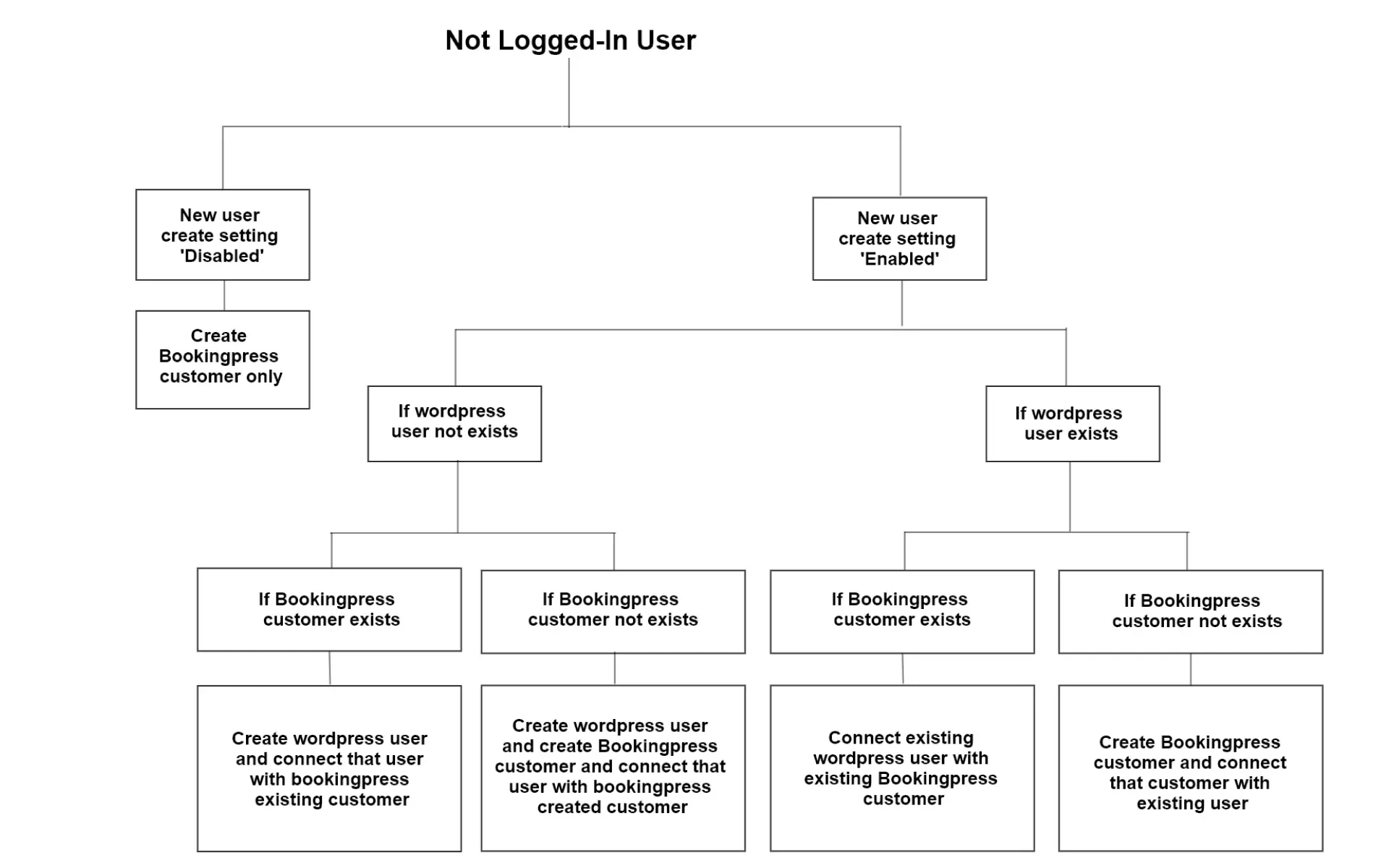
If a customer (user) books an appointment without logging in to their WordPress account, BookingPress follows different actions based on your Customers settings we’ve configured just now.
When “Create WordPress User Upon Appointment Booking” Is Disabled
If “Create WordPress User Upon Appointment Booking” Is Disabled, customer (user) will register only as ‘BookingPress’ Customer.
When “Create WordPress User Upon Appointment Booking” Is Enabled
BookingPress first checks whether the customer email address already exists as a WordPress user.
If WordPress User Does Not Exist
1. If a BookingPress customer already exists with that email address, BookingPress creates a new WordPress user and connects that created user with the existing BookingPress customer.
2. If a BookingPress customer does not exist, BookingPress creates a new WordPress user and a new BookingPress customer, then connects both accounts automatically.
If WordPress User Already Exists
1. If a BookingPress customer already exists with that email address, BookingPress connects the existing BookingPress customer with the existing WordPress user account.
2. If a BookingPress customer does not exist, BookingPress creates a new BookingPress customer profile and connects it with the existing WordPress user account.
Need a hand?
Our world-class support team is happy to help. Send us a message and we’ll take it from there.
 14-day money-back guarantee