Holidays Settings
Holidays setting panel lets you block off appointment bookings on specific dates when your business or staff members are unavailable.
You can create both one time and recurring holidays as per your schedule from BookingPress → BookingPress → Settings → Holidays.
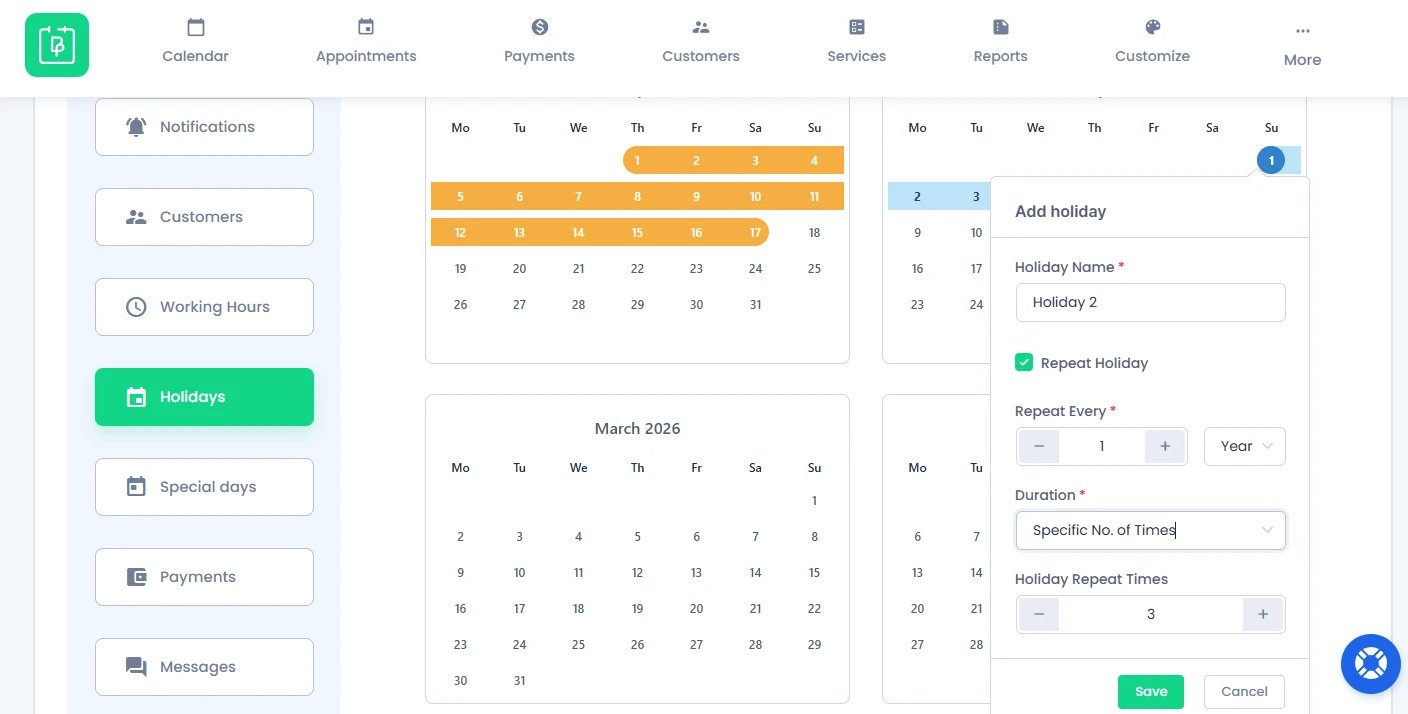
How to Add Holidays in BookingPress
For marking a day as holiday, you have to:
1. Firstly, open the Holiday Settings calendar.
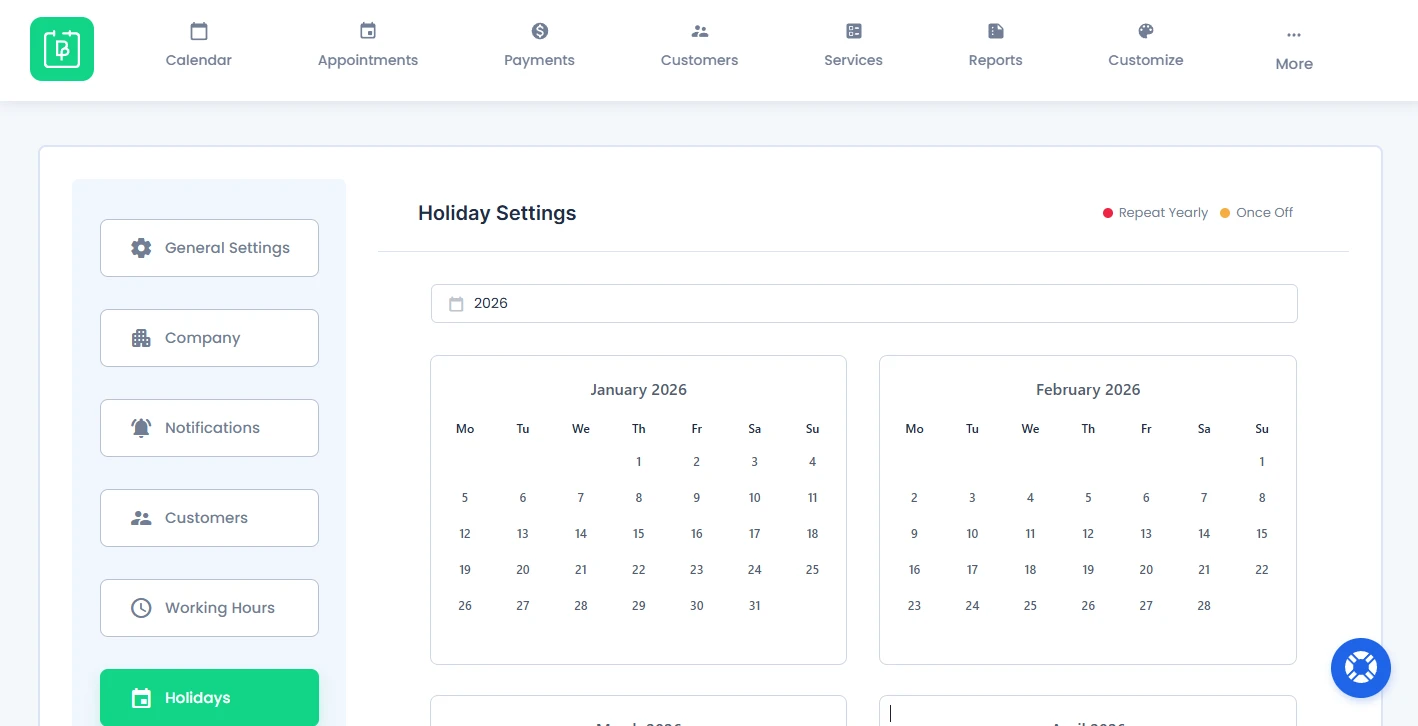
2. By default the current year will be selected. However, you can switch to any year from the calendar.
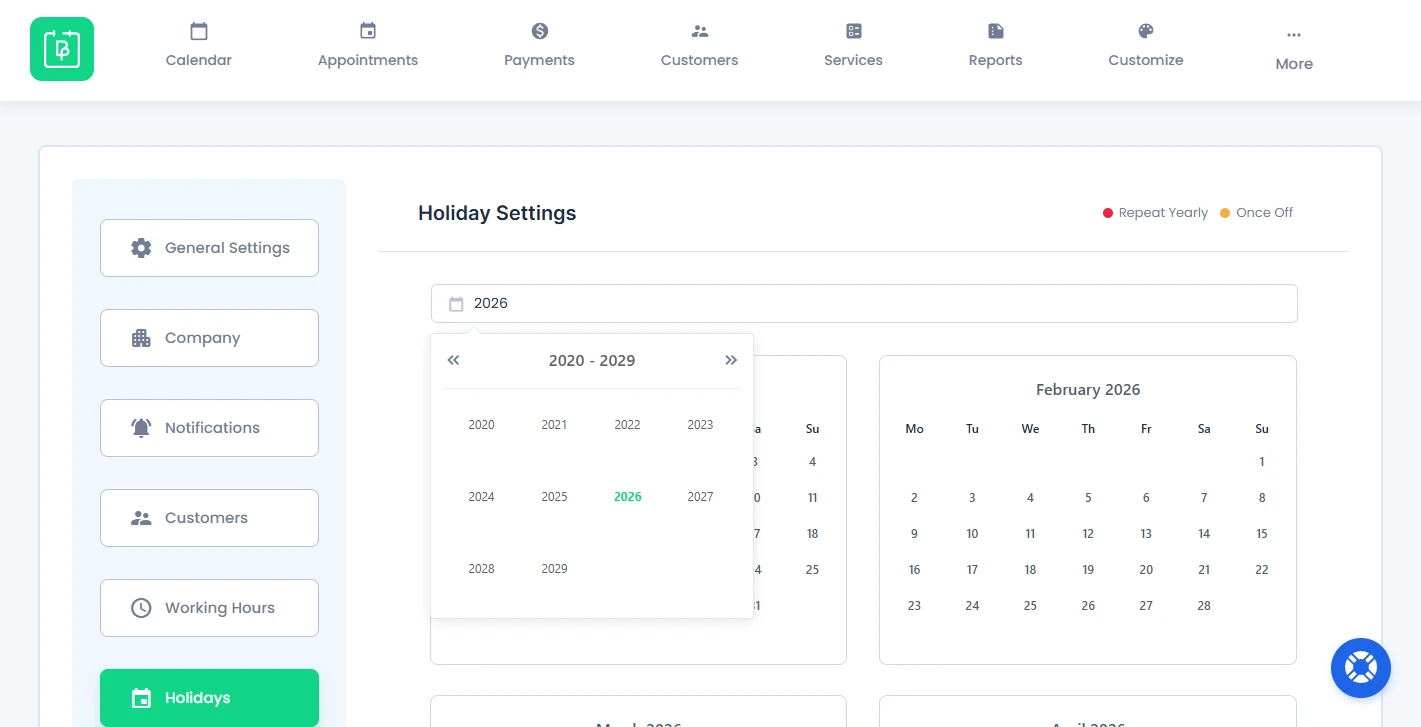
3. Next, click on the date you want to mark as a holiday.
For adding continuous holidays across multiple days:
- Click on the start date.
- Drag the selection to the ending holiday date.
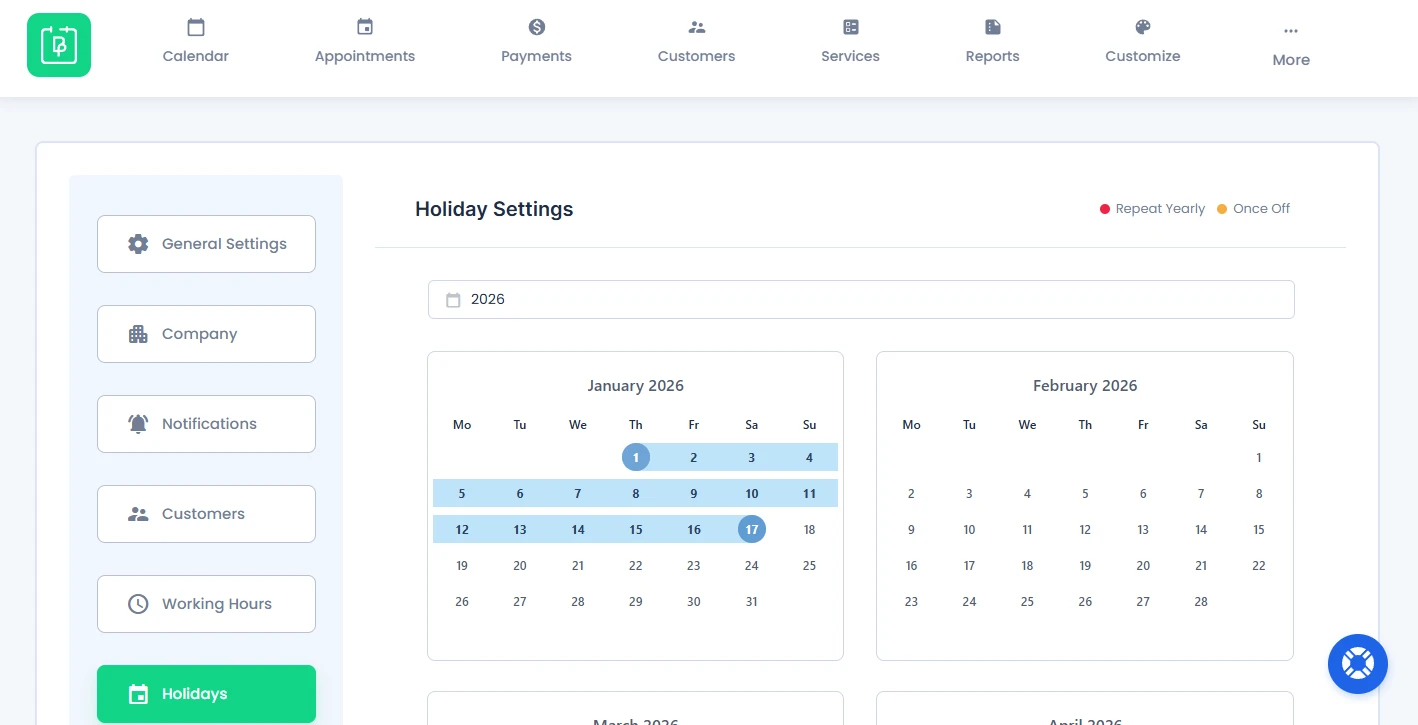
4. After selecting the date or date range, click once to open the “Add holiday” popup. Inside the “Add holiday” popup, add the holiday name.
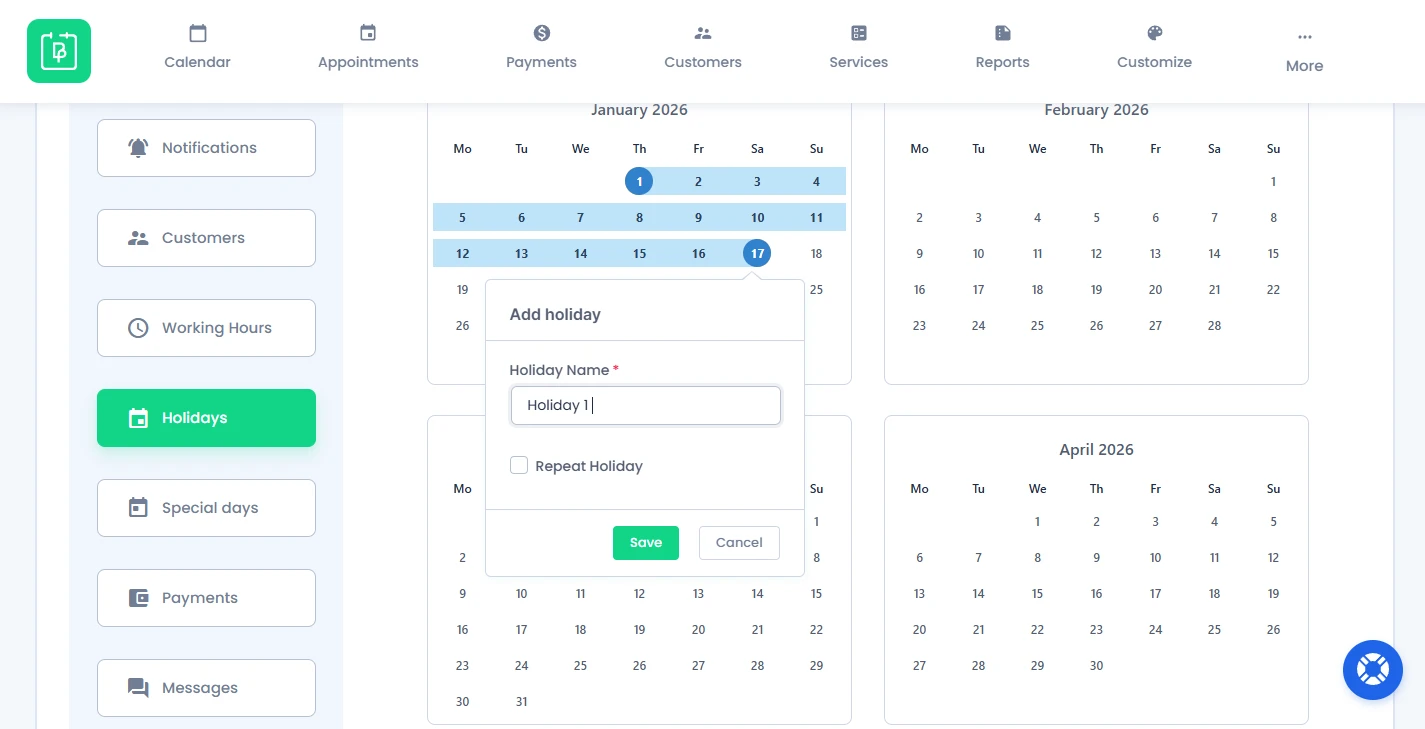
5. At last, hit the “Save” button.
That’s all! You’ve finally marked the specific day as a holiday so the bookings for that day will be off as well.
Note:
- One time holidays are highlighted in orange.
- Recurring holidays are highlighted in red.
How to Create Recurring Holidays in BookingPress
If you want a holiday to repeat automatically, just enable the “Repeat Holiday” option inside the “Add holiday” popup.
Now under the “Repeat Every”, enter the number and select the followings to make the holiday repeat in:
- Days
- Week
- Month
- Year
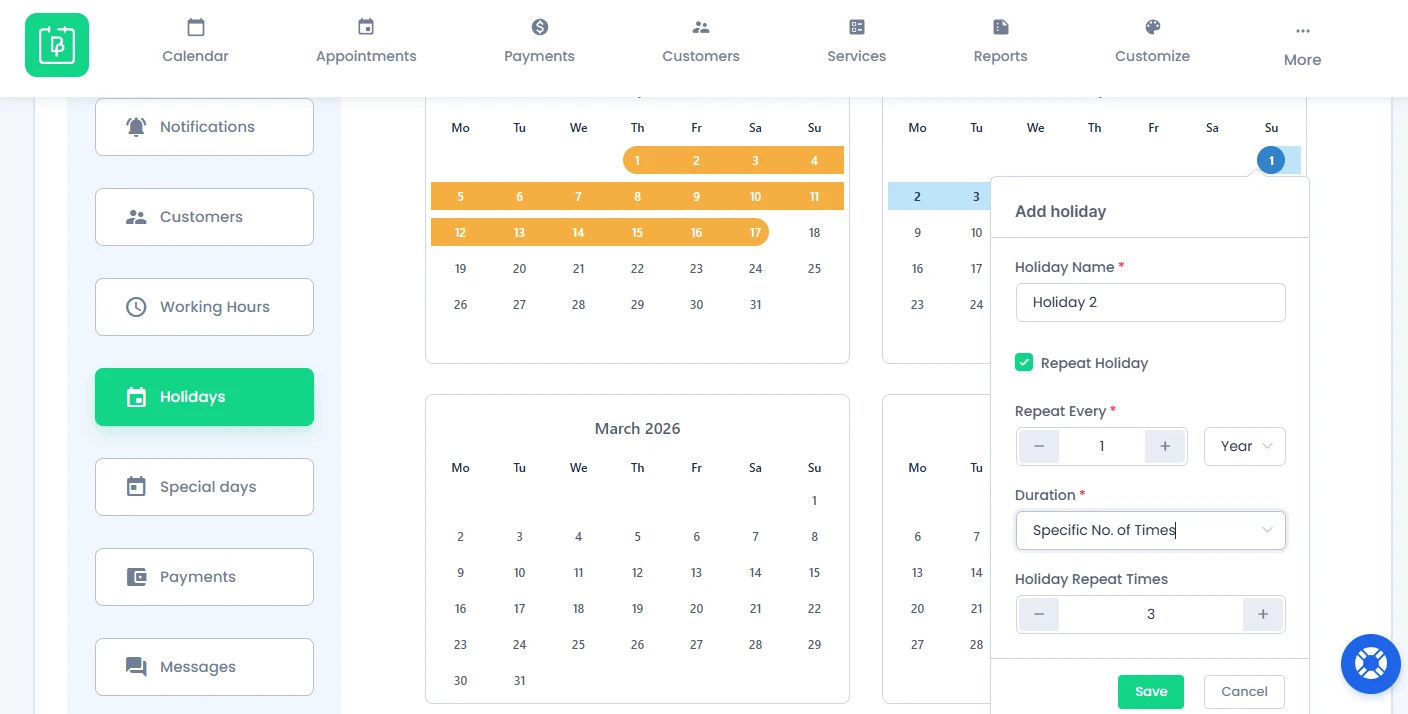
You can also choose how long the holiday should repeat by setting the duration:
- Forever: To repeat the holiday on the same date or date range every year, month, week or days.
- Specific No. of Times: For a specific number of occurrences.
- Until: Until the selected date
Edit Holidays
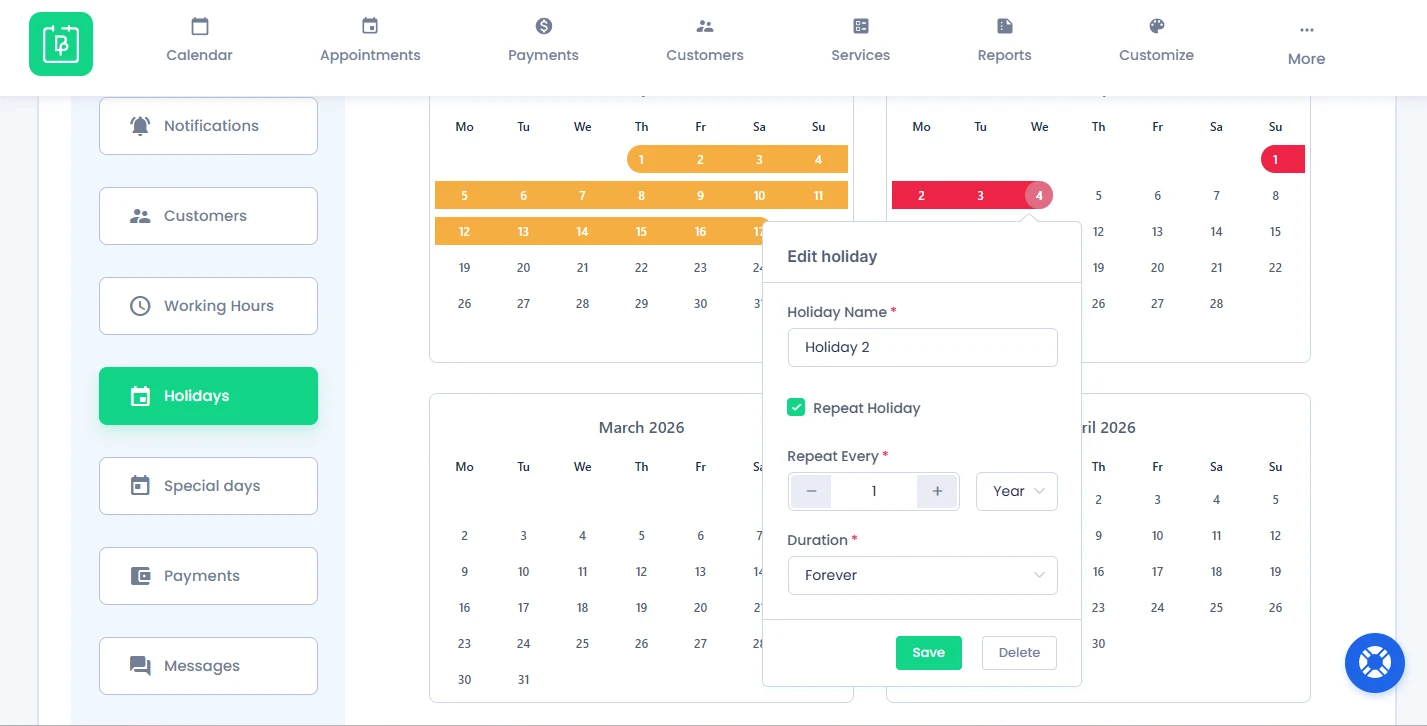
For editing any existing holiday date or date range, simply click on the holiday from the calendar.
Inside the “Edit Holiday” popup, update all the holiday details you want, then save your changes.
Delete Holidays
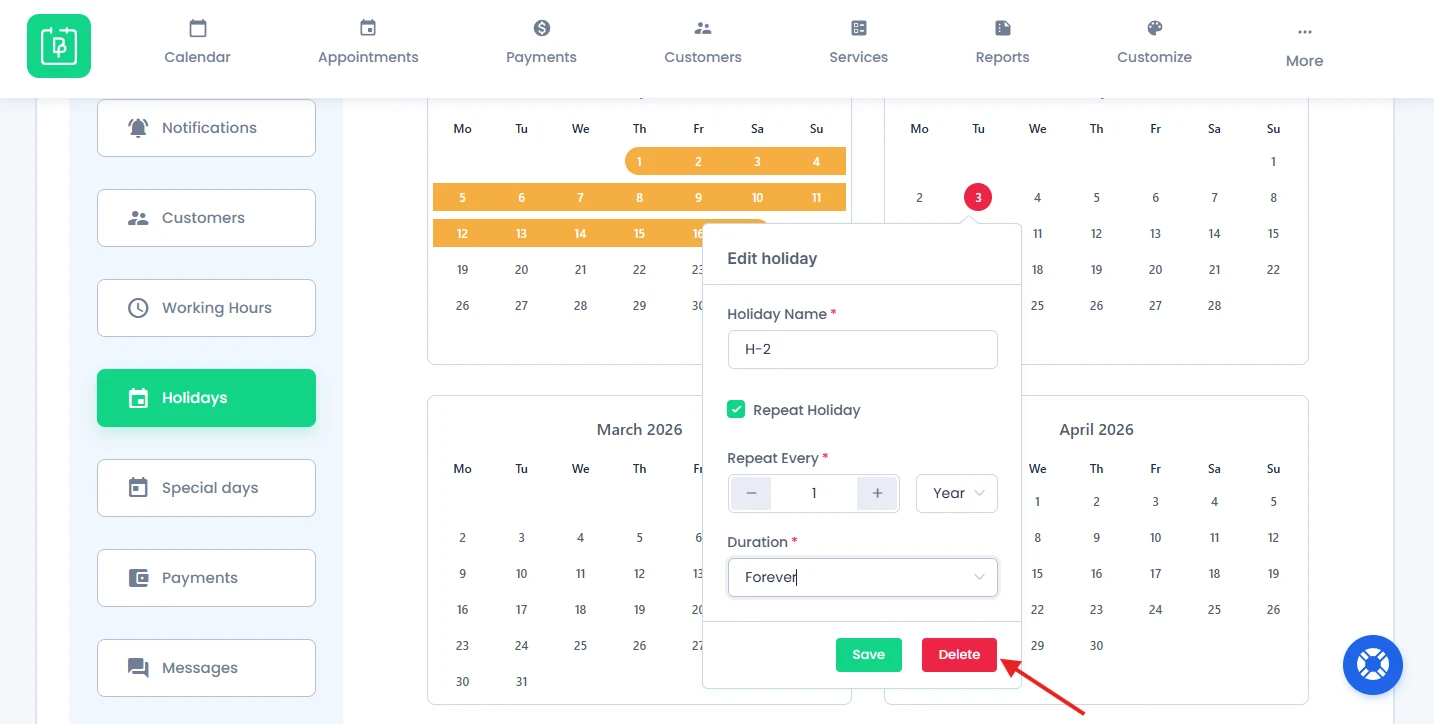
For deleting any holiday date or date range, click on the existing holiday. Inside the “Edit Holiday” popup box, just hit the “Delete” button.
After the holiday is deleted, the booking availability will be updated as well.
Important Notes: Existing appointments are not automatically deleted after adding holidays. Since every business has different scheduling requirements, any necessary appointment changes must be managed manually to keep it simple.
Need a hand?
Our world-class support team is happy to help. Send us a message and we’ll take it from there.
 14-day money-back guarantee