Payment Settings
Payments settings panel lets you configure your booking payment preferences such as Currency settings, Appointment Cancellation Refund Policy and Payment methods.
You can manage these settings from BookingPress → Settings → Payments.
Now, let us walk through each setting available in the Payments panel.
Please Note: The selected payment and currency settings will be applied across both the frontend and backend booking system.
Currency Settings
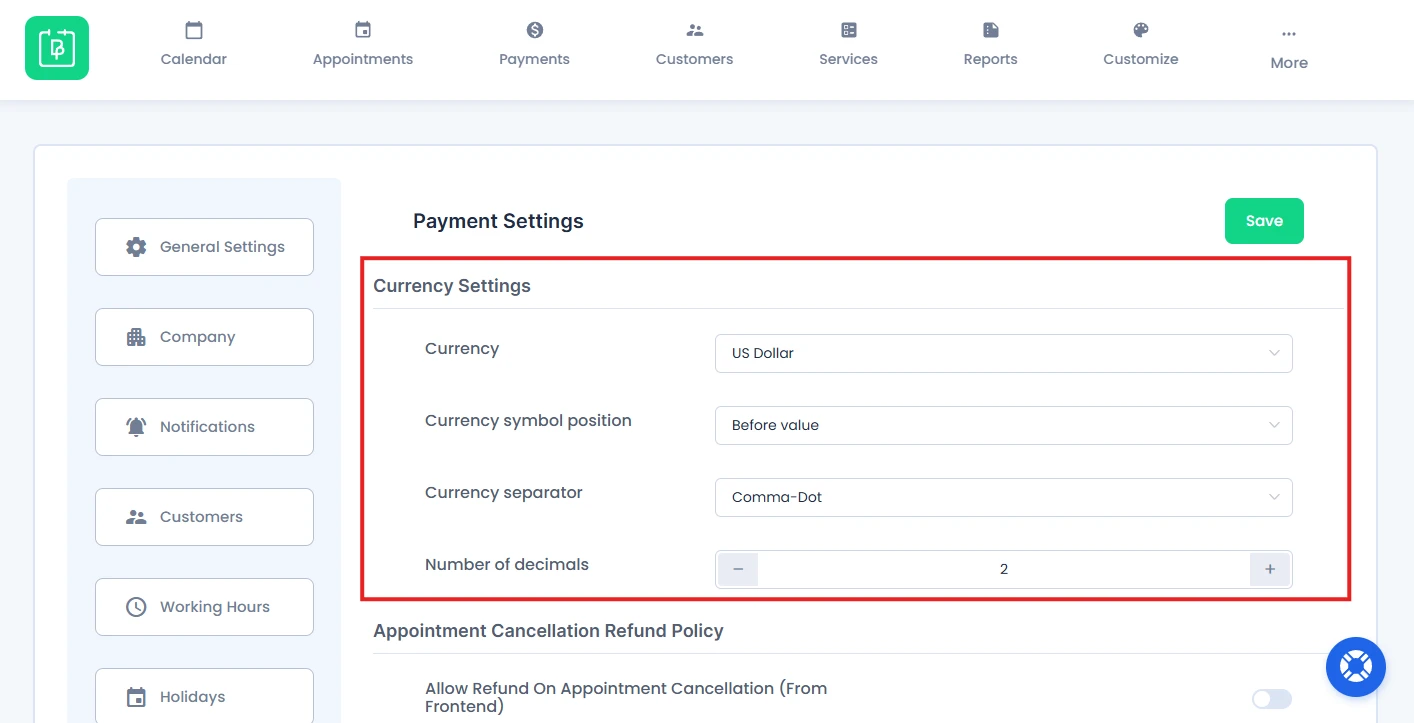
Here you can all currency related basic settings such as:
Currency
You can select the default currency that will be used for all appointment bookings in BookingPress.
Remember the selected currency will be shown across both frontend booking form to customers as well as backend booking interface to admin and staff members.
Currency Symbol Position
Choose where you want to show the currency symbol in booking prices.
Here are the available options:
- Before value → $100
- Before value, separated with space → $ 100
- After value → 100$
- After value, separated with space → 100 $
Currency Separator
Pick the currency separator format for booking prices.
This setting controls:
- Thousand separators
- Decimal separators
You can select:
- Comma-Dot: 15,000.00
- Dot-Comma: 15.000,00
- Space-Dot: 15 000.00
- Space-Comma: 15 000,00
- Custom: Create your own currency separator for showing service prices.
Number of decimals
This lets you set how many decimal digits should appear in booking prices.
For example:
- 2 Decimals → $150.00
- 3 Decimals → $150.000
- 4 Decimals → $150.0000
Deposit Payment Settings
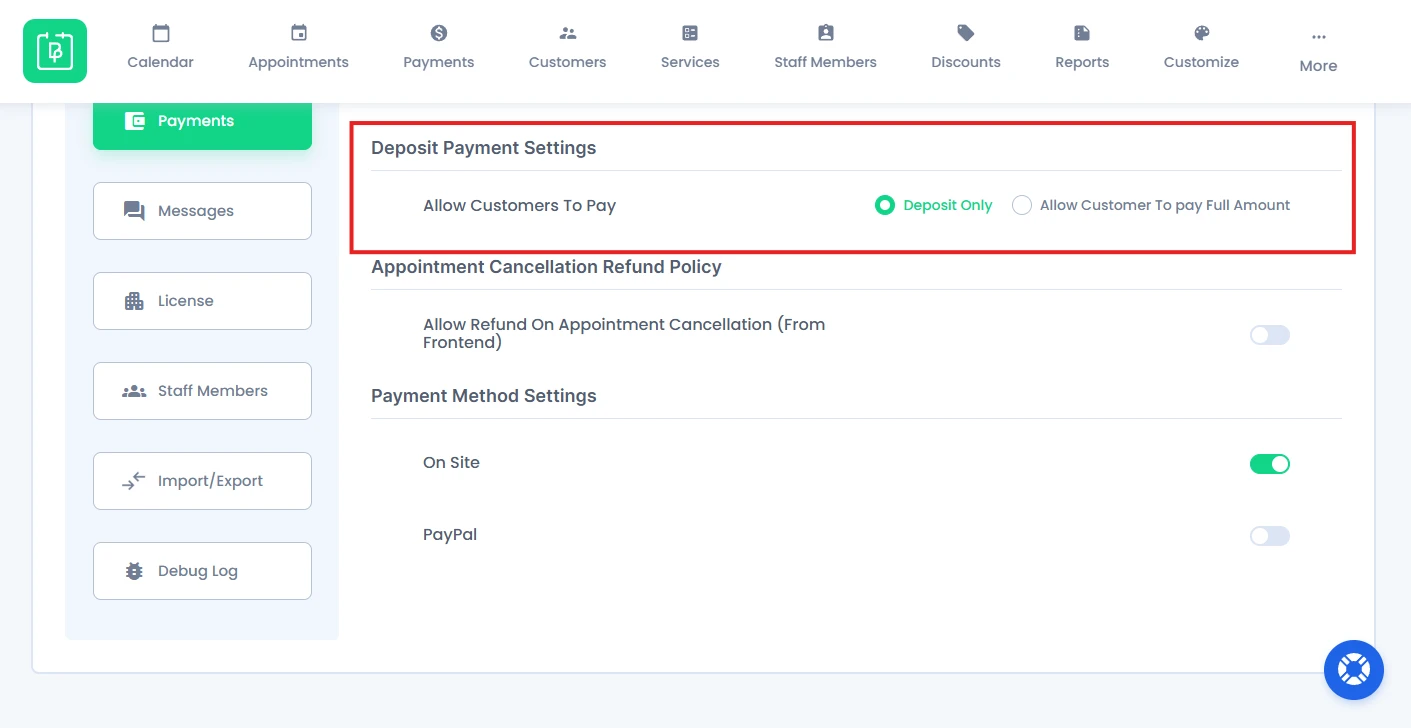
Please Note: The Deposit Payment Additional Module must be activated to configure these settings.
This option lets you decide how you want to allow your customers to pay. You have two options:
- Deposit Only
- Allow Customers To Pay Full Amount
Whether you can let your customers pay deposit only or full payment only through online payment.
Appointment Cancellation Refund Policy
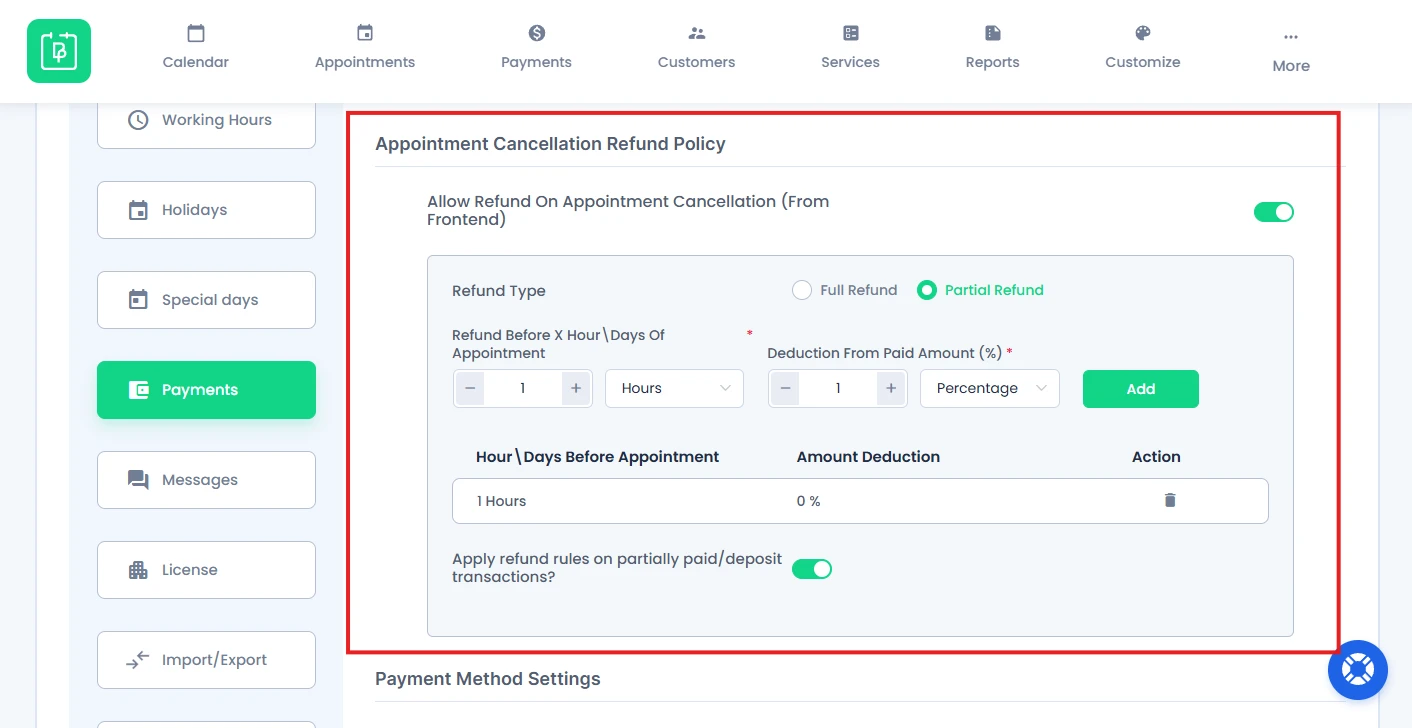
This setting is used to manage appointment cancellation and refund policies.
Simply toggle on the “Allow Refund On Appointment Cancellation (From Frontend)” option to allow customers to request refunds when cancelling appointments from the frontend booking panel.
You can set refund type as:
- Full Refund
- Partial Refund
If you’ve chosen “Partial Refund“, you’ll have to set:
- Refund Before X Hour\Days Of Appointment
- Deduction From Paid Amount (%)
You can add more than one partial refund policy.
After that, if you want to apply the refund rules on deposit payment or payments which are partially paid already, simply enable,” Apply refund rules on partially paid/deposit transactions?” option.
Payment Method Settings
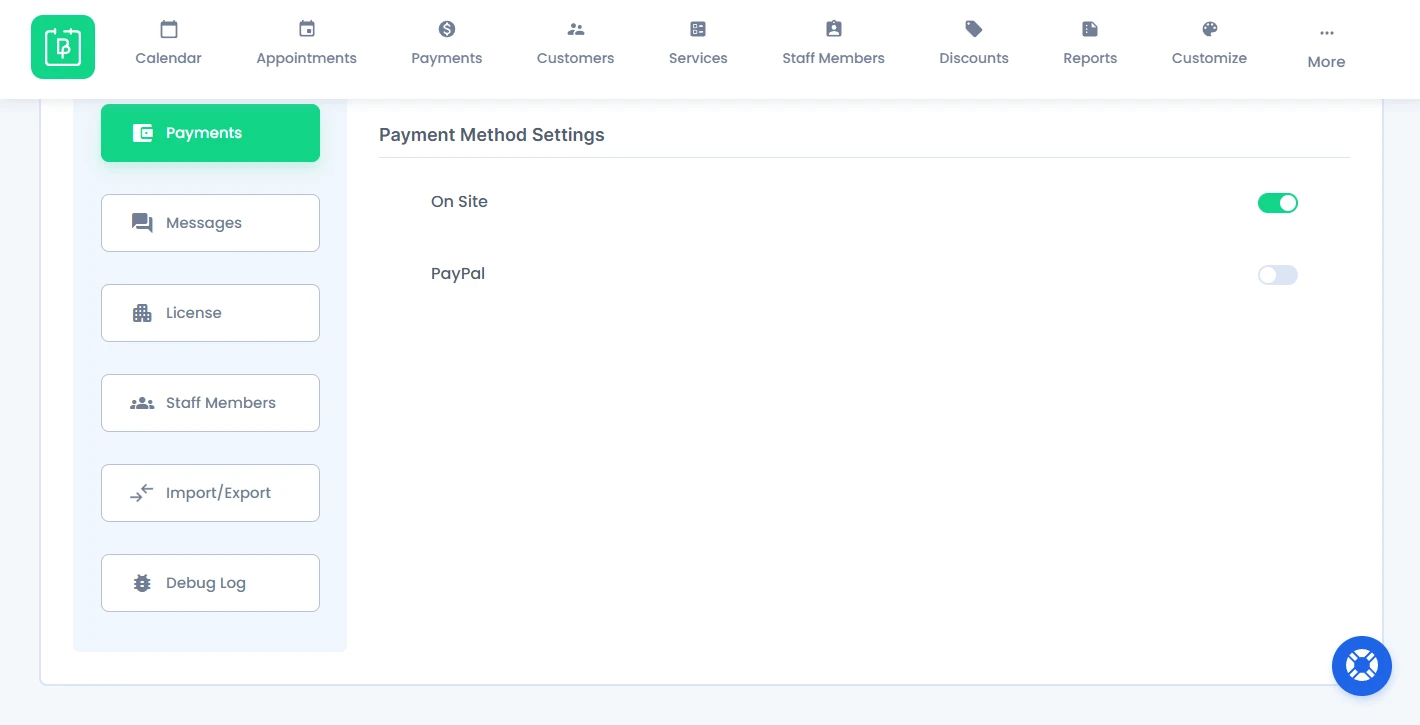
BookingPress lets you accept on-site and online payments, full or deposit, via multiple payment methods for appointment bookings.
From here, you can set the On-site payment method to allow customers to pay offline or directly at your business location.
BookingPress also lets you accept online via 20+ payment gateways through separate payment gateway addons.
The setup and configuration process for each payment gateway is explained in its respective addon documentation page.
Note: You can also set Tax Settings from here if you have Tax Addon activated.
Need a hand?
Our world-class support team is happy to help. Send us a message and we’ll take it from there.
 14-day money-back guarantee