

Appointment Settings
Appointment settings help you control how appointments behave in BookingPress including appointment approvals, booking restrictions, cancellation timing and advance booking availability.
You can manage all appointment related settings from BookingPress → Settings → General Settings → Appointment Settings.
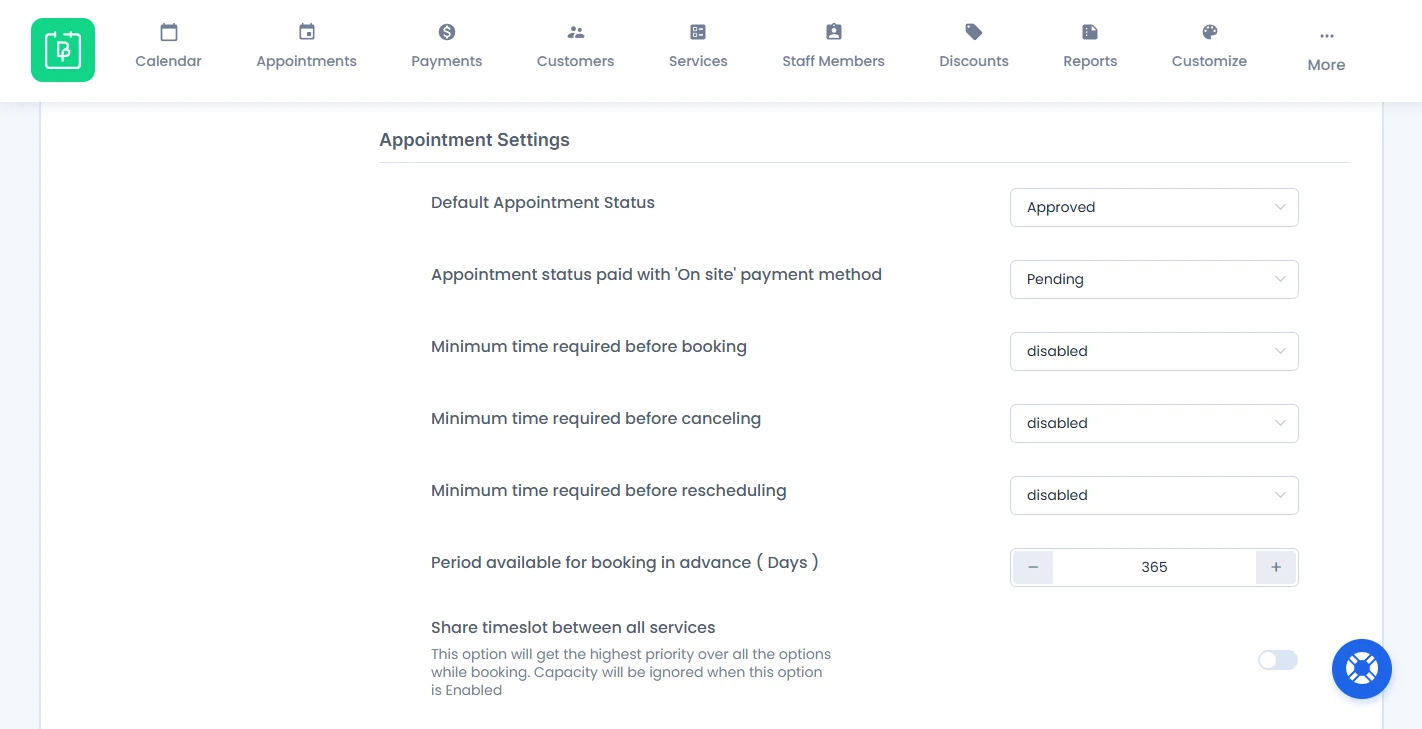
Now let’s understand each appointment setting available in the Appointment Settings panel.
Default Appointment Status
This setting controls the default status assigned to appointments after a successful booking or payment is done via online payment gateways like PayPal, Stripe, and more.
You can choose between:
- Approved: Appointments are confirmed automatically after payment.
- Pending: Appointments need to be manually approved from the admin panel.
Let’s say if the status is set to “Approved”, customers will receive confirmation right away after completing payment. On the flip side, if it’s set to “Pending”, the appointment will remain in the pending list until manually approved by you (admin).
Appointment Status Paid With ‘On Site’ Payment Method
This setting controls the default appointment status for bookings made using the “On Site” payment option.
Note: The “On Site” payment method must be enabled first from BookingPress → Settings → Payments
The On Site payment option is commonly used when customers pay in person during their visit or appointment.
You can decide whether such appointments should:
- Be approved automatically.
- Or remain pending until reviewed manually by you.
Minimum Time Required Before Booking
You can set the minimum time required before booking a slot from here. This setting allows you to set how much time in advance customers must book an appointment.
Let’s say if you set it to 2 hours, customers will not be able to book appointments within the next 2 hours.
This avoids last minute bookings and gives staff enough preparation time.
Now if you set “Minimum time required before booking” to “Inherit from general setting” from the “Service Settings” under “Advance Options”, then the service time requirement before booking will be calculated according to the minimum time required before booking set in here.
Minimum time required before canceling
You can set the minimum time required before canceling a booking from here. This setting lets you decide how long before an appointment customers are allowed to cancel their booking.
Let’s say if you set it to 24 hours, customers cannot cancel appointments within the last 24 hours before the scheduled time.
This helps avoid last minute cancellations.
Now if you set “Minimum time required before canceling” to “Inherit from general setting” in the “Service Settings” , then the time required to cancel an appointment will be calculated as per minimum time set to cancel the appointment here.
Minimum time required before rescheduling
You can set the minimum time required before rescheduling the booking slot from here. This setting controls how much time before an appointment customer can reschedule their booking.
Let’s say if the limit is set to 12 hours, customers cannot reschedule appointments within the last 12 hours before the appointment time.
This maintains schedule stability and avoids sudden changes for your schedule.
Now if you set “Minimum time required before rescheduling” to “Inherit from general setting” in the “Service Settings”, then the service time required for rescheduling the appointment will be calculated as per the minimum time set to reschedule the appointment in here.
Time Period Available for Booking in Advance (Days)
Here you can set how far in advance customers can book appointments.
Let’s say:
- If set to 30 days, customers can only book appointments within the next 30 days.
- If set to 365 days, bookings can be made up to one year in advance.
The maximum time period available for booking ahead of time is up to 1095 days (3 years). It means customers can book an appointment prior 3 years.
Share timeslot between all services
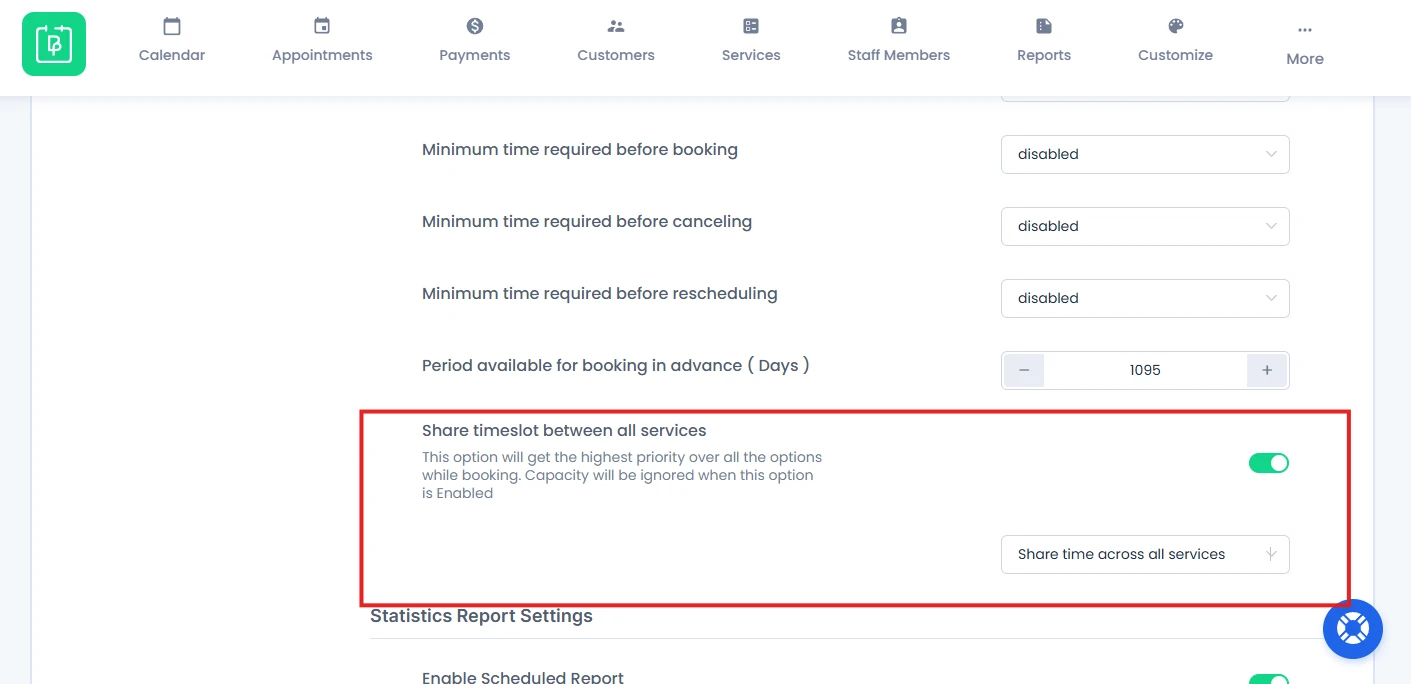
When this option is enabled, then the time will be shared across all the services.
This will cause the time slot to be blocked throughout all the services once it is booked. This can be useful for users who only have one staff working for them and cannot provide two services simultaneously at the same time.
You can also share time across categories. When this is selected instead of sharing time slots between all services it will only share between services inside a category.
Need a hand?
Our world-class support team is happy to help. Send us a message and we’ll take it from there.
 14-day money-back guarantee