

Statistics Report Settings
This Statistics Report Settings panel allows you to automatically receive booking and appointment statistics reports right inside your admin email.
You can manage all statistics reports from BookingPress → Settings → General Settings → Statistics Report Settings.
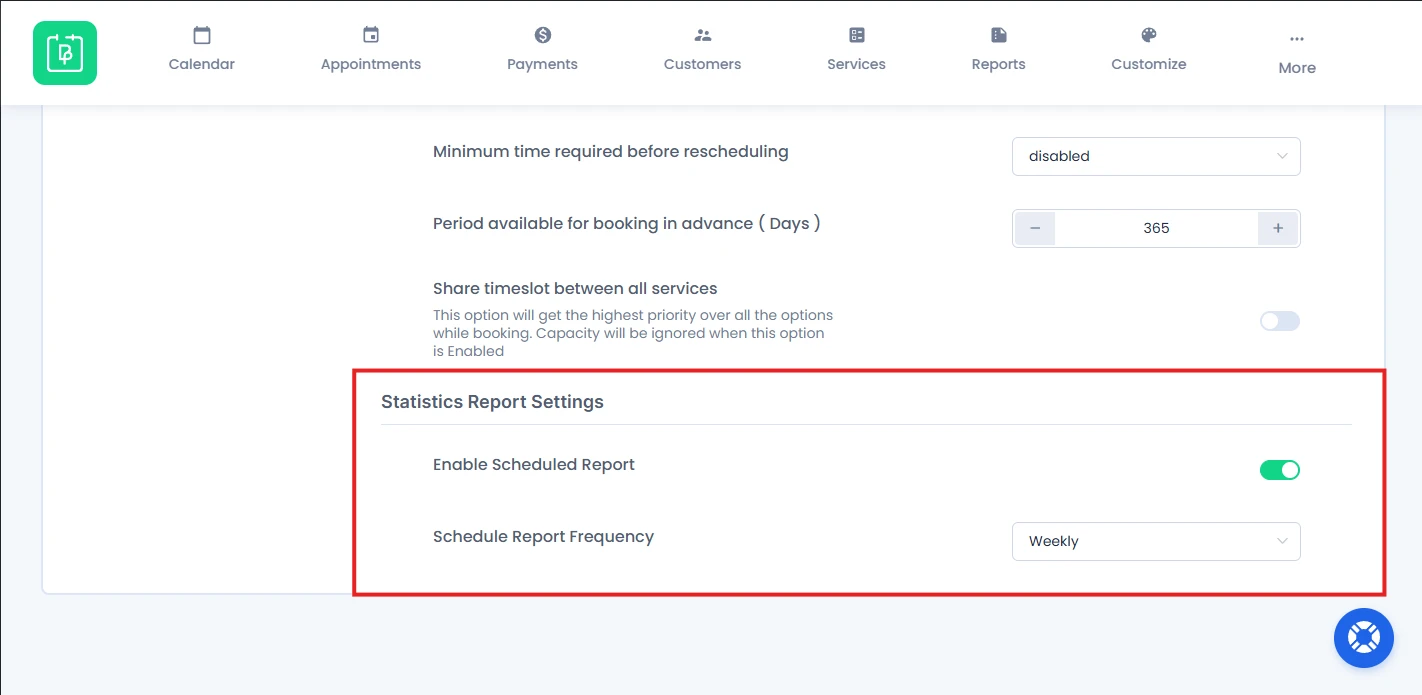
With these scheduled reports, you can keep a record of all your booking activities, track appointments and review business performance – no need to manually check your dashboard every time.
How to Enable Scheduled Reports in BookingPress
For enabling scheduled reports, you can:
- Go to the BookingPress → Statistics Report Settings→ General Settings, and then scroll down to the “Statistics Report Settings” section.
- Toggle on the “Enable Scheduled Report” option.
- Select your preferred report frequency from “Schedule Report Frequency”
- Weekly
- Biweekly
- Monthly
- At last, make sure to hit that Save button of your General Settings.
After saving the configuration, the BookingPress system will automatically send reports to your WordPress admin email based on your selected “Schedule Report Frequency”.
In simple words, all you have to do is simply toggled on the “Enable Scheduled Report”, and BookingPress will take it from here.
Please Note: Please note that the delivery of this email depends on your WordPress cron settings.
Available Schedule Report Frequencies
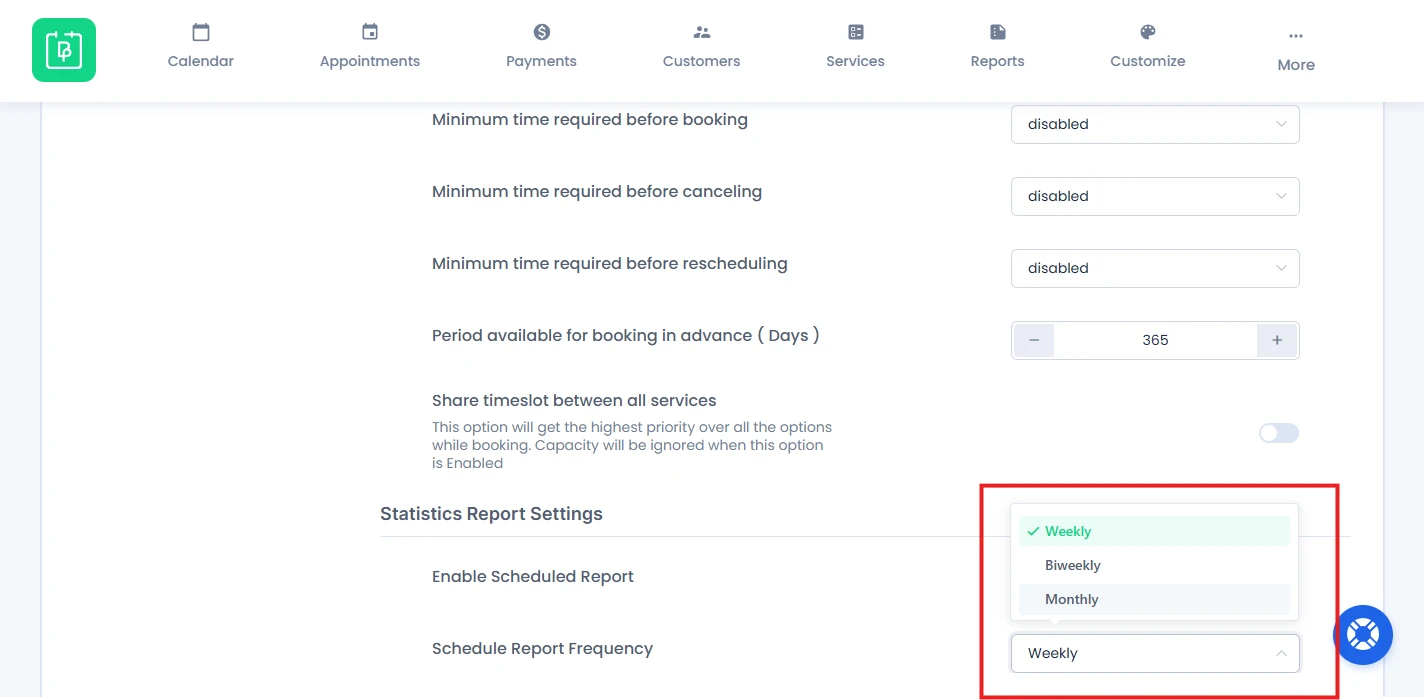
BookingPress lets you choose how often you want to receive booking statistics reports.
Weekly Reports
Select this option if you want to track appointment activity on a regular basis as well as short term business performance.
This option is useful for:
- Busy appointment businesses.
- Clinics and salons.
- Agencies with daily bookings.
- Teams managing multiple staff members.
Biweekly Reports
The Biweekly option sends reports every two weeks. Select this option if:
- You want fewer email notifications.
- Your booking volume is moderate.
- You review performance periodically rather than every week.
Monthly Reports
Choose Monthly reports if you want long term booking analysis and overall business summaries. This is best for:
- Small businesses.
- Consultants.
- Seasonal appointment services.
- Businesses with lower booking frequency.
What Information Is Included in the Statistics Report?
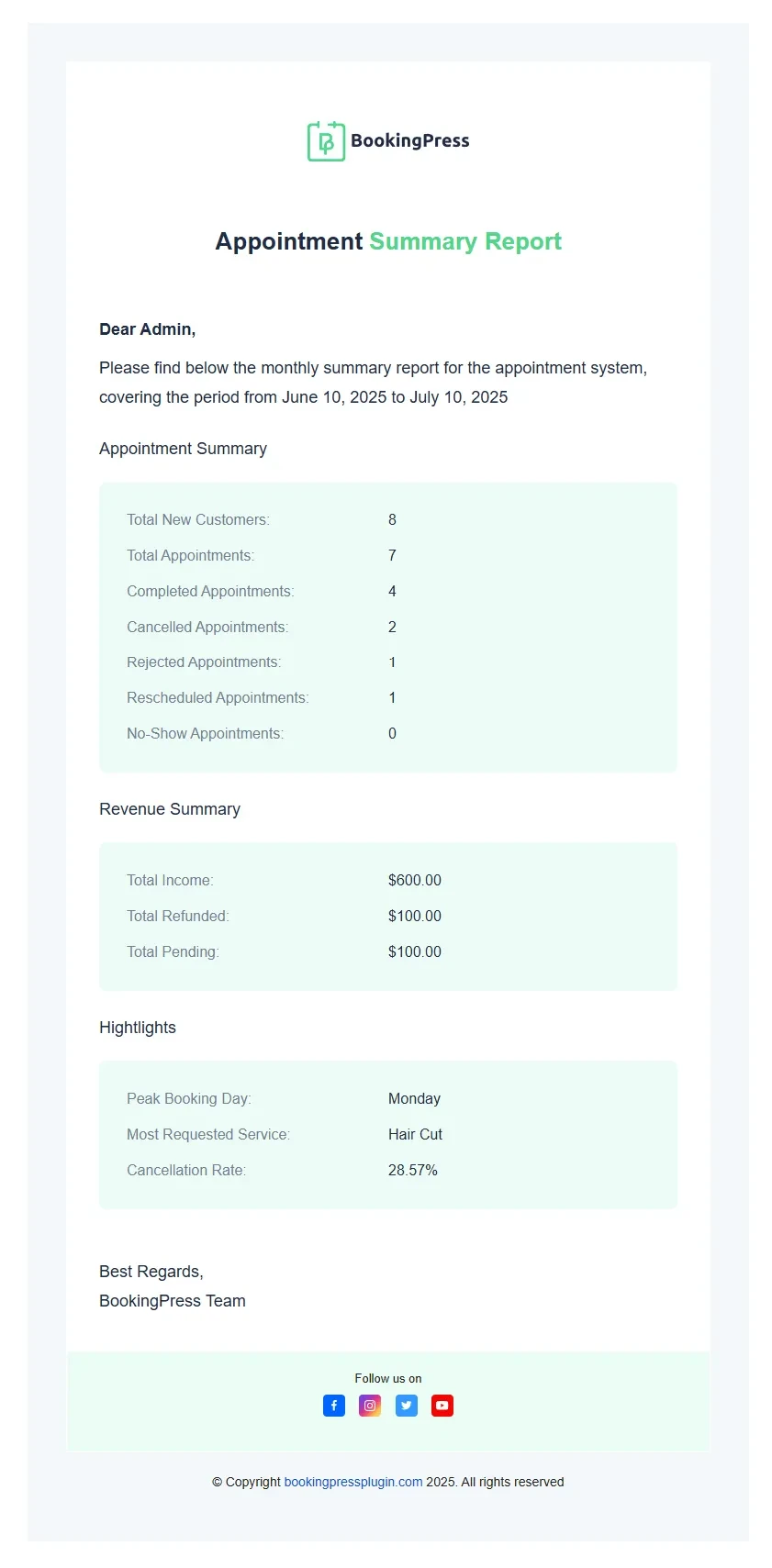
From the statistics report, you get to review appointment activity and booking performance from your BookingPress dashboard.
Depending on your booking activity, reports can are going to include:
Appointment Summary
- Total New Customers
- Total Appointments
- Completed Appointments
- Cancelled Appointments
- Rejected Appointments
- Rescheduled Appointments
- No-show Appointments
Revenue Summary
- Total Income
- Total Refunded
- Total Pending
Highlights
- Peek Booking Day
- Most Requested Service
- Cancellation Rate
These reports help you quickly understand how your appointment business is performing over time.
Why WordPress Cron Jobs Matter for Scheduled Reports
BookingPress scheduled reports depend on your WordPress cron settings.
WordPress cron jobs are responsible for running scheduled tasks automatically, including sending statistics reports.
If cron jobs are not working correctly on your website:
- Reports may be delayed.
- Scheduled emails may not be sent.
- Automated tasks may fail to execute.
Need a hand?
Our world-class support team is happy to help. Send us a message and we’ll take it from there.
 14-day money-back guarantee