

Multi-Service Booking in BookingPress
Multi-service booking lets customers select and combine multiple different services into a single continuous appointment. They select all the services they want in one visit, choose the combined date and time, make one payment (or deposit) and receive a single confirmation, covering their entire session. The BookingPress system then manages this single, continuous appointment slot accordingly in one go.
Below, we’ll show you how to set up and use a multi-service addon in BookingPress.

How to Install and Activate the Multi-Service Add-on
To set up the multi-service bookings, open Add-Ons in BookingPress’s menu and activate the Multi Service Addon. That’s it; there’s no extra setup here.
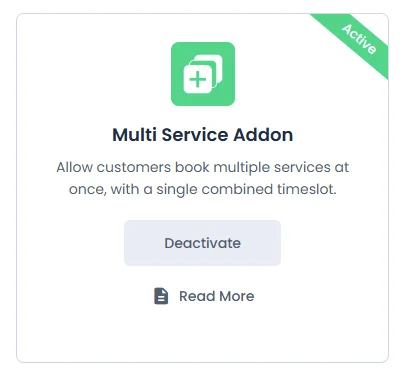
Once the addon is activated, your customers will automatically be able to select multiple services in one go during the service selection step from the front end booking form.
How Does the Customer Book Multiple Services?
After you activate the addon from the backend, there’s no additional setup. Your customers will be able to select more than one service during the Service Selection step of the booking form.
The number of selected services will also appear in the top-right corner of the form.
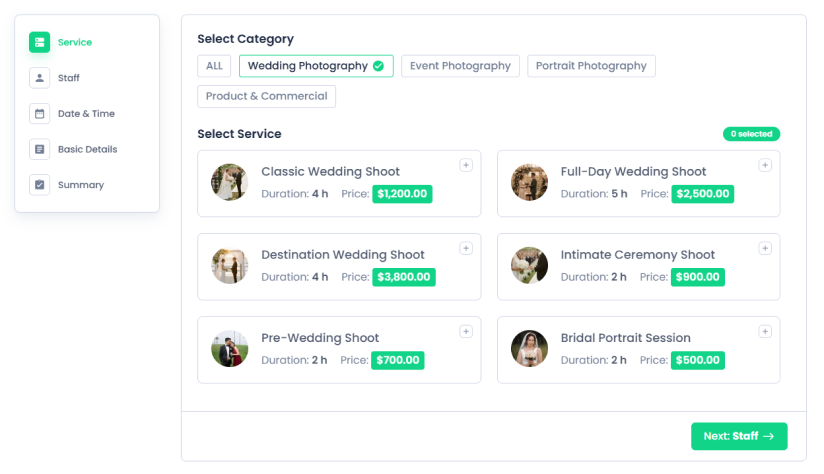
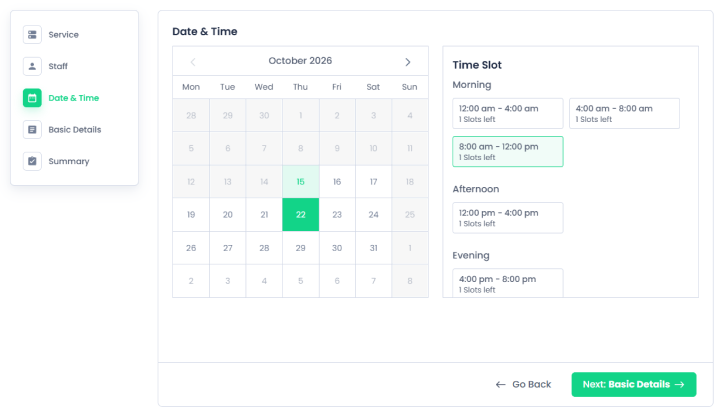
After selecting multiple services, customers can pick a timeslot that covers the combined duration of all selected services. The selected services are scheduled one after another in the order chosen by the customer.
For instance, a customer selects three services, each lasting 30 minutes. BookingPress then will look for a continuous 90-minute timeslot for the appointment, and show the available ones to customers.
Once the appointment is booked, customers can view their appointment details, such as selected services, in the My Bookings/Customer Panel.
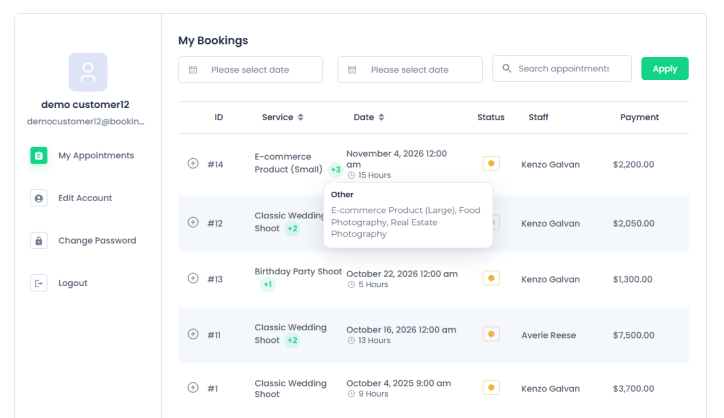
If multiple services are selected, a +1 symbol will appear next to the service name. Hovering over this symbol will show the full list of services selected for the appointment.
Multiple Staff Assignment for Multi-Service Bookings (Available from v2.0)
Before Multi-Service Addon v2.0: all services within a single multi-service booking were required to share at least one common staff member. This meant customers could only book multiple services together if a single staff member was assigned to all selected services.
Starting from Multi-Service Add-on v2.0: BookingPress supports automatic assignment of different staff members to individual services within a single multi-service booking. This allows customers to book multiple services even when they do not share a common staff member.
Important: This functionality is available only when the Staff Member Selection step is hidden in the booking form. If the Staff Member Selection step is visible, the previous behavior still applies, requiring a common staff member across all selected services.
For this behavior to apply, BookingPress Pro and the Multi-Service Booking add-on must be active, the Staff Member module must be enabled, and Customize → Booking Form → Hide staff member selection must be turned on.
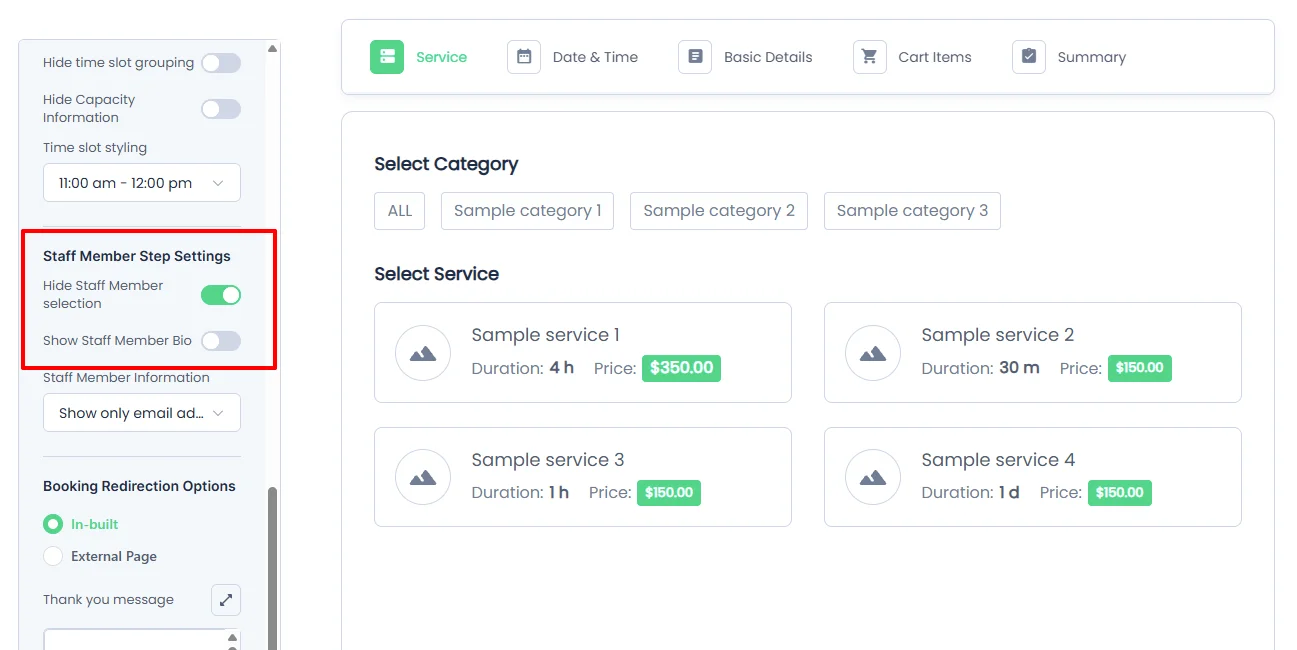
Plus, the customer must select two or more services with durations measured in minutes or hours.
Please Note: This Multi-Service Booking feature works with BookingPress Lite version 1.6.8, BookingPress Pro version 6.3, and Multi Service version 2.0
How Does Automatic Staff Assignment Work?
When the Staff Member module is activated and the “Hide Staff Member selection” option is enabled, BookingPress checks staff availability for each service at the selected time. The services remain in the order chosen by the customer, and BookingPress assigns staff members without changing that order.
For each available timeslot, BookingPress follows this priority:
- One staff member for all services: If one staff member is available for the entire appointment and can provide every selected service, that staff member handles all the services.
- Fewest staff members: If one staff member cannot handle every service, BookingPress prefers a valid assignment involving fewer staff members.
- Fewest handovers: BookingPress prefers to keep consecutive services with the same staff member where possible. For example, A → B → B is preferred over A → B → A.
- Longest first run: BookingPress prefers the assignment where the first staff member handles the longest possible sequence of services at the beginning.
- Lowest staff ID: If the previous rules do not decide the result, BookingPress uses the lowest staff ID as the final tie-breaker.
The existing staff auto-assignment rule under Settings → Staff Member, such as least assigned, most assigned, or price-based assignment, is not used for this multi-service scenario. These rules continue to apply to single-service bookings.
Example of Automatic Staff Assignment for Multiple Services
Suppose a customer selects three services, each lasting 30 minutes, and books a timeslot from 9:00 AM to 10:30 AM. Now, the staff member selection step in the booking form is hidden, and Staff A, Staff B, and Staff C are available to provide the selected services.
| Staff availability | Staff assignment |
| Staff A is available from 9:00 AM to 10:30 AM | Staff A handles all three services |
| Staff A is available only for the first service, while Staff B is available from 9:30 AM to 10:30 AM | Staff A handles Service 1, and Staff B handles Services 2 and 3 |
| Staff B, Staff C, and Staff A are each available for one service only | Staff B handles Service 1, Staff C handles Service 2, and Staff A handles Service 3 |
| No available combination of staff members can cover every service | The timeslot is unavailable or hidden if Hide already booked slots is enabled |
Staff Assignment When the Staff Member Selection Step Is Visible
If the Staff Member selection step is visible on the booking form, customers must select one staff member who can handle all the selected services.
As we said before, in this case, BookingPress does not assign different staff members to individual services within the same appointment. The selected staff member must be able to provide every selected service and be available for the entire appointment.
For instance, suppose a customer selects two services: Hair Style and Hair Color. If one staff member can provide both services and is available for the combined appointment, the customer can proceed with the booking.
However, if the only staff member who can provide both services is unavailable, the customer cannot proceed with that booking. Similarly, if Hair Style is handled by Staff Member ABC and Hair Color is handled by Staff Member XYZ, the customer cannot book both services together with different staff members while the staff member selection step is visible.
To allow BookingPress to assign different staff members to individual services automatically, you must hide the staff member selection step in the BookingPress booking form.
Please Note: If the customer selects only one service, BookingPress continues to use the existing staff auto-assignment rule set under Settings → Staff Member.
How Does Multi-Service Booking Affect Pricing and Availability?
Multi-service booking affects both pricing and availability in many ways, as follows.
How Is the Total Price Calculated?
When different staff members are assigned to different services, BookingPress calculates the price of each service according to the price configured for its assigned staff member. The total appointment price is the sum of all selected services.
For instance, if one service costs $20 with Staff A and another costs $50 with Staff B, the total appointment price will be $70.
The appointment is still saved as one booking, even when multiple staff members handle the selected services.
How Does Staff Availability Work?
BookingPress offers a timeslot only when a valid staff assignment is available for every selected service. This ensures that every offered timeslot can be booked.
Each staff member is blocked only for the duration of their assigned service. For example, if a staff member finishes their assigned service before the full appointment ends, they become available for other bookings after their service finishes, subject to their schedule and other bookings.
How Do Buffer Times Work?
The buffer times configured for the selected services are not added between or around the services in the multi-service appointment. This follows the existing Multi-Service behavior.
But, buffer times assigned with other existing bookings continue to block availability as usual.
Managing Multi-Service Appointments in the Backend
After a customer books a multi-service appointment from the front-end booking form, you can manage it just like any other single-service appointment in BookingPress.
View Multi-Service Details in an Appointment
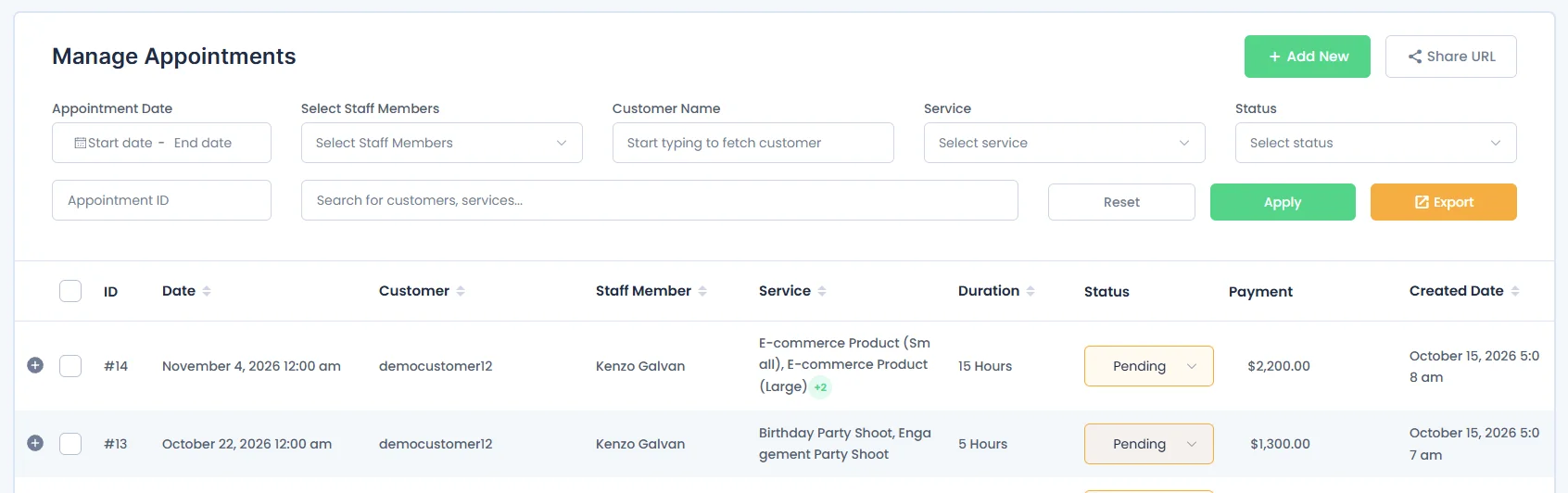
In BookingPress → Appointments, you can see appointments that include multiple services.
Appointments which have multiple services show the selected service names separated by commas. For instance, an appointment may show Hair Cut, Beard Trim, Facial Massage.
The expanded appointment view shows the details of each booked service, including its timeslot and price.
View Individual Service Details
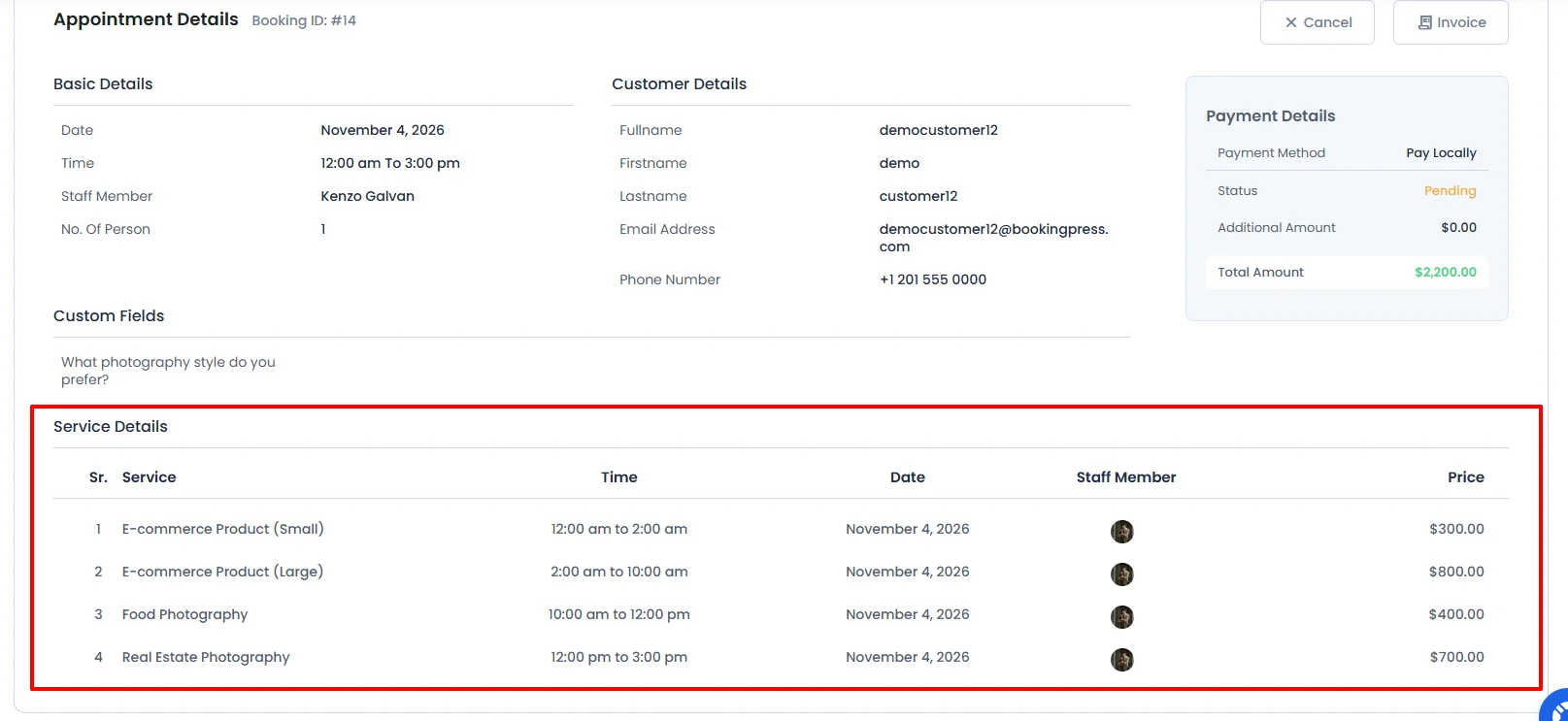
Open the appointment details to view the Service Details section. Each selected service appears in a separate row with its own time, assigned staff member, and price.
For example:
- Service 1 · 11:30 AM–12:00 PM · October 10, 2026 · Staff A · $20
- Service 4 · 12:00 PM–1:00 PM · October 10, 2026 · Staff C · $50
This lets you check how the appointment is divided between services and staff members.
Staff Members in Appointments, Payments, and Dashboard Lists
In the Appointments, Payments, and Dashboard lists, the Staff Member column shows up to two staff member names. If more staff members are assigned, a +N tag appears next to the names.
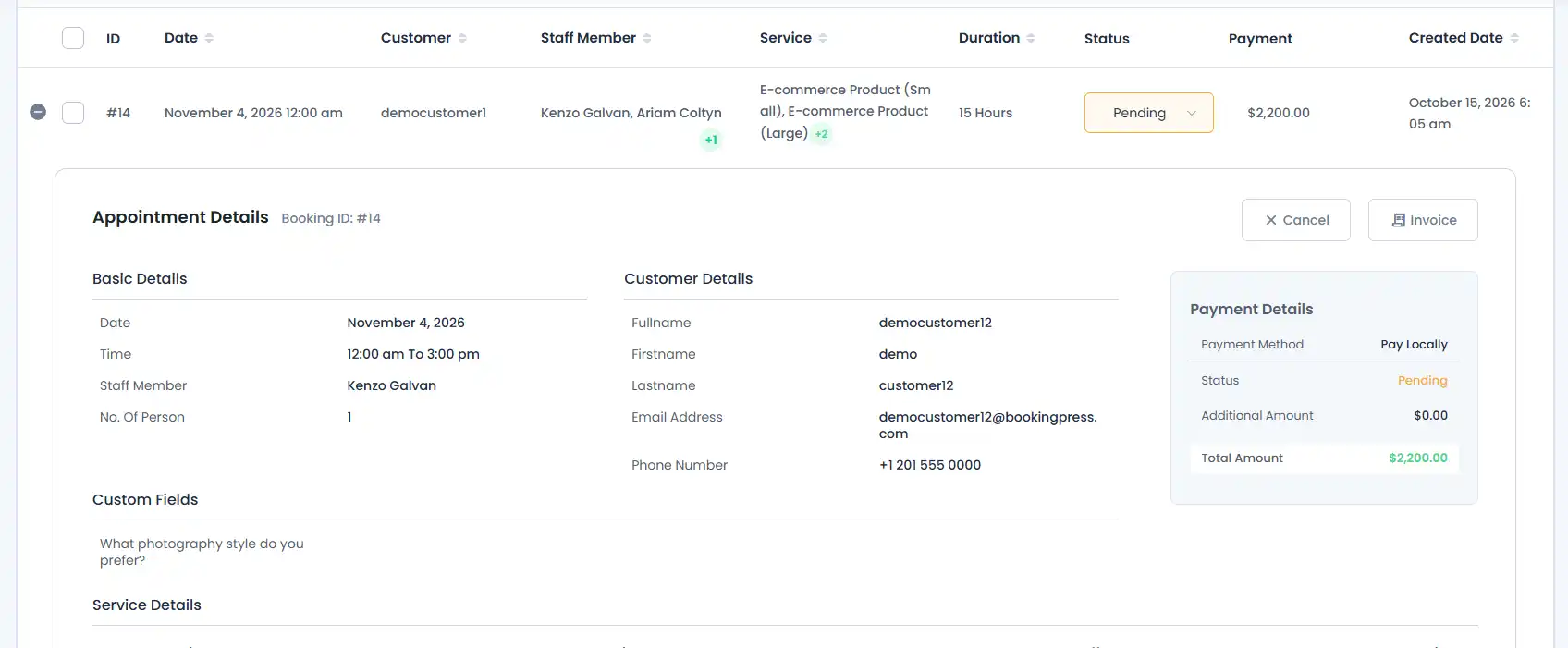
Hovering over the +N tag shows for the remaining staff members under “Other“.
The total amount shown for the appointment is the sum of the prices of all selected services at their assigned staff members’ prices.
Add Multi-Service Appointments Manually
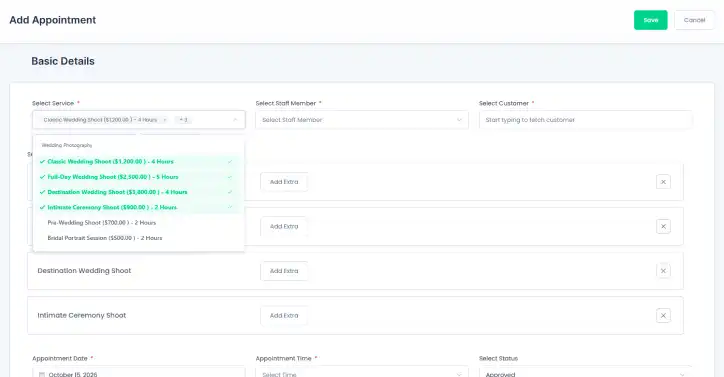
When creating an appointment from the backend, you can also select multiple services for the same appointment.
Go to the BookingPress → Appointments → Add Appointment, and create the appointment manually as you usually do.
The only new thing is now you can select more than one service, and if that service has an extra, you can select different extras for each additional service in that same continuous timeslot appointment.
Configure Notifications for Multi-Service Appointments
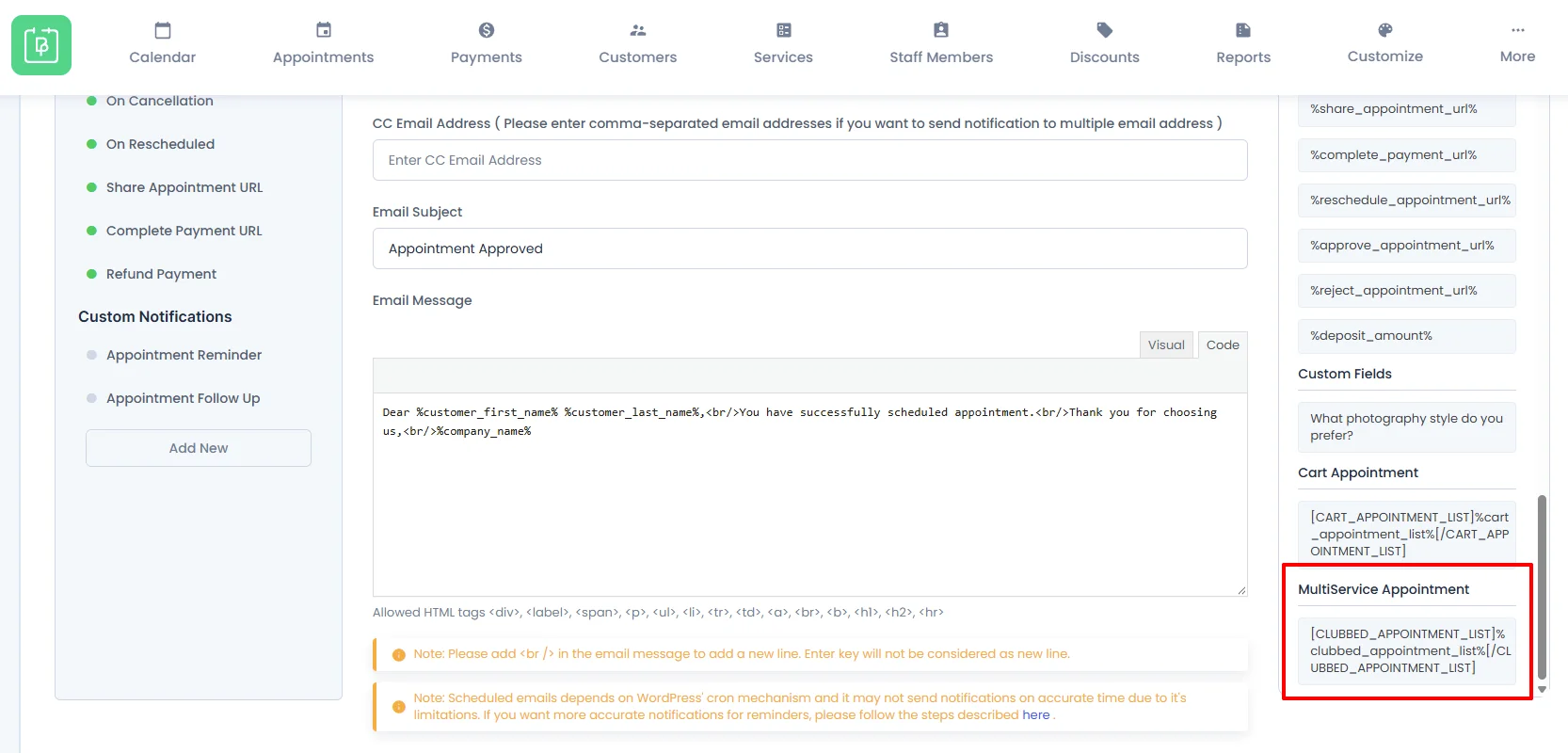
If your appointment involves multiple services and you wish to display all their names in the email notification, you can use the following shortcode.
[CLUBBED_APPOINTMENT_LIST]%clubbed_appointment_list%[/CLUBBED_APPOINTMENT_LIST]
This shortcode will automatically display the list of all selected services when multiple services are selected for an appointment.
Apart from that, when different staff members are assigned to the services in an appointment, every assigned staff member receives the staff (employee) notification, not only the first staff member.
Each staff member’s notification lists only the services assigned to them. Staff-specific placeholders such as name, email, and phone, show that staff member’s details.
The date and time placeholders show the date and time of the complete appointment.
In short, the customer notification lists all selected services, including the staff member assigned to each service and its scheduled time. This lets customers see the complete appointment details in one confirmation.
How to Reschedule a Multi-Service Appointment?
When a multi-service appointment has different staff members assigned to individual services, each service keeps its assigned staff member when the appointment is moved. BookingPress checks whether every staff member is available for their assigned service at the new time.
The appointment’s current timeslot doesn’t block itself during rescheduling.
How Does Customer Rescheduling Work?
Customers can reschedule their appointments through the My Bookings or rescheduling page. BookingPress displays only the timeslots where every assigned staff member is available for their respective service.
If any staff member is unavailable for their assigned service at a particular time, that timeslot will not be offered.
How Do I Reschedule A Multi-Service Appointment From The Back End?
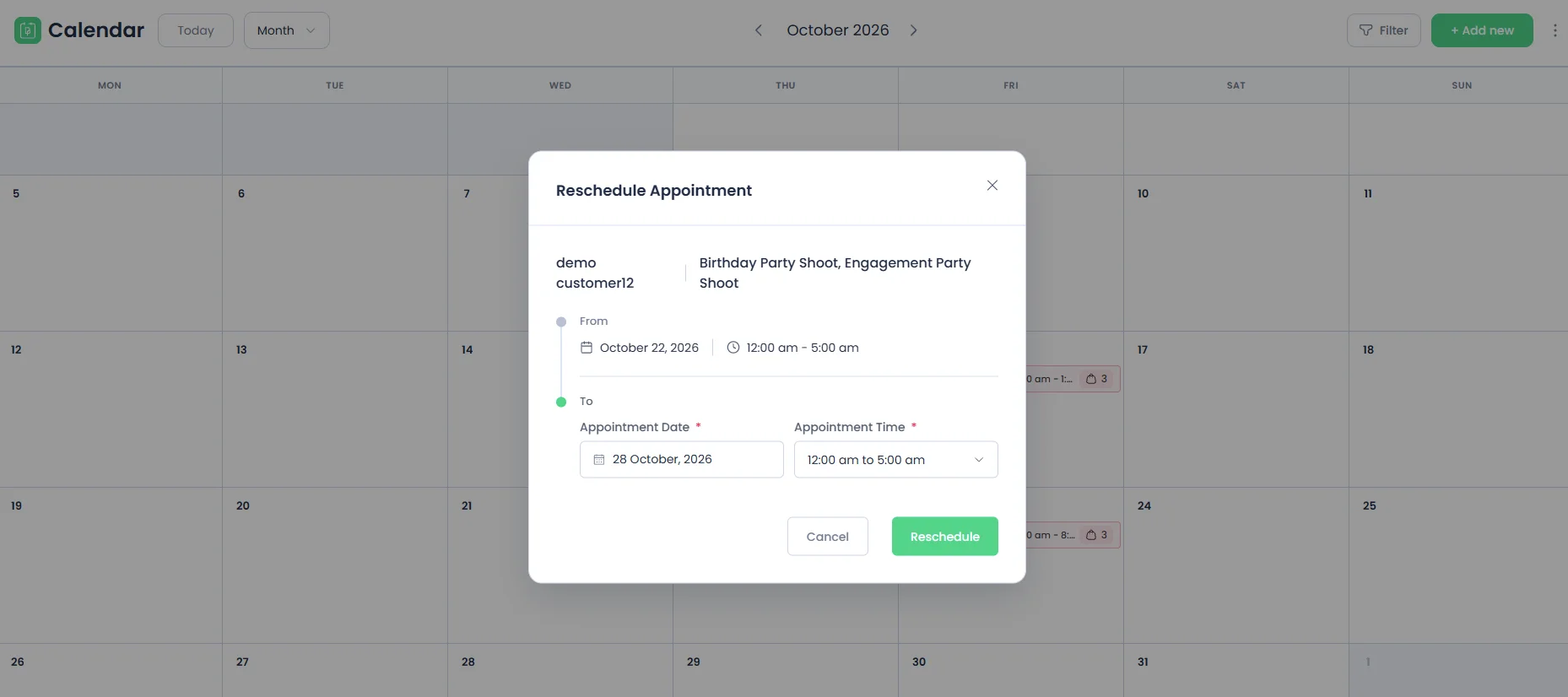
To reschedule a multi-service appointment from the back end, open the BookingPress admin Calendar and simply select or drag the appointment to the required date and time.
- If every assigned staff member is available for their respective service at the new time, the appointment can be moved.
- If any staff member is unavailable, the appointment card returns to its original position and displays an unavailable message.
The confirmation dialog automatically selects the dropped time and displays available timeslots that can accommodate the full appointment duration.
What Should I Keep In Mind When Using Multi-Service Bookings?
To avoid conflict, these are the few addons that don’t work when Multi Service Addon is activated:
- Cart Add-on
- Multi-Staff Add-on
- Deposit Add-on
- Multi Quantity Add-on
- Recurring Appointment (Backend)
- Custom Service Duration (Backend)
Now below are the features that do not work when the addon is activated and multiple services are selected:
- Recurring Appointment
- Custom Service Duration
Note: When the shared timeslot between all services is configured to share by category, a Multi-Service appointment blocks only the category of the first selected service for the entire appointment duration.
Need a hand?
Our world-class support team is happy to help. Send us a message and we’ll take it from there
 14-day money-back guarantee