

BookingPress AI Assistant integration makes it possible to check availability and manage appointments through an AI assistant, such as Claude or Cursor. Just describe what you need in simple words and the assistant can carry out supported actions in BookingPress.
These actions cover everything from finding open slots and managing appointments to updating booking statuses and handling supported payments. Your existing booking rules and user permissions remain in place.
A few things to know:
- BookingPress AI Assistant integration is included in BookingPress Lite and Pro
- Takes about only about 10 minutes to set up
- Nothing to enable in BookingPress. Just connect your compatible AI assistant to get started.
What Can You Do with an AI Assistant in BookingPress?
The BookingPress AI Assistant integration lets you to manage appointments and access booking details by just asking the AI assistant to perform actions.
Note: Actions marked PRO need BookingPress Pro, and those marked with an add-on name, such as Location, need that add-on. Everything else works with the free version.
Here’s what you can do with it:
Services
Explore services and staff
- List service categories
- List and search services
- View service details
- List staff members (PRO)
- List locations (Location)
Availability and Pricing
Check slots and service costs
- Find available time slots
- Find the next available slot
- Get service price quotes
- Include staff prices, extras, coupons, and deposits (PRO)
- Include taxes (Tax)
Appointments
Manage existing and new bookings
- List and search appointments
- Look up appointment details
- Book appointments
- Change appointment status
- Cancel appointments
- Reschedule appointments (PRO)
Payments (PRO)
Handle supported payment actions
- Create payment links for unpaid appointments
- Process full refunds
- Process partial refunds
How the BookingPress AI Integration Works
The BookingPress AI Assistant integration uses the WordPress Abilities API and the WordPress MCP Adapter to connect BookingPress with compatible external AI assistants.
In simple words, BookingPress provides a set of booking actions, called abilities, with WordPress. And, the free MCP Adapter plugin makes these abilities available to your AI assistants through the Model Context Protocol (MCP).
Worth mentioning, MCP is an open standard for connecting AI tools to other software like BookingPress WordPress appointment scheduling plugin.
Thus, when you ask an AI chat-bot/assistant to check the availability or manage an appointment, it uses the available tools to send the request to BookingPress. Later, the BookingPress system processed this request as per its existing booking rules, authentication requirements and user permissions.
Important: This is not a chatbot for your website. Nothing changes on your booking pages, and your customers won’t see anything new. This simply connects an AI assistant you use to your BookingPress data.
Overall, this BookingPress integration works through three main components:
- AI assistant – You use any compatible assistant such as Claude or Cursor, to request booking-related data or actions.
- WordPress MCP Adapter – This WordPress plugin connects the AI assistant to the abilities registered in WordPress.
- BookingPress – Lastly, it handles the requested booking actions and applies the existing booking rules and permissions.
The best part? AI assistant works through the supported actions exposed by WordPress so, it doesn’t need any direct access to your BookingPress database.
Before You Get Started
Make sure you have the following before connecting your AI assistant to BookingPress:
- WordPress 7.1 or later. BookingPress only registers its abilities on WordPress 7.1 and newer.
- BookingPress 1.6.9 or later, and BookingPress Pro 6.4 or later for the Pro abilities.
- The MCP Adapter plugin, installed and active. Step 1 below shows how.
- An MCP-compatible AI assistant, such as Claude Desktop, Claude Code, Cursor or VS Code.
- Node.js 22 or later on the computer where the assistant runs. Download it from nodejs.org.
- A WordPress user with the access you want the assistant to have. See Who can do what.
- Your website’s full address, for example https://example.com.
Please Note: Some features need BookingPress Pro or specific add-ons. Make sure the required version and add-ons are active before trying to use those actions.
How to Connect the AI Assistant to BookingPress
You can easily connect BookingPress to your AI assistant by installing the WordPress MCP Adapter, generating a WordPress Application Password, and adding BookingPress’s MCP endpoint to your assistant’s configuration. Once connected, the assistant can discover BookingPress’s supported tools and perform actions allowed by the authenticated WordPress user.
Here’s how to connect an AI Assistant to BookingPress step-by-step:
Step 1. Install the MCP Adapter plugin
First off, you need to activate the MCP Adapter plugin on your WordPress setup.
- From your WordPress dashboard, go to the Plugins → Add New.
- Search for “MCP Adapter” WordPress plugin.
- Click “Install Now”, followed by “Activate”.
The MCP Adapter is the official WordPress plugin for connecting AI assistants. BookingPress uses it as is, with no extra settings.
Step 2. Create an Application Password
You can create WordPress Application Passwords easily from your WordPress dashboard. Here’s how to do it:
- Go to the WordPress → Users → Profile for the user the assistant should act as.
- Scroll down to Application Passwords.
- Enter a name you’ll recognise, such as “Claude – BookingPress”.
- Click Add New Application Password.
- Copy the generated password that appears because WordPress only shows it once (Store it securely).
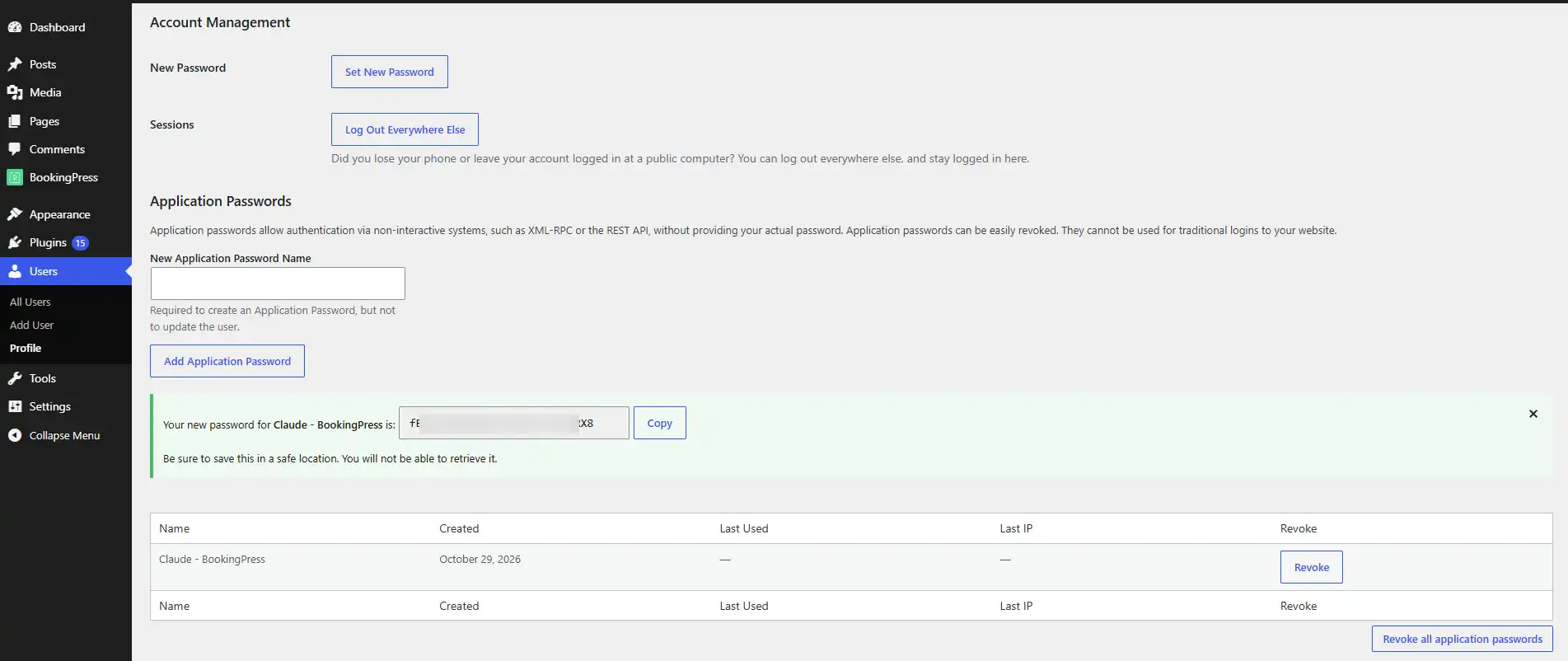
Please Note: The assistant signs in with a WordPress Application Password, not your normal login password.
Please Note: Treat this password like any other password. Don’t share it or paste it into chats. If you think it has leaked, revoke it from the same screen.
Step 3. Add BookingPress to your AI assistant
Now, you need to connect BookingPress to the AI assistant you want to use. Just pick your AI assistant and follow the steps to add BookingPress to its MCP configuration.
In each example, replace the following details with your own:
- https://example.com with your website address
- your-username with the WordPress username from Step 2
- xxxx xxxx xxxx xxxx xxxx xxxx with the Application Password from Step 2
1. Claude Desktop
1. First of all, open Claude Desktop and go to Settings → Developer → Edit Config. This will open the claude_desktop_config.json file.
2. Add the below configurations inside mcpServers. If the file already has other servers, keep them and add this BookingPress entry alongside. Copy the following configuration below:
{
  "mcpServers": {
    "bookingpress": {
      "command": "npx",
      "args": ["-y", "@automattic/mcp-wordpress-remote@latest"],
      "env": {
        "WP_API_URL": "https://example.com/wp-json/mcp/mcp-adapter-default-server",
        "WP_API_USERNAME": "your-username",
        "WP_API_PASSWORD": "xxxx xxxx xxxx xxxx xxxx xxxx",
        "OAUTH_ENABLED": "false"
      }
    }
  }
}
3. At last, don’t forget to Save the file, and completely quit and reopen Claude Desktop to apply the changes.
2. Claude Code
If you’re using Claude Code, you can connect BookingPress directly from your terminal.
1. Open your terminal and run the following command:
2. Copy the command:
claude mcp add-json bookingpress '{
  "command": "npx",
  "args": ["-y", "@automattic/mcp-wordpress-remote@latest"],
  "env": {
    "WP_API_URL": "https://example.com/wp-json/mcp/mcp-adapter-default-server",
    "WP_API_USERNAME": "your-username",
    "WP_API_PASSWORD": "xxxx xxxx xxxx xxxx xxxx xxxx",
    "OAUTH_ENABLED": "false"
  }
}'
3. Once the command runs, start Claude Code by typing claude in your terminal. Then, type /mcp to check whether bookingpress is connected.
3. Cursor
To connect BookingPress to Cursor:
1. Firstly, open Cursor Settings → Tools & MCP → Add Custom MCP. This will open the mcp.json configuration file.
2. Add the following configuration inside mcpServers. If you already have other MCP servers configured, keep them and add the bookingpress entry alongside them. Simply copy the following configuration:
{
  "mcpServers": {
    "bookingpress": {
      "command": "npx",
      "args": ["-y", "@automattic/mcp-wordpress-remote@latest"],
      "env": {
        "WP_API_URL": "https://example.com/wp-json/mcp/mcp-adapter-default-server",
        "WP_API_USERNAME": "your-username",
        "WP_API_PASSWORD": "xxxx xxxx xxxx xxxx xxxx xxxx",
        "OAUTH_ENABLED": "false"
      }
    }
  }
}
3. Save the file to apply the configuration.
4. VS Code
In VS Code, you need to create an MCP configuration file inside your project.
1. First, create a file named .vscode/mcp.json in your project folder.
2. Paste the following configuration into the file and save it. Now just copy and paste the following:
{
  "servers": {
    "bookingpress": {
      "type": "stdio",
      "command": "npx",
      "args": ["-y", "@automattic/mcp-wordpress-remote@latest"],
      "env": {
        "WP_API_URL": "https://example.com/wp-json/mcp/mcp-adapter-default-server",
        "WP_API_USERNAME": "your-username",
        "WP_API_PASSWORD": "xxxx xxxx xxxx xxxx xxxx xxxx",
        "OAUTH_ENABLED": "false"
      }
    }
  }
}
3. Unlike the other configurations above, VS Code uses servers instead of mcpServers. Thus, to start the connection, click Start above the bookingpress entry. Alternatively, open the Command Palette and run MCP: List Servers.
Note: Don’t commit this file to a shared repository, as it contains your Application Password.
Why set OAUTH_ENABLED to false?
The connector tries to sign in with OAuth by default. Setting OAUTH_ENABLED to false tells it to use your WordPress Application Password instead. Without this setting, a browser window may open asking you to authorize the connection, and the setup may fail.
Using another MCP-compatible assistant? Add the same command, args, and env values to its MCP settings, following that assistant’s configuration format.
Step 4. Test Your BookingPress AI Connection
After you finally add and set the configurations, always remember to test the connection to make sure everything works correctly.
Start with read-only requests so you can check the results without changing any bookings.
- Open a new chat with your AI assistant. You should see bookingpress in its list of tools or connectors.
- Ask: “List my BookingPress services.” Compare the answer with BookingPress → Services.
- Ask: “What time slots are free tomorrow for [one of your services]?” Compare it with your booking form.
- Once the answers match, try a change on a test appointment, such as booking and then cancelling it.
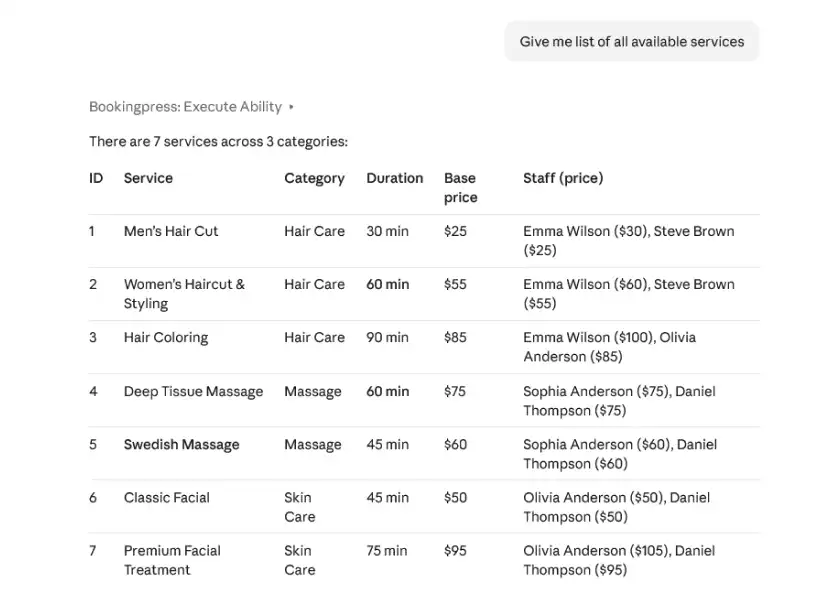
Your AI assistant may ask you to approve an action before carrying it out. Review each request before approving it, especially when cancelling appointments or processing refunds.
What Can Admin, Staff Member, and Customers Access?
The actions an AI assistant can perform depend on the WordPress user account connected to BookingPress. That’s why the same permissions apply as when managing appointments from your WordPress dashboard or the customer’s My Bookings page.
Thus, here’s what each user role can access:
| Action | Administrator | Staff Member (PRO) | Customer |
| Browse services, staff, locations, time slots, and prices | Yes | Yes | Yes |
| List and view appointments | All appointments | Assigned appointments | Their own appointments |
| Book an appointment | Yes | If allowed to add appointments | No |
| Change appointment status | Yes | If allowed to manage appointments | No |
| Cancel an appointment | Yes | Assigned appointments | Their own, if cancellation is allowed |
| Reschedule an appointment (PRO) | Any upcoming appointment | Assigned appointments, with the Edit Appointment permission | Their own, if rescheduling is allowed |
| Create a payment link (PRO) | All appointments | Assigned appointments | Their own appointments |
| Refund a payment (PRO) | Yes | Assigned appointments, with the Refund Payments permission | No |
Please Note: A “customer” is a WordPress user linked to a BookingPress customer. This way you can control whether customers are allowed to cancel or reschedule appointments under BookingPress → Customize → My Bookings.
Using the Location and Tax Add-ons with AI
If you’re using BookingPress Location and Tax add-ons, your AI assistant can automatically pick them up once they’re active. Yes, that’s it. All you have to do is to ensure these two add-ons are activated. No extra setup.
Using the BookingPress Location Add-ons
If you have the Location add-on installed and active, you can ask the AI assistant to list your BookingPress locations, making it a lot simple and easy to check which locations are available when managing bookings.
With this, your AI can fetch data such as:
- See your locations with their address, phone, description, and the services and staff members at each one.
- Find services at a location. Service lists also show which locations offer each service.
- Check availability at a location, using that location’s own working hours.
- Book at a location. When the add-on is active, every new booking needs a location, just like your booking form.
For example, you can ask:
– “List all my BookingPress locations.”
– “Which locations are available for my services?”
Using the BookingPress Tax Add-on
If you have the Tax add-on installed and active, the AI assistant can include tax information when retrieving supported service price quotes.
With this, your AI can fetch data such as:
- Price quotes include tax. Exclusive tax is added to the total. Inclusive tax is shown as the part of the total that’s tax.
- Deposits work as on your booking form. Exclusive tax is added to the amount due later, not to the deposit.
- Bookings include tax. Appointments created by the assistant are saved with tax, the same way as in the dashboard.
For example, you can ask:
– “Give me a price quote for a consultation, including taxes.”
– “What is the total price for this service with taxes included?”
Please Note: Tax in quotes and bookings needs BookingPress Pro. The assistant always uses your standard tax rate. Country-based and location-based tax rates aren’t supported yet.
What Should You Know Before Using the BookingPress AI Integration?
Here are some important things to know when using BookingPress AI Assistant. Simply keep the following points in mind when asking the AI assistant to manage your appointments:
- Your booking rules still apply. The assistant can only book or reschedule appointments in time slots that your booking form would normally offer. Minimum cancellation and rescheduling time limits also apply to staff members and customers. With BookingPress Pro, the minimum cancellation time limit applies to administrators too.
- The customer must already exist. To book an appointment, provide the customer’s email address or customer ID. The assistant cannot create new customer records.
- New appointments start with Pending status. You need to approve them yourself or ask the assistant to change their status.
- Staff selection may be required. If the Staff Members module is enabled in BookingPress Pro, specify the staff member for the appointment. If you aren’t sure who’s available, ask the assistant to list the staff members first.
- Location selection may be required. If you’re using the Location add-on, specify the location for the appointment. You can also ask the assistant to list your available locations first.
- Payment links aren’t sent automatically. The assistant provides the payment link for you to share with the customer. It can create a link only for a pending appointment with an unpaid balance, when an online payment gateway is enabled and the Complete Payment page is configured.
- Rescheduling sends the usual email notifications. When an appointment is rescheduled, BookingPress sends the standard “Appointment Rescheduled” emails to the customer and administrator, according to your notification settings.
- Some actions aren’t supported. You can’t reschedule day-long services, create payment links or process refunds for cart bookings, or refund the same payment more than once.
- Large lists are returned in pages. The assistant returns up to 100 items per page. To narrow down results, specify a date range, such as “next week” or “in November.”
- Ask for one change at a time. The assistant can often handle requests with multiple steps, but separate requests make it easier to review each result and confirm that the changes are correct.
Secure Your BookingPress AI Connection
Want to keep your BookingPress AI connection secure?
Start by giving the assistant only the access it needs – there’s no need to connect an administrator account unless required.
Create a unique Application Password for each assistant so you can revoke access to one without affecting the rest.
You can manage unused passwords under Users → Profile → Application Passwords.
Before confirming an action, double-check all appointment and payment details, since cancellations and refunds may not be reversible. And don’t forget to enable HTTPS on your live website to protect your login details in transit.
FAQs
Is the BookingPress AI Assistant integration available in the free version?
Yes. The integration is available in BookingPress Lite and Pro. However, some actions require BookingPress Pro or specific add-ons. For example, appointment rescheduling and payment actions require BookingPress Pro, while location and tax-related actions require their respective add-ons.
Do I need to install a separate plugin to connect BookingPress to an AI assistant?
Yes. You need to install and activate the WordPress MCP Adapter plugin. You also need a compatible AI assistant and Node.js 22 or later on the computer where the assistant runs.
Which AI assistants can I connect to BookingPress?
You can connect BookingPress to compatible AI assistants, including Claude Desktop, Claude Code, Cursor, and VS Code. Other MCP-compatible assistants may also work if they support the required configuration.
Does the integration add an AI chatbot to my booking website?
Nope, the integration connects an AI assistant you use to BookingPress. It does not add a chatbot to your website or change your existing booking pages.
Can the AI assistant access all my BookingPress appointments?
That depends on the WordPress user account connected to the assistant. You can access appointments according to their permissions, while staff members and customers have more limited access. The integration follows the connected user’s permissions.
Can customers use the AI assistant to manage their appointments?
Customers can access their own appointments only when they use a supported connection with a WordPress user account linked to their BookingPress customer record. Their ability to cancel or reschedule appointments also depends on your My Bookings settings and the actions available to their account.
Can the AI assistant book, cancel, or reschedule appointments?
Yes, if the requested action is supported and the connected user has the required permissions. Appointment booking and cancellation are supported actions. Rescheduling requires BookingPress Pro. Always review the appointment details before approving a change.
Can the AI assistant process refunds or create payment links?
Yes, indeed. With BookingPress Pro, the integration supports creating payment links for unpaid appointments and processing full or partial refunds. The connected user must have permission to perform the requested payment action.
Why can’t my AI assistant connect to BookingPress?
First off, check that WordPress 7.1 or later and the required BookingPress version are installed. Make sure the MCP Adapter plugin is active and your Application Password and WordPress username are correct.
Also, check that your MCP configuration uses the correct website address and endpoint:
https://example.com/wp-json/mcp/mcp-adapter-default-server
Replace example.com with your website’s address. Make sure OAUTH_ENABLED is set to “false” when using the Application Password configuration described in this guide. Then restart the assistant or reconnect the MCP server.
Why can’t my AI assistant perform a particular action?
The action may not be supported by the integration, or it may require BookingPress Pro, a specific add-on, or additional permissions for the connected WordPress user. Check the feature requirements and the user’s permissions before trying again.
Is my BookingPress database directly accessible to the AI assistant?
No direct database access is required for this integration. The AI assistant uses the supported actions exposed through WordPress and the MCP Adapter to request information or perform booking operations.
 14-day money-back guarantee