
Refund Payments in Just a Few Clicks
Refunding customer payments in BookingPress is as easy as a few clicks. Enable the refund option, set your cancellation rules, and manage customer refunds smoothly without any complicated setup.
How to Set Up Refund Policy in BookingPress
BookingPress allows you to make your own refund policy rules so your customers can receive refunds when they cancel appointments.
Here are the steps to enable refund policy for appointments:
1. Head over to the BookingPress → Settings → Payments
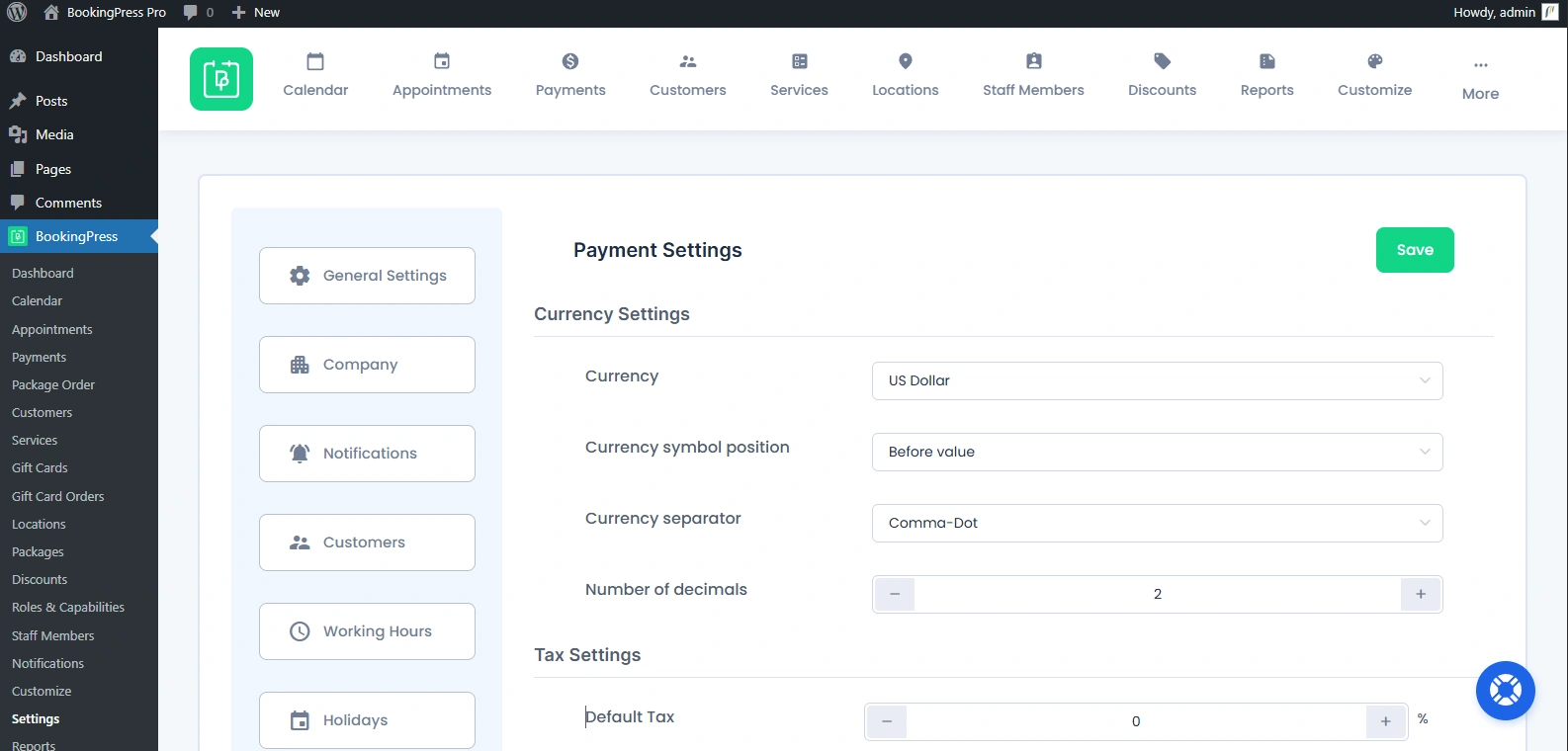
2. Scroll till you find the “Appointment Cancellation Refund Policy” section
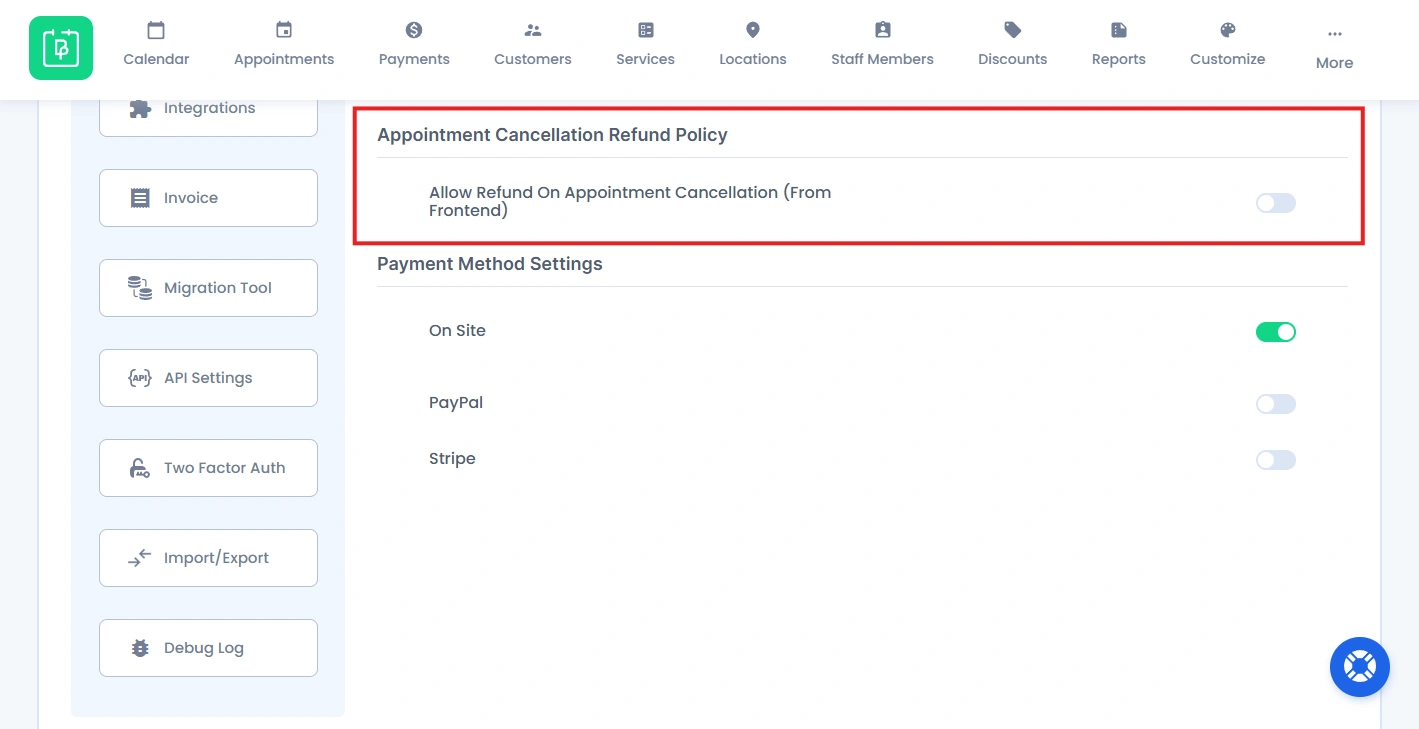
3. For initiating refund automatically when a customer cancels an appointment, toggle on the “Allow Refund On Appointment Cancellation (From Frontend)“.
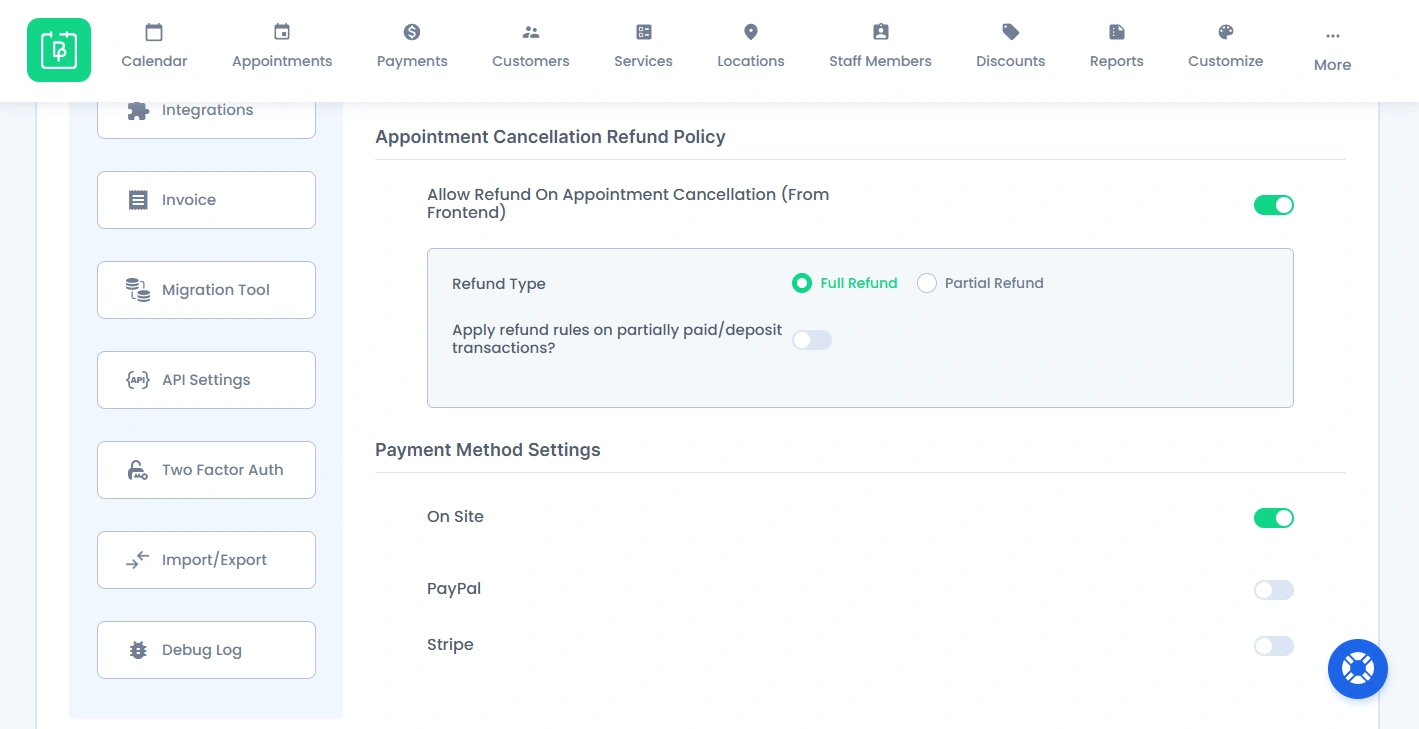
- Now select the available refund type:
- Full Refund
- Partial Refund
Now before selecting the type of refund for your appointments, below is what exactly it means, and how to set each refund type.
Full Refund
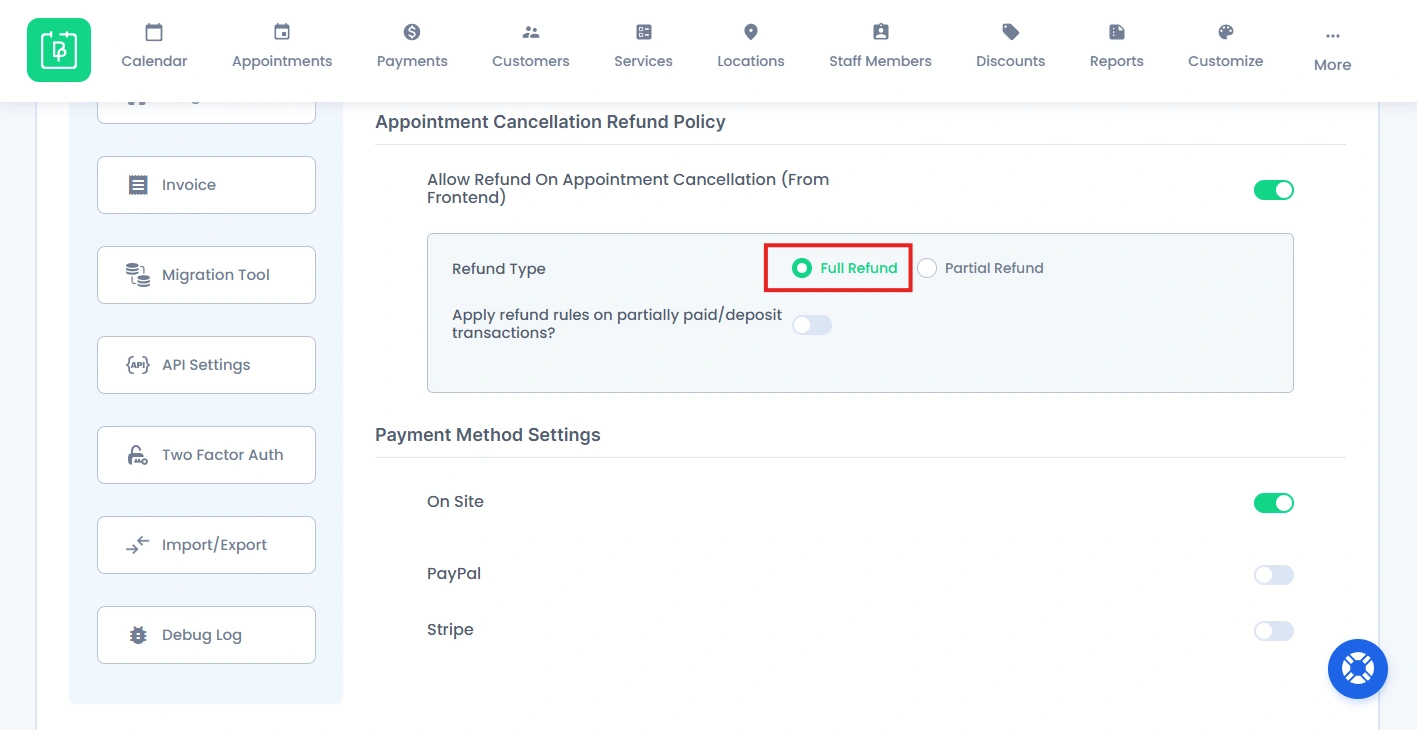
If you select the “Full Refund” option under the Appointment Cancellation Refund Policy, your customers will get their full payment amount when they cancel an appointment. No consequence no matter on which time they cancel. Yet also giving them flexibility.
Partial Refund
Partial refund, on the other hand if selected, allows your customers to get only a portion of their payment based on rules you configure. You can use this refund type when you want to apply cancellation charges or time based refund conditions.
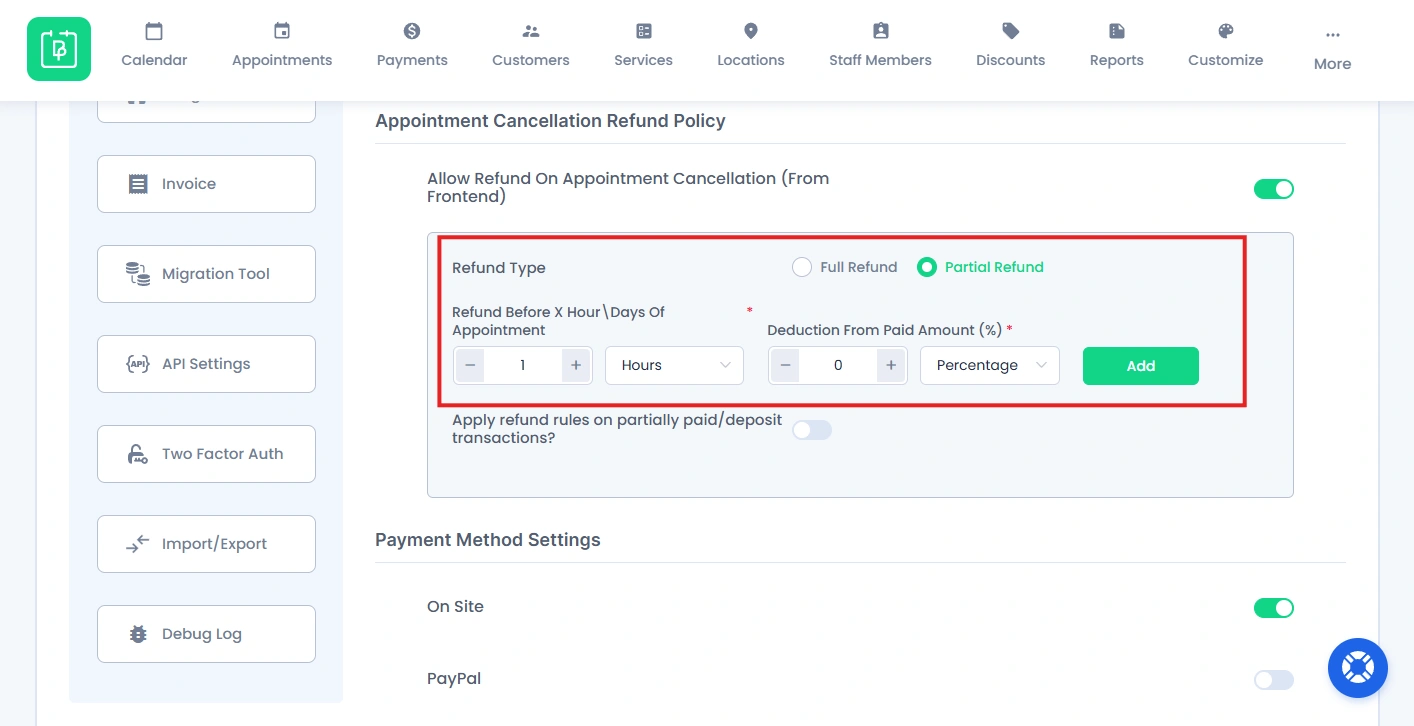
Partial refunds are controlled by the following two key settings:
Refund Duration (When refund is allowed)
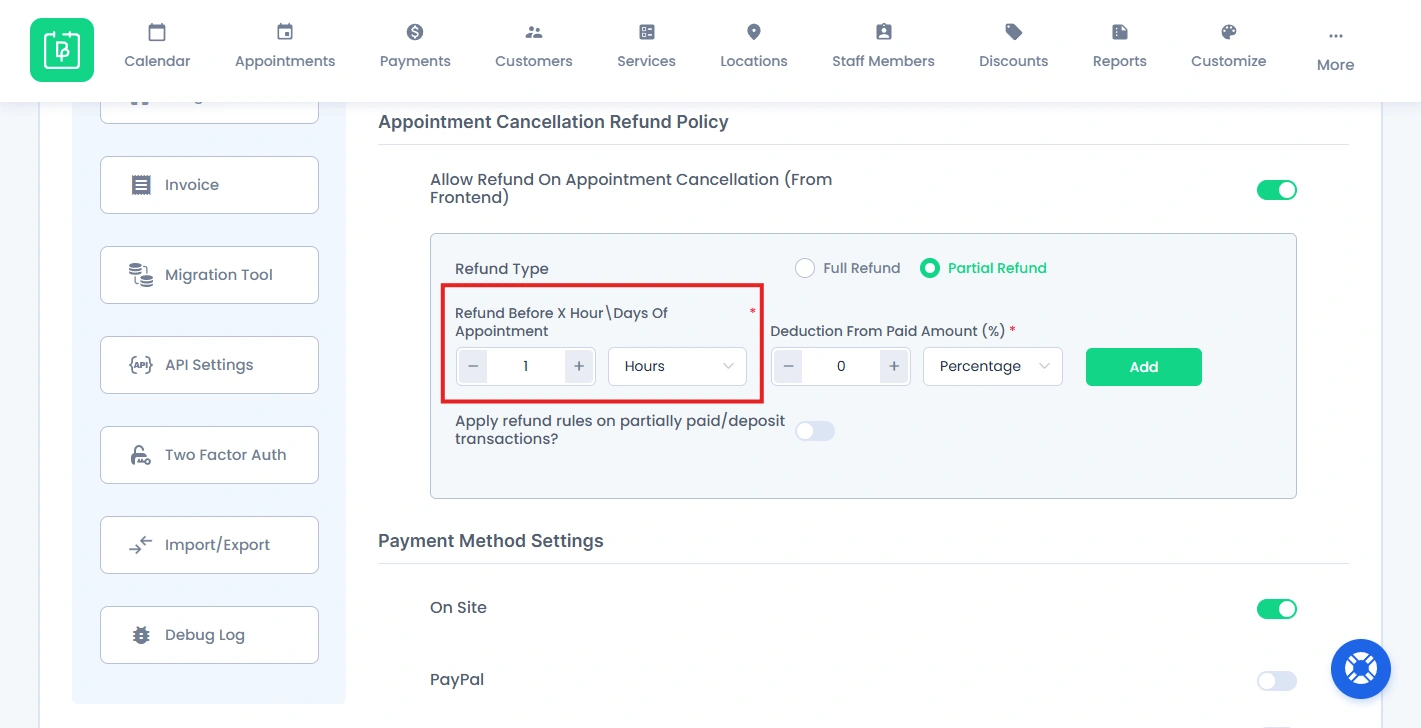
The Refund Before X Hour\Days Of Appointment section lets you decide the time window for the refund.
You can set duration in Hours or Days
If a customer cancels before this duration, the amount is fully refunded. However, if the appointment is cancelled after this duration, the specified amount will be deducted.
Refund Amount (How much is refunded)
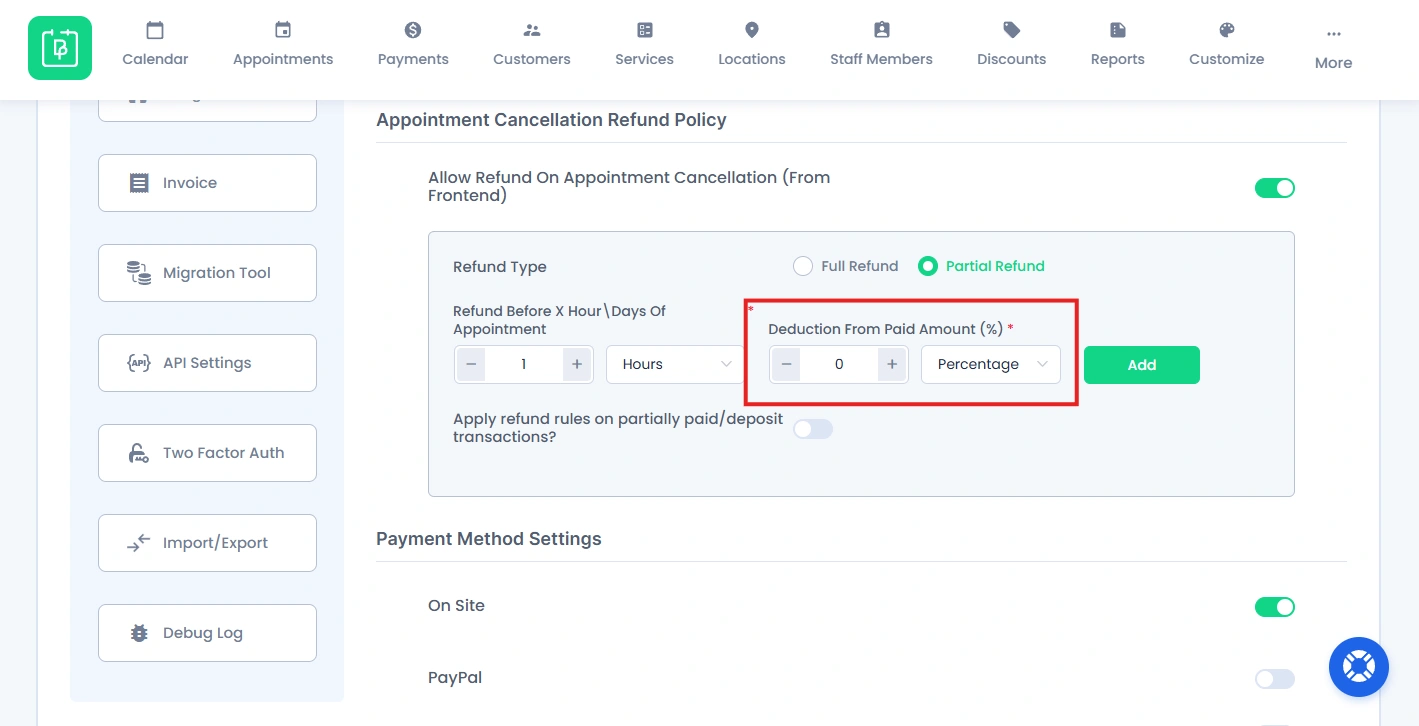
The Deduction From Paid Amount (%) section lets you decide how much money the customer will receive after refund.
- Fixed Percentage. (e.g., 50% refund)
- Fixed Amount. (e.g., ₹500 refund)
Creating Multiple Refund Rules (Advanced)
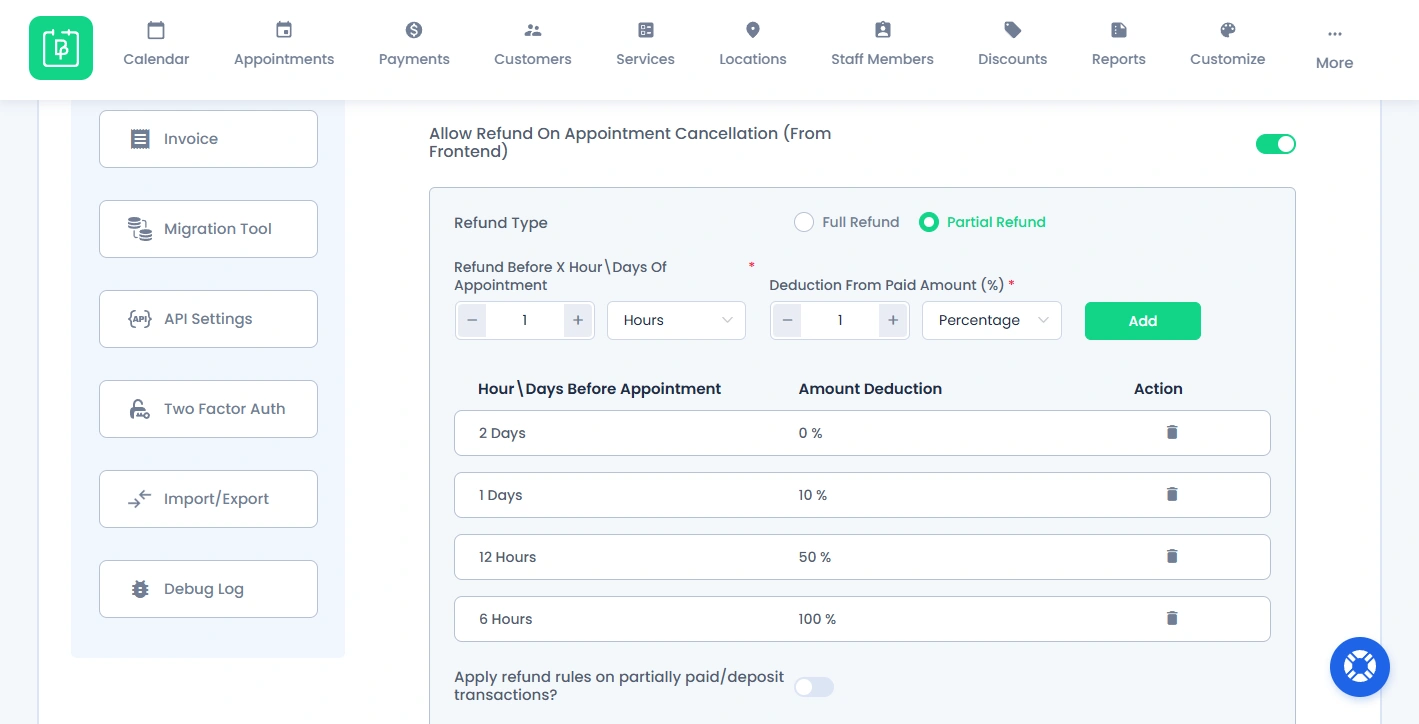
At last, after you planned out your appointment cancellation policy, hit the “Add” button.
This allows you to create as many partial refund policies as you want. For Example:
- 2 days before appointment→ 0% deduction.
- 1 day before appointment→ 10% deduction.
- 12 hours before appointment→ 50% deduction.
- 6 hours before appointment→ No refund.
Apply Refunds on Partial/Deposit Payments
At last, you’ll also see the notice option “Apply refund rules on partially paid/deposit transactions?“.
Till now, refund rules were applying only on the full payment received online. Once you toggle it ON, the refund policy will apply to partially paid or deposit payments as well.
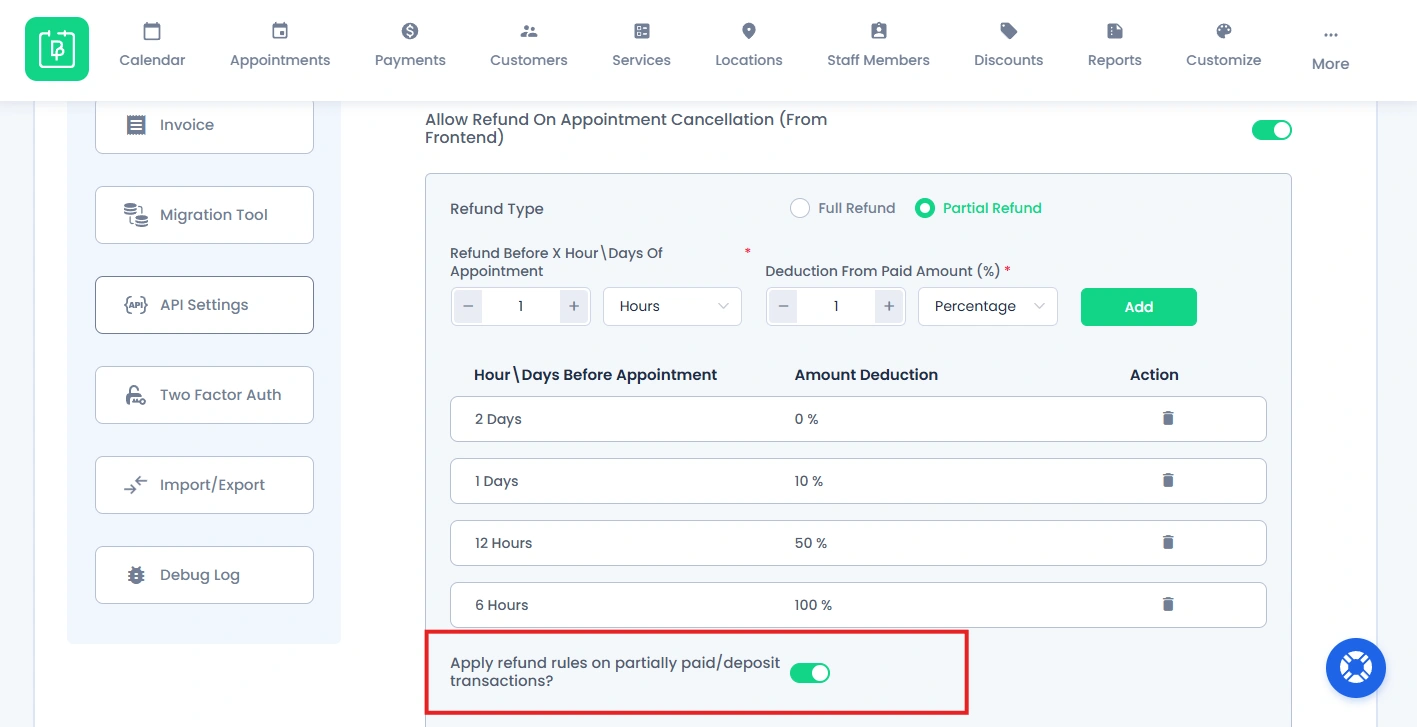
This will apply to both refund types, whether you choose full refund or partial refund.
After setting up your appointment cancellation policies for customers, reach to the “Save” button above at the top right corner.
How to Initiate a Refund as an Admin
As an admin, if you want to process a refund from your side, that can be done in two ways.
Method 1: Refund from Appointments Page
1. First reach to WordPress → BookingPress → Appointments.
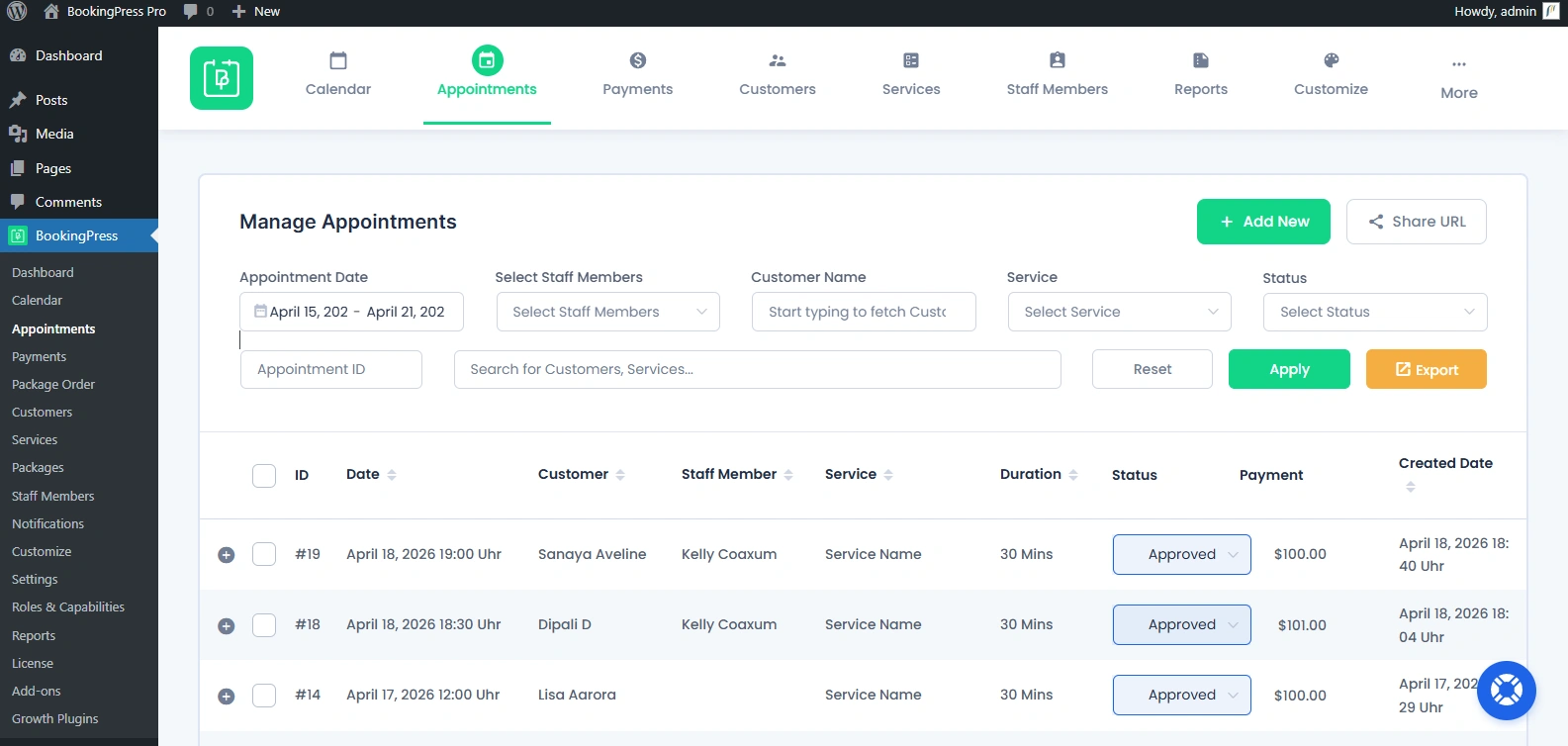
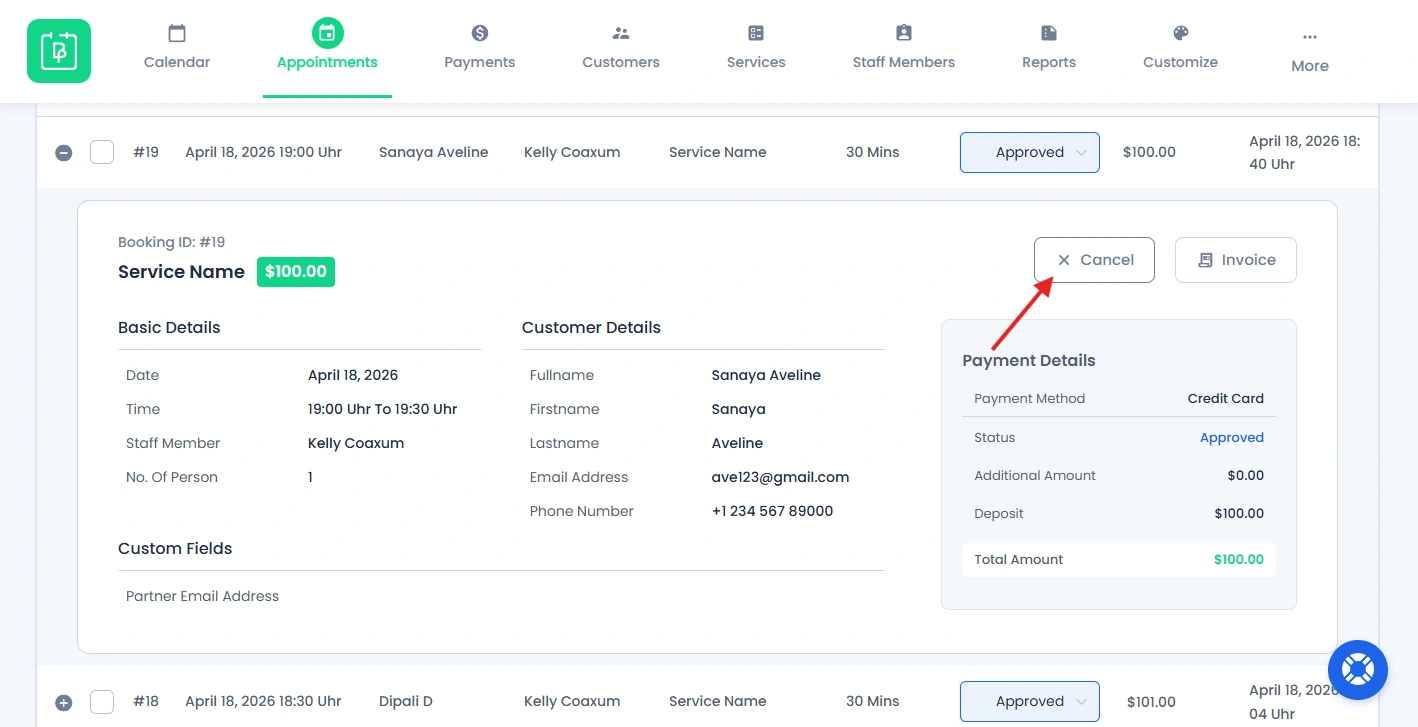
2. Now open the appointment details of a payment record and click on the “Cancel” button.
3. After the popup box appears, toggle on the “Give refund upon cancellation?” option.
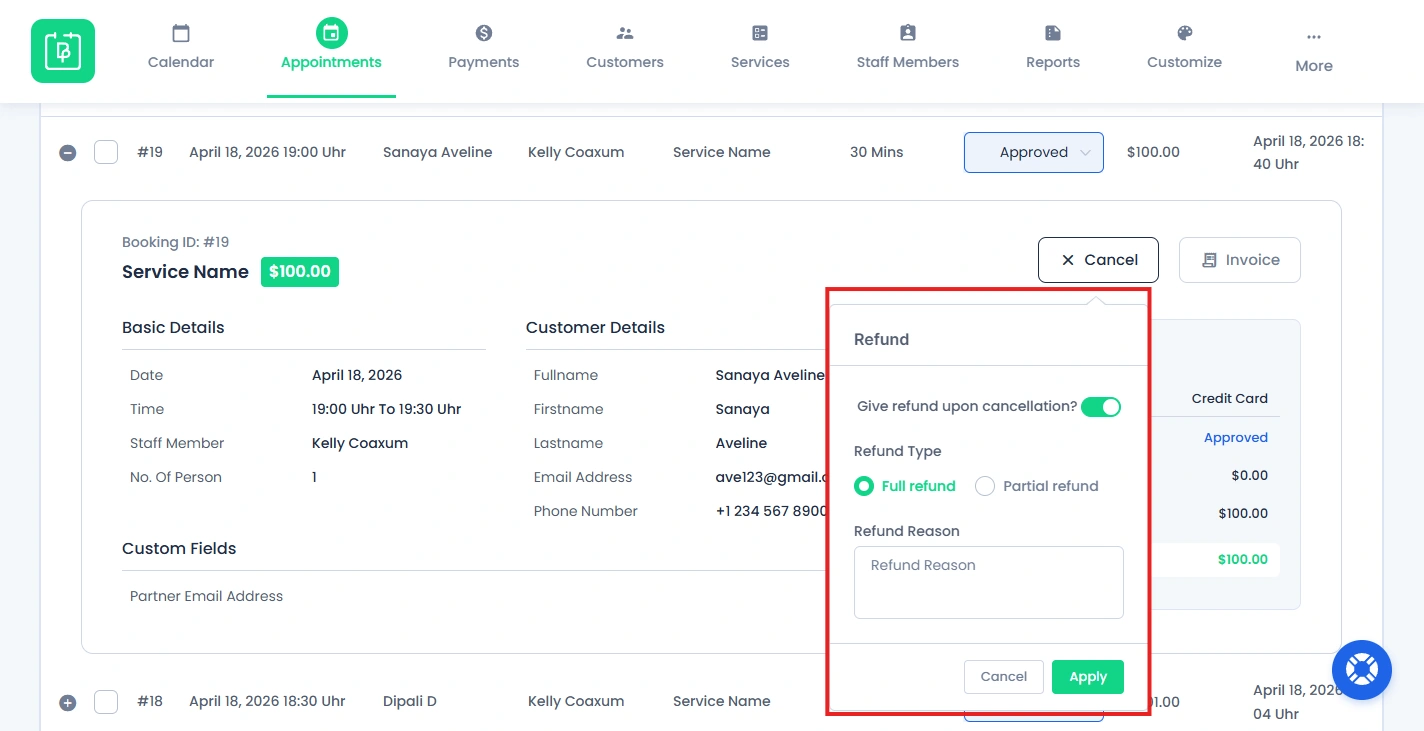
- Decide your refund type. (Full or Partial Refund)
- Optionally, you can also write the reason for refund as this is from your side.
- At last, click on the “Apply” to confirm it.
The payment status will be marked as “Refunded”
Method 2: Refund from Payments Page
1. Reach the BookingPress → Payments inside the WordPress admin page.
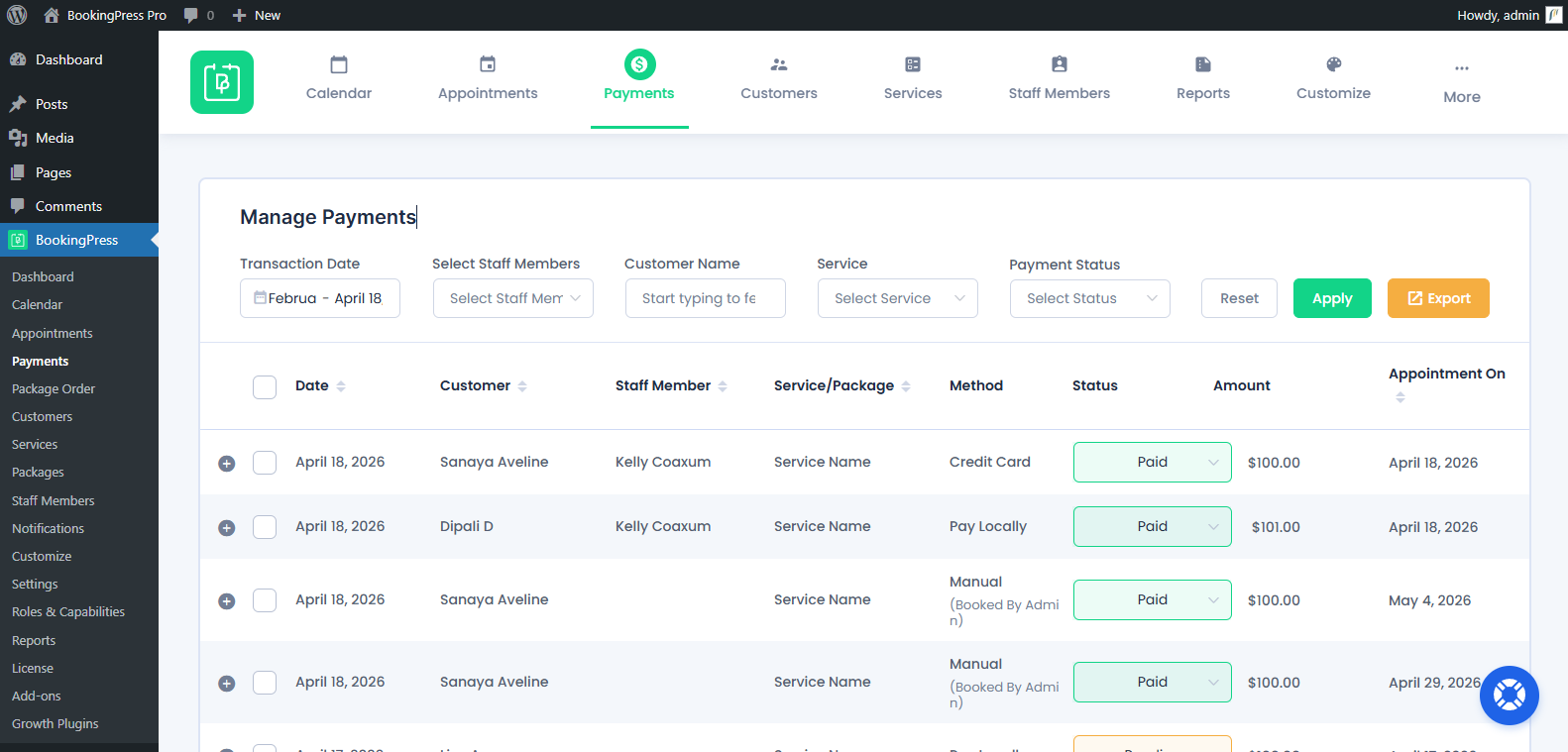
2. Open the payment details, and click on the “Refund” button.
3. After clicking the “Refund” button, a popup box will appear.
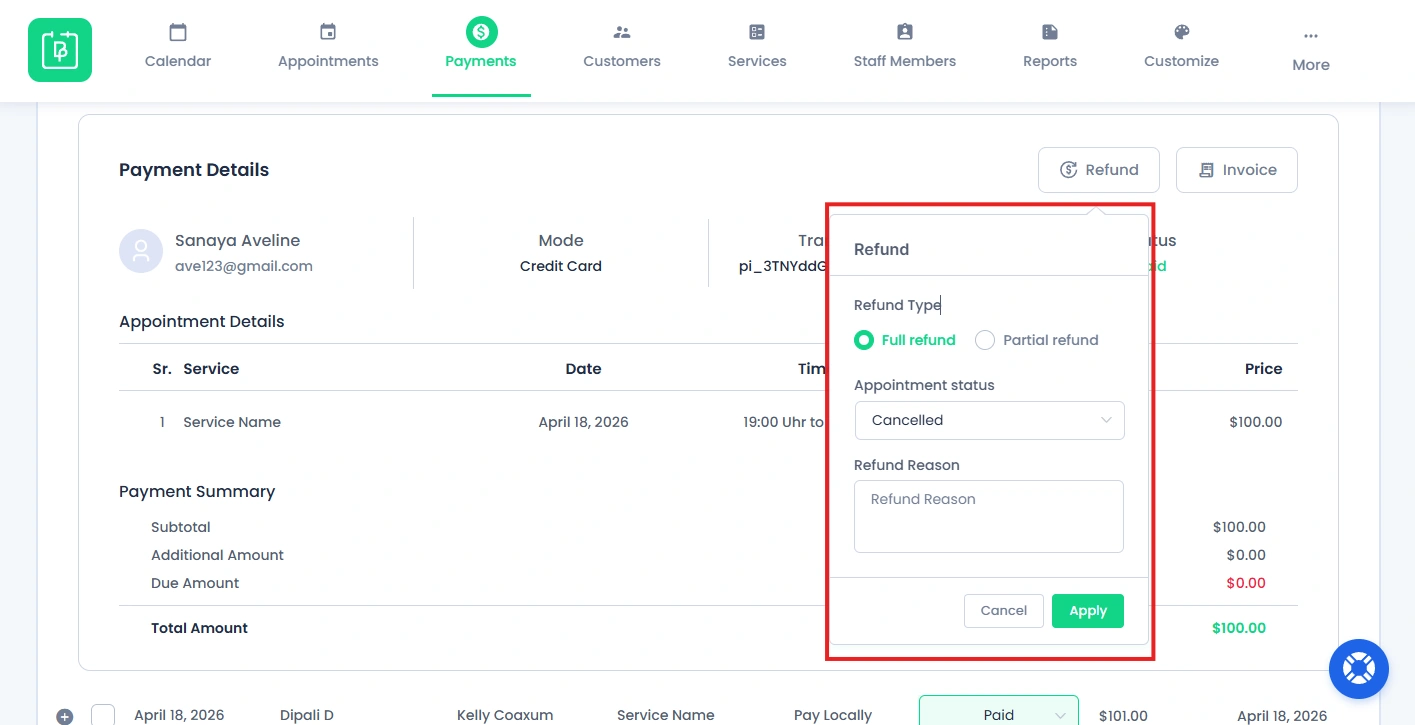
4. Select your refund type. (Full or Partial Refund)
5. You can also change the Appointment Status from here. By default, it’ll be “Cancelled”.
6. Optionally, you can also write the reason for refund and then, “Apply” to refund.
The appointment will be cancelled and marked as Refunded
How Customers Receive Refunds (Frontend)
Customers can cancel appointments and view refund details from their account.
All they have to do is log in to their account and reach the My Booking page. From here on, select the appointment and you’ll click “Cancel Appointment“.
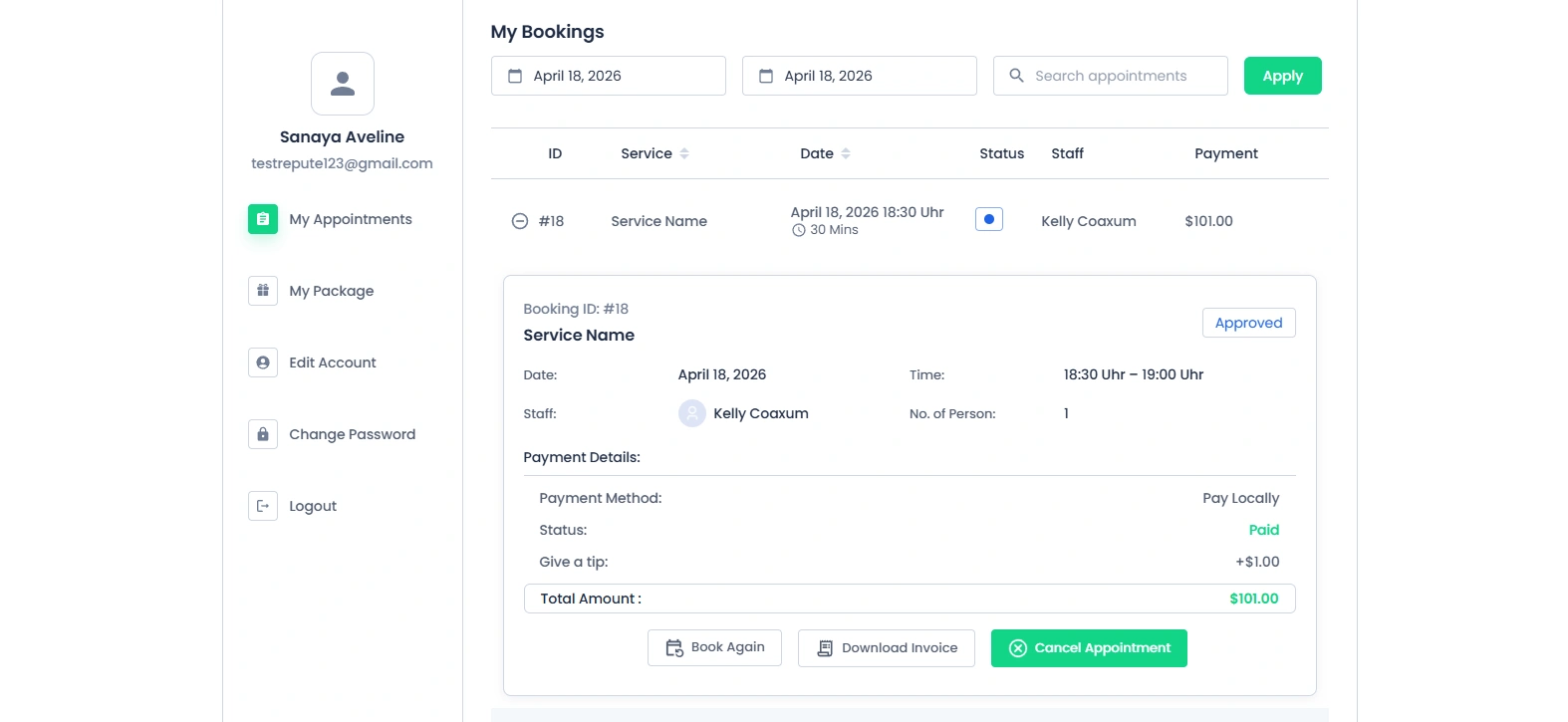
While cancelling the appointment, the customer will see the Paid amount while booking an appointment and a Refund that can be initiated after the cancellation of the appointment.
Please note: Refunds will be initiated based on the payment method used while booking an appointment. If the payment method does not support the refund procedure, then the refund will not be executed.
Important Notes About Refunds
- Refunds are processed only through the original payment method.
- Refunds are not supported for On-site payments.
- If a payment gateway does not support refunds, it will not be executed.
Supported Payment Gateways for Refunds
| Payment Method | Full Refund | Partial Refund | Refund Allowed Before (Days) |
|---|---|---|---|
| PayPal |  |
|
180 |
| Stripe | |
|
– |
| Mollie | |
|
– |
| Authorize.net | |
|
– |
| Razorpay | |
|
– |
| 2Checkout |  |
|
– |
| WooCommerce | |
|
– |
| PayPal Pro | |
|
– |
| PagSeguro | |
|
– |
| Braintree | |
|
– |
| Paystack | |
|
– |
| PayUMoney | |
|
– |
| PayFast | |
|
– |
| Square | |
|
– |
| Worldpay | |
|
– |
| Skrill | |
|
– |
| Paddle | |
|
– |
| Klarna | |
|
– |
| Mercado Pago | |
|
90 – 180 |
| PayMongo | |
|
Depends on Payment Method |
| ECPay | |
|
90 – 360 |
| Airwallex | |
|
Up to 365 |
| Stripe POS | |
|
– |
Need a hand?
Our world-class support team is happy to help. Send us a message and we’ll take it from there.
 14-day money-back guarantee