Tip Addon Integration
To get and Activate Tip Addon, please follow the below steps.
- First, login to the BookingPress Website, and you will be redirected to the My Account page.
- Now, click on the “Access Passes” link from the left menu panel.
- After going to the Access Passes, click on the “View your downloads” button.
- From the list, please look for the “Tip” add-on, click on the download button, and it will automatically start downloading the addon. After the download is finished, upload the downloaded zip file to WordPress just link any other WordPress Plugin, then install and activate the addon to use it.
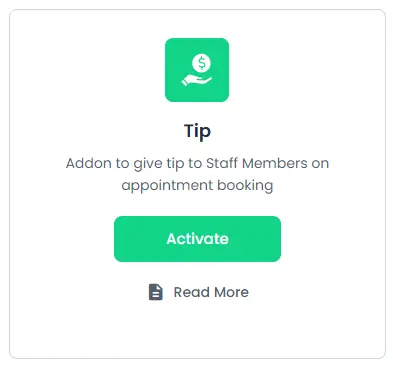
Once the addon is activated, the customer will be directly able to add a Tip while making the payment from the “Summary Page”.
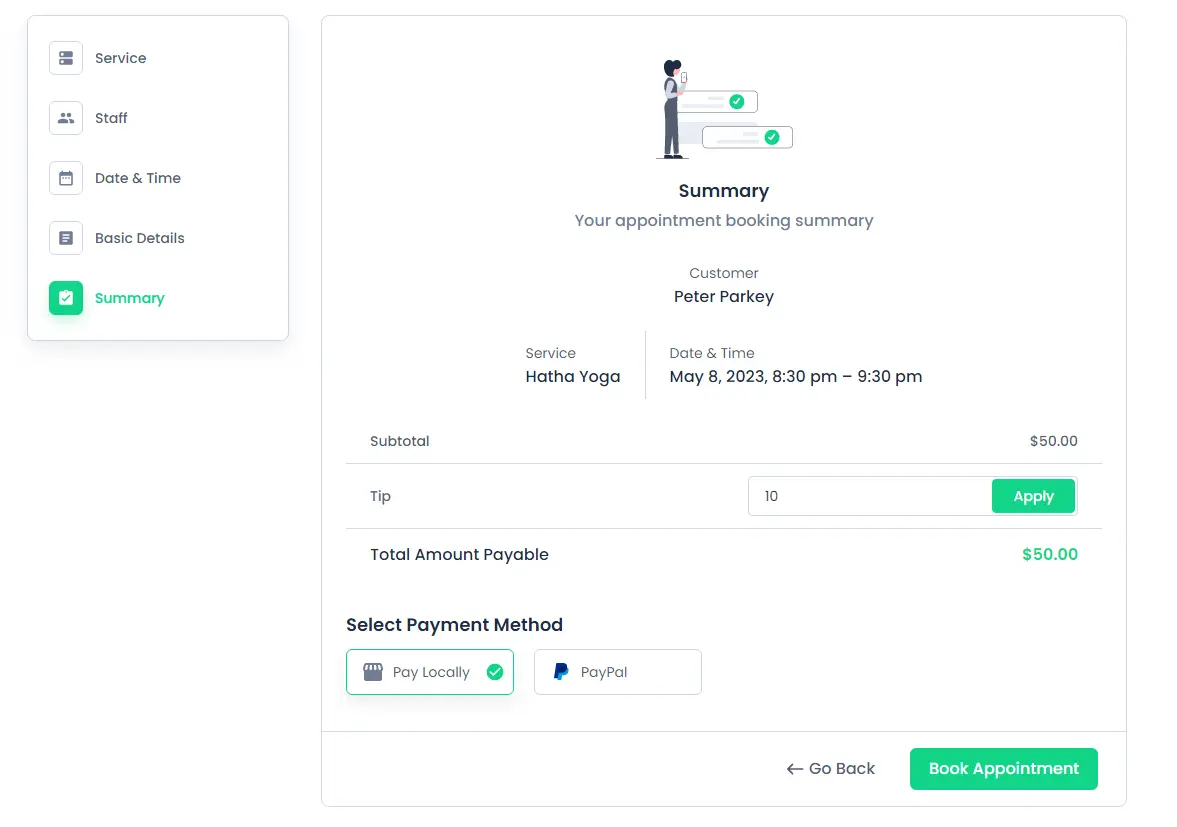
You can change the Labels of the Tip addon textbox in the Summary Section by Customizing the Booking Form from BookingPress -> Customize -> Forms.
You can even send the details of the Tip amount via notifications by adding a Tip amount placeholder from BookingPress -> Notifications.
If the Staff Members are configured, then Tip will be assigned to the Staff Member selected while configuring the Service.
 14-day money-back guarantee