Working Hours Settings
Working Hours Settings allow you to set your business availability for appointments and bookings. From here, you can set your general working hours, add break hours and set overnight booking availability.
Simply to BookingPress → Settings → Working Hours settings for managing your working hour.
How to Configure General Working Hours
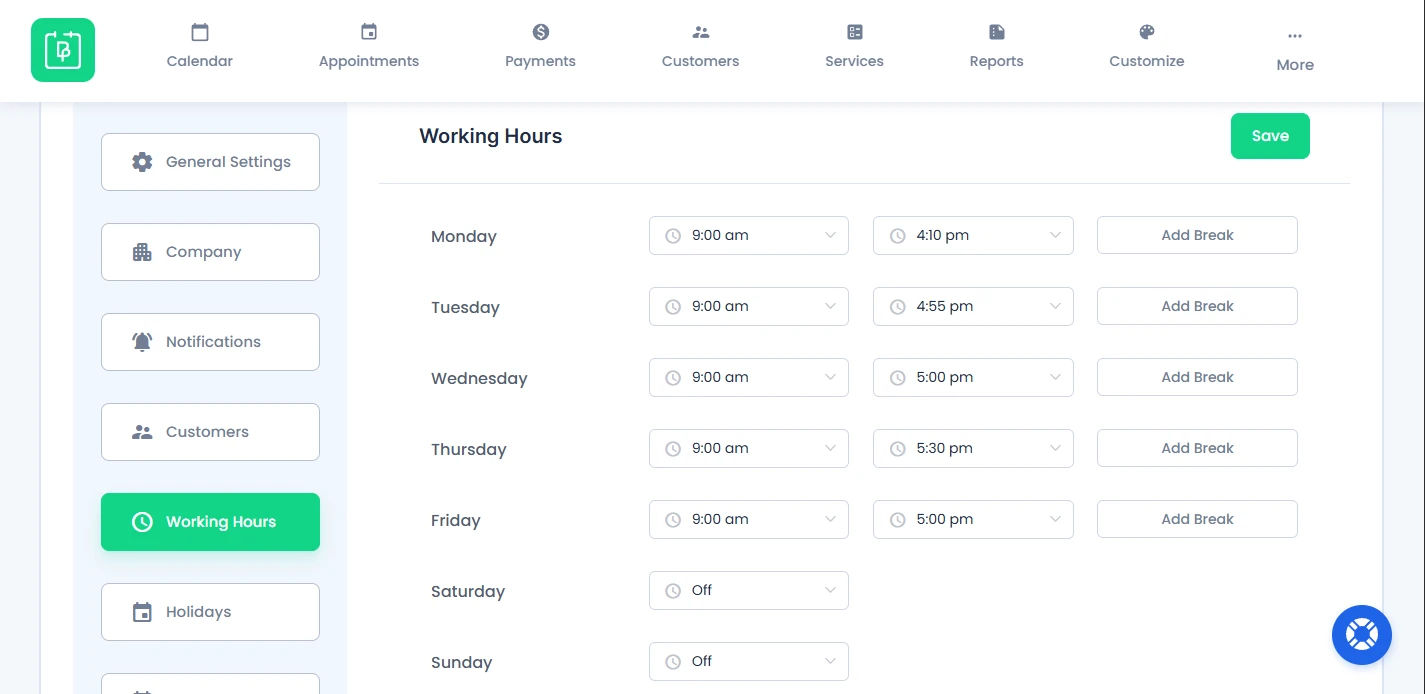
If you want to set general working hours of your business and control when customers can book appointments, simply go to the Working Hours Setting panel.
From here, you can set your business availability day-wise from Monday to Sunday by setting the:
- Start Time
- End Time
For days when your business is closed, simply select the “OFF” inside the Start Time dropdown field. Customers will not be able to book appointments on disabled days.
Add Break Hours In Your Working Schedule
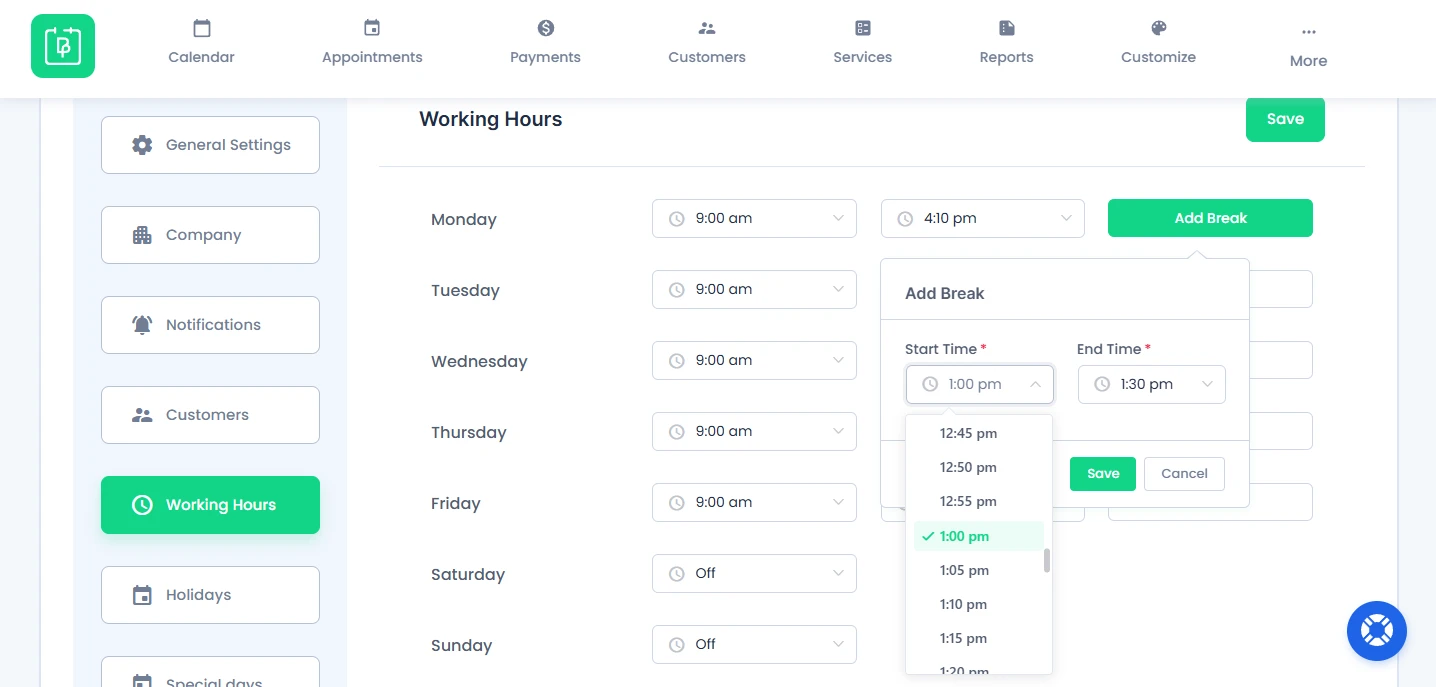
You can also set break hours for each working day to temporarily block appointment bookings during unavailable periods such as lunch breaks, meetings or staff snack break. You can also add multiple break hours for each working day.
For adding break hours in your working days, you’ll see the “Add Break” button next to each working day. Simply click on it, and a popup will open where you can set:
- Break Start Time.
- Break End Time.
After selecting the timings, hit the “Save” button.
Now the added break hours will be shown under the selected day, and customers will not be able to book appointments during those time periods. The best part is you can set custom break hours for each day like this.
How to Edit Break Hours
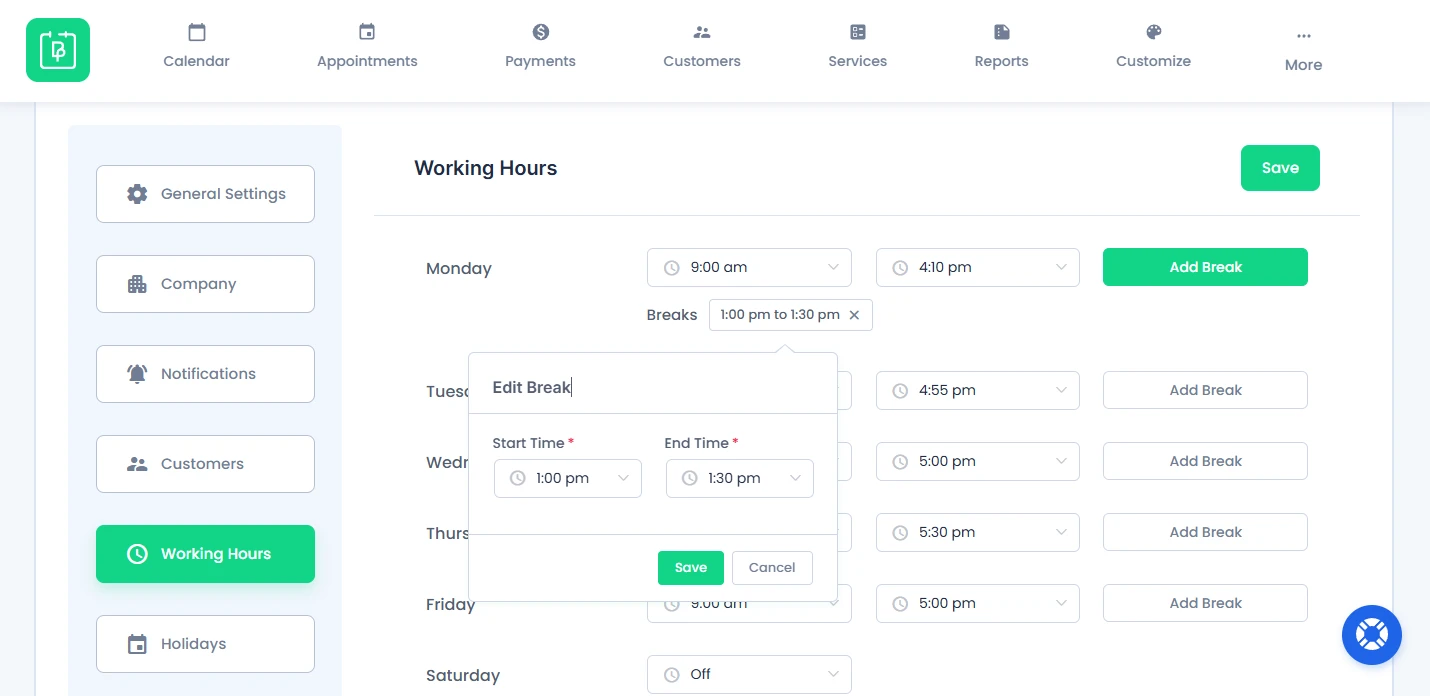
For editing existing break hours, all you have to do is just:
- Click on the added break timing.
- Next, the “Edit Break” popup will open with the existing details filled in.
- Update the break timings as needed.
- Click the Save button to apply the changes.
That’s it!
How to Delete Break Hours
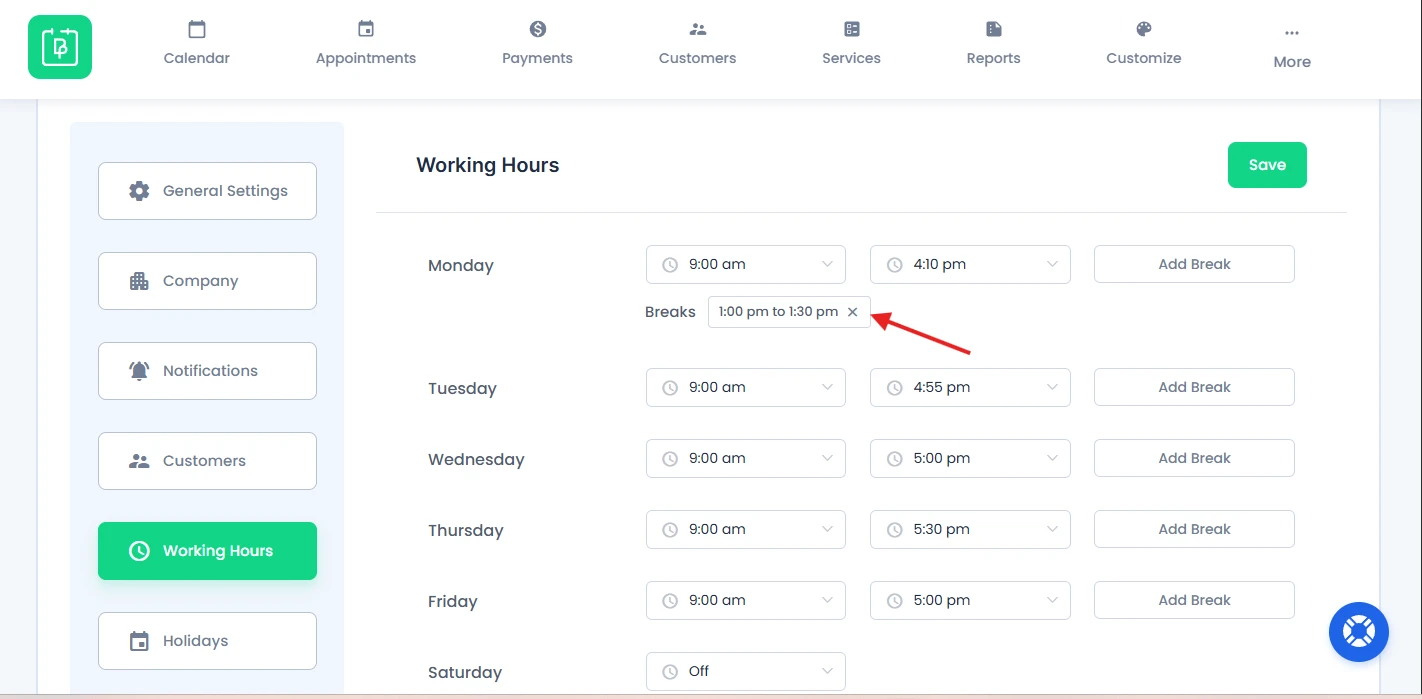
For deleting the breaks, simply click the X icon beside the break timing. And that’s all.
After deletion, the selected time period will become available again for appointment bookings.
Overnight Booking in BookingPress
BookingPress allows you to take overnight bookings by extending working hours across two calendar days. This is useful for businesses that also work late at night or offer services that continue past midnight.
Due to this, your customers can book appointment slots that extend into the next day while still following a continuous working schedule.
For example if your business is open from 2:00 PM to 2:00 AM, BookingPress will treat this as a single working schedule that spans across midnight.
How to Configure Overnight Working Hours
You can configure overnight booking working hours from the “Working Hours Settings” under BookingPress → Settings → General Settings.
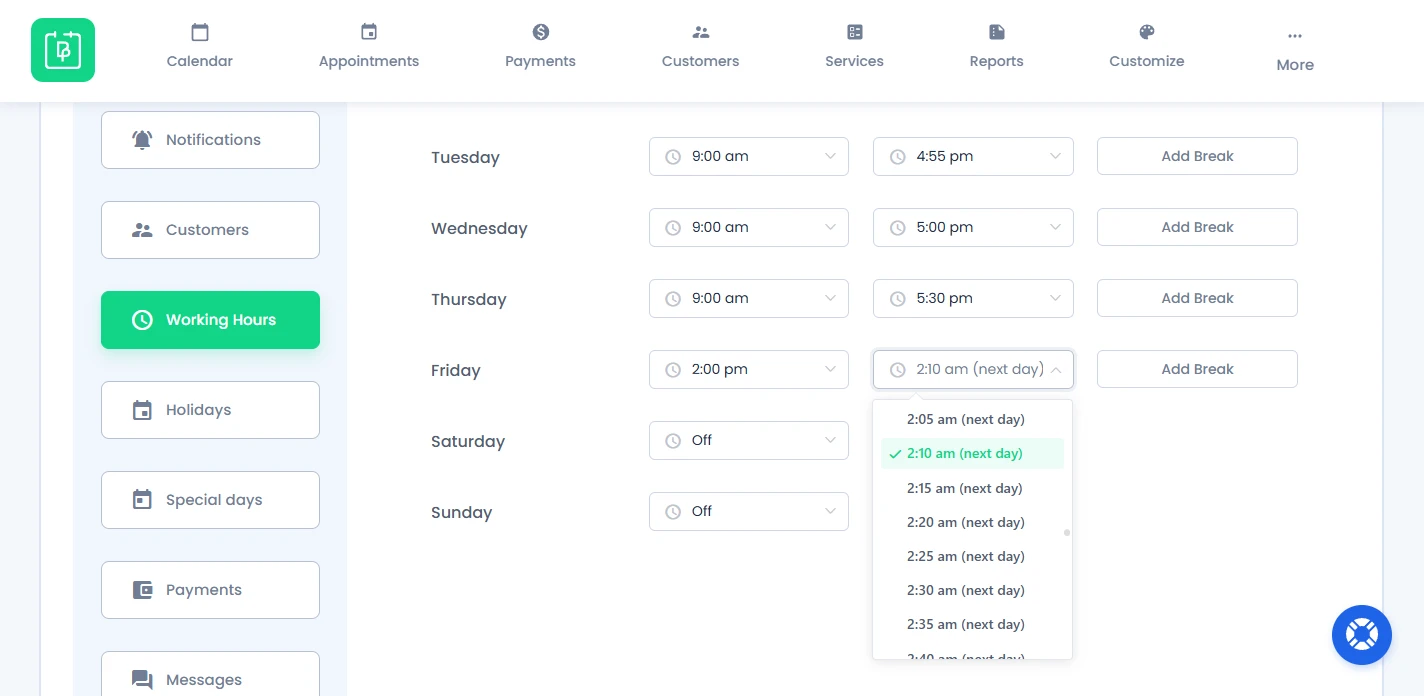
Next, select the working day and set the “Start Time” and “End Time” across two calendar days
For example:
- Start Time: 2:00 PM
- End Time: 2:00 AM (next day)
This allows customers to book appointments during overnight hours without splitting the schedule manually.
Note: Overnight bookings are still considered within a continuous 24 hour time frame.
Custom Working Hours for Services and Staff
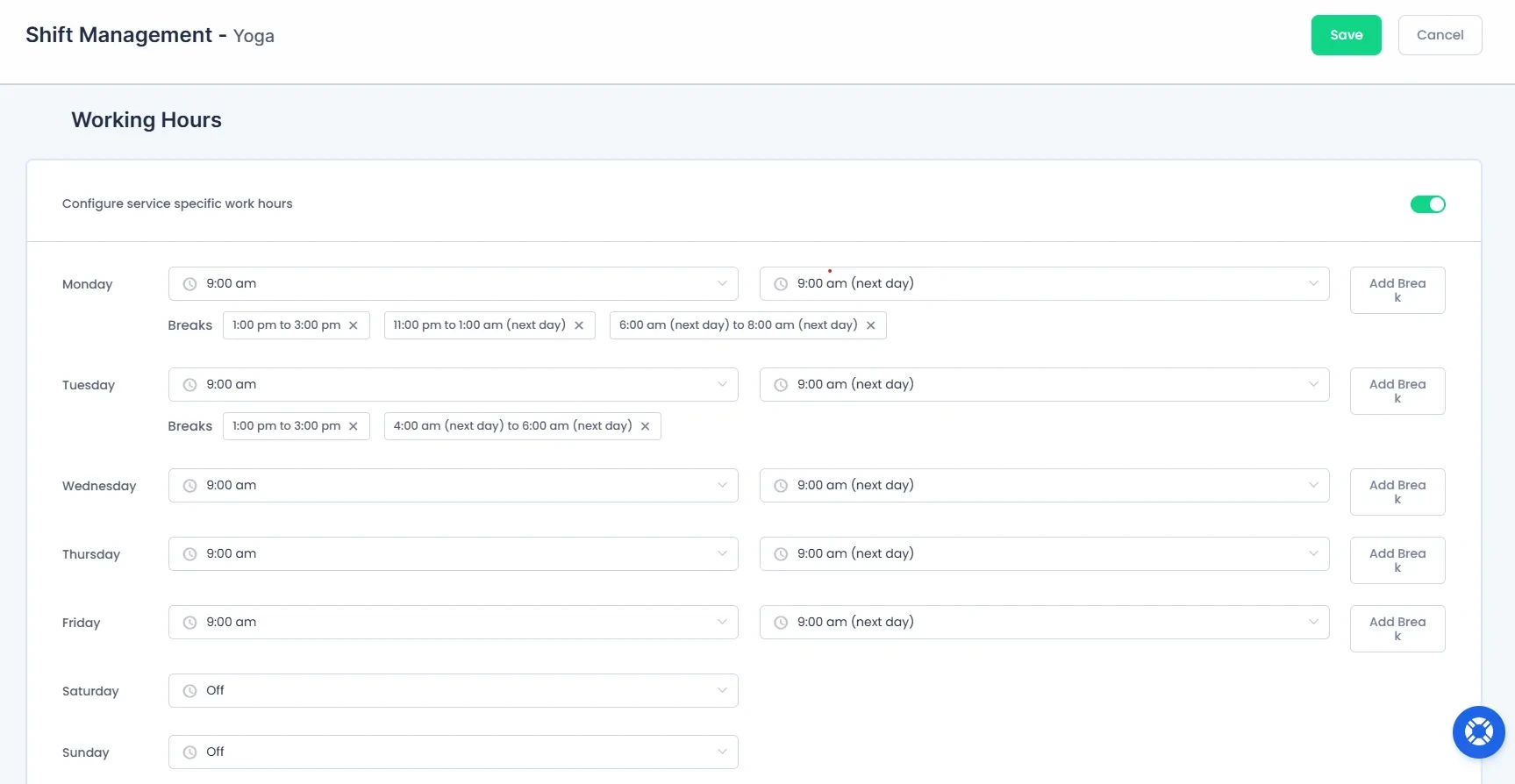
BookingPress also allows you to set custom working hours for specific services or staff members with Shift Management in the same way as general Working Hours Settings.
This is useful when:
- Only selected services are available overnight.
- Specific staff members work night shifts.
- Different services require different availability schedules.
Suppose let’s say you want regular consultation services available during daytime only. And overnight support or emergency services available after midnight.
In such scenarios, you can assign separate working hours to individual services or staff members without affecting your general business schedule.
Using Overnight Booking with Special Days
Overnight Booking also works together with Special Days Settings in BookingPress.
You can set different overnight schedules for special occasions without changing your regular working hours configuration.
For detailed steps, jump on to our beginner friendly Special Days Settings documentation.
Customer Booking Experience for Overnight Appointments
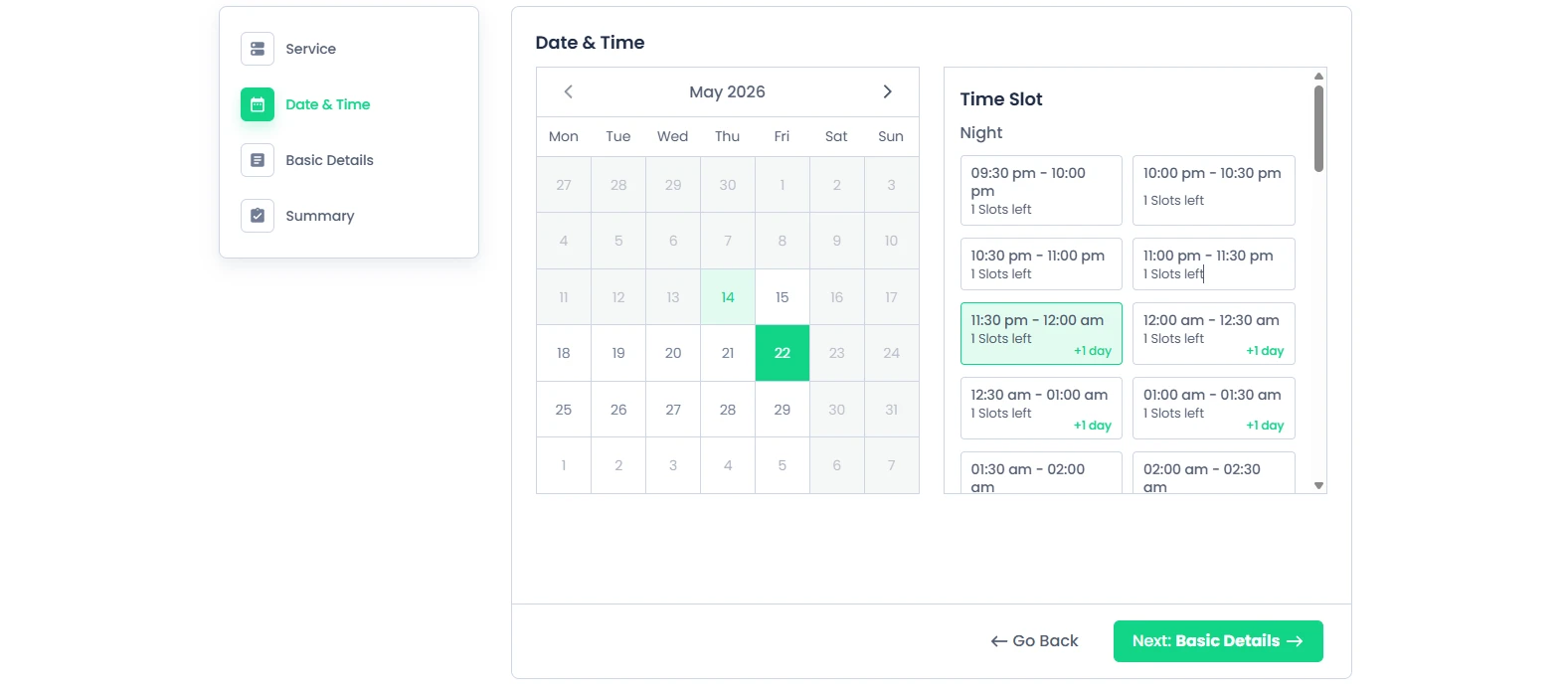
When customers book overnight appointments from the front end booking form, time slots that extend past midnight are automatically marked with a +1 Day label.
For example:
- 11:00 PM → Same Day.
- 1:00 AM (+1 Day) → Next Calendar Day.
This helps customers clearly understand that the selected appointment time falls on the next calendar day.
Need a hand?
Our world-class support team is happy to help. Send us a message and we’ll take it from there.
 14-day money-back guarantee