Admin Calendar View
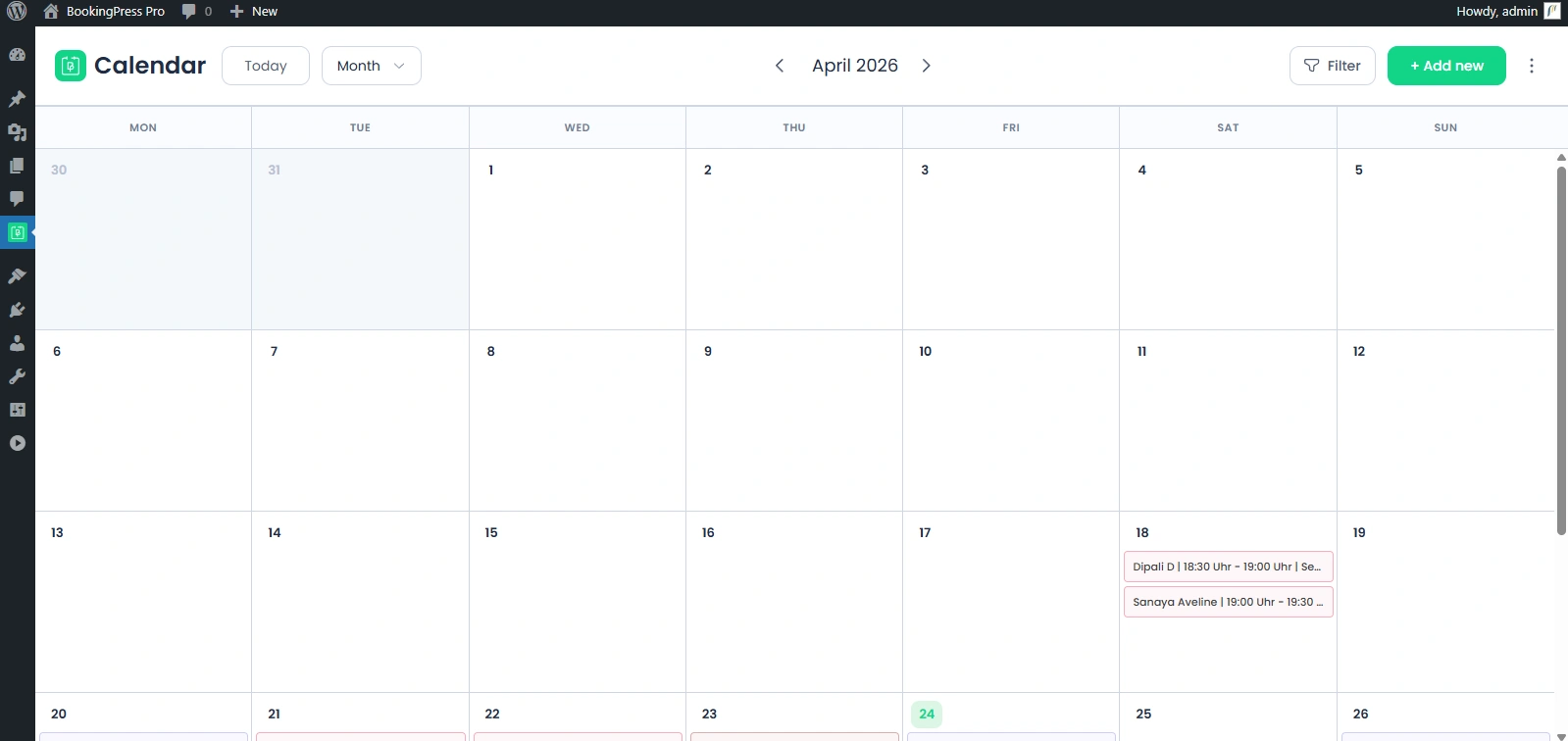
The Calendar page shows all your appointments in one place. You can see both pending and approved bookings at just a single glance which makes it so much easier to stay organized.
It lets you easily switch between Month, Week and Day views to match how you like to work. This helps you check schedules real quick without opening each appointment.
Each service has its own color. So, spotting different appointment types and understanding your schedule gets much simpler.
How to View Appointments in the Calendar Page
The BookingPress Calendar page offers multiple views so you can easily get a quick overlook of your schedule. It has Month, Week, and Day views which can be switched in just one click as per your needs.
Month View
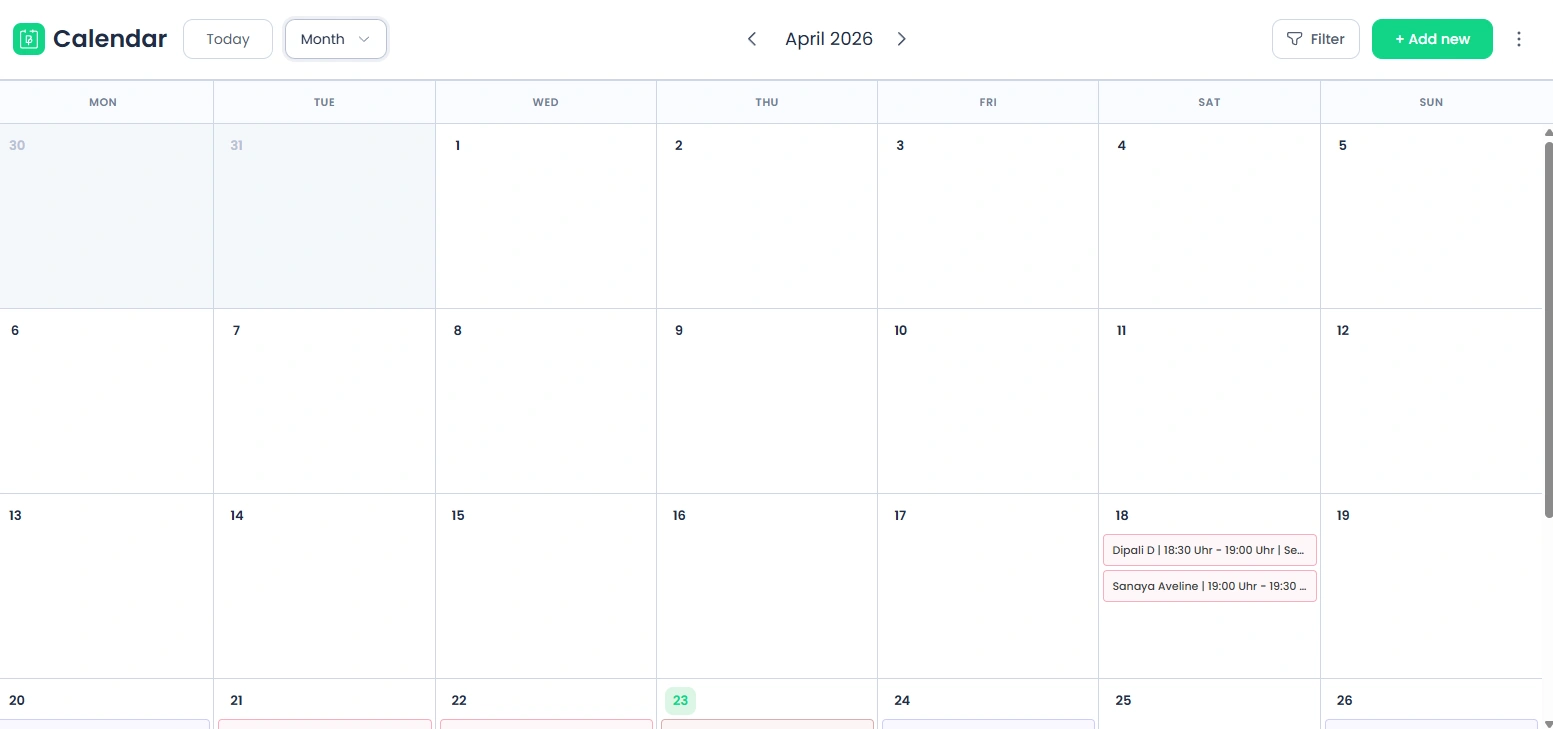
- Shows all appointments for the entire month.
- Best for getting a quick overview of your schedule.
- Helps you plan ahead and identify busy or free days at a look.
Week View
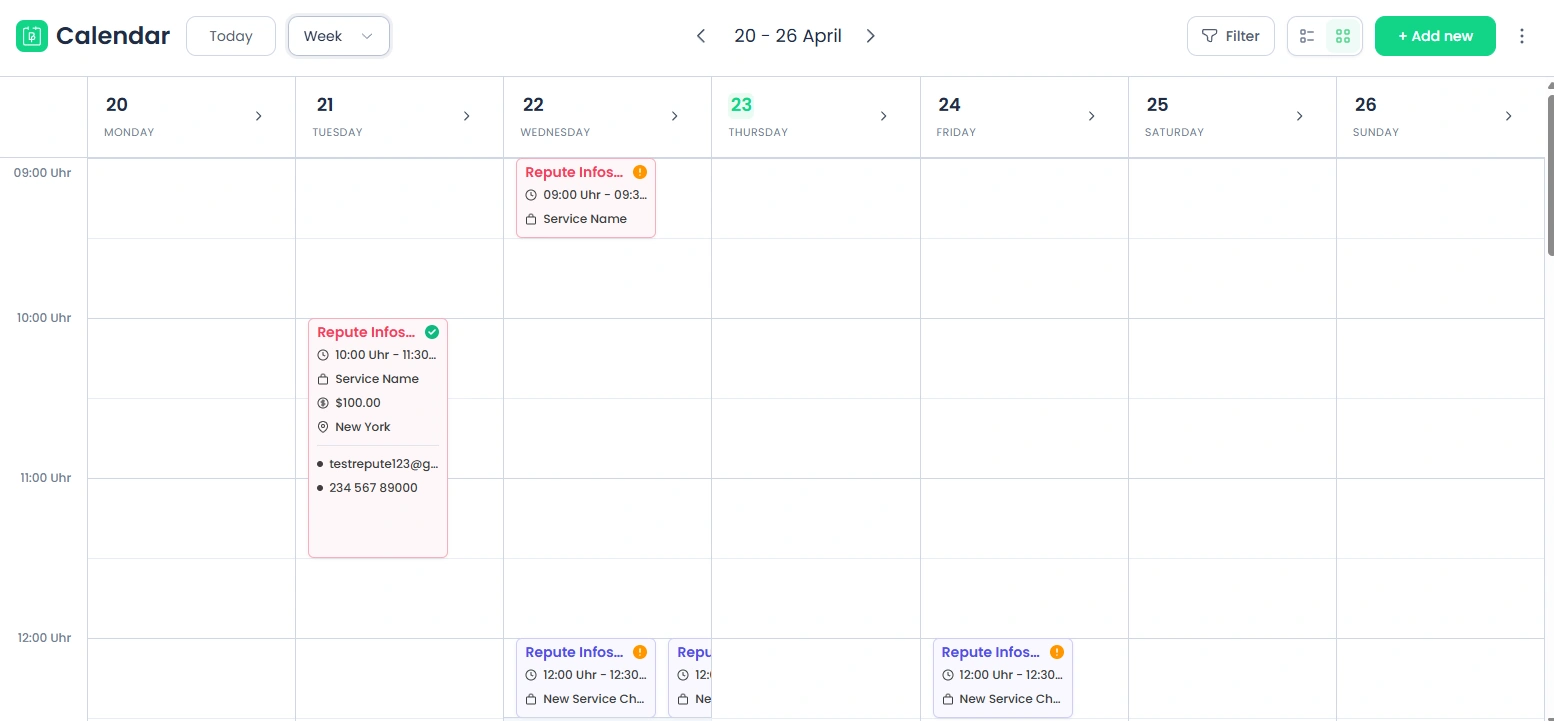
- Shows appointments for a full week.
- Great for reviewing daily schedules in more detail.
Here are the available layouts in Week View:
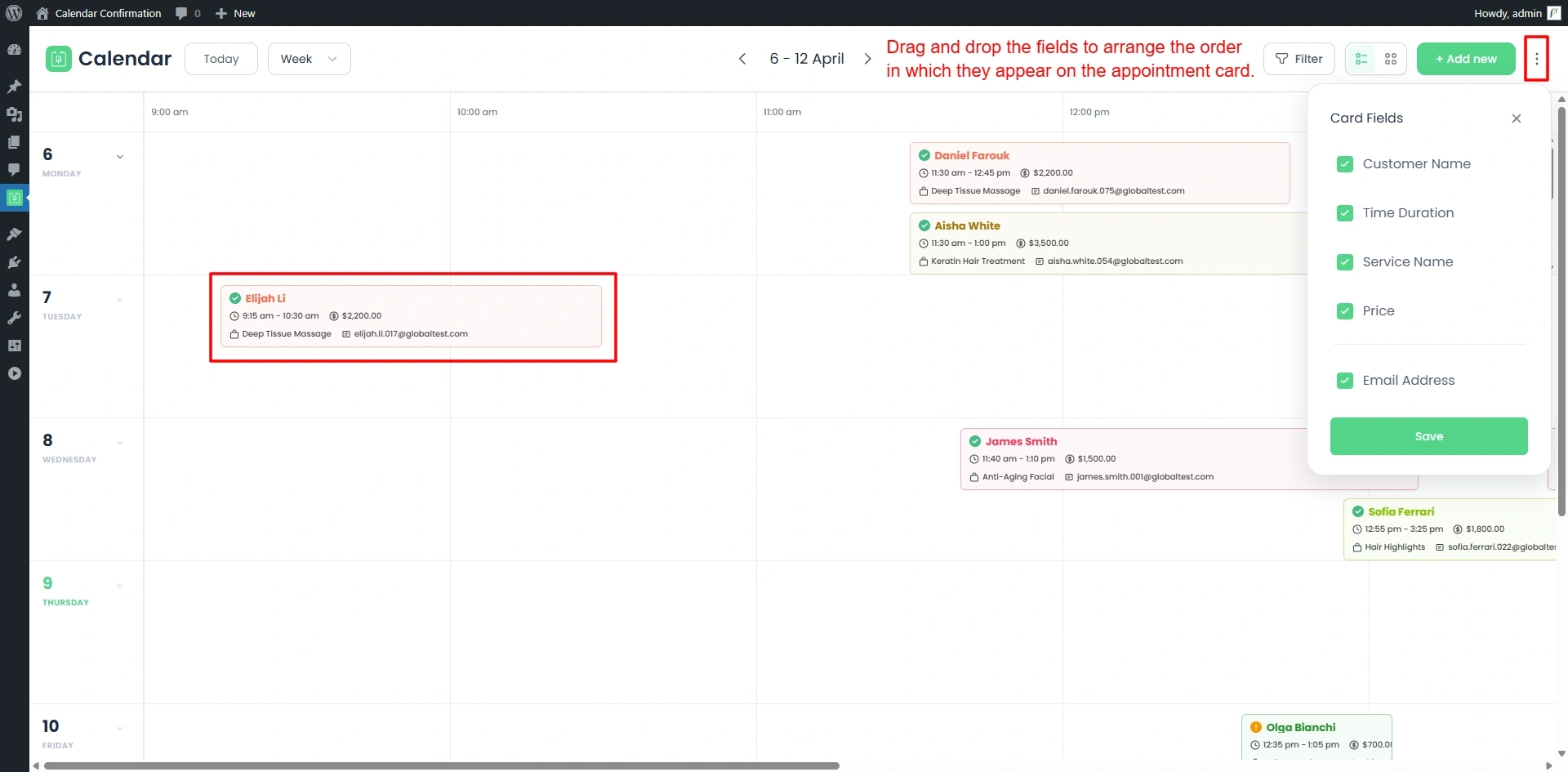
- Timeline View
Shows appointments on a horizontal timeline. This makes it easy to understand the order of appointments and see how they are spaced throughout the day. - Grid View
Shows appointments in a table style format with time slots. This helps you check availability and booking distribution right away at a look.
Day View
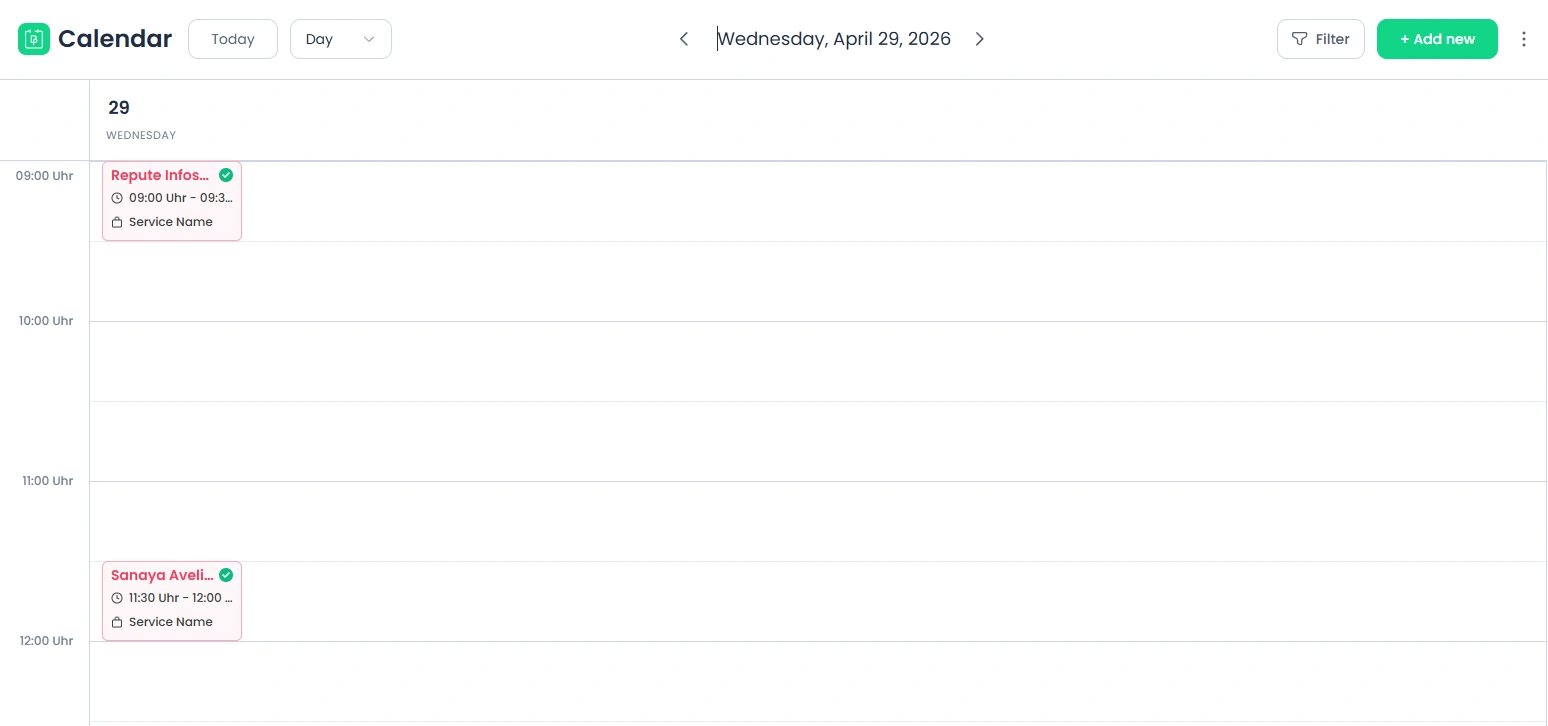
- Displays all appointments for a single day.
- Useful for managing a busy schedule with precision.
Additional features:
- Expand/Collapse option is available in Week and Timeline views to adjust the calendar layout.
- If multiple appointments are scheduled at the same time, they are shown side by side rather than overlapping.
- Horizontal scrolling is enabled within each column when many appointments are present.
- In Timeline View, vertical scrolling is enabled within rows to display additional appointments.
Working Hours Display
- In both Week and Day views, only your configured working hours are shown.
For example, if your working hours are 9:00 AM to 6:00 PM, only this time range will be visible.
Today’s Appointments
- The current day is highlighted in the calendar.
- All appointments for today are clearly visible for quick access.
Day Based & Multi Day Services
- In Week and Day views, day based and multi day services are shown in the upper section of the calendar.
- This means better visibility and separation from time based appointments.
Finding Appointments with Filters
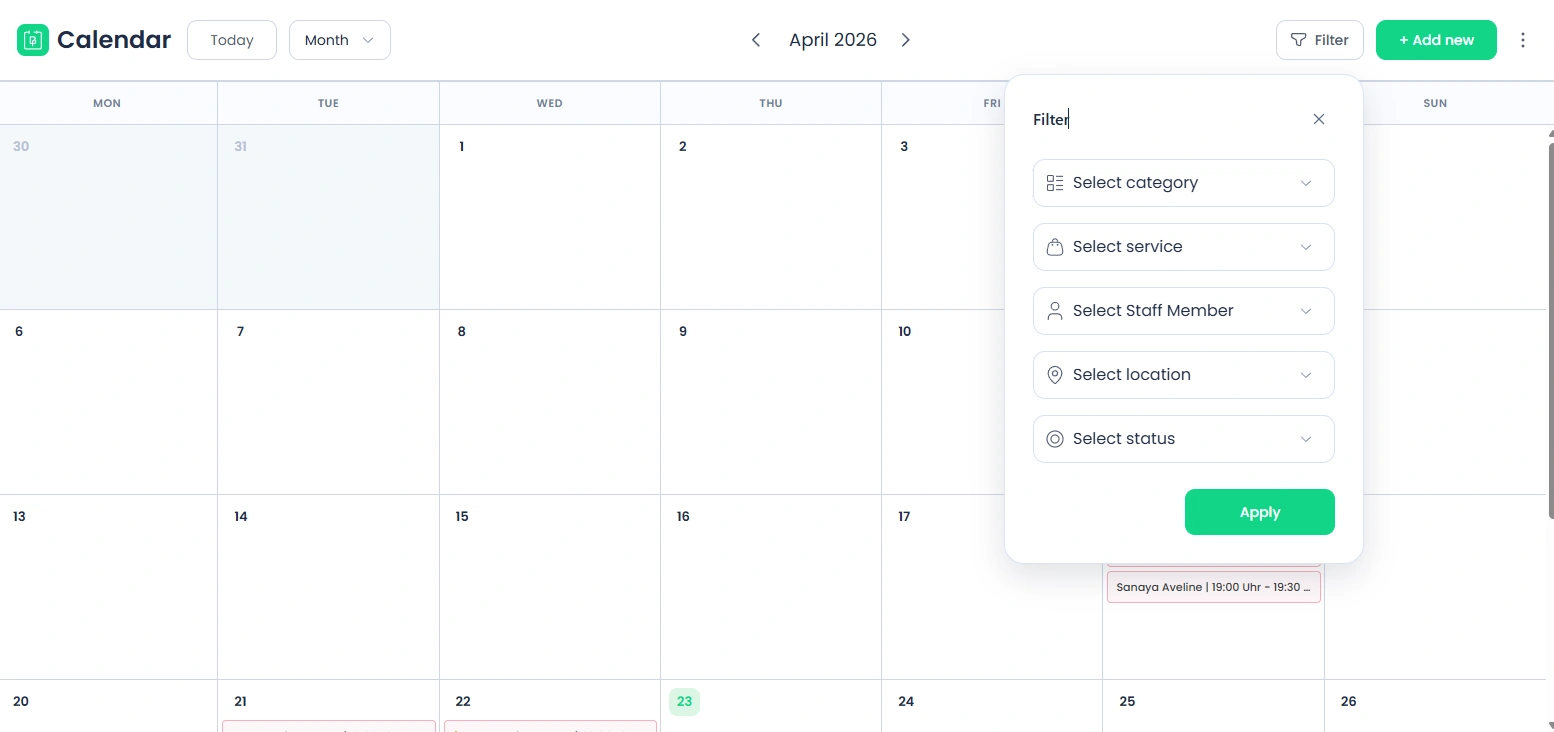
Filters help you find the appointments you need right away without searching for any manually. You can easily shortlist the results based on different criteria of filters available such as:
Service Filter
See all appointments for that specific service.
Staff Member Filter
See all appointments assigned to a selected staff member.
Location Filter
See all appointments for a particular location or branch.
Appointment Status Filter
See appointments based on their status:
- Approved.
- Pending.
The best part is you can also use multiple filters at once.
For example, you can view all pending appointments for a specific staff member at a selected location.
This quickly helps you find the exact appointments you want to manage.
Card Fields
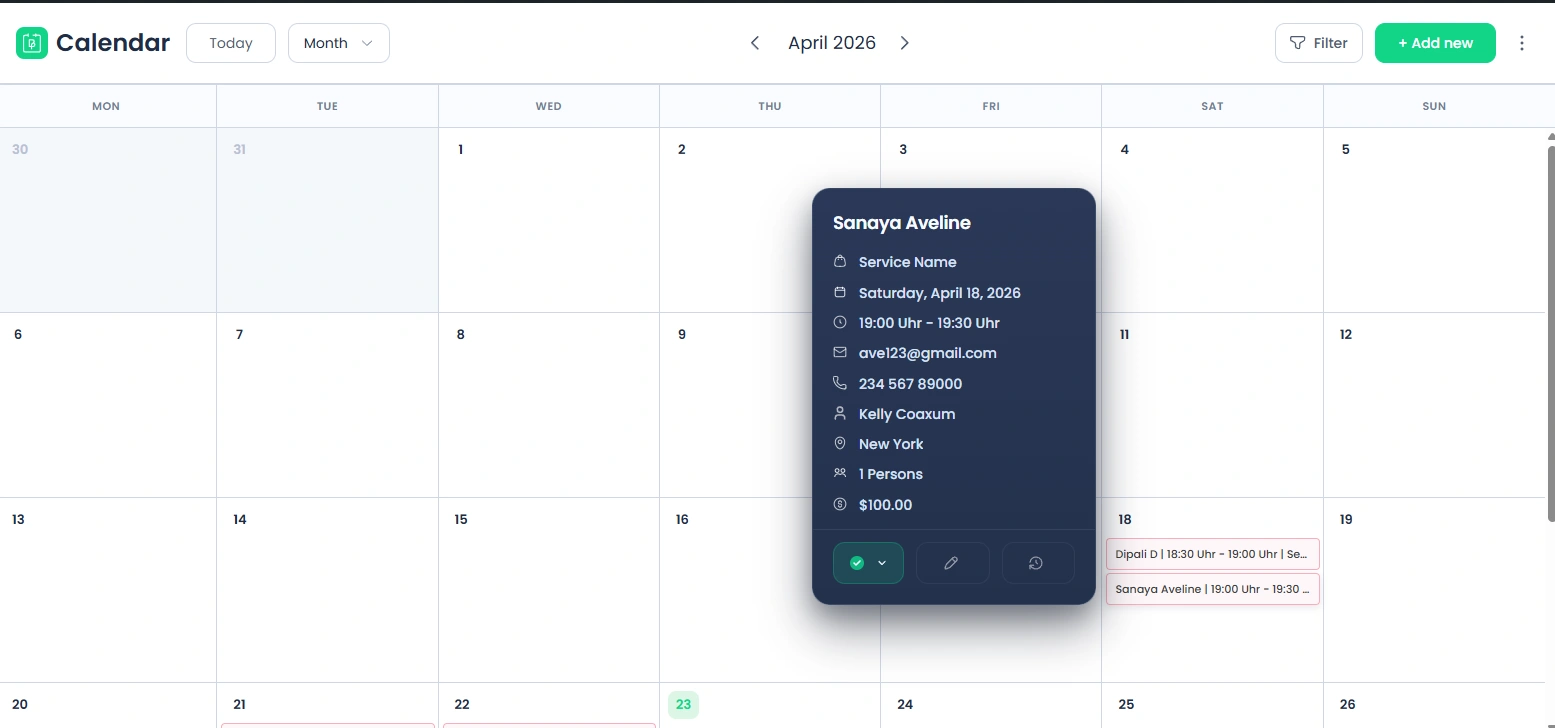
Each appointment on the calendar is displayed as a card.
The card shows key information such as:
- Service Name.
- Customer Name.
- Staff Member Name. ( if the Staff Member Module activated )
- Location Name. ( if the Location Addon activated )
- Time Duration.
- Email Field.
- Phone number.
- Custom Fields. (set up in BookingPress → Customization → Custom Fields, including Text, Text area, Radio, Drop down and Date fields)
How to Customize the Card Fields
- Firstly, at the top of the calendar, click the “Card Fields” button.
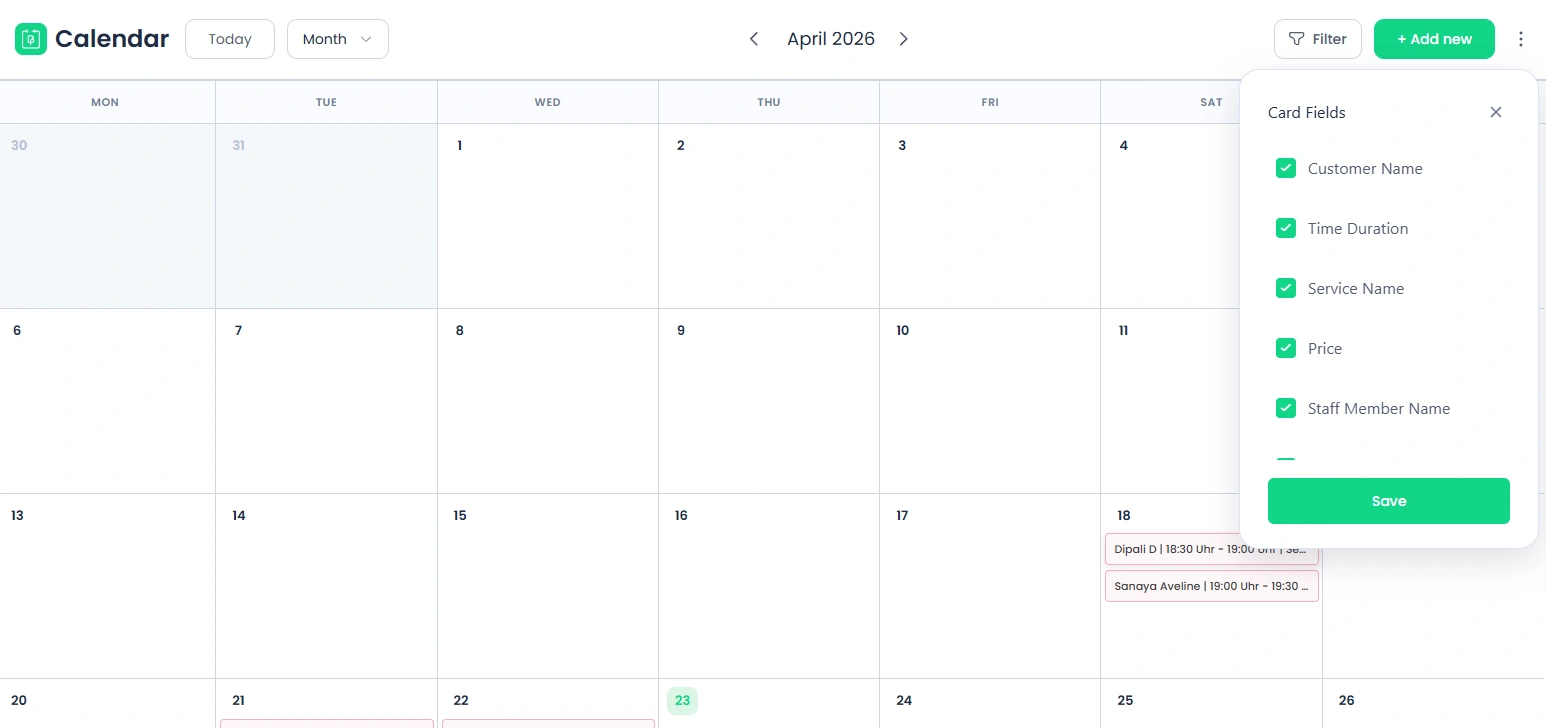
- Next, you can choose which fields appear on the appointment cards.
- Also, you can reorder the fields by dragging and dropping them in the desired order.
- After making changes, click Save to update the card display.
Customize card fields to highlight the most important information for your workflow, making it faster to view appointment details at a glance.
Managing Appointments from the Calendar:
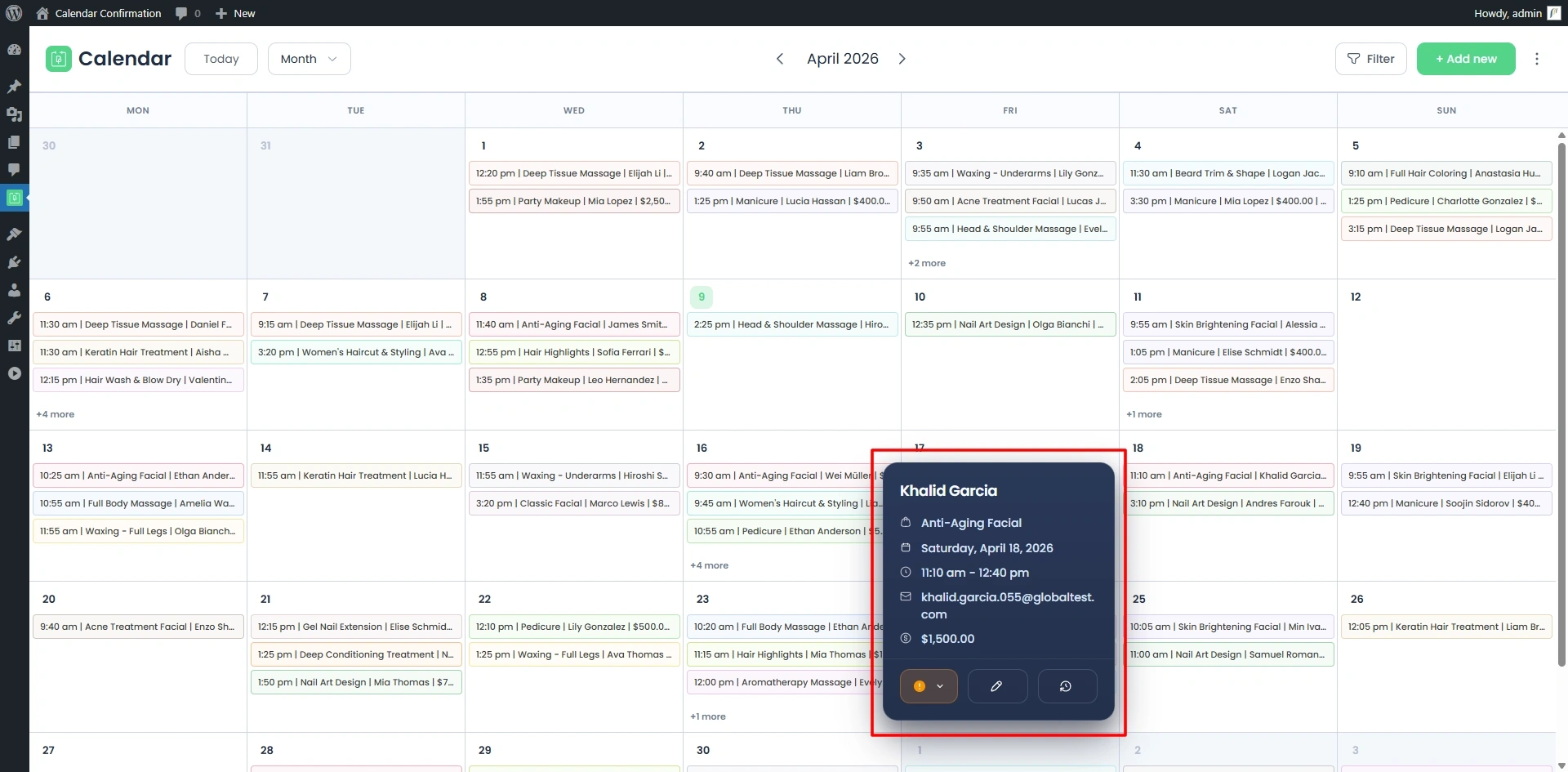
View Appointment Details:
Click on an appointment to see key information:
- Client name.
- Service booked.
- Staff Member assigned.
- Date and time.
- Status.
Change Appointment Status:
You can easily update the Appointment status directly from the calendar. No need to open the Appointment panel at all.
Simply mark an appointment status as Completed, Cancelled or Pending in just a single click.
Rescheduling Appointments:
The Calendar makes it easy to reschedule appointments directly. It is very helpful when you want to manage change real quick in an efficient way.
You can manually adjust the appointment time as needed.
Here are some of the Pro Version Features:
- Drag and Drop: Move appointments to a different date or time with a simple drag and drop inside the calendar.
- Resize (Stretch): Increase or decrease the appointment duration by adjusting it visually on the calendar – no manual work at all!
These features allow you to reschedule appointments within seconds, making it easier to manage a busy schedule.
Note :
- The drag-and-drop & resize features are available only in the BookingPress Paid version. Plus, rescheduling past appointments via drag-and-drop or resizing is not supported.
- When using the Multi-Service Add-on, the drag-and-drop and resize rescheduling functionality is not supported.
Need a hand?
Our world-class support team is happy to help. Send us a message and we’ll take it from there.
 14-day money-back guarantee