
Happy Hours Pricing (Dynamic Pricing) Addon
To get and Activate the Happy Hours Pricing Addon, please follow the below steps.
- First, please login to the BookingPress Website, and you will be redirected to the My Account page.
- Now, click on the “Access Passes” link from the left menu panel.
- After going to the Access Passes, click on the “View your downloads” button.
- From the list, please look for the “Waiting List” add-on, click on the download button, and it will automatically start downloading the addon. After the download is finished, upload the downloaded zip file to WordPress just link any other WordPress Plugin, then install and activate the addon to use it.
Once the addon is activated, to start with the Configuration, go to BookingPress -> Services -> Add/Edit Services. From here, you will be able to find a section of Happy Hours in which you can set a Day/Date along with a Specific Time duration for configuring the Services with a Dynamic price / Special Price for a limited time.
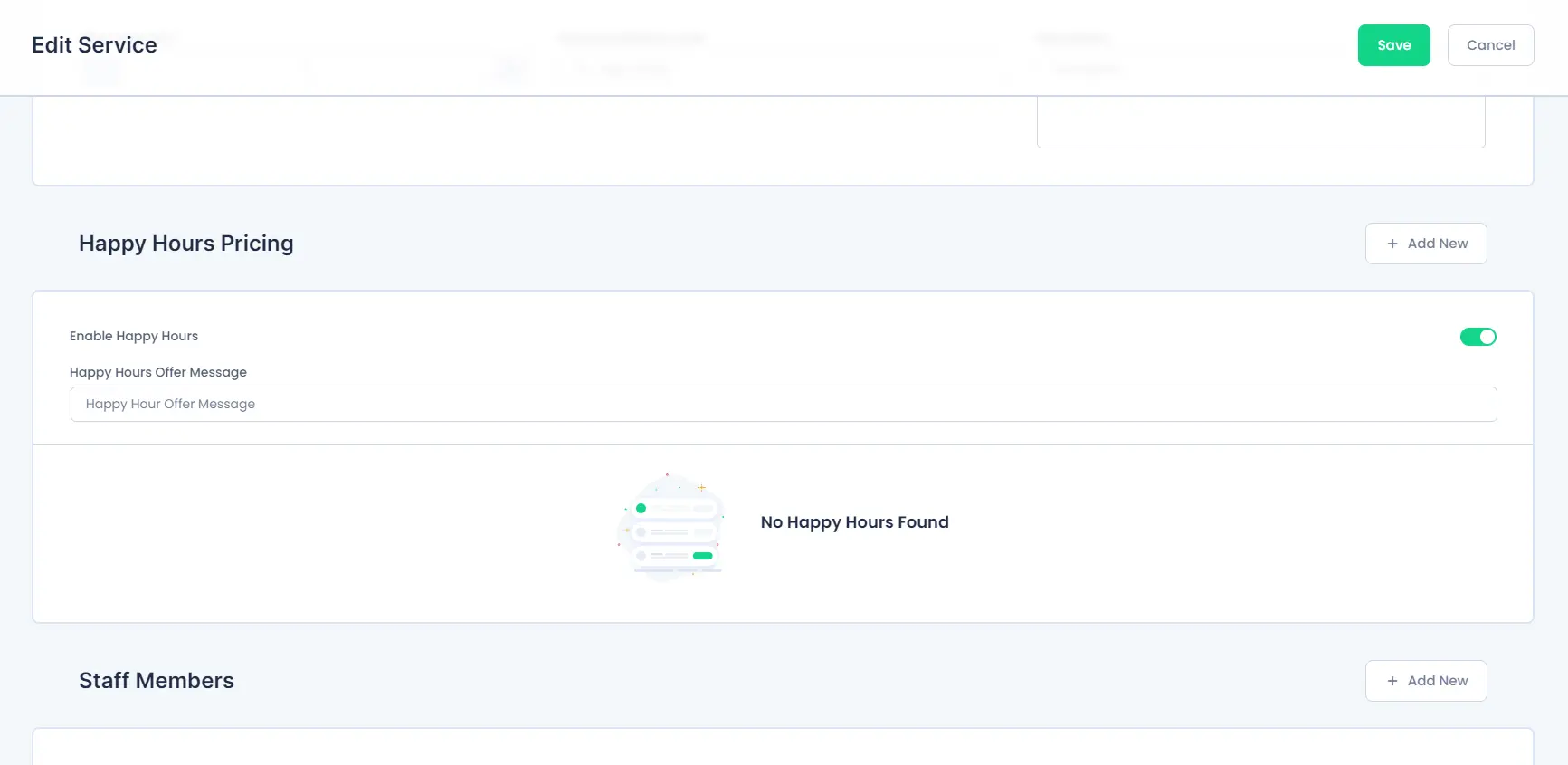
How to Configure Happy Hours In Days?
From the Happy Hours section, click on the Add New button.
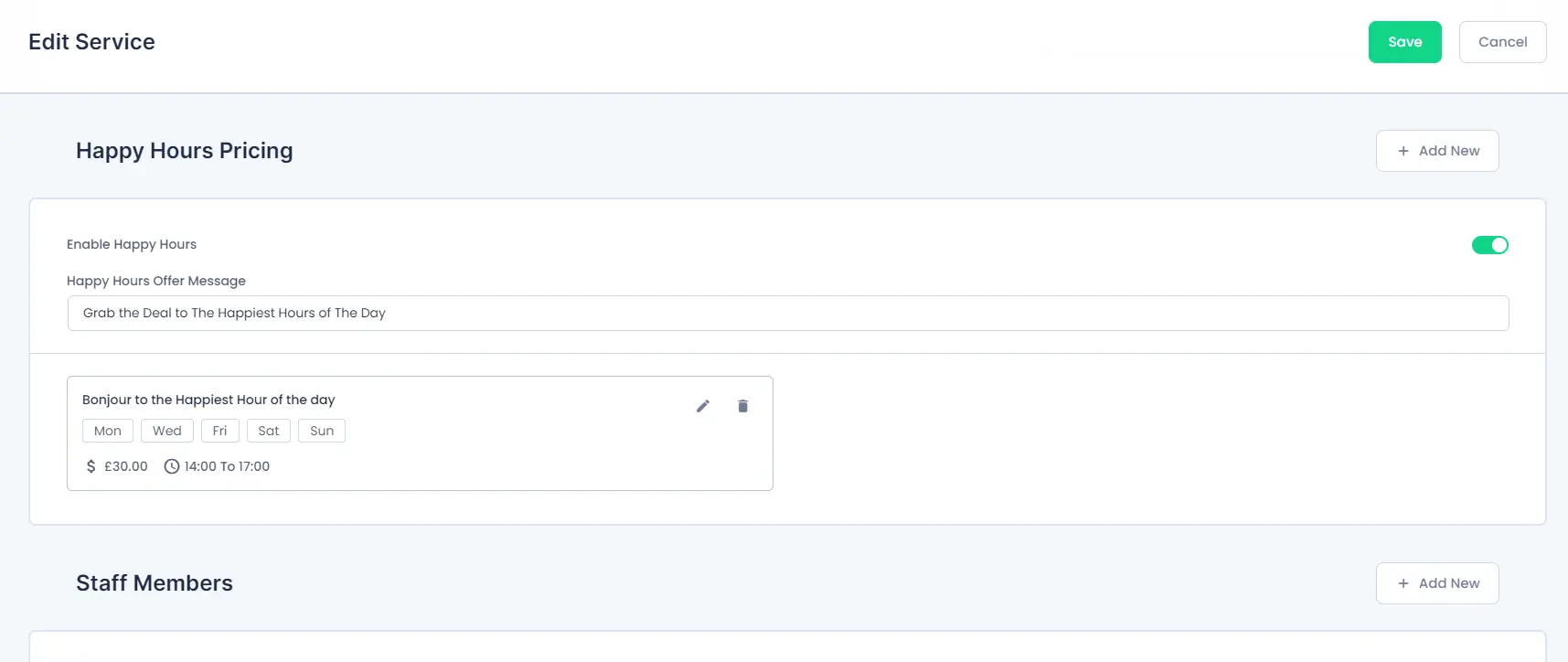
Now set the Select Type to Days and select all the weekdays on which you want to set the Happy Hours.
Now, under the Happe Hours Title set the title for your Happy Hours.
After adding the Title, you can select the Date and the specific time between which the Happy Hours Price will be applied. Suppose, if your Working Hours are set from 08:00 to 20:00 and Happy Hours time duration is set from 14:00 to 17:00, then the price of the Happy Hours will be available starting from the Timeslot of 14:00 and the last timeslot that can be booked with the Happy Hours price will be 17:00. And after this time duration, the original price of the Service will be reflected.

Once the Happy Hours are configured, click on Add the button to add those hours to the service and save the service.
How to Configure Happy Hours for Specific Dates?
To configure the Happy Hours for a specific date, simply set the Select Type to Specific Date, select a date and after that, configure the Happy Hours in the same way as explained for configuring the Happy Hours in Days.
You can add Happy Hours for multiple Specific Dates with unique times for each date as per your requirement.
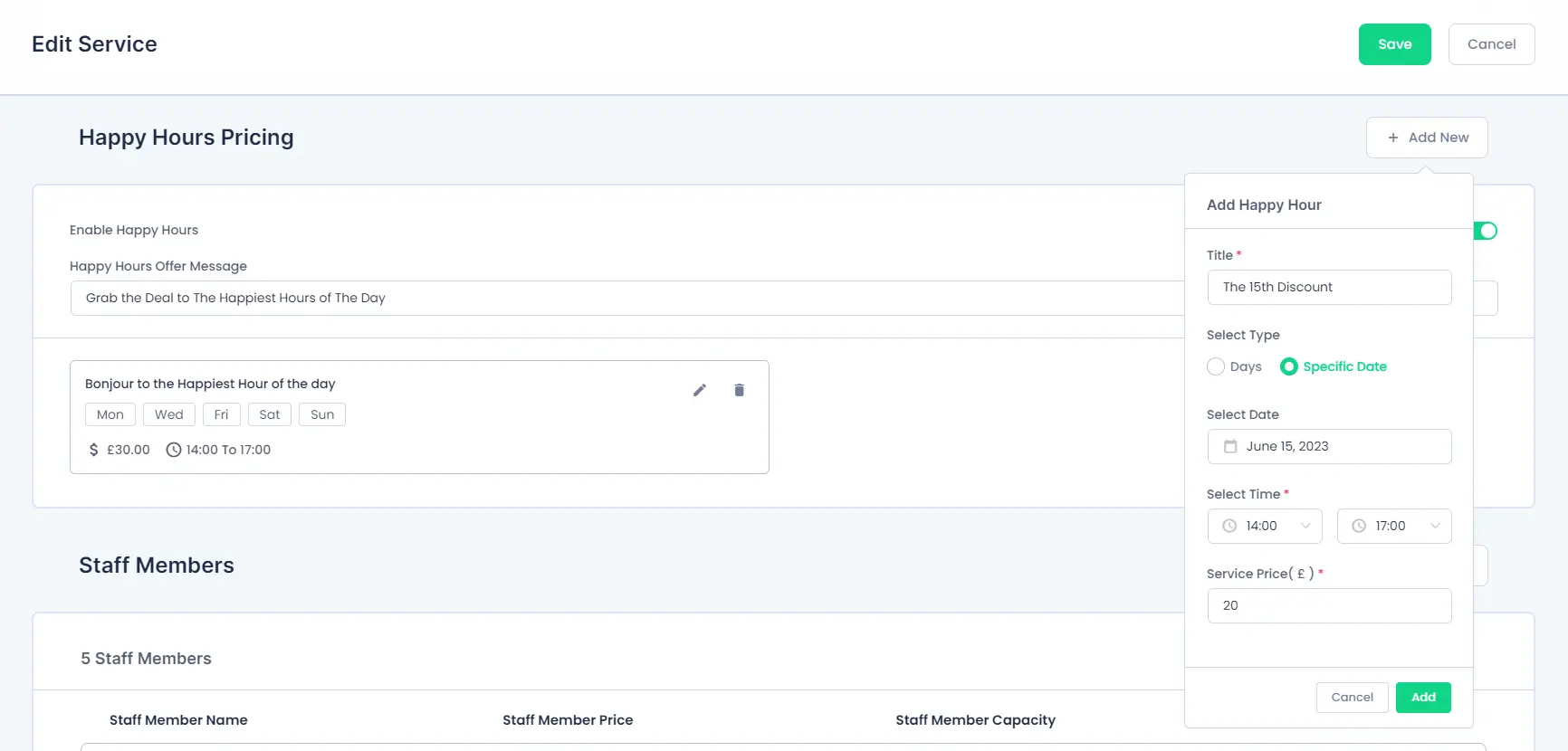
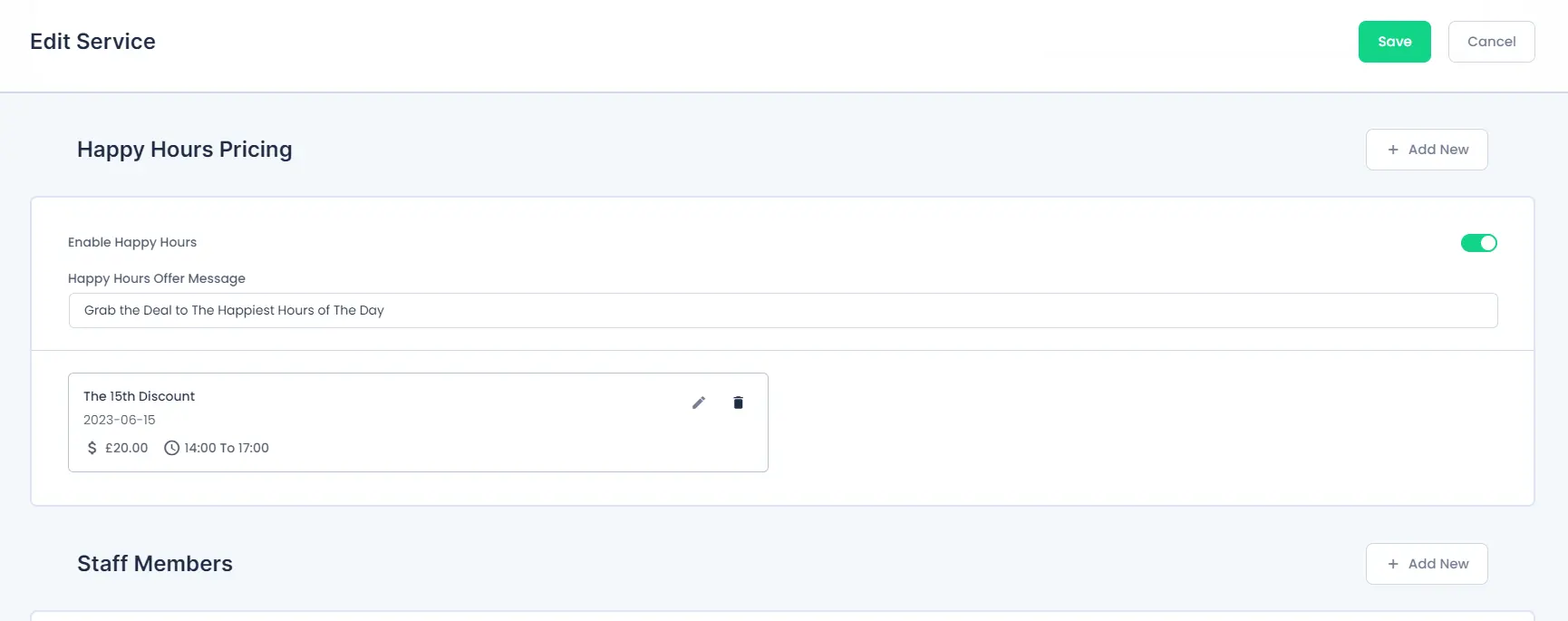
 Note: Suppose if the Happy Hours Pricing is set to $50 for the Weekdays Monday and Tuedays (13:00 to 17:00), and the Happy Hours Pricing is also configured for a Specific Date 26 June 2023, then even though the Days is Monday, the price configured for the Specific Date will get the priorty than the Weekdays.
Front-End View
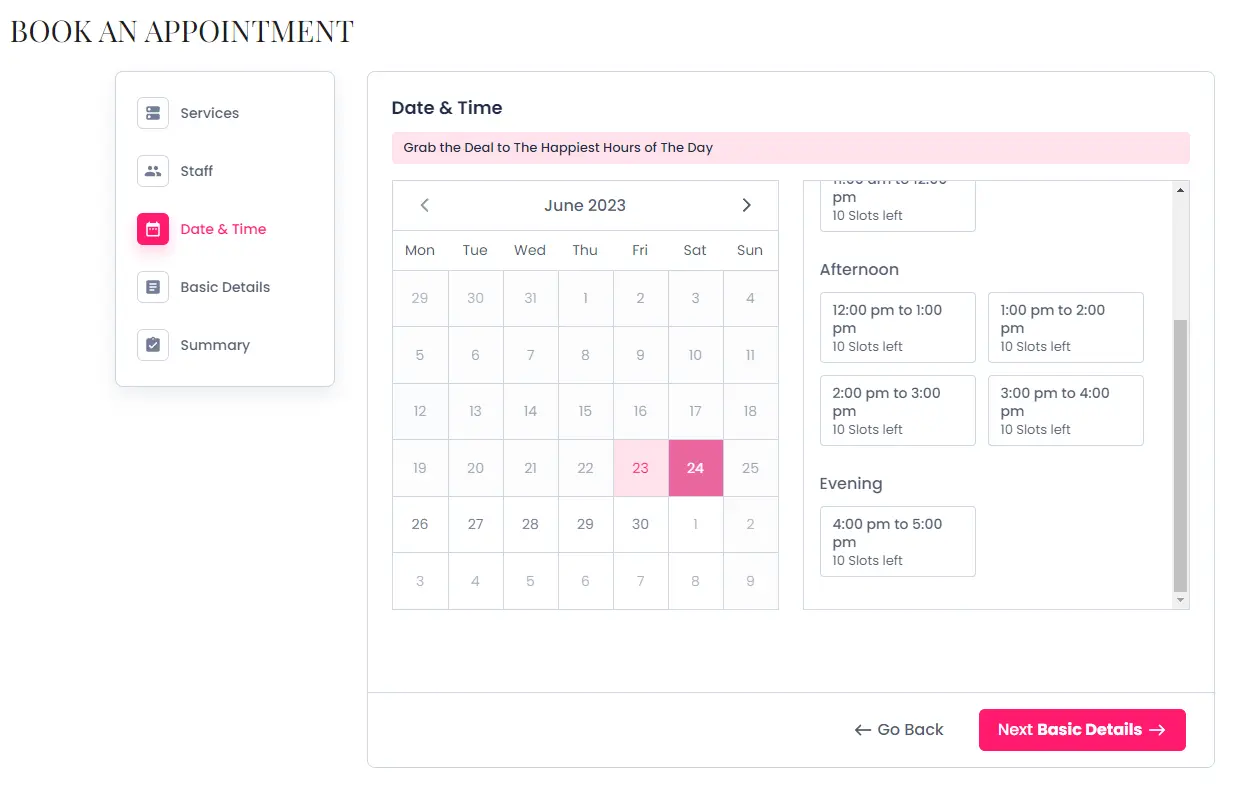
Once the Configuration is Finished, the Customer can view the Happy Hours message in the Date & Time section of the Booking Form, and when the Customer will choose a timeslot that comes within the configured Happy Hours duration, then price of the slot will be calculated accordingly for the Final payment.
 Note: Appointments booked within the Happy Hours cannot be rescheduled.
What will happen if the Custom Service Duration addon is configured with Happy Hours Pricing?
When both Happy Hours Pricing and Custom Service Duration (CSD) are configured for a service, the pricing is determined based on the following rules:
- Happy Hours Pricing applies only if the entire service duration fits within the Happy Hours window.
- If the service extends beyond the Happy Hours window, Custom Service Duration pricing will be applied.
- If the booking starts inside Happy Hours but extends beyond it, most systems (like BookingPress) consider the whole booking as outside Happy Hours and apply the CSD pricing.
This ensures consistent pricing and avoids conflicts between duration-based and time-based pricing.
Example Configuration
Custom Service Duration Pricing
| Duration | Price |
|---|---|
| 1 hour | $150 |
| up to 2 hours | $250 |
| up to 4 hours | $350 |
Happy Hours Pricing
| Day | Time | Price |
|---|---|---|
| Sunday & Monday | 13:00 – 17:00 | $30 |
Booking Examples
- Booking fully inside Happy Hours
- Booking: 14:00 – 15:00 (1 hour) on Monday
- Fully inside Happy Hours window (13:00 – 17:00)
- Price = $30 (Happy Hour pricing applied)
- Booking partially inside Happy Hours
- Booking: 14:00 – 16:00 (2 hours) on Monday
- 14:00 – 16:00 is fully inside Happy Hours window, duration = 2 hours
- Price = $30 × 2 hours = $60
- Booking extends outside Happy Hours
- Booking: 16:00 – 18:00 (2 hours) on Monday
- Only 16:00 – 17:00 is inside Happy Hours, 17:00 – 18:00 is outside
- Since booking extends outside Happy Hours, CSD pricing applies
- Duration = 2 hours → Price = $250 (CSD pricing)
- Booking longer than Happy Hours window
- Booking: 13:30 – 16:30 (3 hours) on Monday
- Booking spans the entire Happy Hours window but exceeds it
- Happy Hours cannot fully cover duration → CSD pricing applies
- Duration = 3 hours → Price = $350 (CSD pricing)
Note :
- Happy Hours is calculated per booking, not per hour slice. Partial overlap with Happy Hours does not trigger the discount.
- If a booking fits entirely in Happy Hours, the per-hour Happy Hour rate multiplies by the duration.
 14-day money-back guarantee